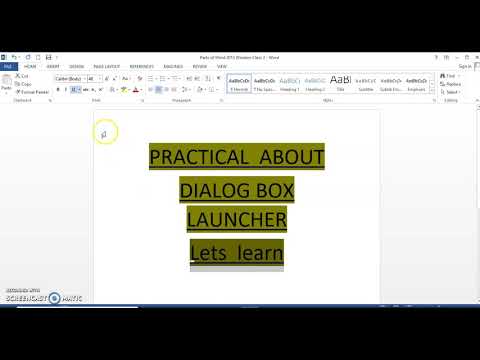
[0:00]class, as I explained you about dialog box launcher earlier with the help of definition and pictorial representation. Now, let's perform a small practical which shows you how to use dialog box launcher.
[0:20]As we know that dialog box launcher offers some advanced options that are not available at the home tab.
[0:30]Okay? For example, I will write a text. I will explain you the help of an example. Let's learn. I want to perform some function on this text. What I will do? I will just select it. Now the feature which I want to apply on this text, I don't want to select from here. I just go into the dialog box. I want to use the feature of my own choice. This is what? This is called dialog box launcher. I will click on it. Then there is a font dialog box appear. As you can see, here you can see the text which I selected to perform function on it. Now, what is my requirement to do function on it? I will choose from here. I will make it italic, bold, and I will make it bold and italic. And I want to make it its size 48.
[2:10]Now, I will just click on it. As you can see, this text will become blue. Okay? So, this is the function of dialog box launcher. Dialog box launcher performs some of the options that are not available at the home tab. If you want to perform some extra work on your text, then you can extra work on your text that are not available in the group of font. What you will do? You will click on the dialog box launcher, and there's come the dialog box launcher screen of font. You can perform and select according to your requirement, then click on the OK. So, this is all for now. I hope you will understand this.


