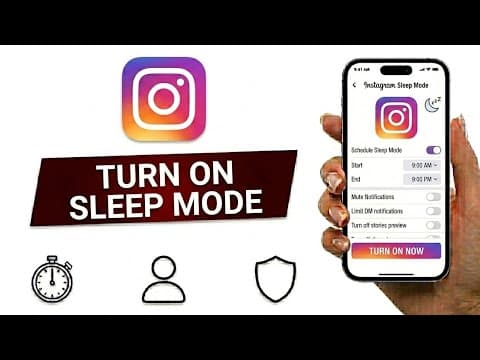
[0:00]want to take a break from Instagram notifications at night or during certain hours? Instagram's sleep mode can help you stay focused by limiting interruptions automatically. Here's how to turn it on. Start by opening the Instagram app on your phone. Once you're on the home screen, tap your profile picture in the bottom right corner. Next, tap the three lines in the top right corner to open the menu. From there, scroll down and select time management. Inside time management tap sleep mode. You'll see a toggle at the top of the screen. Turn it on, then choose the start and end times that work best for you. During those hours, Instagram will limit notifications and let people know that you're currently in sleep mode if they send you a message. And that's all there is to it. Once it's set up, Instagram will automatically activate sleep mode on your schedule every day. If you found this guide helpful, don't forget to like, subscribe and check out more quick Instagram tips and tutorials.
How To Set Sleep Mode on Instagram
SpaceApp
1m 3s174 words~1 min read
AI audio transcription
Transcript source
AI audio transcription
This transcript was generated from the video's audio because no usable YouTube caption track was available. The transcript below is server-rendered so it can be read, searched, cited, and shared without opening the original YouTube player.
Pull quotes
[0:00]want to take a break from Instagram notifications at night or during certain hours?
[0:00]Instagram's sleep mode can help you stay focused by limiting interruptions automatically.
[0:00]Once you're on the home screen, tap your profile picture in the bottom right corner.
[0:00]During those hours, Instagram will limit notifications and let people know that you're currently in sleep mode if they send you a message.
Use this transcript
Related transcript hubs
Watch on YouTube
Share
MORE TRANSCRIPTS


