[0:00]In this video I will show you everything you need to know to manage worksheets in Excel. Let's begin.
[0:09]Right click on the bottom of the screen where both navigating arrows are. You will get a board with all sheets listed on it. Double click on one or select one and click to navigate to the selected sheet. Use the arrows at the bottom to navigate to the right of the workbook and view the rest of the sheets. Adjust the lens of the scroll bar in order to show or hide the worksheets.
[0:39]Double click on a sheet to rename it. Press enter or select elsewhere when you finish. Another method is to right click on the sheet and choose the rename option. You can add any color you want to a sheet. Right click on the sheet and choose tab color. You can choose one of the presets available or set the color criteria yourself. Adding color is very helpful, you can categorize sheets by content or status. Green for example for finished sheets, yellow for working on and red for not yet started, etc, etc.
[1:14]Click on the plus sign to add a new sheet. You can also right click on any sheet and choose insert a new one. This also applies to templates you have saved. Right click, insert and choose your template.
[1:38]Hold control while selecting multiple sheets, right click and delete. The selected sheets will be deleted at once. Select one or multiple sheets, right click and hide. All the sheets will be hidden. Right click again and unhide. Choose the sheets and click okay.
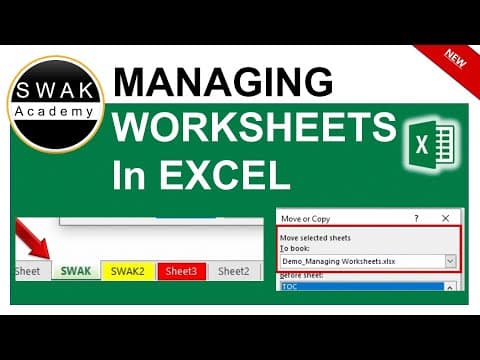
[2:03]Right click on a sheet and choose move or copy. In the first drop down you can choose in which workbook should the command apply. If you have two or more workbooks open, you can select one of them in this list. In the next section you can select before which sheet should the moved or copied worksheet be placed. I always like to place them at the end. And finally, Excel asks you if you want to move the file or create a copy of it and move it.
[2:55]You can edit multiple sheets at once by selecting them while holding the control key. This will group them together. If I insert or edit something on one sheet, it will be applied to the rest of the sheets. This is useful when inserting a table of content or adjusting the format of similar sheets. For example, if you have 12 similar sheets, January to December data.
[3:27]That's it for this video. I hope you learned something new and found what you were looking for. Thanks for watching.