[0:00]This is a drawing tablet, and it's green. It does come in several different colors, but I don't see green very often. and so I thought, I'm getting that one. And now, today, here, right now, I'm going to review it. This is Brad. He likes to review the tech. He also likes to draw, and this here is his theme song. Now, this is not the cheapest drawing tablet out there, but it is the cheapest one that gets my Brad Seal of Quality. That's not really a thing, is it? It could be a thing. Let's make it a thing. The reason I recommend this tablet is because of its size. And to understand that, we first need to talk about how these tablets work. First up, you need a laptop. Windows, Mac, Chromebook, doesn't matter. Works on any of those. You plug it in using the included USB Type-C cord. You install some software to get it up and running. And whenever you draw here on the tablet itself with the included pen, lines show up on your computer screen in your drawing program in front of you. And the pen is cool because it doesn't just leave a boring line, but it can sense how hard you are pressing in on the pen. So if you press really lightly, you get a light line, if you press harder, you get a deeper line, a thicker line, more ink is coming out of your pen. Just like using a real pencil or a real fountain pen. So, I review a ton of these. And I'll link this one down below in the description. And also, it's worth noting, I rank all of the things that I review over on my website. So if you want to get an idea of what else is out there, the pros and cons, it's a good place to check it out. The size, right, I was talking about the size because I like this size. Some of the cheaper XP Pen tablets out there can do the same thing, but the space that you draw in is a bit smaller. Now, since this drawing area matches up with the size of your screen, the smaller the area you have to draw in, the harder it is to like really get in there and do those little details. The larger the drawing area that you're working with, the easier it is to get in there and draw those little details. And I think this XP Pen Deco drawing tablet's area, which is 10 inches by 6.25 inches, is not super big, but it's big enough. And for me, going smaller than that feels just really cramped. It's hard to use. Especially when I'm trying to do things like use my pen to change my brush size, you know, the little slider, or clicking on little icons in the layer palette, those are teeny tiny. This size tablet hits that middle ground really well. And because of the decent price and quality, I can see a lot of folks looking to jump into digital art for the very first time. They may look at this and say this is the goodbye, but I want to throw some cold water on that. Not the idea of taking art, I think that's a great idea. I mean, a lot of people have thought, man, it would be fun to go out and take a nice art class. Actually, I have some of those up on my website, my learn to draw in 60 days course. New lesson every day. Move at your own pace. We get you in there, drawing from day one. I also have my intro to digital art class, so if you're already used to drawing a little bit, but want to learn more about some of the brushes and techniques I use, check that one out too. But drawing is super fun, you should totally do that. The thing I want to throw wet water on is getting a tablet like this. There are tradeoffs here. The learning curve on a tablet like this compared to getting an entry-level iPad or Android tablet or a drawing tablet with a screen, it's a lot steeper to learn here. On one of those other tablets, since you're drawing directly on the screen, you can see where your pencil is leaving a line as you move it around. This is the way we all learn to draw, on paper. Here, because you're drawing in one place and your line shows up in front of you on your screen. Oh man, that could be hard to learn. And I think for a lot of beginners, that could be really discouraging, and I'm talking from experience because the very first drawing tablet I got, it was a Wacom tablet years and years ago. Very similar to this, and when I started using it, I thought, oh, why can't I draw with this? It takes a lot of practice. That's why I tend not to recommend tablets like this to say parents who are shopping for their kids who are really into art and want to get into drawing on a computer. But at the same time, a basic screen tablet is going to cost you four, five, maybe six times as much. So, if you're willing to go through the learning curve, then, yes, this is a great place to start. And it's worth noting a lot of pro artists use tablets just like this. Some of the best artists in the world swear by tablets like this. The advice I got from one of my friends who uses a tablet like this exclusively is to unplug your mouse. Use this as your mouse, as the way you navigate around your computer for an entire week. Really force yourself not just to draw on it, but to become a power user with the tablet. And over the course of that week, you're just going to get more and more familiar with it, and drawing is going to become a lot, lot easier. So, with that out of the way, let's talk some specs. This is a battery-free stylus with a whopping 16,000 levels of pressure sensitivity. Do you need that much? Heavens no, but it's here. This pen also has 60 degrees of tilt, so if you have a drawing program and a brush that lets you draw with like the side of your pen, maybe pencil shading or something like that, you can do that here. I've found the pen to be nice and responsive. Now, one of the things that XP Pen does well is light presses. It activates with just a tiny amount of pressure when the pen hits the tablet. It's also worth noting that this pen handles pressure really well. It doesn't blow out anywhere on the pressure curve or do anything funky or weird. There is some digital line wave here that's happening on slow angled lines. That's kind of what I've come to expect with XP pens products. It's one of those things that you can get rid of if you have some software that has like a stroke straightener in. That's only really if it's affecting what you're drawing. Often times with these tests, I detect the wobble, I detect the wave in the line. But if you're not seeing it in your day-to-day drawing, it's not something you should worry about. Here, it's pretty slight. Now, since this is a more inexpensive tablet, it doesn't have all the features and amenities that maybe some of the other tablets in this category have. For example, this isn't a wireless tablet. It's definitely going to have to be wired in at all times. There's no Bluetooth, there's no dongle, there's no features like that. This works on Windows. It works on Macs. It works on Linux. It works on Chrome OS. It works even on Android phones and tablets. It's actually a pretty nice Android experience. So, if you're looking for a tablet that you want to use to draw on your phone, this is a pretty good one. Now, a lot of those Android apps are designed to be used with touch, but it's not a big deal. You draw with your hand on the tablet, and then every so often, you may have to go over to your phone and like pinch and zoom and move in and out and that sort of thing. Maybe use two fingers to undo, but it works pretty well. We also have some buttons along the side of this. These are called Express Keys, and they are totally customizable, at least if you're on Mac or Windows. Not so much on Android and Chrome. The software that you install to get these tablets up and running lets you change those keys to different things. You may set one of those buttons up so it will be like your undo button. You may set another one up to be an eraser, another one to be your brush, so you can kind of toggle between those things easily. Maybe another one makes your brush bigger, another one makes your brush smaller. These are customizable, and you can set them up to do whatever makes you comfortable when you're drawing. I mentioned the drawing area here is 10 inches by 6.25 inches. The tablet itself is bigger. It's a little bit taller than like a standard 8 and 1/2 by 11 piece of paper, so we've got 14 inches by 8.8 inches wide, and it weighs a little over a pound. So, it's pretty portable and easy to just slide into any laptop bag with you. In the box, we also have this little squarish thing. This is for resting your pen on. It's just a basic pen holder. Now, I like a nice scratchy surface on my tablet, similar to what you might find on like the Intuos Pro that Wacom puts out. This doesn't have a super scratchy feel to it. It's a little bit smooth. It's okay, it's fine to draw on, but it's just not that scratchy surface that you find on some of these tablets. Now, XP Pen must have known this because they've included like a scratchier surface in the box. This thing just gets placed directly on the screen, and there's this little tab along the top that's kind of sticky, and so it kind of adheres to place. It's a little bit strange. Like, why would they only put the sticky stuff on the top? Why not the top and the bottom? I don't know. I've never seen anything quite like this and it flaps around. It's not the best implementation, but if you are looking for that scratchy surface, they do provide something here. Another thing that's going to wear out over time are your pen nibs. Those are the little plastic pen tips that come at the top of the pen. This is going to happen to you a lot, especially if you draw hard. Now, this comes with eight replacement nibs. That's enough for me. It'll last, I don't know, about four years. I go through two nibs a year. I'm not a super hard presser of the penner type guy. You can buy more nibs. They sell these things all over the place. They are super cheap. And I have seen some people say that they blow through these nibs really quickly every few weeks, so your mileage may vary. So overall, the pros, good price, good pen, big enough live drawing area. The cons, there's some line wobble here in certain circumstances with the pen, and it lacks some of the amenities of its price your brothers and sisters, like Bluetooth and better ways of storing the pen when you're traveling with it. But I think those are pretty good tradeoffs when we're talking about the price here. And that is what makes this the cheapest pen display that I recommend. What do you think? Let me know down below in the comments. Thank you for watching the video. I'll talk to you in a couple of days.
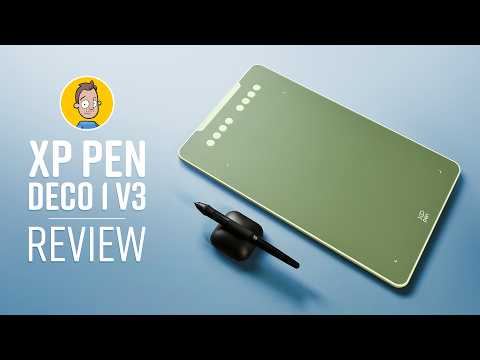
The Cheapest Drawing Tablet That I Recommend - XP Pen Deco 1 v3
Brad Colbow
9m 19s2,047 words~11 min read
AI audio transcription
Transcript source
AI audio transcription
This transcript was generated from the video's audio because no usable YouTube caption track was available. The transcript below is server-rendered so it can be read, searched, cited, and shared without opening the original YouTube player.
Pull quotes
[0:00]Now, this is not the cheapest drawing tablet out there, but it is the cheapest one that gets my Brad Seal of Quality.
[0:00]And whenever you draw here on the tablet itself with the included pen, lines show up on your computer screen in your drawing program in front of you.
[0:00]And the pen is cool because it doesn't just leave a boring line, but it can sense how hard you are pressing in on the pen.
[0:00]So if you press really lightly, you get a light line, if you press harder, you get a deeper line, a thicker line, more ink is coming out of your pen.
Use this transcript
Related transcript hubs
Watch on YouTube
Share
MORE TRANSCRIPTS


