[0:00]How to set up TP-Link Dual-Band Wi-Fi 7 Router. Connect the hardware. Step 1. Turn off the modem and remove the backup battery if it has one. Plug in an Ethernet cable to the modem. Step 2. Connect the modem to your router's internet port with an Ethernet cable. Step 3. Power on the modem and wait for about 2 minutes for it to restart. Step 4. Connect the power adapter to the router and press the power button to turn it on. Step 5. Wait until the LEDs are solid on. Set up the network. Launch the TPLink app and log in with your TP-Link ID. Tap the plus button and select Standard Routers. Check your LED status and scan the QR code on the router's product label to connect to its default Wi-Fi. Follow the app instruction to continue the setup. Create a password to access and manage your router. Select the connection type according to your actual conditions. Here we use Dynamic IP as an example. Set your network name and password for all bands. If you want to set different network names and passwords, disable Smart Connect. Enable auto update for your router to automatically install the latest firmware. Confirm and apply your settings. Connect to your network. Tap Finish to complete the setup. Now enjoy the internet!
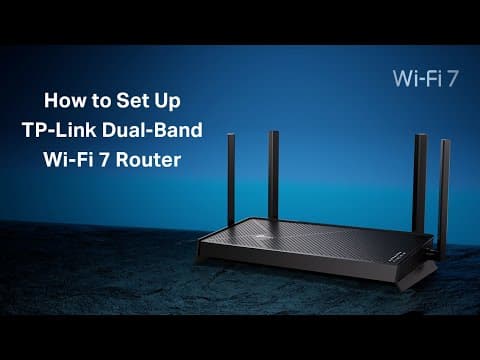
TP-Link Dual Band Wi-Fi 7 Router Unboxing and Setup on the Tether APP
TP-Link Global Support
1m 45s222 words~2 min read
AI audio transcription
Transcript source
AI audio transcription
This transcript was generated from the video's audio because no usable YouTube caption track was available. The transcript below is server-rendered so it can be read, searched, cited, and shared without opening the original YouTube player.
Pull quotes
[0:00]Connect the power adapter to the router and press the power button to turn it on.
[0:00]Check your LED status and scan the QR code on the router's product label to connect to its default Wi-Fi.
[0:00]If you want to set different network names and passwords, disable Smart Connect.
[0:00]Enable auto update for your router to automatically install the latest firmware.
Use this transcript
Related transcript hubs
Watch on YouTube
Share
MORE TRANSCRIPTS


