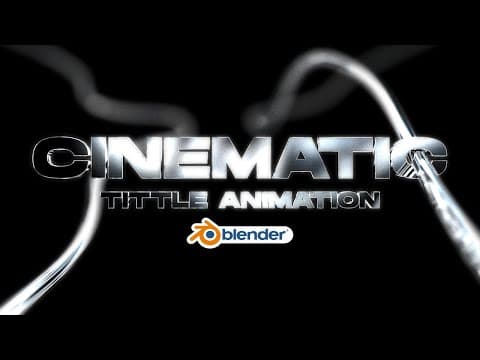
[0:00]Yo, what's up guys? It's your boy Kaz. And in today's video, I'm going to be showing you how to do a quick cinematic logo animation in blender like this one. All right, so just to let you guys know, the project file will be on my Patreon, so link and bio. Um, but that being said, let's jump right into the video.
[0:26]All right, so uh here in Blender, uh I already got rid of my defaults. We're going to go ahead really quick and you can either uh bring in a logo through an SVG, um or you could even type in any type of lettering here and uh add any font and whatever you want to do to that, right? In my case, I'm going to bring an uh a logo, an SVG, so uh SVG import SVG and uh look for your logo. In this case, I'm going to scroll down a bit. And so I have a couple logos here. This is the one that I used for the this is the one that I used for the preview. So I'm going to go ahead and leave this just right there for now. So really quick, what we're going to do is we're going to set origin to geometry and that's going to do is it's going to allow the uh logo or each individual shape to rotate rotate on the uh on the center. So uh really quick, we're going to also go ahead and make this a bit bigger and uh move it on the x-axis, make sure it's centered. Uh and what we're going to do now is we're going to select all these uh shapes right here, control J and uh unite them. So now it's just one one shape by itself. Later on, we're going to go ahead and separate them, but on the meantime, we're going to do it this way. All right, really quick, I'm also going to take a quick break and let you guys know that I'm going to be announcing something pretty cool on my uh Instagram. So make sure you head over to my Instagram, Cosme co Art, Cosme co Art, um, follow me and uh stay tuned. All right, so again, back to the video, uh, we have now all these individual shapes, which again, if you have a logo or whatever the case might be, uh, you'll have uh to unite them all, all the different shapes. Again, the less shapes you have, I think the better it is, the easier it is to animate. But another quick thing you want to do is just do keep in mind, that animation that I did, of course, I did, I, I thought about it, and I found ways. So based on whatever logo you might have, you want to you might want to think of different ways that it could be animated and look cool. So in this case, I'm going to be showing you right now, right? This is I'm going to show you the animation part right now, but let's just set it up. So really quickly, we're going to go to our object data property, go to geometry, extrude it a bit. I don't want it to be too thick, so maybe a little less, somewhere around there should be pretty cool. The only reason why I I joined all the different shapes was because if not, I was going to have to adjust this for each one individually. So I'd rather just unite them, do that, and then later on, I just separate them, which I'll show you how to do that as well. It's a good thing to do to know how to do for future projects. So All right, once you have this, um, you want to also bring up the depth on the bevel a bit, 0.001. Uh, this is literally just enough to get the nice little, um, edges around your objects to look a bit more shiny, so that way when you do add, um, when you do add any type of roughness material like low roughness, shiny material, you'll have those nice little shine on the edge that would look cool. Especially for this, we're going to need it since we're going to use a nice little chrome material, whether you use gold or whatever the case might be, you'll have that nice edge around your object, and I think it's pretty cool. So, do keep that in mind. All right, so once we have this, what we're going to do is we want to go ahead and convert this into a mesh. And now to separate this, what you want to do is literally just go to tab to to go into edit mode, uh, go to three to face select, and we want to go ahead and select our shape like so. So now that's one, that's one of my shapes. So P and then separate by selection, and that's separate. And then do the same thing for the O. So make sure we select the whole thing by clicking on on L, P selection, and then I'm going to go ahead and spit this up, but I'm literally going to do the same thing for all the different letters. All right, so now that all my letters are separate, as you can see, there, they all will move on on the on that X axis right there, on that on that point. So we don't want that. So to do to get rid of that, what we're going to do is we're going to select them all again and then set origin to geometry, and so now they're all going to have their uh, their own origin point, as you can see, in the center. All right, so now that we have this, what we're going to do is we want to go ahead and create a curve using this outline. So to do that, what we're going to do is we're going to go ahead Shift A add a quick uh Bezier curve. And so the only reason why I want to do this with a curve is because just like on that preview that I showed you guys, when I have this turned into an outline like this, I want to be able to go here and animate it like so. As you can see, it'll start and end like so. So to do that, what we're going to do is we're going to make sure we replicate this outline with this curve. And the only reason why I don't use it with this curve is because for some reason, it won't allow me to do it with that. If you guys know how to fix that, let me know down below, but I'm pretty sure there is no way to work around that other than just creating your own Bezier curve. Another thing that I've noticed that you can't do is if you have these filled in like so, so they they pretty much closed, there there's no like end or beginning. I mean, yeah, like start or or ending, uh, if you try to animate it as well, it won't work. So what I found a way to to, you know, make it work. And so here it is. So, we're going to go really quick and go into top view, click on number seven on the numpad. By the way, really quickly, let me know if you guys like this type of videos where it's like how to create a specific project. And it's a very long video, so these videos usually taking about like 20 to 30 minutes to get them done. Uh, so they're about that long. Let me know if you guys rather have those step-by-step tutorials or if you guys want just quick overview of like very specific projects. But anyways, we're going to make this small. Uh, we're going to bring this somewhere around here. Go into edit mode and so now we're going to go ahead and place this point. I want to start somewhere up here. And then place this point right here. So this is almost like using the pen tool, but instead it's just a curve that you got to go ahead and edit. So, by the way, when I click on these points, you could either G to grab them and move them or rotate, and it'll rotate the point. So I'll say somewhere around here should be cool. And then this one, uh, we want to move it somewhere around here. And then this somewhere down here.
[7:25]And again, it's still having the same, we're still having the same problem where we move this one, and it's affecting this other point, this other anchor. So to get rid of that again, click on your point, V free, and uh now we'll be able to move this one point right here, and the other one is going to remain in its position.
[8:14]So I'll say somewhere around there should be pretty cool. I think that works. And then select this one again. Move it up. Let's move this back a bit more. Boom, right there, okay? So now, we're going to go ahead and select this one, and uh we're going to need that to be set into free. So We're going to eat Once you select that, once you select this one point and make it free, and you now extrude it, all the points are going to be now free, as you can see. They move on its own individual shape, okay? So just keep that in mind, So if you need it to be aligned again, all you got to do is select your point, select your point, and uh set it to automatic, and now again, it'll be automatic. It'll move, okay?
[9:00]So keep that in mind, that's something to to know. Uh, so let's go ahead and move this right here, and then this one point right here, this one point right here, we're going to move it up a bit. And so literally, I'm going to do this. I'm going to do this for the whole outline. So I'm going to speed this process up, so so it makes the video a bit shorter. But you get the point, just go do that, and I'll see you guys on the other side.
[9:31]All right, so right here, we're pretty much we're pretty much almost done with the uh with the outline. So what we're going to do, again, don't don't do this, don't don't fill them up, cuz we're not going to be able to animate the uh the These uh perimeters. You're not going to be able to adjust these uh numbers over here, the beginning and the start, like right here, you're not going to be able to do that if you join them. So
[19:18]So All right. My fault. I didn't I didn't insert the keyframe for the for the location. So move this back again and uh on the Y axis -360. And uh make sure these keyframes are selected.
[20:00]And now if we move them like so, boom, it locks in perfectly. And then for our circle, we're going to insert a keyframe for the location, rotation and the scale since I want this to also be scalable. We're going to go to frame number one, we're going to make this Let's not change this yet. Let's do a 360 right here. Insert that.
[20:25]And then this, we're going to go ahead and zero and then insert those keyframes. And if it plays, as you can see, boom, it connects right there perfectly. And this is pretty much what I what I'm looking for. All right, we're pretty much 30 minutes into this animation right now. Which is pretty crazy. But um All right, so another thing I forgot to do was we didn't add we didn't add a keyframe to the zero.


