[0:03]In today's video I want to show you my tablet setup. At the end of the video I will show you how to customize like yours in right now and also another surprise. One of the most important parts for me is the web browser. In my case I prefer to use a couple of them. I use Google Chrome because I have my Google account linked. I use Firefox because I like to have another option rather than Chrome, and for my daily use I use Kiwi browser. I like this browser because it's possible to install all the extension that are available for Google Chrome. If we go to extension, we can see that I have installed a couple of them. And also we can install any extension from the Chrome Web Store. So I highly recommend you download, for example, UBlock Origin. This is one of the best ad blockers for your web browser even in your desktop PC. And apart from the extension, we can also enable the desktop mode by default. If we come here, we can see that it is enabled the desktop site, so you can leave this option enabled and you will always look for anything like if you were in a browser. For example, let's look for GitHub and you can see that I have the desktop version of the Google search instead of the mobile version. If we want the mobile version, you can just click on this and you can see this is the normal behavior of a mobile browser. But in my case, I like to have the option to use this like a normal browser, like a computer browser. Apart of the browser, I like to have some good option to use my tablet like a computer. So one of the most important things is the file explorer. In my case, I use Solid Explorer, this is a paid application. It's not free, it cost me around three euros or so. And you can see this is very handy because we can have two windows at the same time. So if we click here on Android, we can go to my SD card. And if we click in this part to internal memory, we are inside the Android storage. Also you can connect remote servers, like for example, I have my Raspberry Pi server with some HDD connected. In my case I have four HDD in total 10 terabytes, so I can access all that hard drives just from my tablet. So I can go to any of the drives and just handle, for example, all the movies I have in my Plex media server. Also I will show you in future videos how to create a Plex media server like I have. For example, if we go to the Plex application, you can see that I have a bunch of movies downloaded. And I can share this from my local network to some friends, for example. Coming back to the file explorer, I like this because you can basically create any type of files, create new folders, copy from your local tablet to your hard drives in the network or whatever. So I think this is the best available file explorer that is available in the Google Play Store. As I said, it's paid. If you want to look for it, you can look for Solid Explorer. And this is the one I'm talking about. You have a trial of a week in case you want to test if it works for your needs. And I highly recommend it. If you don't want a paid file browser, also I recommend you Google files. This is free and it's also very handy. You have your internal storage, you have your Micro SD card, but for example, you cannot connect this application to remote hard drives like I can do in Solid Explorer. Apart from that, if you want a real computer, you need some kind of application to uncompress the files. You can uncompress files with Solid Explorer, but some of them are hard to uncompress. So I highly recommend you R. This application is free. Although you can support the application by paying a little bit, but you can just use this for free. You can compress or uncompress any type of R, 7Z or any type of file. And this application works really good, so I highly recommend you. And this is the application in the Google Play Store. Also you can use this one, I think this is highly recommended too, but I like to use just R. Apart from that, I also use AnyDesk. This application is to connect remotely to my local computer. And if you want to edit files, I have here several applications. The first one is Xodo. Xodo is a very good application to open, edit and view PDF. This application is mainly for PDFs. If you have a pencil, you can draw or if you don't have a pencil, but you want to annotate whatever, you can click on the text and write here whatever you want. You have several premium options, you can see that here you can pay. But I will show you also at the end of the video with the customization I will show you a little trick on how to enable certain features in some applications just by downloading older versions. But you need to wait until the end of the video. And as I said, this is the best application for me to manage PDFs. You can have several of them open at the same time. And as you can see, you can move from one to another just with these tabs. And you can close, you can open, you can export or save the PDFs or whatever you want. Apart from PDFs, if we want, for example, to open Excel files, I discovered these SoftMaker applications, and these are really good. As you can see, it's very similar to Excel, like the Microsoft application. You can use Microsoft applications, but the problem is if you use them in a tablet, I think if the tablet is larger than 8 inches, the application cost a lot of money. So for that, I highly recommend you this application. This is for Excel files, but we have also for presentations, for PowerPoints, basically. You can use this like a computer. You can select the text, you can change the font, you can put it in bold, in italic or whatever. So again, this is one of the best applications for modifying PowerPoint. And to finish, if you want to modify Word files, you have this one. I will leave the links to all these applications in the description of the video, so you can check all of them. But if you want to look for them in the Google Play Store, you can look for SoftMaker. And as you can see, these are the three applications I show you. And as you can see, they have very good reviews. So apart from that, you can see that I use WireGuard. This application is to connect remotely to my VPN server. I have a VPN mounted with a Raspberry Pi, I can show you in a video how to mount it. Also I use Notion to manage the channel. And Bitwarden, this is my password manager. Apart from that for my media consumption, I use YouTube, but you can see that I have two YouTube applications. And you can look in the internet for this. I cannot talk more about this because I uploaded already a video about this application, and YouTube gave me an strike, so I cannot talk more about this, but you can ask in the Discord channel. And with that, you have a very good YouTube application. As you can see, I couldn't open the application, this is because we need microG settings open first. And after that, you can open it without any problem. So again, ask in the Discord if you are interested because this is a very good mod. Apart from that, I highly, highly recommend you NewPipe. This application can be found in his page. So if we go to the internet and we look for NewPipe, you can download this application from this link. And with NewPipe, you have the opportunity to download videos or put them in background. If we click in background, you will put the video in background, like it was a song. As you can see, if you click on pop up, first you need to enable the permissions for that. Let's look for NewPipe, let's allow this. And now if we click on pop-up, you can see we have the pop-up window. And if we want to close this, we can close the app. And also, check this out. We have the opportunity to download a video in audio or in video as you prefer. You can click on download and if we go to download, you can check here the process. Apart from that, I use the Gmail application. And I also recommend you checking Proton Mail. It's a very secure mail. It's free, so I highly recommend you that. And to finish with the multimedia apps, as I said, I use Plex for my multimedia server. And I recommend you VLC to open any kind of video or music file in your Android device. So with VLC, you can reproduce almost any type of movie or any type of MP3 or song. And you can select, for example, subtitles, different audio tracks and etc. So I think this is the best application for multimedia. Now, if we go to the gaming part, you can see that I have a lot of applications. What I recommend you from here is checking my production list for all the game emulators. Like the 3DS emulator, the PS2 emulators, the Game Boy emulator or the Switch one. And I have a very good video on how to customize your Android device to be used like a handheld console. So you can use emulation station or you can use a free front end like Digishoe. And you can see that here we have all the games with his art box and everything. Also, I highly recommend you checking Retro Game Corp's YouTube channel because he has very good videos about emulation on Android. Also, apart from emulators, I just play a bit of Zenless Zone Zero, Honkai Star Rail. And lastly, I have playing Wild Rift. This is basically the League of Legends game for your Android device. And now we can go with the customization. This icon pack is called Linebit, it's this one. This is a premium application, it cost like one euro or so, but I think the icons look really good. And also you can have some wallpapers, so if you like any of these, they are included with the application. But to have this live wallpaper, what I use is Wallpaper Engine. This application is in PC, you can download it from Steam. It is a paid application, it costs like three euros, and we need the desktop application installed on our computer. So from the computer, we are going to send the different wallpapers to the tablet. To use Wallpaper Engine, first we have to download the application from the Google Play Store, as you can see right now. Then we have to go to the computer to Steam and buy the Wallpaper Engine application. As you can see, it cost 4 euros. And after we install, you just need to open it. When you open it, you can look for any wallpaper available on the workshop. You can type different keywords to look for any type of wallpaper. There are a lot of wallpapers available. And if you want one in particular, you can just click on the wallpaper, click on subscribe to download it. And then in this tab, you can find the one that you have downloaded. So if you want to send one to your device, you will just need to right click and here you can find send to mobile device. If you find this message, you can just click on one of these options. For example, let's put it in high resolution. And you can see that in the application, the new wallpaper appears. So you can just click on the button and apply. And if we go to the home screen, you can see the wallpaper. If it is the first time you use the application, you have to connect it first with your computer. For that, you can click on the add part and pair with computer. You will see that in the wallpaper application from the desktop PC, you will find a code that you have to enter here. Just click on accept. So now you can send a wallpaper from your desktop PC to your mobile device. And now I want to show you another customization. So let's apply this one, called Wise Wolf. And now we are going to modify the icon pack, so we can have a white icon pack. For this occasion, we are going to use Whicons. This is basically white icons. And we are going to apply to Nova Launcher. We are using Nova Launcher here and now, as you can see, we have all the icons in white. If you look here, or if we open the applications drawer, we can see that some apps are still in purple, but if you want to modify with Nova Launcher, you can just hold the application, click on edit and change the icon. And now, if we go back, we have the same icon as the other Proton Mail application and they are in white. So finally, this is how I have been using the tablet recently. I love this icon pack with this background. I think it is very cool. It's a bit weird that everything is white and you cannot see colors until you open an application, but I feel like this theme for the night is very comfortable. And now to finish with the video, I just want to show you a couple of applications that I use quite a lot. Just for reading. We have ReadEra, you can also look for it in the Google Play Store. It is free, it's this one, or you can buy the premium version. But with the free one is more than enough. And this application is very good to read any kind of electronic books. And I like to use this application to read manga. You can put this in the white mode. Or you can go to the setting and change, for example, the colors, different type of filters. But I like to leave this like a normal manga. And apart from the colors, you can change a lot of different settings. And of course, I also like to use Kindle. You need an Amazon account, but it is free to use and you can send your digital books or your PDFs to your Kindle account. So you can have other books that are not bought from Amazon in your Kindle application. And in general, I think these two apps are the best one for reading in general. In case you have a tablet with a pencil, I want to show you also TouchNotes. This application I think is one of the best application available for taking notes. You can see that you can open a new file, you have several pages or you can create an infinite page. And as you can see, we have pressure sensitivity. You can have a lot of different tools, for example, different colors of pencil or markers or whatever. You can buy the pro version, but with the free version, I think it is more than enough. You can have multiple documents, you can open PDFs, you can write in any type of file. As you can see here, you can create folders, and inside that folder you can create multiple pages or multiple notebooks. When you create a notebook, you can select the type of the page, for example, I'll put some dots. You can select if you want an A4 size, an A5 or whatever. And I think this is very complete. And now to finish with the video, I want to show you a little trick. For example, when I edit videos, I use CapCut. But recently, they have added a lot of functionality that was free and now is premium. So if you want the older version of the application, you can go to your browser, let's use, for example, Kiwi. And here, write the application name, in this case, CapCut, and UpToDown. Let's click on the first link. And here, we can click on other versions. In this page, you can see that there are a lot of older versions, so you can select an older version, install it. And please don't update it from the Google Play Store. So you can have the older version with all functionality. This same trick applies to Windows version of CapCut or other type of programs. And also, for example, with Xodo, the application that I show you for opening and editing PDFs.
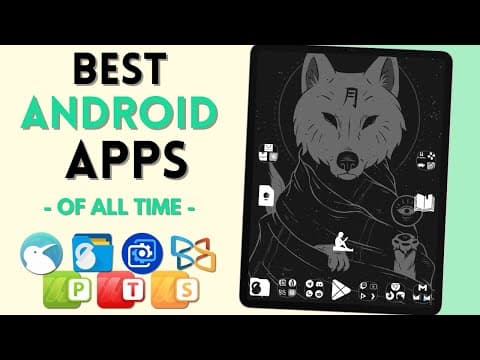
🔥 UNLOCK the FULL POTENTIAL of your ANDROID with these Must-Have Apps 📱
DroidMaster
15m 38s2,910 words~15 min read
YouTube auto captions
Transcript source
YouTube auto captions
This transcript was extracted from YouTube's auto-generated caption track. The transcript below is server-rendered so it can be read, searched, cited, and shared without opening the original YouTube player.
Pull quotes
[0:03]At the end of the video I will show you how to customize like yours in right now and also another surprise.
[0:03]I use Firefox because I like to have another option rather than Chrome, and for my daily use I use Kiwi browser.
[0:03]I like this browser because it's possible to install all the extension that are available for Google Chrome.
[0:03]This is one of the best ad blockers for your web browser even in your desktop PC.
Use this transcript
Related transcript hubs
Watch on YouTube
Share
MORE TRANSCRIPTS