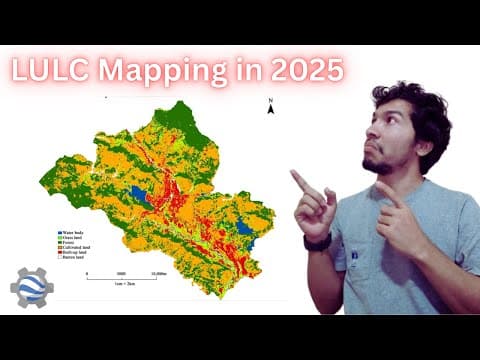
[0:00]Alright guys, welcome back to the another video. In this video, I'm going to show you how to create the land use land cover map like this, which is the Pokhara region with seven classes.
[0:16]And of course, if I like reduce the opacity, it's quite perfectly matching with the Sentinel 2 imagery.
[0:24]So if you want to know how did I create this map, watch this video till the end. So let's get started.
[0:32]Alright, so first thing first, uh, in most of my video, I try to create the outline first, and then after that, I'll add the code and explain it and then show you how, uh, how to do the accuracy assessment and how to do the other additional things.
[0:52]So here, uh, in this easy five steps, so I'll show you like how to uh, create the land use land cover map with seven different classes, and also I'll show you how to do the accuracy assessment.
[1:09]And most importantly, uh, I have seen lots of tutorials, they talk very less about like creating training data set.
[1:17]In this particular tutorial, I'm going to talk focus more on like creating training data set, how to create the good training data set and what to include and what not to.
[1:31]So yeah, this is my outline. Um, first thing first, so I'm going to like select the imagery for that, I'll select Sentinel 2.
[1:46]Or maybe, uh, the harmonized, I can directly search like that.
[1:50]So basically, uh, the purpose of selecting Harmonized Sentinel 2 MSI data set is, since it's available from 2015 and then it's the radiometric corrected, uh, data set.
[2:07]And also after 2022, so they have some changes on their um, sensor, so it automatically adjusts that new value and then it particularly very useful, uh, for the for the land is land cover analysis.
[2:25]So basically, I'm simply going to import this data set and then filter it based on my need.
[2:35]So maybe I can paste some code over here and then try to explain. So first of all, um, I am selecting this data set.
[2:42]And of course, uh, you can select whatever date you want, and maybe based on seasonal variation, your data set might, uh, your imagery might change a lot, right?
[2:53]So for me, I'm selecting this autumn month from like October to December, uh, which has very clear view particularly in Nepal.
[3:05]And then I'm also filtering like cloud pixel percentage of 20, so if the cloud is more than 20%, so I simply this script simply ignore that.
[3:17]And then filter bound to A.O.I. So here I need to create the area of interest as well, right?
[3:24]So for example, here I'm going to create the area of interest something like this, and then I'll write this is A.O.I., and this is my area of interest, right?
[3:39]And then here, um, I, I need this masks to clouds function. Uh, in most of my tutorial, I have shown you like how to uh, write this function.
[3:50]Basically, what bands to select. So I'm not going to spend too much time, but uh, the thing is, um, using this function we can, uh, like masks the cloud.
[4:03]And then, of course, for the Q.A., there is the band name is Q.A.60. And then bits 10 and 11 are cloud and cirrus, respectively.
[4:14]That's why we are filtering that, uh, we are creating the mask, uh, mask layer with like either cloud or cirrus, cloud and cirrus.
[4:26]And then we update that masks and then divide this is just the scale factor.
[4:31]So basically, if I check the imagery, so here we have Q.A.60 bit mask function, right?
[4:41]And then 10 is the opaque cloud and then 11 is cirrus cloud, that's why we are filtering that band, right?
[4:49]So basically, you can put all the like function at the below part, normally that's what I try to like, try to write.
[5:00]And then, uh, here, uh, I mask out the cloud and then I map all the images and then clip all the images to area of interest and I take the median value of all the imagery.
[5:17]And basically, um, in order to like select the band, so here I'm also going to write that function. Function select bands and then it will take the imagery.
[5:33]And then it should be for now, simply, uh, it will return the imagery dot select and then the bands.
[5:46]Maybe I can write whatever bands I need. Uh, for example, in case of Sentinel 2, I might need the RGB, NIR band is band 8, and then SWIR 1 and SWIR 2, these are the essential band, right?
[6:06]And then here I can return simply the bands, right? The required bands.
[6:12]So basically, this function will select the required bands and then if I print imagery, so if I run it, then I'll get all six band from like this median imagery.
[6:25]So 432, 811 and 12, right?
[6:33]And, uh, it's always like better to like visualize and see what this imagery looks like.
[6:40]And, uh, for that, for now, I'm simply going to put the imagery and then visualization parameter is null, I mean, simply empty.
[6:53]And then this is the name of imagery and by default, it will, it won't be loaded. So if I run it, so I will get this.
[7:02]And maybe I can remove this and by default, your imagery will look like this black, right?
[7:10]Uh, this is due to simply visualization parameter based on bit depth. So basically, in order to visualize it properly, normally I try to stretch it by 98%.
[7:22]But of course, uh, we can like use the uh, 1 sigma, 2 sigma or 3 sigma function, these are also good better visualization parameter.
[7:33]So, yeah, after that I normally import this. So if I import this, uh, it will be available on the top. Sorry, I import it twice.
[7:45]So, after that, I can simply say RGB this Param, right? And then I can, sorry, I need to write it somewhere here. RGB this Param.
[8:14]Oh, sorry, it should be the yes.
[8:19]Okay, so if I do that, then normally my imagery will load in the same visualization parameter and maybe I can set it to true so that, uh, each time whenever I run the function, so I get the imagery.
[8:37]Alright, so this is the first step. It's about simply selecting imagery and filtering the required bands or like filtering based on cloud or the area of interest, right?
[8:52]And now the second step is to like create the training data set.
[8:57]Of course, uh, we are going to create the data set within this G portal. So, in order to do that, so first of all, uh, you need to like create the new layer.
[9:12]And then maybe for the new layer, you can say whatever class you want to create, right?
[9:20]And for now, uh, I would say vegetation, vegetation, and then we need to change it to feature collection.
[9:28]And in the property, I think we need to write class equal to 1. So that means the vegetation class we are going to create, it's the class 1, uh, it's the first class we have.
[9:43]And then don't forget to change this import is statement to the feature collection.
[9:50]And don't worry about this, uh, simple simply colors, so it doesn't matter much.
[9:58]And then whenever you try to create the like samples, normally I do like this. So maybe I can create the triangle, uh, with like very small triangles.
[10:13]Don't create too big one samples because for the resident area, we'll be creating very small samples, right?
[10:17]And then of course, this is also like dense vegetation area. So basically, like this.
[10:28]And then, uh, you need to include as much variation as possible. For example, those were dense vegetation, right?
[10:34]And this seems little bit different in color. So we need to include this to the data set as well.
[10:44]And then these to the data set as well.
[10:48]And of course, the another thing is like, for example, here it seems like it's not that much dense vegetation.
[10:55]So for that also, you need to like create your training sample. And for this shadow part also, this is, this might be vegetation or this might be water, right?
[11:07]Since we are confused, that's why it's better to always visualize this image in different setting, right?
[11:13]For example, this is 832, this is the false color composite and normally if the the area reflect the red light, red color, then it's the vegetation.
[11:26]And if it reflect the black color, it might not be the vegetation. So looks like it might not be the vegetation. For example, in case of like lakes, so this is particularly different color, right?
[11:43]Blue color or the black color, so it's definitely the water bodies.
[11:51]And yeah, this way we can simply filter out the like, whichever like, uh, whichever vegetated area we want to map.
[12:00]And then, of course, the red area, since the red area, more red area is the vegetated area, so we need to create the training sample like this.
[12:11]Alright. So the another thing, another easy way to like digitize is the water bodies. I'm going to select that is water.
[12:25]And then, uh, feature collection and maybe class 22.
[12:31]And of course, these two are known lakes. So I know these are definitely a water bodies. So I'm going to create the water sample.
[12:42]So basically click like this and oh, okay. So, and after that, we move to the another lake, this is also water.
[12:57]Sorry, maybe I need to zoom in.
[13:01]And this water is little bit slightly different than the another one. So we also need to digitize this.
[13:12]And maybe in that case you can zoom in more and normally this boundary pixel, which has both reflectance value of like water and maybe the vegetation.
[13:26]So it might create an issue. So for that also, maybe you can either include these pixels into vegetation or in the water bodies.
[13:41]So basically, or your model will automatically determine which category it belongs to.
[13:45]So basically, I'm saying that these are also my water bodies. And another thing not to forget is like, we take the sample from most of the lakes, right?
[13:56]But don't forget to take the sample from actual river, right?
[14:00]So this is the river. And then if you don't take the sample from river, your model might not know, like which, I mean, what to do with this kind of pixel because the water reflectance value from lake is very different from the reflectance value from like river.
[14:23]So, yeah, you can create the sample like this. Sorry, I need to zoom in more.
[14:32]And yeah, this is also the easy task, right? And the another thing, I would like to add here is like actually on the select band function.
[14:44]So I want to replace this function with the another function so that it will be very easier for us to like see, see the other kind of properties.
[14:57]For example, in the function, select band function. Okay. So in this function, so we calculate the NDVI.
[15:09]Uh, if you know NDVI means that means like it's normalized different vegetation index. Higher the value of NDVI, that means higher the vegetated area, right?
[15:20]And then it's NIR minus red by NIR plus red. So we calculate that and then NDBI. So basically, it's the built up index and the formula is SWIR minus NIR by SWIR plus, uh, NIR.
[15:36]And it's modified normalized different water index. So basically, the formula is green minus SWIR 1 divided by green plus SWIR 1. So basically, higher the value that means, uh, it's the water body and lower the value that means it might be either built up or the vegetated area.
[16:00]And I'm adding another band as well. It's not that popular one. Normalized differential sandy land index.
[16:09]And, uh, the formula is red minus SWIR 1 divided by red plus SWIR 1. The reason I'm computing this band is computing this normalized index is like, uh, since the sand and our built up area mostly reflect the similar reflectance value.
[16:32]And sometimes it, it might our model might get confused with whether it's sand or whether it's built up area. Uh, that's why, uh, I'm simply computing this, uh, this band as well.
[16:44]And then we are selecting the previous bands, right? And then we are also adding the new bands to our actual imagery which is NDVI, MNDWI, NDBI and NDSLI.
[16:57]If I hit run, so I'll see the 10 more bands, right? So now, for example, in order to compute the in order to digitize the vegetated area, so basically we can select the NDVI and then apply, uh, or maybe again calculate the 98 percentile, and then apply, and then close.
[17:21]So basically, based on this, the red area, red most area are the vegetated area, right?
[17:28]And then if you want to digitize the water, then you can simply select MNDWI and then maybe, uh, also you need to like calculate the 98 percentile, and then apply it, and then close. So basically, here, the red area represent the water and then maybe this this kind of red, uh, palette represent the like some sort of moisture area.
[17:57]So you don't need to digitize those, but definitely this is water, this is water and then we are seeing some of the water over this river as well, right?
[18:10]And then these are just the like errors. I mean, these are not the water actual not the actual water, but maybe the moisture.
[18:18]And for example, if you have to digitize the built up area, then you can select NDBI, which is built up index and then apply it, and then maybe maybe based on this zoom level, we compute again 98 percentile and then apply it, and then close it.
[18:41]And then this region is the actual like actual built up area, right?
[18:50]Now from this red, red things, you can simply select the built up area. For example, uh, I need to create the another class named as built up.
[19:02]And then I can select the feature collection.
[19:07]And here, I need to select the red area. If you want to see the base map, which is satellite map, you can also do like toggle on and off and see what are the actual reflectance value.
[19:22]Of course, this satellite imagery is the latest one, and then I'm using also the 2023, which is also kind of latest one, so not that old.
[19:34]Or if you still, if you think it's still more confusing, then you can go back to the like actual band combination, which is 432. This is your, uh, like true color composite, right?
[19:50]And then with this, it might be like sometime easier to like digitize.
[19:57]But when digitizing built up area, you can create very small polygons. Like, uh, for example, this is definitely built up area, right?
[20:11]And then the reason for creating small polygons is like, uh, normally if you create the larger polygon, for example, I'm going to create the larger, since it's the built up area, so for example, if I create this large polygon, then this area is still vegetated area.
[20:30]The less dense, I mean, this might be some tree and then there might be other land classes, land cover classes, right?
[20:41]This sample will automatically like take the sample of like vegetated area as a built up area. That's why we, uh, to reduce that error, so we try to create the small like polygons, for example, this polygon.
[20:54]I'm going to delete it. And then another another thing is just try to select it. It as many reflectance value or as many different colors as possible, but make sure that's your built up area, right?
[21:11]For example, this one. And then maybe this is also like very dense built up area. So make sure to create very small polygons to reduce the error, right?
[21:50]And then for the like cultivation area, maybe you can select this, this land or maybe some of the like this lands, because this is also the cultivation area.
[23:25]So yeah, that's all about like creating data set.
[23:29]But after that, uh, we need to like do some few steps to actually convert this polygon into the actual raster imagery because in the model while training the machine learning model, we need raster values, right? Pixel values to train our model.
[23:49]Alright, so from now on, I'm going to I'm, I just switch my previous code. So here I'm going to explain like what I'm doing.
[23:59]So basically, first I create all the like samples. So if you want to see how many samples I created, so this is the number of samples.
[24:10]So for water, I have 28 samples, vegetation 13 polygons, and then cultivation 21, built up 15, and so on, right?
[24:21]And there are seven different class. And I also try to distinguish separate the urban area from sand because if you don't separate that, in most of the Nepali rivers, most of the like Nepalese area, for example, this particular region is sandy area, right?
[24:43]If you did not separate that, then definitely this is going to be your part of built up area. And then your model will compute this sandy area as a built up area because reflect reflectance value from like road or the this airport will be same as the river sand, right?
[25:03]So that's why I separated sand as well. And then bare land, which means very like unused land. And as I said before, in order to digitize those samples, so I try to select the different band here and then try to like digitize based on that band, right?
[25:23]And the another thing is after like completing digitization, so you'll see all your like classes at the top of the import bar, right?
[25:35]And after that, if you want to like, you you have to like merge all the samples into the one variable. For example, here I have the sample variable and I'm merging like water with cultivation, vegetation, built up, cloud, sand, bare, and then I randomly, I create the random column on all the like samples.
[26:01]Right? Basically, this code will automatically merge all the polygons. I mean, it will create the one simple feature layer, which has all the values.
[26:11]And then this to distinguish water from cultivation or water from vegetation, we have this class value, right?
[26:22]So for example, here in the water, we have class and equal to value equal to 3, right? This will distinguish the different classes.
[26:30]And now in the next step, we need to like separate the split the train and test data set.
[26:39]So basically, the training data set will be used to train our model. So basically, in the simpler, uh, term, so basically, your model will try to memorize these things, uh, from training data set.
[26:57]And the test data set is used to calculate your accuracy metric. Basically, uh, this is unseen data set from model.
[27:06]And then this unseen data will be, um, used to calculate the model, uh, to to evaluate your model, right?
[27:17]And, um, in the next step, we need to actually like extract the image values. So basically, imagery dot sample regions, so this function will take the like sample from that particular polygon.
[27:34]For example, in case of training sets, uh, our scale is 10 meter, uh, since it's the Sentinel 2 model.
[27:43]And then property is the, uh, best on class we are trying to categorize it, right? And then the in the test sample, so we have also the imagery dot sample region, and then we have test sample with 10 scale and then class property, right?
[27:59]And then this is my legend. So basically, whatever you are seeing here, this different color and classes, so this is the actual palette to generate this legend.
[28:13]Sorry, not to generate the legend. Uh, I have different code in the UI block down below, but this is the simple like legend. So value 1 means this color, value 2 means this color, and so on.
[28:30]And in order to like train the model, so we, we need to check the EE classifier and then whatever function or whatever like machine learning model you want.
[28:44]So if you want to know more about this, so basically, you can search here classifier, right?
[28:51]And then inside classifier, so basically, you will see lots of models. So this all are like different model.
[29:00]For example, some of the common one most popular one are decision tree and lib S.V.M. And then, uh, smiley K.N.N. and then random forest.
[29:12]So this are all the metrics. So feel free to test all the like all the like models.
[29:20]Basically, you just need to replace this function name and then maybe sometimes you need to pass the number of nodes or the, um, one parameter and sometimes this will be your default. I mean, most of the model have their own default value.
[29:38]So here I'm training based on random forest model. And then, of course, dot train, so since I'm going to train it based on my training sample, and then the property will be the class, and then, uh, my bands will be the imagery dot band name.
[29:58]So basically, it will print out the whatever band we selected. For example, these bands and then these band, right?
[30:06]So this all band, I'm using, uh, to train my model. So if you want to know more, maybe you can write like train and then and then in the train function, right?
[30:22]Here you can read about all the things like what are the parameters I need and then how to train my model.
[30:30]So basically, feature will be the our like samples and then class property is the property based on which we are trying to classify.
[30:41]And then input properties that means the number of bands, right? So it's the list.
[30:48]And then another things are like minor things. You can simply ignore that.
[30:54]And yeah, this is my model. So, yeah, basically, in G, Google Earth Engine, it's very easy.
[31:02]Within one line of code you can create model and then of course, if you want to create the another model, for example, SVM, then you can simply write live SVM.
[31:16]And then you can check the, uh, check the parameter and then here decision procedure is voting, right?
[31:23]So maybe you can leave the leave the parameter. So default parameter, right?
[31:30]So I'm not going to change to live SVM, so I'll simply set it as smile random forest.
[31:40]And yeah, this is the way of like selecting your training model, right?
[31:45]And then for the accuracy testing, actually, so this is our fifth step. So basically, it's also the one line of code.
[31:52]So basically, for the confusion matrix, so we rely on test sample and then we try to classify our model based on the RF model.
[32:10]And then we like show the error matrix is class and then predict value, right?
[32:18]And then sorry, um, and we simply print that like confusion matrix in the like console chart over here.
[32:28]And also for the like classification, so we use L.U.L.C. equal to, uh, since we have imagery, we have samples, now based on that, we are going to like classify land use land cover classes of this each pixels from this whole imagery, right?
[32:50]So in order to do that, simply we can follow the similar procedure as above. So imagery dot classify based on this model and the name it is L.U.L.C. And then we set the legend to whatever we have over here, right?
[33:09]Simply it's just to map the color and I add that to the UI. And then based on my palette and names. So I use the for loop to create this legend. So that's all about like creating legend.
[33:37]And the another final step it is to like export this image, this L.U.L.C. land use land cover image to your Google Drive. So in order to do that, you can write like this.
[37:50]So the export image to drive, and then our image will be the L.U.L.C., which is this map.
[38:00]And then scale will be 10 meter, and then region is, of course, A.O.I., our area of interest. And C.R.S. is this. Maximum pixel is set because, uh, otherwise, you might encounter a memory issue.
[38:16]And then, uh, this is the folder name in your Google Drive. And then destination, uh, description will be L.U.L.C. plus year or maybe L.U.L.C. 2023, uh, Pokhara.
[38:34]And then format option, of course, this is optional. So this if you want to export it as cloud optimized GEOTIP, so make sure to turn turn it in. So yeah, that's all.
[38:46]So if you run it, so after a few seconds, you'll see something in the task bar. So this is L.U.L.C. 2023, right?
[38:56]If you hit run, and then you can download it from Google Drive. So, yeah, that's all easy step.
[39:18]Alright, so that's all about creating L.U.L.C. Oh, sorry, one thing I forgot to mention is like creating this training data set.
[39:28]Actually, this is the iterative process.
[39:31]So, for example, uh, I have only 50 polygons at first, and then whenever I try to compute the land is land cover map, uh, most of my area was either covered with the vegetated area.
[39:46]And, uh, or the uh, like built up area. And in that case, I have to like zoom into the particular section, which might have misclassified.
[39:58]And then I need to like manually correct those. For example, uh, in my first run, this this area might be like classified as a built up area, right?
[40:20]And then I simply run it, I mean, I simply created another polygon with cultivation area, because I know these are cultivation area, uh, and after I run it, so I simply excluded those from like built up area.
[40:39]So basically, in case of misclassification, you need to like iterate it and then correct the samples again and again, uh, to actually get the better results.
[40:51]So, yeah, so that's all about this video. I hope you enjoyed it, and I hope I make the most of the things clear, particularly about how to create the training data set for your machine learning model.