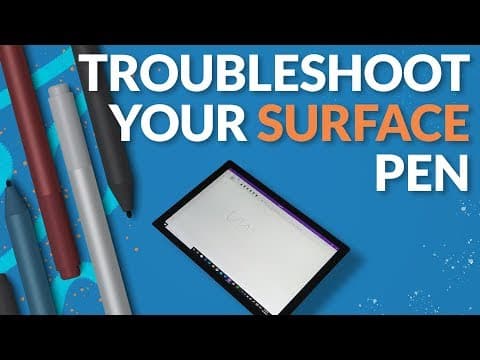
[0:00]Hi there, welcome to Be a Surface Pro. Today's Surface Pro tip is how to troubleshoot your pen. Once you start using the Surface Pen, you'll become reliant on it. It's a really important tool that helps us to be far more productive and enables us to work from anywhere. But what happens if it fails? What happens if it stops working? Well, there's a few things that we can check. One of the first things that I check, if my surface pen is not working, is the pen tip. Make sure it's not cracked, bent or broken and make sure it's seated in place correctly. We've done another video on how to replace the pen tip. The second thing that I would check is maybe my computer. Maybe it's doing some updates or maybe something's gone wrong, and just reboot your computer and see if your pen starts working after you reboot your computer. That's a bit of a long shot that one, but it's worth a try. The next thing that I would check is actually the battery that's inside of the pen. There's a 4A or an E96 battery inside of the Surface pens. This battery should last at least a year, at least in the third and fourth generation surface pens. So it's unlikely that that's going to go flat too soon, but if my pen stops working, that's one of the things that I would check. The next thing you could try is maybe borrowing somebody else's pen. Surface pens are interchangeable, they work without Bluetooth or pairing. All you need to do is get hold of somebody else's pen, put it near your screen and see if that is working. And that can help you to diagnose if it's a problem with your pen or maybe it's a problem with your tablet. One other thing that could go wrong with the Surface pen is the Bluetooth component, that button on the back of the pen, when you click that in, it might lose its pairing with your device. And the easiest way to fix that problem would be just to go into Bluetooth on your PC. Remove the pen if it is there currently, hold the pen button down for seven seconds until it goes into pair mode and then repair it with your device and it should start working again and doing those pen button commands for you. Over the years I've seen a lot of people using surface pen, so I've also heard a lot of stories and seen surface pens fail. Most of the reasons that the Surface Pen fail are because of physical damage, for example, I've seen somebody drive over one with a car. Obviously, they tend not to work after you drive over them. Also, I've heard of a customer of mine who dropped one in the kitchen and it attached to an oven tray and it went into the oven and baked for a few weeks. That obviously didn't work as well. Other things I've seen, I've seen an eraser stop working. I've had that on one of my pens where I put the eraser down and on certain angles, it stopped working. I've usually been able to get those sorts of issues replaced under warranty. I've also found, I've had pens where the pen tip has just stopped working. And usually when you have a broken pen tip, you might be drawing with the Surface Pen and you're getting a really patchy line or a broken line from the pen tip. So make sure you just check that pen tip and replace it, maybe that's an issue with your pen.
[3:27]But hopefully that's given you some steps that you can take and hopefully one of those steps will make your pen work again. Tell us about your experience in the comments below, if you've got a funny story about what happened to your Surface Pen or perhaps you've got some steps that helped you to fix it. And remember to subscribe to our channel and hit the bell so that you get notifications about our upcoming videos.


