[0:00]Hey everyone, welcome back to Silicophilic. Experiencing Minecraft GLFW error 65542, WGL. The driver does not appear to support OpenGL, fix it fast. Method one, download the missing DLL file. Search for opengl32.dll file download on any web browser. Click the first trusted website. Scroll down and download the DLL file based on your system architecture. Next, go to your downloads folder, unzip the downloaded folder. Copy the opengl32.dll file. Open this PC, then open local disk. Navigate to Program Files, then Java, then JRE folder or similar folder. Open the first folder inside that. Paste the copy opengl32.dll file here. If prompted, click continue to grant permission. Now open T Launcher, launch Minecraft. The error should now be resolved. Method two, update graphics drivers. Open Device Manager. Go to the display adapter section and expand it. Right click on your graphics drive and choose update driver option. From the next window, select the search automatically for drivers option. Follow the onscreen instructions to download and install the latest driver. You can also visit the official websites of your graphics card manufacturer to update your graphics drivers. These websites are linked in the description below. Now download the latest drivers for the graphics card installed on your computer from these websites. Follow the on-screen instructions to complete the driver installation process. Once done, restart your PC. When the device restarts, open the app again to check for updates. Download and install the available updates. For more details, check out our complete guide.
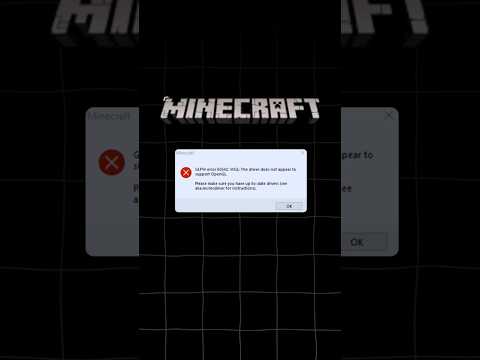
Minecraft GLFW error 65542
Silicophilic
1m 29s252 words~2 min read
YouTube auto captions
Transcript source
YouTube auto captions
This transcript was extracted from YouTube's auto-generated caption track. The transcript below is server-rendered so it can be read, searched, cited, and shared without opening the original YouTube player.
Pull quotes
Use this transcript
Related transcript hubs
Watch on YouTube
Share
MORE TRANSCRIPTS


