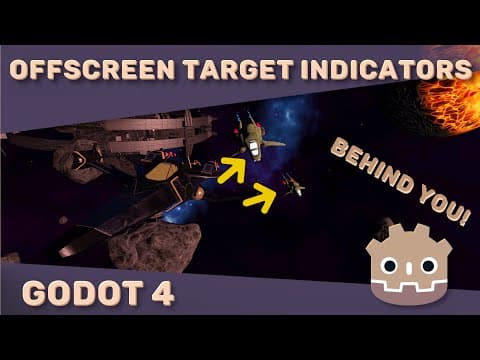
[0:00]If you're making a fast-paced game with enemies going all over the place and you don't have offscreen indicators for where the enemies are, it often leads to confusion, anger, and not knowing where the enemies went.
[0:12]And that's why in today's video, I will be showing you guys how to add both on-screen reticles to help us see the enemies when they're inside our view and off-screen indicators to tell us which direction we should look in to find the pesky buggers.
[0:24]At the end of this, tracking new enemies will be as easy as plopping down a node and their tree.
[0:30]Matter of fact, if you're a supporter on Patreon, you can download the code and files for the reticles, add it to your project and not even look at a line of code, so let's get right into this.
[0:39]So we're going to start with some setup inside of our enemy scene where we mark that we want to track.
[0:43]And we're going to add a node 3D to it that we will center our reticles on.
[0:49]After that, add some texture rect nodes for the reticles themselves.
[0:53]Godot will automatically switch us into the 2D view, which you have to be in to see the UI and the editor.
[0:59]Let's add an icon for this first reticle, which will pop up when an enemy is on screen to help us track them.
[1:07]I got these from Kenny's crosshair pack, link in the description, then change the modulate alpha so that it's a bit transparent.
[1:12]Let's duplicate this reticle and add an arrow icon for this new one, which will point in the direction where the enemy is off screen.
[1:21]We'll make this one a bit less transparent, and for the arrow, we're going to have to change the rotation pivot to make sure that it rotates around the center of the icon.
[1:30]Go into the transform menu in the layout section and change the pivot offset to half of the size of the icon.
[1:37]And let's get into writing some code. We'll have a script attached to our reticle container node 3D, just so that we can add this node to whatever else we want to track.
[1:45]First things first, let's create on ready variables for the reticles by selecting them in the tree and control dragging the selection into the code.
[1:54]Then create a variable for the camera, which we'll get from our viewport and the ready function, so there's no need to pass it from the player or wherever it's located.
[2:03]So then in the process function, we can first check if our camera can see the enemy with this wonderful function is position in frustum, which basically tells us whether a world point is within our camera view polygon.
[2:14]We will pass it the global position of our reticle container, and if it returns true, it means that we can see the enemy and we should show a target reticle on top of it.
[2:24]We should also hide the offscreen reticle if it's currently visible, and then we need to figure out where to position the target reticle.
[2:32]For this, we'll use the camera unproject position function, which converts the 3D position of the reticle container into a 2D position for the icon.
[2:40]Then we can simply call the set global position function on the target reticle and pass it our reticle position.
[2:47]If we go back to our 2D view, though, there's something that we need to account for, and that's the fact that our texture rets are positioned with the top left corner of the icon.
[2:55]And for them to be centered on the target, we need to subtract half of the icon size from the position that we pass it.
[3:01]So we'll create a new vector2 variable called reticle_offset with size 32 on both X and Y.
[3:09]Then, just subtract it from our reticle position. So what that gives us are enemies that are tracked on screen, but when they go off screen, the marker just stays where it is until they pop up somewhere else.
[3:20]To get the off-screen indicators working, we're unfortunately going to have to do some math of our own.
[3:25]My first instinct was to just clamp the result of the unproject position function to the size of the screen, but that solution quickly broke in a lot of places.
[3:35]So instead of that, we're going to take the hypothetical position of our enemy outside of our view and convert it to the camera's local coordinates.
[3:42]We then want to figure out where this line towards the center of the screen intersects with our screen border.
[3:50]Thankfully, our Z coordinate in this hypothetical only moves us on this line while keeping the aspect between the X and the Y coordinates constant, which means we can completely ignore it for this calculation.
[4:00]We then take our original position, multiply it by half the width of the screen, and then divide it by the X component of our position.
[4:09]This will bring our X to the edge of the screen while making the Y proportionally smaller, which gives us the point that we want.
[4:15]So then in our code, the first thing we're going to do is get the center of our screen because we'll be moving the reticle in relation to the center.
[4:22]We do this by getting our viewport size, casting it to a float vector because it returns an integer vector, and then dividing that by two.
[4:30]In our process function, once we know that our target is outside of our view, we hide the target reticle and show the off screen reticle.
[4:38]After that, we can convert our 3D position into the camera's local coordinates, which will both account for the camera's rotation and its relative position.
[4:47]So then we can convert this relative 3D position into a 2D reticle position by taking the X of our relative position, and instead of Y, it's going to be negative Y because in 2D, positive Y is down.
[5:01]So now to figure out whether we need to clamp the reticle position on the X or the Y axis, we can turn it into this fake rectangle by taking the absolute value of it and checking the rectangle's aspect ratio, which is the width divided by height.
[5:15]And then if this rectangle is relatively wider than the aspect ratio over screen, it means that we need to clamp the X position.
[5:22]As discussed, we do this by multiplying our reticle position by half the size of the viewport on the X axis and then dividing it by the X component of the position itself, which clamps her X to the edge of the screen while keeping the proportion between the X and the Y the same.
[5:39]We also want to make sure that we're dividing by the absolute value of the reticle position because that can be negative and we're only trying to scale their original vector.
[5:49]So now if the aspect of the reticle position is less than the aspect of the viewport, it means that we need to clamp the Y instead, and for this, we can just copy paste our code above and replace the Xs with Ys.
[6:00]Finally, we call set global position on our reticle and pass it our viewport center plus the reticle position minus the reticle offset.
[6:09]So when we start the game now, the enemies are tracked even off screen and the reticles are properly clamped to the border.
[6:16]Problem is our border is just the edge of our screen, but it should probably be inside of it.
[6:21]Inside of our code, this is not too difficult of a fix.
[6:24]We're going to add a max reticle position variable, which will tell us how far from the viewport center a reticle can be on either axis.
[6:32]Right now, this is just the same as the viewport center for us, but instead we're going to subtract another variable called border offset to create this new variable.
[6:40]So max reticle position is going to be the viewport center minus the border offset.
[6:47]Then max reticle position is the new value that we want to clamp our reticles to, so we'll replace the viewport center with it inside of this code block.
[6:55]That changes the width and the height of the rectangle that we're clamping the reticle to, which means that when we're comparing the aspect ratio of the reticle to the screen border, we should compare it to this instead.
[7:05]So now when we start the game, the off-screen indicators are properly clamped to our border offset, and the last thing we have to do is rotate the reticles in the direction of the enemies.
[7:15]To figure out what angle we should be rotated towards, we're going to take the vector 2 up constant, since that's where our reticle is facing when its rotation is zero, and call the angle to function on it by passing it our reticle position.
[7:29]Now we'll set the rotation attribute of our off-screen reticle to this new angle that we figured out, and finally, when we start the game, the reticles are pointing in the direction of the enemy as well.
[7:40]And we're going to wrap up here. I hope you guys enjoyed the video and did not disassociate too much when I was trying to explain things.
[7:47]I'll see you next time.