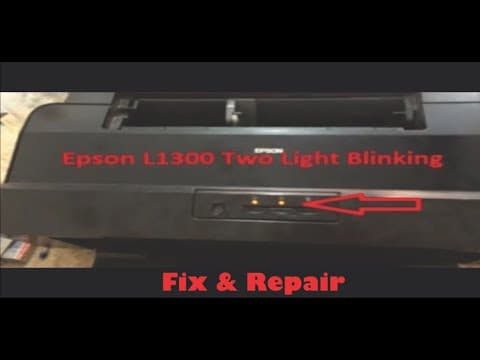
[0:00]Hello, today I'll show you how to fix this double flashing light in Epson printer. So the first thing I'm going to do is to get a piece of paper like this, I'm going to block that sensor hood, so that when I open the carriage door, it will not complain at all. You can see, I've opened the carriage door and the printer is not complaining. Then the next thing I'm going to do, I'm going to move the carriage, the carriage to my left hand side, then I will close it. And I'll go to the part where you fix in your paper, the paper trip input. You will notice there is this white, there is this white, uh, plastic, you're going to roll it until you see the white, two white prongs come outside. The two white prongs is supposed to come outside. That way I have been able to reset the, the carriage. So, I'm going to restart the printer right now, you're going to power it off, power it on again. If the same issue happens, that means you didn't set it well. You go back there and then you continue to roll and roll, you keep rolling is like a roller there. You keep, you keep on rolling and rolling until the two white prongs comes up. So let's see, if the two light flashes again, I will have to go back to the same thing. If it doesn't, which means the problem is solved. So I'm going to wait for it, let's see if um, the problem is solved. It is going to keep going, okay. You can see, the light is still flashing, which means I still have to go back there and fix that issue. And this is L 1300 Epson printer. So I'll go back to the paper input area, you can see the white roller there, just keep rolling, rolling. The reason why you're rolling is so that you you'll be able to reset the carriage movement because the car, the printer is saying the carriage has been jammed. Meanwhile it is not jammed at all. So I'm going to reset the carriage now, I've been able to reset it, now I'm going to power it off. I'm powering it on again and see if the problem is solved this time, hopefully the problem is solved. I'm going to get a piece of paper to print out.
[2:38]So I have a piece of paper inside and I'm going to print out something from print out. So let's see what happens. You can see the light keeps flashing, which means the printer is working on printing out the document.
[3:04]So I'm going to wait for it, uh. You can see, the two light is blinking again, two red lights, which means it has not been set properly. So I'll go back inside and you roll. So basically the problem has to do with the paper input section, you can see this white particular roller that I keep spinning. I'm spinning it so as to reset the carriage, you said, because the carriage is saying that paper like, um, that there is a paper jam there, meanwhile there's no paper jam there at all. You keep on spinning until the two white prongs becomes visible. When the two white prongs, um, two white plastic prongs are visible then you know that it is set. And then I'll redo it again and I'll try it again this time then hopefully the problem has been solved. So I've been able to reset it right now and I'll put up another piece of paper and let's see if the problem is solved. All right, so the paper is, um, preparing to print, hopefully it's going to print out normally. You can see it's printing out normally, which means I've been able to reset it correctly right now and then with that, the problem is solved. Another thing most people face is then after printing out a document, they've discovered that the document is blank. Now I'm going to show you how to fix this issue, to be able to fix this issue, you see that there is this handle there, towards the right hand side, below the, the printer, on the right hand side towards the section where you have your, your ink tanks. If you're using CSS, if you're using CS continuous ink, you can see this handle, most, most of the time it is, um, facing downward. Once it's facing downward, that means it is in the lock.


