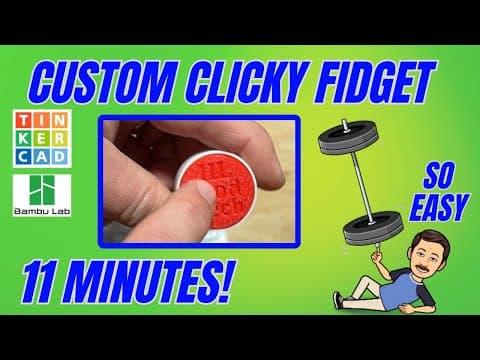
[0:00]Today, friends, I'm going to show you super quickly how to make a clicky fidget. So let's get cracking. Friends, this project starts with a special file. It is bitly HL fidget one. As you can see, it is set to copy and tinker, so please don't forget the golden rule of Tinkercad. Give a reaction before you copy and tinker. Of course, when you do copy and tinker, you'll have your own copy, and you can download and print this awesome clicky fidget in minutes. Real quickly, this is the other fidget. You can see it's got awesome multi colors. These notes explain how it works and there is also a tutorial. You can find that tutorial with bitly HL fidget 2. Now what we're here though for are these two awesome cutouts. I want you to save these so you can use them in a brand new project. We are going to use the Your creation tool so these are available to you in any project. So what I want you to do is click one of them, click on your creations and choose create shape. We're going to call this key cut out base. It is set as a hole and you want to lock the part size and you want to save the shape. It'll take a little moment for it to arrive, but that is how you create the cutout and then we also want the cap. So once again, click the cap, create shape. I'm going to name it key cap cutout. You do need to wait for it to arrive, make sure it's a hole, and once again, we're going to lock that part size. Notice, they're pretty simple shapes, so they show up really quickly and now we're ready to use them in new projects. I'm going to start by returning to the Tinkercad desktop. And I'm going to hit create brand new 3D design. Let's start by naming it. This is going to be called cylinder fidget. And now let's find our awesome new pieces. If we go to your creations, we can click and we can drag them both out for use. They will always be there in the your creations tab. So let me show you how we're going to build the base. Bring out a cylinder. I'm going to tell you to maximize the sides just so it's as round as can be. If we click on these measurements, it's a little more than 14 and almost 18, so we need this to be larger than that. I'm going to tell you to shift stretch and we're going to type 30 for the measurements. And then if we check the height, see how this is 11.27, I want to raise it up off the bottom. So we're going to set this to 12 and press enter. Now if we grab those two shapes, we can do L for line.
[2:43]And we want it to come to the middle, and I always like to look at this from a corner and the middle, and of course, we need it to be at the top. Now we can select those two and do control G to group. We have made our base that easily. So friends, we need to add the wall. Check this out. We are going to use the awesome tube. This asks for a radius. So let's check our diameter. See how it's 30. So we are going to add 1 mm on each side for our walls. So instead of 15, which would be 30, we're going to type 17 for the radius. As I said a moment ago, wall thickness of one, maximize the sides. I am going to put a bevel of two and I'm going to put the segments at 10. When I bring this in place, once again, we can do L for a line. Make this one the boss and we want center. I'll look at this from a corner as well and center and then we want to stretch this up instead of 12, we're going to raise it for higher. So I'm going to put 16 and press enter. As you can see here, I did my math incorrectly, but check it out. Because of how we built this, if I change it to 16, bingo, it snaps to that exact size. That's the cool thing about using parameters is you can quickly get them to the exact shape you want. Friends, we are already ready to make the cap. We are going to simply do control D and we're going to move it out and we need it to be smaller than the original design. Remember this one had 15 for a radius, so we're going to change this to 14.5 and press enter. We're going to set the height to 4.25. And then we're going to fill that in with a cylinder. When you bring out your cylinder, maximize the sides. And then if we just check our measurements, see how this equals 29, so we know it'll have a half millimeter all the way around. We can now grab this and stretch it to 28 and press enter. Set that same height to 4.25 and press enter and select them all and do L for a line. It doesn't matter which one is the boss, just choose center and center. That, my friends, is going to be your button cap. Let's quickly select all those parts, do L for a line, click on the center piece and choose center, center, and we also want that hole to come to the top. If we select them all of that and do control G, bingo, your design is complete. Let's really quickly personalize this. I'm going to use the mirror tool to flip it, so that the eventual top is face up. I'm going to bring out the text and cruise it on top, make it a hole. I'm going to stay with the multi-language font. I am going to shift squeeze it so that it fits. I'm going to make mine say HL. And then I'm going to do control D again and let's put tech.
[6:05]I'm going to get those all arranged L for a line. I only want them centered and then I'm going to squeeze them so they fit. If we do F to fit view, we can get in there a little closer. I'm going to set my nudge to 0.25. and just get it so that I think everything looks really cool. I can use shift squeeze to make it a tiny bit tinier. Now do note, since I scaled that down, we need to change its height. I've got to have that B.5. I'm going to select all of those also just to double check and make sure they're all aligned to the top. Now when we select them and do control G, we've got our cap. Real quickly, friends, let me just show you how we get them ready for printing. I'm going to do control D and I'm going to show you that the mirror trick we used a minute ago, actually does not work. When we look underneath, our letters are backwards, so that does not work. Instead, we need to simply rotate it 180 degrees. Notice you can go 22 and 1/2 degrees at a time or you can hold shift and go 45 degrees at a time to get it ready for 3D printing. Friends, that is the basic version using this text. I do also want to remind you. If you type text in the search box, you can find this one, which would go around this and you can pick some awesome fonts to play with.
[7:36]Do note, I accidentally cruised that on top of my shape. I'm going to click on it and do D to drop so it's back on the work plane. I've got several tutorials showing how to use SVG text. I'll make sure I include that up above. And then finally, I want to let you know that there is one with script. If you type SCR in the search box, this gives you several awesome fonts you can use for this project as well. Friends, it's time to get this to the 3D printer. Make sure you grab all of this part. Notice there are two shapes. We're choosing export. I want the STL. I'm going to save it to my 3D modeling folder and I'm going to call it cylinder fidget and I'm going to call this the base. And hit save. Now I can grab the cap and I'm going to choose export. Once again, the selected shape, STL. And I'm going to name this one cap. At this point, you can bounce to your 3D printer software. I am using Bamboo Lab Studio with the Bamboo Lab P1S. Create a brand new project. I'm going to add those two files. Simply select them. Open them and I'm going to load them as a single object, multiple parts. Right now, I'm going to right click on this. And I'm going to split them to objects. What that allows me to do is move them further apart. And then I'm going to paint them different colors. So I'm going to simply do change filament. I'm going to make the base white. I'm going to right click and make the cap red. And now when we go back to global, let me show you how we're going to speed this up. I'm going to print it with draft. I'm going to print sequence by object. Notice it shows me that there's still too close. So I'm going to go to move mode and I'm going to spread them out just a little bit more. That way they don't run into each other. Now I can shut off that prime tower and when we slice it, we've got a project that's only going to take 24 minutes. Let's hit print plate. Double check our colors and send it to the 3D printer. After a moment, it bounces to the device menu. As you can see, it is starting the downloading.
[9:59]And of course, once it finishes, we can click play and monitor everything from afar. And about 25 minutes later, let's pop off the parts and take them in for a test. All right friends, next up is assembly. I snagged these on Amazon. There will be a link in the description. When you bring one out, there's your clicky sound. If you look at it, find the edge that's got the ridge. Notice this side is smooth. Find your base where it's got the ridge. Clamp, line them up the same way. And simply push it straight in. You'll hear it click. Then of course, find your button cap. Notice that fits exactly in the middle. Press it in and smile. How cool is that? Almost instant clicky fidgets. Friends, there you have it.


