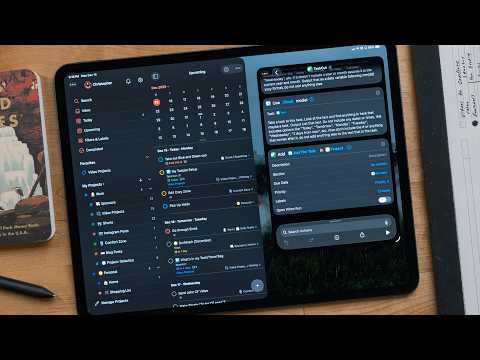
[0:01]Imagine a world where you only had to deal with one thing at a time, where no one tried giving you more work while you were already in the middle of an existing project. Where the dishes always stayed done, the trash was always taken out and your house was always stocked. Yeah, we don't live in that world. This video is sponsored by 3i.
[0:27]So, there's two core pillars to the way I handle my whole life. The first one is note taking, and the second is task management. I have an incredibly simple methodology when it comes to both of these, both note taking and task management. In this video, I am going to focus on the task management pillar of my system, basically just how I handle like things that need to be done. And it's not something that's designed for content creators or startup CEOs. This is stuff that can just apply to anyone. Anyone who has stuff to do, which is probably all of us. You don't need to sign up for my course on how to be productive or buy my must have template. I'll walk you through the whole thing in this video. With how my brain works, and everyone's different, but for me how my brain works is note taking and task management are the foundation of how I just am able to stay on top of things and how I am able to manage my life, manage my business, manage, you know, professional work, videos, things like that. I can't stand the productivity porn that's out there. You don't need to wake up at 4:00 a.m. and spend 5 hours figuring out every minute of your day. You don't need to do that. In fact, find the minimum amount of organization you need to do for your day. If you're somebody that can spend 5 minutes organizing your day, you know, putting together a task list or going through your task list, going through your calendar, going through your daily note, whatever, whatever that is. If you can spend 5 minutes doing that, and if you were to get the same results as if you were to spend an hour doing that, obviously spend the 5 minutes.
[2:08]The 5 minutes is better. Your whole day should not be, you know, prepping a task list. It shouldn't be that at all. But if you need an hour to get organized, that's totally okay. That's it's if that's just how your brain works, that's fine. Find the minimum that you need to do. So, if it's 5 minutes, 15 minutes, 30 minutes, an hour, that's fine. Just don't spend 6 hours organizing your day. The goal isn't work. The goal or the meaning of life, or however you want to define it, isn't more work. The goal is a good life and being happy. Now, for everyone that's going to mean something a little different. For me, that means spending quality time with my girlfriend and my family, being financially secure, so I can pay my bills and occasionally go on trips with the people that I just mentioned and making art. Those are my goals for being happy. That's what all of this is working towards. This isn't me working towards, oh, I can do more work, I can build another company, I can work 80 hours a week. Those aren't healthy goals. Healthy goals are what you should be pushing towards.
[3:18]Now, what task manager you use or I use or what somebody else on the internet uses doesn't matter. It absolutely doesn't matter. In 2025 or 2026, whenever you're watching this video, they're basically all the same. They do details differently, but at the end of the day, they are a list of items and you can check things off and they will have some kind of project support. Every single one of them can do that. And if you're somebody that's like, I prefer a pen and paper, that works too. Now, I know people are interested in apps, I'm interested in apps, I'm going to get into that. I am using Todoist.
[3:55]It's available on every platform and everything I talk about in Todoist will be relevant no matter what platform you are on. There is a few Apple specific automation things that I do that I wouldn't know how to replicate on other platforms, but if you're somebody that uses iOS, iPad OS or Mac OS, you'll be able to take advantage of those.
[4:14]If you've seen some of my past task manager videos, how I set up Todoist is going to look very familiar. It's how I set up the app things, it's how I set up reminders, it's how I like to work, and you'll be able to replicate this in just about any app. So, the way this works is there are two top level projects, Work and Personal. These are my two modes, if you will, you know, I have a work mode and a personal mode. I never try to do personal stuff when I'm in the work mode, and I never try and do the work mode in my personal time. I want to keep those two areas or modes of my life separate. In Todoist, I break down the actual projects for this area. For my work mode, I have sponsors, long-form videos, shorts, Instagram posts, comfort zone, blog post and Project Galactica, which is something that has been in my task manager forever, but I have finally started to like actually make significant progress on it, so I'm okay having this here still. In the personal mode, it's a lot smaller. I have home for my home projects and things I need to do around the house. House projects. Then I have a shopping list for things I need to buy. I'll put top level tasks in my work or personal area. This is stuff like company taxes or paying a bill or general work projects like updating my channel artwork. This video is sponsored by 3i. Today, we've been talking about task management, but you know what one task I never have to worry about? Cleaning my floors. That's thanks to the 3i P10 Ultra Robot vacuum and mop. Just like every robot mop and vacuum, this is going to clean your floors. They're all going to clean your floors, but this one does things a little differently and I really like it. So, the big feature of this robot is the Ultra Reach functionality. So, what this does is it will extend the mop part out, so it gets into the edges, so it's not going to leave any dust or dirt particles behind. It's going to get everything. Plus, it has a brush that sticks out, so the vacuum part will get the bigger pieces before the mop even gets to it. There's no pushing dirt or food bits or anything like that into a corner where you have to manually go over there with the broom and sweep it up and then wipe the floor part because the robot couldn't get into that edge. No, this will take care of it. The robot cleans up everything. The dual mop system spins at 220 RPMs, and the vacuum has 18,000 PAs of suction. It's over two times the suction of similar products. It even boosts the suction when it detects carpet, so that way it'll get everything out. The all-in-one base station handles cleaning the mop pads with hot water and then air drying them. It also handles detergent dispensing and even has a dust collector built in that is good for up to 70 days. It even has its own self-cleaning washboard. The robot itself navigates your house using lidar to create a 3D map. Then dual 3D light sensors and AI cameras so that it avoids things like cables and can navigate thresholds and avoid collisions. The AI powered dirt scan feature can detect over 100 different objects in your house. It'll customize the cleaning method if anything was left out, so it'll navigate around it. It also quickly learns your home and the best cleaning route. You can set up a schedule, no go zones and more in the app. And my favorite part is the anti-tangle brush, so air doesn't get caught in it. So many robots don't have this, and I have spent so much time cutting hair out of robots. I was really impressed with the results I got of this robot vacuum. I'm going to put some links in the description below, so you can go check out the 3i P10 Ultra Robot vacuum and mop. My thanks to 3i for sponsoring this video.
[7:58]If you have something to do, you need to capture it. It doesn't matter how small you think it is, or how small, or even bad of an idea you think it is. If it's something you intend on doing, capture it. I've had so many ideas forgotten because I thought, oh, you know, I'll I'll remember that in like 20 minutes when I get to the office or something like that. No, I never remember what it is. And when I mean by capture is write it down. We can get into the process of where to write it down or how to write it down. It doesn't matter, just a place you know you will find things that you're like, oh, I had this idea, this is where I go when I had this idea and I wrote it down. I've captured stuff that I thought this is probably a bad idea, and it's turned out to be an amazing idea. Make sure whatever app or system you are using has a way to quickly write something down. If this is a notebook, always have that notebook and a pen on you. Maybe make it like one of those small field notes notebooks or something like that, and have a small pen always on you. If it's a note taking app or a task management app that you need to capture that idea or thought or task or whatever it is. Whatever like popped into your head, make sure you have a way on your device to quickly get it into that app. And it should be on all of your devices, whether you're have your phone within reach, your iPad or Mac, or work computer or whatever. Whatever is within reach, and let's be honest, we always have a device within reach, so whenever that idea pops into your head, you should be able to grab a device and log that idea or thought or task, whatever it is. For me, because I use a dedicated task management app, I have been using a custom shortcut that I built. Now, the quick TLDR for those that don't know what shortcuts is is on the Apple platforms iOS, iPad OS, Mac OS, and even Vision OS, there is an app called Shortcuts. And in here, you can build custom automations that are just block based automations. They're really simple. You start at the top and you work your way down and as it goes through those are the each actions is what it will perform. Pretty straightforward. With the new OS 26 updates, they now have a Use Model action in here. This allows you to use AI chatbots whether they're local models, Apple's cloud model or even chat GPT. I built a shortcut that allows me to quickly capture a thought into a task and put it in the proper spot. I will link to it in the description below along with everything else that I mentioned. But this allows me to do is write out a task. Typically, I just type out the title of the task and when it needs to be done, and then I will put the pound symbol and the name of the project. The shortcut will look at what I wrote, break it apart, and then assign the right data to the right field. I built another shortcut with a list of shortcuts I run often like this task cut shortcut. So, when I run this, I pick which shortcut I want, and it runs that one. I've assigned the shortcut, which I call Action Cut, to the action button on my iPhone, so I can quickly run this no matter where I am in the OS. I also put the shortcut in the dock of my iPad, so I can do the same thing here. Todoist does have natural language input, so I technically, I don't need to be using the shortcut. I could just open the app, type this out and go, but what I have found in the past, and at least for me, my the way my brain works is that if I go into an app, if I, you know, have that friction of like needing to take out my phone, find the app, go into the app, find the, you know, plus button to hit a new task and stuff like that, that could be just enough friction that I just don't do it. I will I myself will just get lazy and I don't do it. Or I'll see something else in that app, and it'll pull my attention and I'll start focusing on that, and I'll forget what popped into my head. With the shortcut, I don't need to switch apps. So, say I'm looking at something in Safari or I'm reading an article or something like that, and it gives me an idea or it gives me a task I want to complete, or maybe my girlfriend texts me while I'm doing that reading and says, hey, can you make sure you take out the trash? I can run that shortcut right from the action button or just tap on it right in the dock of my iPad, fill out the task and then go right back to what I was doing. I don't lose that place, no switching apps, no switching contexts. When it comes to managing a task manager, you need to be a good editor, and I'm not talking about being a video editor at all. What I mean by being an editor is if you've had something in your task list for, let's let's say, 6 months. You've had something on your task list for 6 months, chances are you probably aren't going to do it. It's, you know, never been assigned to due date, it might be in a project or two, or might just be stuck in the inbox. You know, maybe it has that someday tag on it. I hate that someday tag. Nothing ever gets done when it has the someday tag. So, at that point, you have two choices. You're either going to do that task or you're not going to do that task. So, what I have found when I have come to this point where I'm like, okay, I've had this thing in my task manager for 6 months or a year, I either need to assign a due date to it, and it needs to be done by that due date. And if I don't do it by that due date, I delete it, or I just realize in that moment, hey, I haven't done this in 6 months, it's just been sitting here. It's not that important to me anymore. Delete it.
[13:29]Because odds are, if you have something sitting in your task manager for 6 months and you haven't done it, it's not some like life altering thing. It's not like do taxes or get married or some that's a bad example, but, you know, do taxes. That's like probably a universal like task that like we all need to do by a certain date, you know, your country may differ, but by a certain date that has to be done, it's extremely important. That kind of task isn't just sitting in your task manager for 6 months waiting for you to just come around and have some free time. Maybe it's something like clean the gutters. That is something that is important that, you know, it can pile up and you need to get, you know, the gunk out of the gutters, and you know, it's been 6 months or a year that's been sitting in your task manager, assign a due date. If it's not done by that due date, you probably need to hire somebody to do it then.
[14:21]Every task manager has this inbox section, and I used to be a big believer in the inbox. I used to call it my dumping ground, but you know what happened? I stopped checking it. And I don't know why, I don't I don't remember why I just stopped checking it, but one day I just stopped. And then I saw the number there and was just like, oh, there's tasks here. I went and looked in it and there was stuff that I probably should have done. It wasn't life altering like do taxes, but it was fairly important stuff. And I was like, why why didn't I assign a due date? Why didn't I put this in a project? I put things in projects. I organize things so that way I know when things come up to get them done. So now, when I add a task, it doesn't matter how mundane it is, take out the trash, that gets assigned a project, which in this case would be personal or house, actually it'd be house, and then it would get a due date.
[15:18]So, if my girlfriend asked me, like, she's on the way out the door for work or something, she's like, hey, can you make sure you take out the trash today? Yes, I will take out the trash and the due date would be today by 12:00 p.m. because she comes home for lunch. Even if it's an arbitrary due date like it has to be done by 12:00 p.m. today, or it doesn't really need to be done by 12:00 p.m. today, still assign a due date because you that due date just checks something in our lizard brains that makes us go, oh, this needs to be done. I need to get this done right now.
[15:50]Whereas not having a due date means, oh, I could do this tomorrow, or I could do this a month from now. There's there's no due dates, I can do this whenever. I'll just let this go for now. And when it comes to projects, if a task doesn't fit into one of our project buckets like house or bills or groceries or something like that, it will fit into our main buckets, our main modes. So, like I said, I have that work mode and I have that personal mode. So, even if something doesn't fit into the small buckets, maybe I need to do something at my grandparents house, I can just throw it into the personal bucket. The personal mode, that's fine. It that's what that's there for. That's what, you know, a due date is there for, it'll remind me of it, that's that's a perfect place for it. Don't use the inbox. Don't use the inbox.
[16:37]The today view is where I spend a majority of my time. For the most part, I am focused on the tasks that I need to deal with today, not the stuff I need to deal with a month from now. In Todoist, I sort tasks in the Today View by priority and turn off grouping. And I only assign the priority of a task the day of it being due. Task priority can differ. Right now, it may seem really important that I mail off this package. I I absolutely need to get this package mailed off. It's the highest priority, oh, but turns out Bobby's going to be out of town for a week, so it's actually not that important. So, what I do is every morning when I go through my task manager and kind of take a look at what I need to do for the day, I assign a priority, and with the sorting method that I mentioned, Todoist will sort those tasks from highest priority to lowest priority, and I just work my way down that list in my Today View. And it's not like I'm going to be surprised that do taxes is a high priority thing. Like, it's not like I'm going to forget that that is the thing that like I need to do most of all today. Like, that is the important thing. Like, I'm going to be able to look at that task list and know right away what is the highest priority thing and what is the lowest priority thing. We don't need to treat ourselves like LLMs giving us prompts for every single thing. We are humans. We can look at something and we can judge, hey, this is a high priority thing, a medium priority thing or a low priority thing. Now, I've seen people recommend this, and I have been guilty of doing this myself in the past as well. Of rewriting your task list, of taking, you know, what is ever in your task manager and maybe writing it down on a piece of paper in the correct order or something like that. Don't do that. That's such a waste of time. Use something like priorities to sort your tasks so that way when you start working, you start at the top of your task list and you work your way down. And yes, sometimes things come up, you you may need to improv, you may need to bump a priority of something, and that's okay. You don't have to be strict about it, but it is a great way of just working your way through a list, starting at the top and working your way to the bottom. Is just such a helpful way. I found when I had a task list and things were just all over the place and I was like trying to always look at like, okay, what's the next thing I need to do? Oh, there's this thing, okay, maybe I should do this thing, I was just wasting time. Now I just take a few minutes every morning, prioritize which task should be where, and then just start at the top and work my way down. Easy.
[19:10]I have repeating tasks like weekly reviews of projects and update my expense tracker, a daily reminder to go through my email. Anything that I do repetitively over and over again, I make sure is a repeating task in Todoist. So, that way I'm able to prioritize them, I'm able to work through that list, and I'm able to check them off when they're done. Get that little serotonin kick when they're done. I found putting Go over email to be really helpful in just like my quest of conquering my email inbox. I hate dealing with email. I've never met somebody that likes dealing with email. I always like to put it off until the end of the day, but you know what happens when I try and put it off until the end of the day, I don't do it. And that's not good because I'm running a business. I need to be able to do my email. There are people that are counting on me, so I make sure do email is a top priority thing. It's usually one of the very first things I tackle in the morning, and every day I get to check off, I did my email. Doesn't matter how small the repeating task is, it could be just I I have one for setting out the trash cans every Sunday night. I set out the trash cans. It's a repeating task in my task manager.
[20:24]But what about projects that repeat? You know, projects are great for like, this is a multi-step thing. And I I'll talk about why I don't break a lot of things down into smaller bits a little later in the video, but sometimes you do need to break things down into smaller parts. In Todoist, and a lot of task managers, you can create a project, you can archive it. Some even allow you to kind of like save it as a template and then you can pull it back up. It just depends, like every task manager does this a little differently, like I said, details. They all do the same thing, but the details are implemented a little differently, but for me, this creates clutter. I don't like having like a template project just sitting there waiting for me to like duplicate it. It just I don't like that. So, this is where I take advantage of shortcuts again. One of the repeating projects that I have is my bag checklist. I use this for whenever I'm traveling. It asks me the name of the trip, typically I just put like where I'm going or maybe it's like WWDC 2025 or something like that. It'll ask me, uh, when I'm leaving and then it'll ask me when I'm returning. It creates a project in Todoist with the name of the trip and then adds all the items I need to pack. It even does some math to figure out how much clothes I should pack. So, like always like to have like an extra pair of pants or some shirts or underwear or socks, you know, just like to have a couple extras, so this does some math based on how long I'll be gone. It also helps me pack any tech and camera gear that I might be taking with me. It even adds like a little battery emoji to it, so it's just kind of a reminder of hey, this is a thing that has a battery. Probably check to make sure it's fully charged before you pack it. It's good. It's a good tip. The way this shortcut works is it uses a directory action. A directory basically allows you to have a bunch of information in a table with like kind of like a top level option. So, for example, I have clothes, I have tech, and I have camera gear, and each one of those has the individual specific items. So, when I run the shortcut, I can pick out of that directory which one I want. So, say I'm just going on a trip with my girlfriend, I'm not going to take camera gear because that's not a work trip, so I'll just pick clothes and tech. Or maybe it's just a day trip that I'm going on and we're going to take some photos, so I'll pick a camera gear, and it'll just tell me what camera gear I need to pack. Things like that. You know, it's kind of useful, so it adapts to what kind of trip I will be going on. But you can do this kind of thing for so many different kinds of repeating projects. Maybe it's setting up a conference room or something. That's something I used to have to do in my IT days where I would set up one of our conference rooms and there would be like a laundry list of things that needed to be set up in that conference room because it was really old and frustrating. Or maybe it's some kind of like weekly or monthly report you put together. Whatever, like, you can repeating projects you you're going to know what that is. You'll know when you see it, kind of thing. Okay, so I want to get into some details. Uh, I mentioned all task managers pretty much do the same thing, but the details are different. Like the way they handle certain features just might be implemented differently, and I really like the way Todoist handles some of these details. A big reason why I switched away from the app Things is I wanted a canban board. This is why I switched to Apple's Reminders app and then eventually went to Todoist. For those that don't know, a canban board is a way of laying out a project, uh that has multiple steps and I might have tasks different tasks in those steps. So, I use a canban board for my video projects, shorts, Instagram posts, and sponsorship projects. You can change any project to a canban board by going into the project settings and changing the display style. A lot of times, I have to be working on multiple projects at once, especially videos. It's just a weird nature when it comes to production schedules. For example, I'm in the filming stages of this video right now. I'm also writing the scripts for a couple of other videos as well. I also use this as a place to store ideas for videos as well. So, when I want to enter them into production, all I have to do is drag and drop them into the research stage, then when it's done with research, I move it into script writing, then into filming, then into editing and so on. When that video or sponsor or whatever is done, I just mark it as completed and check it off. That task is completed. It's really nice to have. Another one of my favorite features, and I am shocked more task managers don't implement this is the deadline feature. Every task manager has a reminder date when it'll show up in that Today view. So, I can mark something as do December 10th, and it will show up December 10th, and it'll be in that Today view then. But what the deadline does is it gives you a second date option. So, for bigger projects, like videos again, there're going to take multiple days for me to complete. In fact, like this video is probably going to take me about 4 days to make from the part where I sat down and wrote the script to the final edit, upload, thumbnail, that kind of thing. That's probably about a 4 day process for this size of a video. So, what I do is I will assign essentially a start date to a task. That is the regular reminder time that you would go in. You can set a day for it to show up in the Today view, you can set a time so it'll send you a push notification to remind you if you want. That's the start date. Then I will use the deadline as the due date. This video needs to be completed by then. And even if it's not like, oh, this video needs to be live on Black Friday or something like that, I will use that deadline feature to make sure like a video's not taking longer than it should. I am getting it done, I am taking care of the work and I I am finishing this project. Now, I know a lot of other systems will tell you to break down a task into multiple steps. I hate that. I I tried that. It just fills your task manager up with hundreds of tasks. It feels overwhelming, you look at a project and you're like, why does this thing have 50 tasks assigned to it? It's going to take me a month to complete it when in reality like, you know, it's just a bunch of small things that really don't need to be tasked. You know what those things are. That's why I like a canban board of I can just move these things over and it's completed. I have a start date of when I'm going to start working on this and I have a deadline of when it's due. Okay, so there's a couple of other details in Todoist I really like as well. The ability to attach a document to a task is killer. Uh, I get like all sorts of documents sent to me whether it's like a sponsored brief or like, hey, I'm reviewing this product and the company sent over like the reviewer's guide, and before anyone freaks out, typically what those are, it's like just like the spec sheet of the thing. So you have like all the product information of like how big the battery is, or how bright the screen gets, or things like that, or what the screen is made out of, or things like that. Like, it's nothing it's like basically having the product web page and just a PDF document. It's it's really nothing special. But what I'll do when I have a document that is attached to a task, it can even be something like a bill. I in fact, I've done, I literally just did this the other day. I had a bill sent to me. I was like, okay, I need to pay this, but I'm going to wait a couple of days because I'm annoyed they sent me this bill. It's a long story, so I'm going to wait until the last possible minute to pay it. And so I scanned it, made a task in Todoist, and I attached that document as a task. You could also use this as a place to attach instructions or manuals, uh, you know, like a process on a tool or a piece of gear or something like that. Overall, it's just really helpful to be able to take a document that is associated with a task and just attach it to it. I love that feature. I also really like the comments section. Now, one thing I didn't talk about is collaborative features. Todoist is big on like, hey, like, let's share this project, and I can check off tasks and you can add tasks, no way. No way will I ever let somebody add a task to my task manager. No, I will put, look, you can tell me something needs to be done, and I will type it in. That's fine. That's fine. But I would never let somebody attach something because that's how it gets put in the wrong bucket, or it doesn't get assigned a due date, or like that's just a whole thing.
[29:46]So, what the comment section is really meant for is that collaborative feature. Oh, Jane Sue worked on this and she can say, hey, you know, I did this, this, this and, you know, this is the thing we're waiting on or the client said this or whatever, you know, you can that's what the comment section is made for. But I use it to leave me notes. Maybe I come up with an idea for like an opening montage for a video. I can leave that idea right there in the task. Or I come up with like maybe some camera angles I want to use, or a product I want to feature or an app I want to feature. I can put all that right there, even before I start writing the script or doing the research. That is a place for me to store ideas or things I want to do in that task. It doesn't have to be video related, that's just kind of the primary thing I use it for, but it could very well be like, hey, I'm working on this web page, and, oh, you know, here's the client feedback. I'll paste that right there in the comments section so that way I have the client feedback right there in that task. I don't need to go digging through my email to find the client feedback. I said earlier, I'm very focused on uh the Today View, but I do do a weekly review. Every Monday, I sit down and I go through all the tasks for that week, and I go through all the projects, just making sure everything has a due date, if it should. Things like ideas for videos, they don't get due dates, because they're not in the production pipeline yet. But I make sure everything that should have a due date and should be in the proper bucket is there, and anything that I'm going to be working on that week, I make sure I have everything I could possibly need for it. Whether I need to order some equipment or gear, uh maybe I need a tool or something. Make sure I have everything I need to order, or maybe it's client work. I make sure I have everything I need from the client on that Monday, like if I'm working with a sponsor, I'm like, okay, they've sent me everything that I need. And if I don't have that stuff, I deal with it then. That's when I take care of it. That process is really important to me.
[32:06]I know this was a long video, but the point is don't overthink it. It's really not that difficult and try and make it as simple as possible for you to do it. You don't need to go overboard with a bunch of different systems, 10 different apps and 5 different notebooks and a whole slew of pens. I mean, if you want to, you can, but make it as simple as you can for you. I want to hear from you all how you handle your task and project management. Let me know in the comments below. My thanks to 3i for sponsoring this video. If you like the video, hit the thumbs up button, subscribe if you haven't already, and have a great day.


