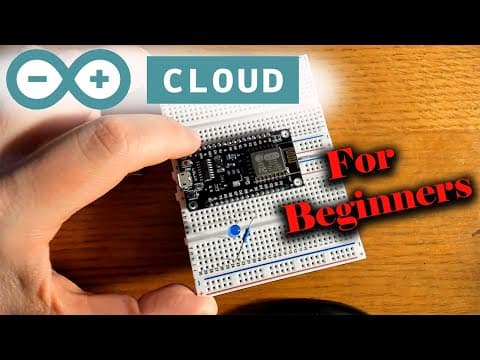
[0:00]If you are a beginner and you're just getting started with Arduino Cloud IoT, today we're going to go to the website and send some data to the cloud from the board. We're using the Node MCU ESP 8266. This is the board we use previously, and we're just going to turn on and off an LED. So, let's get started. For this project, all you're going to need aside from a bird board is an LED, a 220 ohm resistor, and the ESP 8266 Wi-Fi board. Oh, and a USB cable. Now, the first thing we'll do is go to Arduino.cc. If you're brand new to Arduino, this website is a wealth of information, lots of tutorials that are very good, and then the community of people willing to answer your questions. And here we're going to create an account on the Arduino website. So, let's click in the top right corner where it says Sign In. Assuming this is your first time to the website and you don't have an account, let's go ahead and click on Create One. All right, now we're going to put our date of birth in here. And we'll put in our email, choose a username and password, check all the boxes below. After you've done all that, click on Sign Up to create your account, and it's as simple as that. Don't forget to check your email so that you can confirm the account that you just created. At your personal info page, you also have the option to increase security by adding a two-step verification, and also remember to check the privacy settings at the bottom. Let's quickly take care of some business at the main page so we don't forget about it later on. So, Arduino.cc, we're going to go down here and click on Arduino in the Cloud. This bar right here, and once you click on that, we're going to take a look at the plans real quick. There are premium plans that enhance your experience here on the cloud, and there are three levels of premium subscription. Now, of course, there's free, there's entry level, there's Maker level, and Maker Plus, and as you increase your subscription, you increase the number of objects you can connect to the cloud under things here in IoT projects. You also increase the number of variables you can connect per thing, and you also increase the number of days your data will be stored in the cloud. One day for free, all the way up to one year for the most expensive plan. If you plan on doing a lot of IoT projects, this may be something worth looking into because as you'll see, this website is set up very well and it's very user friendly. Now we go back to the main Arduino Cloud web page, we'll scroll to the bottom and click on Arduino tutorials. Now, under the getting started section, we're going to click on Arduino Cloud IoT cheat sheet. Everybody likes a good cheat sheet. What we're going to do there is scroll down to software requirements and click on Create Agent. The Arduino Create Agent, we need to download that plugin, otherwise you're going to have a difficult time getting this to work. I've already installed it, but all you do is follow these steps right here, and you don't want to forget this part. Now we're back at the Arduino Cloud homepage, and we're going to click on Get Started up in the top right. And we'll click on Let's Make. And what's this to plug our device in. Plug this directly into the computer.
[3:08]This device cannot be configured. Got it. So, let's go to IoT Cloud. Manage your devices. We'll add a device. We're going to set up a third-party device since it's the Node MCU ESP 8266. So, click there. ESP 8266. Scroll down here to the Node MCU, uh, model module 12E. Continue. Wendy. Let's just name it Bob, I don't know. Then it's going to give us a secret key. What I do is I take this, I copy both of these and I email them to myself so that I have them for later. Once we saved it, we'll click continue. Congratulations. You are all set. Click on done. From here, we're going to create a thing. And we're going to configure our network first. So, click on that. Then we're going to include our Wi-Fi name and password, and then the secret key that we just saw on the screen. The one that I emailed to myself. So, we've entered that information. Click on Save. Now it's time to add a variable. So, we'll add a variable. We will name it random_value. And if you come down here, you can select the variable type. You you notice there are quite a few of those. We're going to select integer number right here. So, it'll be integer number and then whatever you wrote up here. This is going to be a read only and on change, and then we will add that. Now, we're going to add another one. And the second one will be LED switch. We'll come down here and it'll be a Boolean. And then again, you see this right here. It's the what we named it up here. And that'll be read and write, on change. And we'll add that too. Now that we've included two variables, we'll go over here to our sketch and they do give you a template that includes, uh, the thing properties library. And, uh, we'll go ahead and add the sketch that they included in the, uh, connecting the ESP 32 and the ESP 8266 to Arduino Cloud IoT tutorial on this website. So, we'll go ahead and include the sketch they gave us. And that sketch includes the thing properties library. The LED is 13, that's, uh, GPIO 13. It's not pin 13. And, uh, we're just going to set the LED as an output. And it's just a basic, um, it chooses a random number and then it'll blink the LED on and off. So, we're just testing the software here, the IoT software on this website just to make sure that it works before we carry on to something else in another video. So, now we're going to go to dashboards here, we're going to build a dashboard, click on build a dashboard. Now at the dashboard, we'll go ahead and call this, I don't know, untitled one, that's fine. And now we go over here to click on add, select things, untitled. And then, um, select these two variables right here, and click on create widgets. And now we should be able to turn our LED on and off once we get the program uploaded onto our board. This is the board we're using, the Node MCU ESP 8266 Wi-Fi board, and we're using GPIO 13, which is D7. So, we have the long leg of the LED, the positive leg of the LED and D7. And the negative leg of the LED is connected to ground, using a 220 ohm resistor, and that's it. And from our dashboard, we're going to go back to things. We're going to select the thing that we just created. And then we're going to go to sketch, and we're going to upload this onto our board. If you're having issues installing this onto your board, make sure that you have installed the plugin, the Arduino Agent plugin that we did at the beginning of the video. I'll also have a link to the code in the description and on Facebook. So, you can find it there. All right, it has finished uploading. So, let's go back to our dashboard here. Oh, I'm sorry. Yeah, back to our dashboard. Click on the project here, and then click on, um, on. Turns our light on, turns our light off.
[7:50]And this is just a random value. I hope this video was useful to you. I do appreciate you watching. Don't forget to like, share, and subscribe, and I will be back again very soon with another video. Thanks.


