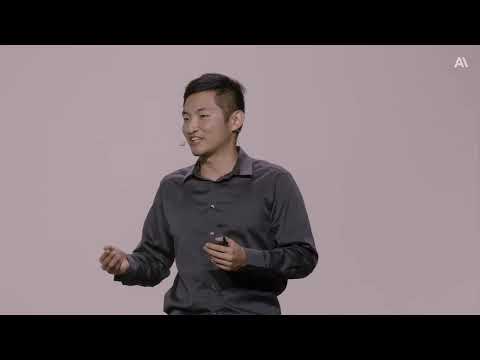
[0:58]Please welcome to the stage, member of technical staff, Antropic, Dixon Tsai. All right.
[1:08]Good morning, everyone. I'm Dixon from the Claude Code team. I work on plugins and Claude Code on the web. This session is about what's new in Claude Code. If you've seen our public change log recently, you'll know that our team ships a lot. It could be kind of hard to keep up. So today, I want to step back from the change log and give you the story. How our new features fit together and why we love them. Our new features fall into two themes. First, developer experience. How we're making Claude Code nicer to live in as you spend more of your day in with it. Second, autonomy, how we're enabling Claude to do more while you're away from your keyboard. Finally, I'll cover how to learn more for everything I don't get to. As daily users of Claude Code, we're still very invested in the human experience, even as Claude can handle more long-running tasks on its own. For developer experience, first up is remote control. Remote Control lets you start a session on your machine and pick it up on the go. From your phone, you can access the same session, same dev setup. Why not kick off a long running task and run some errands? We wanted more convenience on our team when building Claude Code and remote control gives us that. Let me show you how to set up remote control with a demo.
[2:45]All right. So we are in a new session. Let's just seat it with some content. And now we can enable remote control by typing remote control. What you get is a link in Claude Code on the web. So let's open that and put these side by side and you can see the content of your terminal online. And from, you know, this can be your, uh, your mobile browser. This can be your mobile app. You can type three plus three or something like that and it'll appear in the terminal. Same dev setup that's running in your terminal. You can also, uh, type in your terminal and see it in Claude Code on the web. So my favorite pattern here is to enable remote control on a long running session that has accumulated context over multiple PRs. Uh, that way, when I'm on the go, I can ask that long running session to spin up a sub agent and get my idea implemented. Back to the slides.
[3:59]Next is flicker-free rendering. Uh, show of hands. How many of you have encountered flickering at some point when using Claude Code? Woo! That's how you know that you're an OG. So we've heard from you loud and clear that flickering ruins the terminal experience. Our previous approach of appending to the existing terminal scroll back was tricky to get right. One misalignment could trigger repainting that would cause the flickering that you see. Now, Claude Code's terminal UI has full-screen mode. Uh, where we virtualize scroll back. By doing so, we can guarantee flicker-free output. On top of that, we can make elements of Claude Code in the terminal clickable, and we can keep memory usage flat even for very long sessions. Our team has switched to this for the most part, and you'll feel the difference immediately if you do as well. Let me show you how to use it in a demo.
[5:03]So, uh, in a new session, I'll expand this. You can enable full screen mode by saying TUI full screen. TUI is short for Terminal UI. Uh, by the way, did you know that there's a voice mode in Claude Code? How many of you have used voice mode already? Okay, a fair number of you. Uh, you can toggle it on or off, um, by using slash voice. And now, you can hold the space bar to, uh, say a prompt. So, I'll say, Write me a file containing 10 jokes and another file containing 10 fun facts. Containing 10, there we go. All right. So, Uh, as Claude is working, you'll see how smooth the rendering is for full screen mode. Um, even for a very long content, you don't see any rendering artifacts. And one thing you can do is for these tool calls that are, uh, folded, you can expand them with a single click. Um, now, let me show you how virtualized scrolling works with another prompt. Create a file containing 10 career tips. Career tips. Okay, there we go. And as it's working, let's say you, uh, are scrolling back and reviewing the existing output. We see this jump to bottom here that you can click and our existing prompt does its processing and has alerted us that there's a new message. So it doesn't affect, uh, your view above the transcript. So we can then jump down and see what that new message is. This is full screen mode. So, if you're like me and you spend a lot of time in the terminal, full screen mode provides you a really smooth, intuitive experience. Back to the slides.
[7:04]Some engineers on our team prefer the terminal, but others are increasingly using the Claude Code GUI across desktop and web. We've revamped the GUI into a much better experience for managing one, multiple sessions at once, and two, presenting all of the relevant context you need for the session so that you can work more efficiently. Let's take a look at some of these new features in a demo. Uh, this demo is based on Excalidraw. So Excalidraw is an open source whiteboarding app and the original experience has three basic shapes, rectangles, diamonds, and ellipses. But let's say I wanted to draw trapezoids. Well, I have a Claude Code desktop session cooking with this session. Uh, sorry, with this feature. Um, if you haven't seen Claude Code desktop in a while, a lot has changed. In the sidebar, we have a pinned section and also more advanced filtering and grouping capabilities. In fact, you can, uh, group by your project, for example. From the sidebar, you can also open up a split view. Just like that with drag and drop. On the top right corner, you can see a lot of views of, uh, for your session cuz the transcript's kind of boring sometimes, right? You can open the plan to, uh, corresponding to this session. You can even highlight certain parts to leave comments and all the comments can get aggregated and, uh, resolved by Claude later. So, in addition to the plan, you can open a diff view and also leave comments on any line. Finally, if you're kind of lost, you can open the files view, uh, where you have your entire working directory. And you can also, uh, make edits really quickly. But what we're betting here is that you're spending more and more of your time with Claude as Claude becomes more capable, and all these functionalities are more optional, right? They're not your default experience. They're just something you grab on to, um, when you need them. Now, let me show you this really cool experimental feature. So, you know that this transcript is really long. Now, uh, one thing we can do is we can hover over an assistant message, and there's a pin as chapter button. Uh, you should try to guess what this does. So, let me click here. And then you can see that above this, uh, assistant message, we now have a title for this message in the context of this transcript. You can rename this title, debug pointer down event. And let's maybe add one more. Uh, how about this one? So we'll pin this as a chapter two and see what its title is. The title is add missing distance to trapezoid element function. Cool. So we now have two titles. What can we build with this? We can build a table of contents. So now, in the top left corner, you can jump between different parts of your transcript. You can rename these chapter titles, um, or you can even delete them if you want. So, uh, that's an experimental feature and we think that we can make a lot more in Claude Code desktop. Just let Anthony Morris, our Claude Code desktop lead know on X, and he'll probably ship it for you tomorrow. Uh, so one last thing here is we haven't looked at trapezoids. So let's actually run, uh, a server. We can open up the terminal right here. Start the server. It's going to run in local host 3002. Uh, and now you can draw trapezoids and you can even make them orange. All right, let's go back to the slides. So, that's for developer experience. Now, on to our second theme, autonomy. Each of these next features came from the same place. I'd hand Claude something long running and one small thing, a permission prompt, a branch conflict, a forgotten build command would lead me to wonder, Claude, why'd you do that when I come back to my laptop? The features I'll cover next will give you more confidence that Claude will do what you want when you step away. First feature I'll cover. Show of hands. How many of you have become tired of permission prompts where you go one, one, one? You can probably start a wave, right, with your hands. Auto mode is a new permissions mode in Claude Code where Claude makes permission decisions on your behalf using a classifier. So, when you have a tool call that would otherwise hit a permission prompt, the classifier will look for two things. One, is the action destructive? And two, does it look like prompt injection? If the classifier determines the tool call it safe, it just lets it run. If not, then Claude will block the tool call and the agent will have to figure out what to do next. This has saved us a bunch of time at Anthropi and helps us eliminate the number of instances where we start where we thought we start auto started a long running task, just to come back and be like, ah, permission prompt. So, next is, oops, sorry. Next is worktrees. Uh, next pain point is, how do we work with multiple features without your Claude stepping on each other? Worktrees are my favorite feature because they they've helped me overcome this pain. Uh, Git Worktrees have existed long before Claude Code, where it will create a new branch and it will copy all the files of your repo. But there's so many sharp edges and so we've taken the time to think about what those edges are and to smooth them out into a friendlier interface for us and for Claude. So, for instance, we've integrated in Claude Code settings a field where you can declare the files that should be shared across your worktrees, like node modules. Um, so then, if you wanted to start a new session, you can just use dash dash worktree and that new session will be accompanied by new worktree. Or you can ask Claude to create a worktree for you. Let's take a look at this in a demo.
[13:47]So, again, our demo is based on Excalidraw. In the original experience, you see here, we're going to add two things for our demo. One is we're going to add a new color and two, we're going to add a slider to help us make these corners more round. So, uh, we're going to start a worktree by, uh, using Claude dash W, which is short for dash dash worktree. So we have a worktree for colors, a worktree for border radius, and I'm just going to, uh, write in the prompt right now, add a sixth color to stroke/background. And for this worktree, I'm going to say, add a slider to adjust border radius. All right. So, as the as these two sessions are cooking their respective features, let me show you how Claude can create worktrees on its own. So, I can say, for instance, create a worktree to add a star shape. And so, it's not just dash dash worktree. We've actually given Claude an enter worktree and exit worktree tool. So Claude can determine for itself whether it should start implementing a new feature in an isolated environment. So you can see that Claude has created a worktree. I'm being explicit in this demo, but you can put this prompt in your Claude MD. You don't have to be as explicit. Claude will know what your intent is. Okay? Uh, and Claude is polite enough to ask me when to start implementing. I'll actually say just, uh, leave the worktree. And you can see that our harness cleans up the worktree for you. So it's very convenient, uh, and that way you can have a long running session that works on many different PRs simultaneously. Okay? Uh, so let's take a look at our features now. Uh, looks like the colors are ready. So let's, uh, start. Run yarn start in the background and tell me the port. The other feature is still working.
[16:05]So,
[16:09]This will take a little moment.
[16:15]All right. So, this is ready in local host 3003. And you can see, I still have the original experience running on my main checkout of Excalidraw. This new experience has the sixth color. Uh, so this feature, uh, the the agent was working independently on this feature. Um, and then we can see how this other one is doing. It's still working, but I think you get the idea. Worktrees are just super convenient for launching multiple agents to work on multiple features. Back to the slides.
[16:53]Next is auto memory. How many of you feel like you spend a lot of tokens on the same things over and over again because you think Claude Code's working on a blank slate, right? Um, but with auto memory, we now let Claude accumulate knowledge across your sessions so you don't have to set it up yourself. You can ask it to remember things like key build commands, debugging insights, and any other project preferences. And Claude will decide what's worth remembering based on whether the information could be useful for future conversation. In particular, Claude for every project will manage a directory. And within the directory is a memory.md file. It's an index file that gets included in your conversation, just like Claude.md, but it's exclusively managed by Claude. And from this index file, it can offer more files to, uh, sorry, it can link to other files in the same directory that have more details. So we leverage progressive disclosure much like skills. So, this feature is very handy. It also works for sub agents. So if you have a custom sub agent, you can say, memory user or memory project to establish a memory directory. And this feature wouldn't be possible without recent breakthroughs in model development. So, compared to Opus 4, Opus 4.7 and other recent models are more capable of managing its memory as a set of files in a directory. So if you've been following along, Claude's been doing much better at Pokemon because of this capability. Next up is code review. At Anthropi, we have discovered a more effective code review pattern that's multi-phase and multi-agent. Spin up a team of reviewers to look at independent aspects of your code, then verify that the findings are actually worth reporting. This process catches issues that would have otherwise taken you hours or that you would have missed altogether. So you can set up this code review for all of your PRs through our GitHub app, or you can try it out manually in Claude Code by using slash Ultra Review. So, between auto mode, worktrees, auto memory, and code review, you now have fewer actions to approve, more agents safely working in parallel, sessions accumulating knowledge over time, and teams of Claude reviewing changes all before you yourself have to look at each PR. Your time is valuable, and we should leverage Claude's ability to make the most of your time. All right. And that brings us to the final feature we're covering today, routines. Routines have shipped in research preview recently, and they help you create sessions in Claude Code that can trigger without your intervention. So we've talked about how we have features that help the agents work more autonomously from idea to PR, and now we're automating the idea generation itself, right? Uh, the shape of a routine is simple. You configure them once with your prompt, your repo, and relevant connectors. And then you can select a trigger, uh, either cron schedule, something that runs hourly or daily, a GitHub webhook event, or, uh, you can even set up an API endpoint that you hit for the routine to run. From there, Claude runs without you. So you can have a routine that triages GitHub issues every day. And then, if you enable the Slack connector, you can have it send a digest of those top issues to Slack. Or, you can have a routine that gets run every time your e-commerce website earns a sale, right? You can have Claude be happy with you as well. So, let's see how routines work with a demo.
[21:05]Now, routines are, uh, feature that has is very prominent now in the sidebar. But we also introduced slash loop. So let's start a new session. What we can say is slash loop, one minute, tell me a joke, for instance. And then I can use my backup side by side. So, you know, split view is kind of nice. Um, so slash loop can help you set up automation within a single Claude Code session. So Claude has a cron create tool, similar to the enter worktree tool, where, uh, it can, at its discretion, start a scheduled job for you. And of course, you can always disable this tool in your settings if you don't like it. So now, I've had it scheduled, tell me a joke every minute. And so, there's a joke about why programmers prefer dark mode, because light attracts bugs. Um, etcetera, etcetera. Okay, so compare this against routines. Where you can, uh, kick off a new routine either locally on your desktop or remotely. I prefer remote because if you set up a routine locally, you have to have your laptop open. But if you run it remotely, our servers will schedule and run these jobs for you. Uh, in fact, I have my own routine I've been running a lot recently. Let's walk through it. So, I my instructions here are scan the latest open public GitHub issues with the most reacts created since the day before. Look only at the issues with labels and area plugins and area hooks, which I'm responsible for and respond with a separate list of the top 10 issues sorted by the most reacts.
[22:57]And so it's been running for a week now, and you can see that every day, I get a really nice report of, uh, the top issues and I don't have to think about prompting Claude to, uh, launch these reports. And you can imagine, we can set up other automation to then ingest these reports, uh, launch sub agents to fix them, etcetera. Okay, let's go back to our, uh, jokes. So, once we're done, you know, uh, writing jokes, we can say, stop the loop. And Claude can interpret your prompt, map it to the proper tool call and delete it. So you'll also notice that we have a tool search tool now. What tool search does is it adds a layer of indirection between you and the actual, uh, tool definitions. So now we can offer more tools at once without directly impacting your context. Back to the slides.
[24:02]So, we've covered developer experience, we covered autonomy. Now let's go through all the other items that I couldn't get to in this conversation. You can take a picture or you can just get a sense of the overwhelming number of features our team ships, uh, every day. In particular, for those of you managing Claude Code for your team or enterprise, we've built some features for you. For example, we have much better Windows support than we've had months before. We have cloud providers setup, native installation, admin settings management, and plugin features for companywide harness improvements. As always, you can follow along in our public change log. Beyond the change log, we have a few ways to keep up with what's new. You can follow Claude Devs on X. You can read our weekly What's new digests in our documentation. Or you can subscribe to our developer newsletter. We hope you get a chance to try at least one of the features that we covered today and let us know what you think. And then, for those of you in the room with us, we'll we'll be having a conversation with Dario and Daniela, moderated by Ami, right here on the main stage at 1:00 p.m. Thank you very much, everyone.
[25:29]Please welcome to the stage, Chief Product Officer of GitHub, Mario Rodriguez.