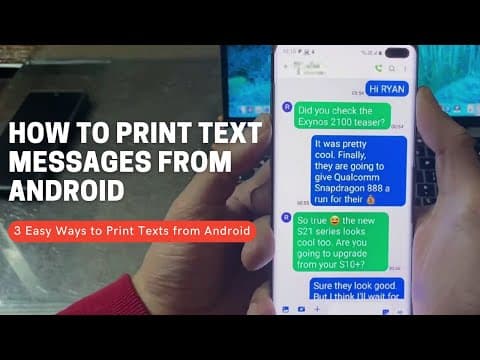
[0:00]Hi guys, in today's video, I'll show you three different ways to print text messages from an Android device. Whether you need to print a text conversation for a legal use or whether you wish to print a memorable text from a loved one, printing text messages can come in really handy. So, without further ado, let's move to the method number one.
[0:33]In the first method, I'll show you how you can use a free app called Your Phone companion by Microsoft to print text messages from your Android device. If you have access to a Windows PC, then you can easily follow these instructions to print SMS conversations from your Android. If this app is not pre-installed on your Windows PC, then you can download it for free from the Microsoft store. After running the app on your computer, select the Android option. Now you will need to scan the QR code displaying on your computer screen using the Your Phone companion app on your Android device.
[1:20]You can download this your phone companion app from the Galaxy or Play Store to link your Android with your computer.
[1:36]Give the app permission to access content on your Android.
[1:48]Now my phone is successfully linked to my computer. Click the messages button and it will load all the recent text messages from your Android. I'm not sure why it doesn't show my old text conversations. Scroll to the area that you would like to print and press the print screen button to take the screenshot of your computer screen.
[2:22]You can use the image editing app like MS Paint or Photoshop to crop the unwanted area from the screenshot.
[2:51]Now just open the saved image and hit the print button to print that Android text conversation captured in the screenshot. If you don't have the Windows PC, then you can move to the next method. In this second method, I will show you how you can use a special tool called Android SMS transfer to print text messages from your Android with all the vital information like date and time stamps of the messages and contact information of the other party. You can download this app on your Windows or Mac computer. Check the description for more information. Before using this tool, you will need to enable a special mode called USB debugging on your Android device. For enabling the USB debugging mode on any Android, you will first need to go to about phone section and tap the build number seven times until the developer options menu gets unlocked.
[3:57]Now from the developer options menu, you can easily enable the USB debugging mode.
[4:20]Just tap allow on your Android and you are good to go. Now the software will ask you to install SMS Sync app so that it can load your Android text message onto your computer. Keep tapping on continue button to install the app on your device. No need to update the app, so just click the OK button. In no time the software will load all your Android texts on its interface. Now open the next conversation that you want to print by clicking the contact name or phone number.
[5:00]You can click the print button on the toolbar to print all the text messages associated with a particular contact.
[5:12]As you can see, time and date stamp and the sender information is displaying right next to each text messages. This might prove really useful if you are planning to print your Android text for some legal issues. Click the print button once again and you are done.
[5:45]If you wish, you can export your Android text messages to your computer in different formats like text, Word, PDF, HTML, etc. and print them later. Let's save them as PDF.
[6:15]Here are all my text messages organized neatly in a PDF document. Now you can hit the print button to print off these text messages.
[6:35]Just to give you an idea, this is how the printed text look on an A4 size paper.
[6:49]Similarly, you can export your Android text messages to a computer as HTML and print them off.
[7:22]In the final method, I will show you how to take a screenshot of your text conversation on Android and print it with a wireless printer.
[7:39]This is quite simple. Just open the text conversation on your Android and press the power key and volume down key at the same time.
[7:53]You can release the keys when you hear the camera shutter sound. The process to capture a screenshot could be slightly different as per the manufacturer of your phone. You can crop the unwanted area and save the screenshot in your photo gallery.
[8:10]You can now go to your gallery and print the screenshot that has your text messages. So, you can use these three ways to print text messages from any Android device. Thank you so much for watching. If you like the tutorial, please don't forget to like and subscribe to this channel.


