[0:00]In the newer versions of InDesign, you can go up to the share button up at the top. Within there, you've got a multitude of options, amongst them is publish online. Clicking on that would start the process of uploading your inDesign document up to Adobe server and turning it into a publish online interactive publication. If you're working in an older version of InDesign, you can head across to the file menu and go down to publish online. And when this pops up on screen, in here you can give this a name, so I'm just going to call this Mars edition. You could write a description there if you wish to, but to be perfectly honest, you don't see that, and it's only really meant for SEO. You could write a description in there if you wish to. You could write a description in there if you wish to. I'm going to leave it as is. Choosing which pages to export. Well, I'm going to choose all, and I'm going to export as a single page. I'm going to turn on the checkbox to allow viewers to download the document as a PDF, but I'm not going to turn on the hide share embed options in there, so that a potential viewer of this could tweet about it, or they could share the link via a share button. If I go up to the top and click on advanced, it will take the first page of the document as the cover and it will turn into a JPEG. If you wish to, you could pick a different page, or you could even have a ready prepared piece of artwork for that. Down at the bottom here, well, this is really all about the quality of the pixel-based content. So the standard is, as you can see here, 96 pixels per inch, which is fit for most screen displays. If you were wanting to cater for those high-dip, high-resolution DPI screens, then you could choose 144 PPI. And the warning message will tell you that the loading time for that particular page or pages of your publication will take longer. I'm not sure if it would be significantly longer, but it definitely will be longer. I'm going to leave my set to 144. Image quality for the JPEG set to high, is going to be absolutely fine. And I'll leave the GIF options as they are inside of there. And then in terms of the download option, well, it this is the different types of PDF you can choose. If you want someone to be able to print it out and you are happy with that, then I would tend to suggest high quality print will be absolutely fine, or just the low screen quality, you could go for smallest file size. In my case, I'm going to go for smallest file size, and then I'm going to click on publish.
[2:39]And there we go. From here, you could copy the URL, which tends to be fairly lengthy. it's not exactly a catchy URL, and then you could choose to share on any one of these media platforms, or, um, share via an email. There's a link to publish online dashboard. I will show you that after this video. Um, but from here then, I could click on view document.
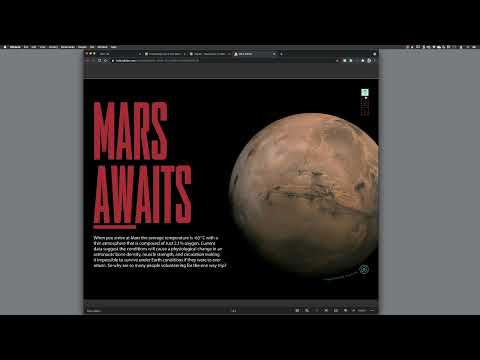
[3:08]And here we go. This is the publication, so we can hover over the page turn buttons. From here then we can try out the page turning menu buttons.
[3:18]We've also got our slideshow, which also works.
[3:24]And on here, we've got our multi-state object map with all the clickable plus buttons. And our caption as well, which is using the show and hide button feature. And finally to the interactive page that contains the video and the audio, which we can play. We can restart. We can pause. Down at the bottom, we have a menu that allows you to see a rather nice animated table of content. So you can jump from one page to another just by viewing and clicking on those. You can zoom in, and you can click and hold down the left mouse button to pan around the page in there and scrutinize it in more detail, and of course, you can click on the zoom out button as well. Going full screen mode, also a nice touch as well to clear everything else out of the way, and you can exit with the same button by clicking on it. You can download a PDF. Now, one thing to bear in mind is that it will not include the interactive elements such as the slideshows, the page turn buttons. So, that is a major drawback. But to be perfectly honest, to be perfectly honest, the quick workaround to this is to include a clickable link in your publication to download a PDF of your choosing. You just have to store it somewhere and an online accessible area for someone, but that would be the way around it. And finally down at the bottom of the screen, the ellipse here will give you a link to an embed option. So, if you didn't want to just have someone directed to Adobe's web page, you could embed it on your own blog post or your own website if you wish to, and then you can choose whatever size that needs to be as well. So, it's another handy addition. And that is how you publish online.