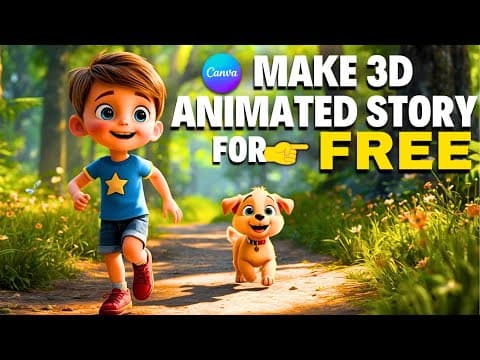
[0:00]One sunny morning, Ben heard a soft whimper outside his door. When he peeked out—oh, what a surprise! A tiny golden puppy sat there, wagging its tail and looking up with hopeful eyes. Ben gave the puppy some warm milk and said, "I'll call you Buddy!" Buddy wagged his tail so hard that his little ears flopped—and gave Ben the biggest lick ever! Looks pretty awesome, right? And the best part, I've made that entire animation in just a few hours using only AI and Canva. No fancy software, no animation skills, and yes, it's completely free. In this video, I'll show you exactly how to do the same step-by-step, even if you've never made an animated video before. So let's get started. The first step is writing your story script. For that, I'm using Chat GPT, but you can use any AI writing tool you prefer. I'll start by using this prompt to generate a title. You can copy this prompt from the description and paste it into Chat GPT, just tweak it however you like. Now, Chat GPT is generating title ideas based on the command prompt we gave. Choose the topic you like, and next we'll use a prompt to generate the full story. Simply copy the prepared story prompt and paste it into Chat GPT. This prompt will make Chat GPT generate a complete story divided into scenes. Each scene will include a scene description, voiceover script or narration, image prompt and character descriptions to ensure consistency across all scenes. Once you've chosen your title, copy it and replace the text inside the brackets with your selected title and then press Enter.
[1:46]All right, now that the story is ready, let's move on to generating the images. Open Canva. We'll be using it today to create images completely for free. Click on the Canva AI feature and select Create an image. Now, copy the first image prompt and paste it here. I'll leave the style as it is since it's already included in the prompt. Next, click the arrow to start the generation process. Canva will create four image variations, so you can pick the one you like best. Now, preview the images. If you're not happy with the result, feel free to tweak the prompt however you like. If it looks good, go ahead and generate the next image. Before we move on to generating the rest of the images, there's one thing you might want to adjust, especially if you notice that the character looks different in the next scene. That's because the character description in the second image prompt wasn't included. Look at the first image prompt, includes the full character description, while the second one does not. To fix this minor issue, simply tweak your prompt and make sure the full character description is included correctly. All right, now that all the images are done, pick the ones you want to use for your story and download them. We'll be animating them soon. But before that, let's generate the voiceover for the narration first. I'll be using 11 labs for the voiceover. Just head over to the 11 Labs website and open the text to speech feature. Copy your story script and paste it there. You can generate the narration scene by scene or all at once. Then, pick a voice that fits the tone and emotion of your story. You can use the filters to narrow it down by language, category, quality, gender, and age. Then hit apply filter. Take your time choosing the right voice. It really makes a big difference in how your final video feels. You can adjust the settings if you want, but for now, I'll just leave them as they are. When you're ready, click Generate to create the audio. Once it's done, give it a listen. If it doesn't sound quite right, try another voice until you're happy with it. When you find the perfect one, download the audio, then just repeat the same process for the rest of your script. All right, here's the fun part: animating the images. We'll be using a free website called Grok. Just go ahead and create an account or log in to get started. With this website, you can chat just like with Chat GPT, create images, and even work on different projects. But for now, we'll focus on animating our image. To do that, just upload or drag in your image, then click Edit image. And here, you can get creative by changing the style of your image, change the background, add objects, whatever you like. But for now, we're not doing any of that. Instead, click Make Video and it'll start animating your image. All right, it's done. Look at that. The result is really impressive. Can you believe we animated this without using any command prompt, and it still turned out amazing? Plus, it even came with background music. Now, if you like how it looks, you can go ahead and download it here. But if you'd like to reanimate it with a specific prompt, for example, if the character has narration, you can type your own custom prompt right here. For instance, if I want him to talk, I'll type, Let the boy say these words: "Wow, what a cute puppy!" in an excited tone. Then just hit Enter. Wow, what a cute puppy! And just look at that. As expected, the result is incredible. The voice, the expressions, the lip sync, everything looks amazing. And the best part, you animated this completely for free. That means you can create as many animations as you want. All right, let's move on to the next image and see if we can get the same awesome result. To upload it, just click on images. Here, you'll see your history of animated images. Now, either upload or drag in your next image. This time, it'll automatically animate for you. So, take a look at the result. As always, the flow, the motion, the camera movement, incredible. Now, let's reanimate it with a custom prompt that makes them walk only without narration.
[6:12]All right, now you can animate the rest of your images. Now that everything's ready, let's bring it all together. We'll be using CapCut for this part. I've already got everything imported and ready to go. First, drag and drop the audio track onto the timeline, then add your animated scene. I like to rename each scene so it's easier to keep track in order. Don't forget to change the aspect ratio. Now, just match the animation with the narration. Next, I added a few smooth transitions between scenes to keep everything flowing naturally. For the captions, I used the auto caption tool. Choose a fun template and tweaked the font, color, and size to match the overall vibe of the video. Don't be afraid to get creative. Add some playful effects, sound effects, and background music. They'll give your video that extra flair and personality. Once everything looks good, play the video from start to finish and fix any rough spots. And when you're happy with the final cut, go ahead and hit Export. I recommend choosing 4K for that crisp, high-quality finish, then export the video, and that's it. You've just made a complete animation using free AI tools. If this tutorial helped you out, give it a thumbs up and share it with your fellow creators. And hey, don't forget to subscribe for more easy tutorials like this one. Hit that notification bell so you never miss the next video! One sunny morning, Ben heard a soft whimper outside his door. When he peeked out—oh, what a surprise! A tiny golden puppy sat there, wagging its tail and looking up with hopeful eyes. Ben gave the puppy some warm milk and said, "I'll call you Buddy!" Buddy wagged his tail so hard that his little ears flopped—and gave Ben the biggest lick ever! After breakfast, Ben and Buddy set off for a walk! The forest was full of songs and sunlight. Buddy ran ahead, sniffing every flower, while Ben laughed and tried to keep up! Then, rustle, rustle! Something moved in the bushes. Ben's heart skipped a beat, but Buddy stood tall, tail wagging, ready to protect his friend. It wasn't a monster—it was a lost little kitten! Ben smiled, "Don't worry, we'll help you!" Buddy wagged his tail as if to say, "Of course we will!" When they came to a river, the kitten meowed, too scared to cross. But Buddy wagged his tail, stepped right in, and showed it was safe. "You're so brave, Buddy!" laughed Ben. The kitten led them to a tiny wooden house. A little girl ran out shouting, "Mittens! You found her!" She hugged Ben and Buddy tight. What a happy ending! The little girl gave Buddy a shiny red collar. "You're a hero, brave little dog!" Ben said with a big smile. Buddy barked proudly—he knew he'd done something special! As the sun began to set, Ben and Buddy walked home, side by side. They didn't just make a new friend today—they proved that kindness and courage make the best team! And from that day on, Ben knew—bravery isn't about being the biggest or strongest. It's about caring for others, even when you're a little scared. Be kind, be brave, and be a friend like Buddy! True bravery comes from kindness and caring for others—just like Ben and his brave little dog.


