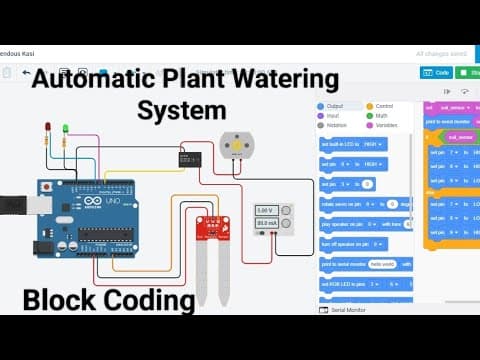
[0:00]Hello student, today we make automatic plant watering system. Now start the project. First we open the Tinkercad. This is the search option, you can search the component. First we search Arduino. Arduino Uno R3. Just drag and drop here. Again we search soil moisture sensor. That is the soil moisture sensor, drag and drop here. Now we search relay module. And take one DC motor. DC motor for the water pump. Now we search LED and take one resistor. Now connect the circuit. First we connect the ultrasonic sensor, soil moisture sensor. There are three pins: power pin, ground pin and signal pin. Power pin connect to the 5-volt of Arduino. I have connected 5-volt. Also change the color. Then indicate the power pin. Second is ground pin. Connect the ground of the Arduino. Now change the color black. After that, signal pin connect to A0 of Arduino, analog pin of A0. That is a signal pin. Now, now connect the relay. Also search the supply. That is a supply.
[2:11]You can see. Now connect the connection. Terminal 12 go to the supply. Terminal 12 go to the supply. That is a red pin. Again, terminal 8 go to the Arduino. Any digital pin, you can connect it. You can connect any digital pin. Now, terminal 5 connect to ground pin of Arduino. That is the ground pin. Connected to the ground. That is black. The last pin, terminal 6. Terminal 6 connect through the motor. That is red. And that we have to connect on supply for the ground pin. Negative pin. Motor is connected. Now we connect LED. Resistor connect to the cathode pin of LED, cathode means negative. And second terminal of resistor connect to the ground. And anode pin of LED connect to the digital pin of 8. Any digital pin, you can connect. Now, circuit is completed. Now we have to make a code. Click on the code button. Delete this. When you operate the sensor, first we operate to make a variable. Click on the variable and create variable and type here soil moisture. Soil and don't give space like that. Don't give space. You can choose underscore moisture. Soil sensor. Soil sensor. Then click okay. Then you can see there, there are three blocks is generated. Take the set block, soil moisture zero. Sensor is connected to the analog pin, then go to the input block and take read analog pin. If I connect the signal pin to to the digital pin, then I take read digital pin. We have connected, I have connected A0 pin, then I will select A0. After that go to the output pin and take print to serial monitor. In the hello world, we can put the soil moisture variable block. Now start the project and see the value in the serial monitor. Now value is zero. Click on the soil moisture sensor. Now, now you can see if the sensor is dry, sensor is dry then value is zero. If sensor is wet like that. That portion is the dry portion and that portion is the wet portion. If the sensor is wet, then it will give the value different, different. If the sensor is dry, then value will be zero. We have make a condition, if the sensor is wet then motor pump will be off, if the sensor is dry then motor will be on. Now go to the block section. Here you can see control block and take if condition. Take this if and else. After that go to the math block and take this triangle block. We have compare, compare the value to the soil moisture sensor. Go to the variable and take soil moisture sensor here. If soil moisture sensor is less than 200. Less than 200, the soil will be dry, less than 100. The soil will be dry. If the soil will dry, then motor and LED will be on. Go to the output block and take set pin here. And set pin here. We, we are used two pins of digital, digital 8 and digital 6. So now we take two digital pins. Now 7 pin and 8 pin. Again we go to the set pin. Click here and click here. First we 7 pin. Seven and second one is 8 pin. Now. If condition, if condition is follow then 7 and 8 pin high. If condition is not follow, sensor value is less than 100.
[8:06]Then 7 and LED, 7 and 8 pin low. Means motor and LED will be off. Now start the simulate. Start simulation and see the output. Motor is operating and LED is also on, but the brightness is so low. So click on the resistor and change the value. Because the resistor value is so high, 1 kΩ. Select to the ohm portion and type here 330 Ω. 330 Ω is available in the market. Now, now LED brightness is high. You can see then motor is operating and LED is on. Now I see the condition, I have given the condition is less than 100. Now condition is now less than 100. You can see in serial monitor, value is less than 100. You can see value is less than zero. Then click here. If the value is greater than 100, then motor and LED, both will be off. You can see. Now motor will be off and LED will be off. And the value is 576. Now we have connect one LED also. One LED also for when motor is off, then LED will be on. Resistor connect to the cathode pin, cathode pin connect to the ground of the Arduino. Ground of the Arduino. Select ground. And digital pin connect to the anode pin connect to the 9 pin of Arduino.
[10:11]That is 9 pin. And also change the color. And change the value of resistor. 330 Ω. Click here. Kilo ohm to ohm. Now. Change the color of LED. That is, we can change the color of LED. Click on the LED. There is an option. Click here and change the. I've selected green. If the, if sensor value is, if the sensor value is dry, less than 100, then LED and motor on. If the sensor value is low, then LED will be off. Means, if the sensor is dry condition, then green LED and motor will be on. If the sensor is wet condition, then red LED, green and motor off, only red LED on. DC motor, we operate water pump. Now go to the code section and take one set pin block and put it here.
[11:17]Again we go to the block here. Don't use this block set pin block and select 9 pin and select 9. Now we can change. Here you can select low and here you can set high. Now start simulate. You can see red LED will be off, green LED on and motor will be on. Means the sensor is in dry condition. Then water pump be on and LED on. If the sensor is in wet condition, like greater than 100. Then you can see motor will be off and LED also off. That is a project of automatic plant watering system. If the plant wants water then motor will be give the water, if the plant no need to water, then motor will not give the water. It will operate with the sensor, that sensor name is soil moisture sensor. Now stop here. If you want to take a text code then click click here and block to text. That is the text code. Also I will give the link of text code in this, in description. In description you can download the text code also and make a hardware project also. Automatic plant watering system. You can see the hardware project, I will see you. Now, you can see soil moisture is in dry condition then motor will be on. Soil moisture in wet condition then motor will be off. You can see that is a hardware project. Text code also given in description. You can download the text code also. Please subscribe my channel. Then, and also click on the bell icon button. Then the next video. The next video of the notification you will got it. Thank you all friends.


