[0:00]If you're booting up your computer and you're getting this bit locker recovery, right, enter the recovery key for this drive. Um normally what you do when you first bought your computer or set it up, it would have you create a Microsoft account. Um and you can go to this website, either this one or this one, sign in with your Microsoft account, the email and password. It's not always a Microsoft email, it can be any email, whatever you signed up with or created your login with in the very beginning. Um but if you want to weigh around that, so we're going to restart the computer. I'm going to press control delete.Oops, I need, I need two hands, control delete.Okay. And then this is an HP, so I'm going to press F10 to get into BIOS. Obviously, depending on your computer, getting into the BIOS will be different. Um most of them are F2 or delete. Once you do that, we're going to go to the boot options. Depending on your computer, it's going to be in a different spot, but here you can see there's a secure boot mode here. Okay, if you can't find it on your computer, you're going to have to look around because it's always in different places. But we'll go in here and we're going to enable secure boot. If your secure boot is already enabled, try disabling it and that might also fix the issue. So we're going to save changes and exit and then it should boot normally. Um if this doesn't work, then the only method is going to be that you're going to need to find out your email and password. Otherwise, you're pretty much going to have to wipe your computer out and lose all your data. Um see as you can see, it's booting normally now and if you want to disable uh bit locker, let me show you how. I'm going to log in and I'll show you.Oh, in this case, um disabling and reenabling bit uh not bit locker, secure boot caused it to force the pin to stop working. So now we have to do a thing to um basically reset the pin, I believe. So it's going to ask you to, see here we go, it says set up the pin again, something happened. But if you click set up pin, it wants your Microsoft account. So either way, you're going to need your Microsoft account again. So let's go ahead and connect to the internet. I'm going to have to ask the customer for their email and password and then we'll set that up. All right, so I was able to log in, they got their Microsoft email and then it asked them to verify another email. It sent them a pin or some security code and we got in. Anyways, now what we're going to do, we're going to type in bit locker, okay, or device encryption settings. So we're going to go to device encryption settings and then now what you can do is you can actually just turn it off, all right. Depending on your version of Windows, if it's Windows 10, it might still be called bit locker, not device encryption, but we're just going to turn it off here. Okay, and then just say turn off and it will turn off that encryption. Um it's going to go, you can use the computer while it's doing that, but the lock here, you can see now is gone. It used to show a padlock on here, all right. So just let that completely finish, you can see here there's a related bit locker encryption thing. So if you want, if when no, if you have Windows 10, it will show up as bit locker, not um as the other thing. So, I guess this is doing something different because now it's trying to go to the store. We don't need that, we're just doing the regular decryption. But that's it.Hopefully this video helped you guys. Thanks for watching and I'll see you in see you in the next one. Bye.
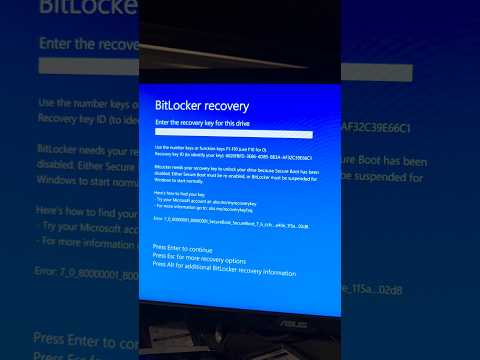
BitLocker recovery How to Retrieve the Key and Possibly How to Get Around and Disable it
It's Binh (Been) Repaired & Everything Reviewed
3m 1s694 words~4 min read
YouTube auto captions
Transcript source
YouTube auto captions
This transcript was extracted from YouTube's auto-generated caption track. The transcript below is server-rendered so it can be read, searched, cited, and shared without opening the original YouTube player.
Pull quotes
[0:00]If you're booting up your computer and you're getting this bit locker recovery, right, enter the recovery key for this drive.
[0:00]Um normally what you do when you first bought your computer or set it up, it would have you create a Microsoft account.
[0:00]Um and you can go to this website, either this one or this one, sign in with your Microsoft account, the email and password.
[0:00]It's not always a Microsoft email, it can be any email, whatever you signed up with or created your login with in the very beginning.
Use this transcript
Related transcript hubs
Watch on YouTube
Share
MORE TRANSCRIPTS


