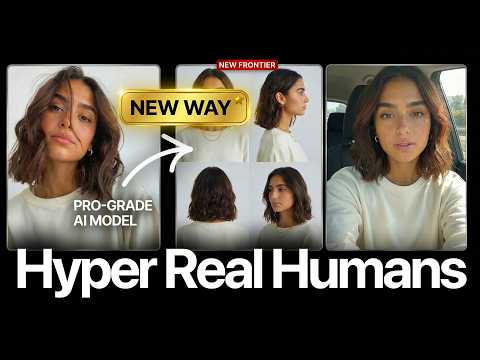
[0:00]Welcome friend. Today I'll show you the new way of creating consistent AI influencers that not only look, but also sound real. Take a look at these. Hey guys, so I need to spill the tea because I cannot hold this any longer. Oh my God, this movie is fire, bestie. This is an in-depth tutorial for beginners and those who want to go an extra mile. The only tutorial on YouTube you will ever need, trust me. I'm going to break down my entire pipeline, and you're going to walk away with two things. Number one, you're going to know exactly how to create AI influencers that are real and sound real, and number two, you're going to understand how the tech behind this actually works. What's the back end, what's the models, the infrastructure, the GPU, the economics, all of it so that you're able to build something similar for yourself or for your clients. This video is broken down into seven steps, and here's exactly what we're covering. Number one, we're going to generate our image, number two, we're going to talk about GPU economics, you can skip that part if you want. Number three, we're going to learn how to upscale to 4K, number four, create consistent influencers. Number five, generate the video using a new model that is fine-tuned for low fidelity iPhone videos, that look like this. No, but like, you can have your AI influencers sound real, just like me. Number six, we're going to fix the audio so it sounds more human, and seven, motion transfer. We will take a driving video and map the movement into your avatar, and by the end, you'll be able to do all of this yourself. The use cases are straightforward. We're talking about performance ads, product demos, social media profiles, brand UGC—anywhere you need a realistic-looking person without hiring talent. Step number one, generating the image. Everything starts here, my friend. This is probably the most important step of them all, which is generating the base image. The base image needs to look realistic. We're going to use a model I call Cora Reality. So what is it? Cora Reality is a fine-tuned version of an open-source AI model that exists out there. I've retrained it myself with custom data sets and Laura adapters specifically for hyper-realistic outputs. We're talking low fidelity iPhone, look extremely sharp pixels. Most importantly, does not look or resemble any other models in the market that will give you the feel that is AI generated. And it lets you generate any type of image. Now, it is deployed on RunPod serverless. And to host this model, we are renting out GPUs ourselves. I'll tell you more about it in a second, but you can find it inside Enhancer by going and clicking into the Cora tab over here. And there are two ways to use it. Mode number one, which is the default, text to image. So simply writing a prompt will describe our influencer, and I'm going to paste this Jason prompt over here. You can screenshot it, that's all you need. It is structured and all you have to do is simply change the values to what you prefer your model to look like. I'll use this one that you're seeing on screen, we'll select HD and make sure that we are selecting the realistic version. And a 3x4 aspect ratio, and we're going to hit generate. Now, this took about 30 seconds. As you can see, the image looks very crisp. And to the untrained eye, and even me, to be honest with you, I would have a hard time determining whether this is AI or not. Mode number two that you can use Cora Reality is by copying an image. This is where it gets interesting, you can upload a reference photo, maybe like a stock image, something that you like. I'm going to use this Pinterest photo right here, and it will copy the exact same style and produce something very similar. I'm going to click on Copy Image, I'm going to drop my image and I'm going to let the AI analyze it. And once this is done, what will happen is that it will give you a prompt. You can decide to edit the prompt, or you can keep it the same. It's up to you, I'm going to keep it as is, but this prompt is essentially the description of the image that you uploaded. And this time, I will toggle on the hyper-realistic option. So when you flip it on here, it activates the Enhancer V4 base model underneath, fixing skin texture, pores, and imperfections automatically. Think of it as a real-time skin enhancement layer that is baked right into the generation step, just in case you need that, you don't have to, by the way. So I'm going to hit Generate, and this is what we get. Left is original and right is our copy. Which one do you like best? Now, just in case you're curious, this is how the copy feature works. So the image that we have uploaded gets sent through the OpenRouter API, the vision model. And in here, we're using Gwen 3 VL235B to caption the image by providing a prompt. We're giving it to the LLM, which in this case is Gwen, by pasting some instructions. So here are my instructions, whenever the image gets passed through OpenRouter, it sees it, it analyzes it. It goes into my instructions, this is exactly what I'm telling it, masking it to look at the image and describe the image. Then Gwen, it's going to auto-write a detailed prompt that is describing everything that it's seeing based on our predefined prompt that I just showed you. And then you get back this prompt, and this prompt gets sent to Cora Reality in the prompt section. And you as a user decide whether you want to keep it or edit it, or just hit Generate, right? And these are our two images. I like them both, but I will keep image one on the right as our main source image for the rest of this tutorial. Now, here's the part that most people don't really talk about, it's the infrastructure of this model. You can skip this part if you're not interested and you can go right into the next chapter. But essentially, Cora Reality runs on an NVIDIA H100 GPU, as I said, through RunPod serverless. Let me be completely transparent about the costs, that's something that's called the execution time. When a user hits Generate, here's what actually happens behind the scenes. First, the request gets submitted and queued instantly. Then comes what we call the cold start, which essentially means that our server is asleep, and it needs to be woken up to be able to do the job, which is generating your image. And if no one has used the GPU recently, it means it's dormant, and to wake it up, it takes about 100 seconds, and we pay for that. An H100 GPU costs about 0.00125 per second of use, not simply execution, use. The customer does not know about this, and we as a provider are billed every single second, even if the GPU or the worker that's trying to generate your image, it's not doing anything just yet. Now, after the cold start, after it woke up, comes the execution time. This is the actual image being generated, about 30 to 90 seconds for a 2K image. Both we and the customer are paying for this. This is what you actually get charged. And then after it's done its job, it gave you your image, we have the cool down. The GPU at this point is just waiting for the next requests before it shuts down completely. That's another 100 seconds, we pay for this too, the customer, you in this case, you do not. So now the total time for this image to generate, which is billed, is about 300 seconds. An H100 is 0.00125 per second, times 300 seconds, so that's about 37 cents per image in real cost to us. But the customer in this case is only paying 15 cents per image. So that means that right now, at our current scale, we are losing on every single image that's being generated. And that's okay for now, because this is a scale problem, not necessarily a unit economics problem. So when we have 20 people, one after the other asking for an image, the GPU will stay warm all the time. It will stay awake, so the cold start disappears and the cool down gets absorbed by the next request. So that means that at scale, that 37 cents drops to about 11 cents, and that's when the cost per image starts making sense for us as a service provider. So more users equals GPU stays warm, equals cold start disappears, equals profitable, or maybe the price being cheaper. Let me know if this is gibberish to you, if it doesn't make sense or it's too complicated, or maybe you don't even want me to talk about these things. And to be fair with you, I actually enjoy it, but let's get to step number two, upscaling our image to 4K. The image that came out of step one, this one over here, is HD. This is good, let's say that I wanted to post this image of my influencer on social media as it is, I could absolutely work with this. But if you want to go an extra mile, there's another thing that you can do to upscale the resolution so that the image is bigger and sharper. There's two upscaler options that I would recommend you use. Option one, Crisp Upscaler, which is standard high-quality upscale. It's clean, sharp, works very well for most images, graphics, real photography, is very cheap, is very fast. So we're going to head over to the Upscale tab, and in here you'll see different upscalers. For the sake of this video, we're going to use the Crisp Upscaler, it will do the job very well. You're going to upload the image, you're going to select how much we want to upscale it, and then we're going to hit Generate. Let's wait for a few seconds. And this is what we get. This is the before and this is the after. Pretty cool. As I said, it does the job very well. Now, option B is Enhancer V4 base. This is the one that I built specifically for AI images because it brings out the skin pores, the micro textures. It fixes body too, and images that would normally get flagged. Most skin fixers out there are actually a wrapper of Nano Banana Pro. So what's going to happen if you go into other platforms to fix your AI skin, is that it's not going to fix the skin for images that it would think are violating content guidelines. And this is where Enhancer comes in, and actually, it upscales your image as well. It's meant for professional use. So let's try this. We're going to select V4 over here, there's a bunch of other options, but for this purpose V4 does very well, and we're going to let it generate. And boom, this is done. So as you can see, it's not only fixing the skin, but it's giving clarity to the image. It's fixing the pixels as well. Again, it's the same model that's powering the hyper-real toggle in step number one that we just discovered, it's just running as a standalone upscaler here where you can actually upload your own image. So let's compare them both, right as V4 and left is the Crisp Upscale. They both work. I'll go with this one over here, just I don't know, for some reason I like it better. And again, here are some more examples of what V4 can do. Again, fix AI skin, but also upscale the images if the skin is already fixed, we know that we're using Nano Banana Pro a lot, and that issue is not as common. Step number four, consistent influencers. Now that we've got a hyper-realistic avatar, we need more than just one image. We need the same person in different poses, different outfits, different spaces, scenarios, but our influencer has to look the same every single time. Especially if we're trying to build our social media, if we're trying to build IP, and this is where Nano Banana 2 comes in because it does solve for consistency. It is better in my opinion than Nano Banana Pro because it's cheaper and also faster. So we will take our upscaled influencer, and we will drop it into Nano Banana 2, just go into Image Editing, select Nano Banana 2, it should be selected by default. Now, let's say that I want to create a UGC shot about AG1, since the brand has paid me, and I own this influencer. So I want the avatar, let's name her Felicia, to hold an AG1 bottle while she is finishing up her yoga class. And I actually want her to wear these pink Lululemon yoga clothes. Very simple, we're going to drop in our picture of Felicia, we're going to drop in the AG1 bottle, and the outfit, and we're simply just going to write a prompt. This time, the prompt is very simple, no, no JSON. We're just going to say, "the woman is holding the AG1 bottle, she's wearing the pink Lululemon outfit." This is the prompt that I'm using, very straightforward. Before you hit Generate, here's where it gets interesting again. If you are creating UGC content, there's a section over here that's called Filters. Let's say that Felicia wants to capture herself in front of a mirror or simply like have an iPhone selfie. We want to get that low fidelity look that that we're aiming here. And that's the entire purpose of this video, so click whichever preset that you want, I'm going to select this one. Select the aspect ratio 9x16 and we're going to hit Generate. Boom, this is what you get, this is wild, look at the product, look at the clothes. And these are all the other presets. Now again, you don't have to use these presets, just to make your life easier if you are generating UGC content. You can simply write whatever you want, whatever you want the character to do, or to be, or where you want them to be, who you want them to be with, what you want them to be doing in simply natural language. The only purpose that I use the filters is because they're optimized for UGC on low fidelity photography. This is what it costs. Not a lot of people talk about costs, and I want to be upfront here. Nano Banana 2 is at 25% off the official market price, and here's a breakdown for 1K resolution. It's 0.06 versus 0.08, which is the market price, for 2K resolution, cost you 0.09 per image versus 0.12 market price. And for 4K resolution, 13 cents versus 16 cents market price. And also, there's an API access to the same discounted Nano Banana pricing. So if you're building with Nano Banana, and if you want to add this into your own product, running it for clients, you get the same 25% off. Step number five, we're going to turn them into videos. Before we go there, I want to thank today's sponsor, VEED, so if you're trying to automate your content in 2026, and you've got all these AI tools for editing, separate tools for B-roll, other ones for captions, then other one for AI avatars. You know how it goes, you're paying for all of them separately, your workflow is probably a mess, that's a problem that VEED actually solves. VEED is an all-in-one video creation platform. So if you need AI generated B-roll, you get access to Kling, Google VO, the best models out there right inside the editor. You do not want to film yourself anymore? Well, very simply, you can upload a photo, you can drop in your voiceover, and VEED's fabric model lip-syncs it into a full talking video with no camera required. So this is what VEED can do. I never said these words, I mean, in camera. One subscription, no juggling between five tools, that's what AI automation for video actually looks like. Link is in the description, you can use my code for 30% off your first month, veed.io. Step number five, we're going to turn them into videos. We will use Enhancer V4 video, which is another fine-tuned model, but this one is trained on iPhone-style video data. There's no other model out there that does what Enhancer V4 video generator does today, because it's been optimized on dataset that mimics iPhone shot footage. Hours and days and months of training, so the output has that slightly imperfect handheld natural look that makes UGC feel real. But the trick here is also to start with an image that looks like it's shot on an iPhone, otherwise you break the entire illusion. So remember, the V4 video will not give you a polished cinematic render. You will get something that looks like a real person recorded a selfie video on their phone, because that's the pattern across this whole pipeline. Cora Reality and V4 video are meant to work together. So, let's drop our image here. We're going to select 1080p, select our duration, we're going to drop in a prompt, here's mine, and we're going to hit Generate. Now, full disclosure, sometimes you will have to retry your output, it's not going to get it right right away. Sometimes there's pronunciation issues, sometimes there could be other issues that you're encountering. So, play with it. This is why you get. I generated four different versions, so that you can see how consistent the model is. Hey guys, so, I need to spill the tea because I cannot hold this any longer. Hey guys, so I need to spill the tea because I cannot hold this any longer. Hey guys, so, I need to spill the tea because I cannot hold this any longer. I like this one over here better, but the audio, it sounds like it's AI. It's common issue, but I got a fix for that too. Step number six, let's fix the audio. We're going to get the video and head over to our UGC audio fix, this is a workflow that's powered by the Higgs Audio on the back end for voice generation, which does help to clean up the audio AI artifacts. My secret sauce, because every AI video generator has tells, you know how the sometimes it glitches, there's like natural pauses, there's a robotic cadence to it. But audio fix has an agent in the back end that is asking to identify and remove those artifacts so that the voice sounds more natural. Of course, by layering out other models on top of it. Now, like anything else, it's not perfect, and sometimes if the videos are too long, it will mess up the dialogue. So I would recommend using videos that are no longer than 10 seconds. It does allow you for 20 second generation, but I would not recommend you do that. Now, this entire step takes about 30 seconds, it's very quick, so this is what we got. Hey guys, so, I need to spill the tea because I cannot hold this any longer. This is the before. Hey guys, so, I need to spill the tea because I cannot hold this any longer. And this is the after. Hey guys, so, I need to spill the tea because I cannot hold this any longer. Now let me show you some more examples. So, I can literally yap all day and the average person wouldn't be able to tell. So, I can literally yap all day and the average person wouldn't be able to tell. And this is our final video from this entire process. This is our AI avatar. It does look realistic, it's ready to be deployed on social media or ads. Now, bonus, motion control. This is step number seven. We have a hyper-realistic avatar with great natural sounding voice, it's still a talking head. Let's say that I want my character to be dancing, or I said that I want the character to do exactly what I'm doing right now in the video, moving exactly like I am, so that the influencer is more dynamic. There's this feature that's called motion transfer. You bring two things, your AI avatar, which is an image, and a driving video, yourself, you're, I don't know, you're dancing around, anything that you can get online that's doing the movement that you want.
[16:55]What the model is going to do is that it's going to transfer that exact motion into your avatar, like you are seeing right now on the screen, and this is very cool. Look at this. So, we are using Kling Motion Transfer for this. So this is my driving video, which is me, and I want my AI avatar to be mimicking my motion. So, let's upload them both, we're going to head over to Tools and Motion Control. Drop the video in, and the AI avatar image, and we're going to hit Generate. We're going to wait for a few minutes. And boom, this is it, it's crazy. Now, if you do not want to use Kling, you can use Wan Animate, which is fully open source. You can install it directly through ComfyUI on your own device, the exact same concept. And here's a pro tip. This is a trick for better results. Now, before you run the motion transfer, number one, take the first frame of your driving video, this one. Go back to Nano Banana 2 from step four, upload that first frame alongside your avatar, or your character, your influence, whatever you want to call it. And ask Nano Banana to do a face swap. So put your avatar's face into the driving video's first frame, here. Essentially, you're changing yourself to be the AI avatar, and here's my prompt. Now, after you've generated that face swap, use the image as the input for the motion transfer instead of the raw avatar image. So instead of using this, use this one. And now you're going to have your driving video, your source image, and you'll get something like this. Why do it? Well, because the model has a much easier time transferring motion when the starting image is already matching the pose and composition of the driving video. So the face is already in the right position, and the result is more clear and more consistent. The step is completely optional, basic flow works just fine, but if you want the absolute best output, this is the move. So that's the full pipeline, my friends. Step number one, we generated with Cora Reality. Step number two, we upscale to 4K with real skin texture. Step number three, we created consistent avatar with Nano Banana 2. Step number four, we generated with Enhancer V4 to get low fidelity iPhone quality style videos. Step number five, we fix the audio using our UGC audio fix, and last, we learn how to use motion transfer. All of this runs through Enhancer, the base model, the fine-tuned with custom data, which is deployed on serverless GPUs. And for the motion control step, you've got both a paid option and a fully open source that you can run on your own hardware. All the links you can find in the description, and if you want the full technical breakdown of the UGC audio fix, the proprietary pieces, the dataset training for Cora Reality, and everything else that's way more technical, I share all that inside my free AI community. It's called Public AI, and the link for that is also below. You can jump on calls with our engineers for free if you have any technical questions about ComfyUI, workflow deployments, or questions regarding open source AI. And I also do calls with you, and I would love for you to join me. So this is it. Thank you for your time, my friend, and I hope this was useful. Drop a like, subscribe, click that notification bell, and do not forget, create without limits. This is Syria.


