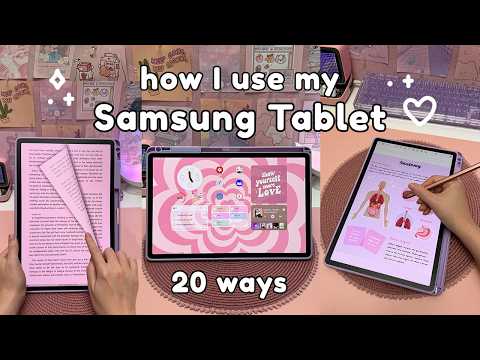
[0:00]Hello and welcome. In today's video, I'm sharing all the ways I love to use my Samsung tablet and some of my favorite Android apps. I've been using the Samsung Galaxy Tab S9 Plus along with the S Pen and it's quickly become one of my most essential devices. Whether you're considering getting a Samsung tablet or you already have one and need some inspiration, stick around and let's get straight into the video. The S Pen is great for handwritten notes and it rarely needs charging. For quick notes, Samsung Notes works great and is pre-installed. I also use Penly app for note taking. It's easy to work with images, customize note paper colors and create your own page hyperlinks. I mostly handwrite my notes, but you can also convert handwriting into text in any font you choose. With note-taking apps like Penly, you can also import PDF files like lecture slides and past exam papers and annotate over them. When it comes to drawing, my go-to apps are Infinite Painter and Ibis Paint X. Infinite Painter has loads of features, and Ibis Paint is free, and this is what I use to create my heart gradient wallpapers. I also love using Super Display to mirror my computer screen onto the tablet, transforming it into a drawing tablet for Photoshop. It works super well and I also set up these shortcut buttons to speed up my workflow. Although I usually read on my Kindle, there are days when I don't want to carry around multiple devices, and the Samsung tablet works great as an alternative. I use Moon Reader or the Kindle app for reading, and both of them offer great customization and realistic page flip animations. Plus you can borrow ebooks and audiobooks from your local library using Libby app if your library is signed up to the scheme. I also keep a reading journal where I track the books I want to read and write down my thoughts on the books that I've read. I've always been fascinated by 3D modeling, so I decided to try it using Nomad Sculpt. I created this 3D heart ball, which might look simple, but as a beginner it was actually quite a challenge. You can create all kinds of intricate sculptures and I've seen some amazing work done by more experienced users. As you might know, my channel is all about digital planning and I use my planner in Penly app almost every day. I customize my planner to have it exactly the way I want in terms of the appearance as well as the daily and weekly layouts. For example, I'm very much a night owl, so I have my daily schedule begin later at 9:00 a.m. My planner links to other apps like Google Calendar, so I can easily create reminders, and I also customize the side tabs. I have a separate video about my new digital planner, so check that out if you're interested. I go into more detail about how I customize the planner background, the daily start time, as well as the planner start month. Some of my favorite games are available on the Samsung tablet, and all the games I've tried have worked well and run smoothly without any lag. I do still prefer to play on my Steam deck because of the buttons, and I actually tried to connect these Bluetooth controllers, but I didn't manage to get it to work. You know I love to get creative and design my own planners, covers, wallpapers, and other graphics. For that, I've been using this amazing web-based design tool called Kittle, and it's super easy to use and versatile for anything you want to create. Kittle works directly from your Samsung Tablet's browser, and you can choose from one of their ready-made templates or start from scratch. Here's a quick tutorial on how I created these calendar wallpapers. I started with this calendar template and deleted everything apart from the month that I want. Then I searched for aesthetic backgrounds, and Kittle has a huge library of images and textures. I changed the font and color, and it's easy to apply different font effects. You can quickly swap out the backgrounds and once you're happy with it, just save it to your gallery, and I recommend upgrading to a paid plan so you can download at a higher resolution. So whether you want to create something for yourself, or perhaps you're interested in designing and selling digital products, then make sure to check out Kittle on your Samsung tablet or computer. You can try for free using my link in the description, and using my link you can also get 25% off your first month or year on any paid plan. I use Spotify for music and I added the widget to my home and lock screens for quicker access. It's super convenient to control what I'm listening to without having to open the app. For something relaxing, I use Penup and Happy Coloring. Penup provides a range of pen tools and coloring sheets that let you get really creative, while Happy Color has color by number sheets, which make coloring really easy, perfect for when you just want to unwind without worrying about color choices. It's super satisfying to fill in the sections and watch the entire picture come together. My Samsung tablet works great as a second monitor for my laptop. There's no complicated setup involved. You can mirror or extend your computer display, which is perfect for multitasking or getting that extra screen space. With the Samsung tablet, learning becomes even more interactive. Penup has a huge collection of live drawing lessons, and I love that I don't need any physical art supplies and can get started right away. For language learning, Duolingo is fun and interactive, and then there's apps like Quizlet, which is great for flash cards and studying. My Galaxy Tab S9 Plus is the perfect size for watching things like Netflix, especially when I'm working at my desk. And thanks to the multitasking feature, I can even have a YouTube video running in the background while I'm using a different app, and I can resize and move the window however I like.
[5:34]I keep my to-do list inside my digital planner, but for those who prefer to type, apps like TickTick are a good alternative. You can create different lists, and there's a widget so you can check off tasks directly from the home screen. I also set up a list of daily habits that I can check off every day. Finch is another good app for tracking habits and daily self-care activities. You get to take care of a pet and it grows as you complete tasks. You can earn rewards and buy different things like clothes and furniture. Although I usually edit on my computer, the tablet is a great backup option. I use Capcut for its simplicity, and this is what I use to edit all of my short videos for TikTok and Instagram. I've also heard good things about Lumafusion for those who need more professional-level features. I love creating vision boards and checking out other people's for inspiration. I use a split screen window to drag and drop images and quotes from the web, or you can also save them from places like Pinterest and add it from your gallery. You can easily crop images and flip them around and add text in different fonts. I use the Flip Clock app as a Pomodoro timer to stay focused. It's clean and simple, and you can run it in full screen mode or in a pop-up window. It also works as a regular clock display on my desk. If you're learning an instrument, apps like Simply Piano are super useful. They listen to what you play and give you real-time feedback, and the music also scrolls automatically, so you don't have to worry about turning the page. I switched from paper journaling to digital, just like with my planner. I find it easier to be creative, and you can move things around as much as you want. I usually handwrite, and on days when I prefer to type, I pair the tablet with a Bluetooth keyboard like this typewriter that also works as a stand. When it comes to editing photos, I can quick share photos from my phone to the tablet for editing on a larger screen. The gallery editing tools are great for simple tweaks like brightness, and for more advanced editing, I use Snapseed or Lightroom. These apps offer a lot of creative control for more detailed adjustments. I use Podcast Addict for listening to podcasts, audiobooks, and even radio stations. It's highly customizable, and you can create personalized playlists. Those are all the ways I like to use my Samsung tablet. If I missed one of your favorite uses, let me know in the comments. I hope you found the video helpful. Don't forget to like, comment, and subscribe so you don't miss new content. Thanks so much for watching.