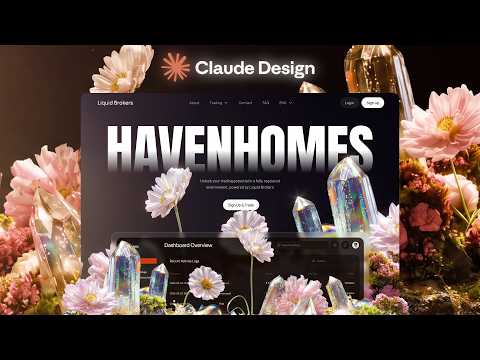
[0:00]Claude Design just came out and this is literally the best thing that happened to designers, as you can see, you can build this animated websites all total using Claude now without going to anything extra. All of this animated sizes as you can see here will were designed inside of Claude and I will share with you the whole process of how you can find inspiration, how you can turn those inspiration into actual live websites that are pretty fast, have no issues and you can sell them for multiple thousands of dollars as I did here. Because I'm going to share with you the tips and tricks on how to land your first clients using Twitter. This is by far the best way to get a lot of attention to your post, especially if you're designing or building something with AI that are that is visual. And by following this tutorial, you can learn how to build visually stunning websites that will get a lot of attention on social media. And as you can see, all of these my post take uh average on around 50,000 likes. Some of them are 600 likes. And just by following this tricks, you can do the same and you can land your clients, charge multiple thousands of dollars. So out of further do, let's get into building. To get started, just go to claude.ai/design and here you can choose any of the type of designs that you're looking for, whether it's prototype, slide deck, from template. And I'm going to start check other and I'm going to say website. Click create. And here you can basically describe what you wanted to build, like you will do with Lovable. I don't really want to start from scratch, so I'm just going to go to motionsites.ai and I'm going to select a one of the pre-built typography type of sets. I'm just going to copy this one and I'm going to paste this one here and I'm going to say, build us out, but do not add any of the video elements. I'm going to replace that later. And let's just send that and see what it comes back with. And this is what we've got as the first result. Let's just uh replace the video background. And for the video, I'm going to generate it using Nano Banana 2. So just go directly to Nano Banana 2 and for the prompt, I've used this one. But you can get directly this video, just go to motion sites and click at the backgrounds here and you can get it for free, just copy the URL and you can paste the same video that I'll be using. But after generating the image, what I'm going to do is just use Seedance 2.0 to create a animation from it. So I'm just going to download. By the way, not affiliated with anything in this video. I'm just sharing the tools that I use. You can go directly to Seedance and for the prompt, I use create video animation like these but without any text of UI element. I just want the animated background looping animation, no camera movement, no extra element to be added, no zoom in and no zoom out, looping animation. And this is the result that I received. And yeah, you can get it for free at motion size.backgrounds. Uh and here you basically have this video that I can now copy the URL off. Just copy open in the new background. Let's copy this. Go back to our website and I'm going to say, replace the video background to be this one. And let's just send that and see what it comes back with. And here we have our result. I wanted to add some UI elements similar to what I have here in the thumbnail. So basically some liquid glass UI elements, so it's not too boring the hero section. So all I have to do is just take a screenshot. What you can do is just go to Dribbble and type UI elements, so just like this UI landing just to give AI some inspiration, so it kind of knows what you're referencing and it's not just pulling stuff out of its head. So once you're here, all you can just type website design and find some of the some of the UI elements there. For example, just like this would work. If I zoom in, and I can just take a screenshot, like of these two elements. Go back to our Claude and just upload both of these. And I'm going to say add these two UI elements under the text in our hero section.
[4:15]So they should be positioned somewhat nicely around our under our content and they should not be in this colors. They should be using the same liquid glass that we use already for the nav bar and for the buttons and the text should be obviously white. So let's just send that and see what it comes back with. And here we have our cards, which looks perfectly in the exact styles that we need. Now, let's build the rest of the site. But first, let's preview the mobile version to see how it looks like, so I'm just going to click inspect here. I'm not sure how to open the mobile version on, and as you can see, mobile version looks as well great. Now let's get into building the rest of the website. And here, let's just go to Dribbble and look for some of the other inspiration for our next sections. So here I can again, can just look randomly at any of the designs here. So one of the designs that I like would be, for example, this one. And I can scroll down to see what kind of sections they have. So I just basically scrolling through. They don't really have a lot of sections. So let's look for something else. Just scroll through and find something that you like. So I found this image on Pinterest and I wanted to work with this. But let's make it into our style, so I'm just going to take a screenshot of this and then I'm going to go to Nana Banana and just kind of recreate this image in the style of our bubble. And for that, I'm going to just upload it here. And I'm going to reference the image that I've already generated. And I'm going to say, the second image, first of all, let's just remove the background and have just the remove the text and have just this image background. So again, just copy this whole thing. Take a screenshot of this whole thing. So it's not cropped, pasted into Nana Banana. And for the prompt, it would be really simple. All you have to type is something like create me an image like this in 8K. Remove the text, buttons, any logos. Just want exact background, same positioning as well, no zoom in or zoom out. And let's say, it just want the exact image. And for the background, I want it to be on a black background on a plain black. Remove the text, buttons, any cards, rectangles, etc. So basically it just remove everything and I'm going to select two options and 16x9 by 9 aspect ratio, 4K and Nana Banana 2. And now let's just generate and see what it comes back with that we later can start making in the same styles as this one. So this is what we received. As you can see, it looks pretty close to the original. Now we need to turn this into it looks something like this. So again, I'm going to reference both of the images. First, I'm going to reference this one. Basically just upload two images to Nana Banana if you're using Nana Banana directly, which I would recommend because this website is paid and it's very expensive. So, okay, first we need to say something like, create me a second image. It should be in the same style as the first image. So the background should be the same, the texture should be the same. And basically it should look similarly, but still keep the same composition as the second image.
[7:54]And let's just generate a couple of versions. I'm going to try a few different prompts. So the second prompt would be something like, create me an image, the second image but in the same styles as the first image. So as you can see, the the second prompt is pretty straightforward and simple. You can try a few different options to see whichever does the best results. And I can say that the third one, create me a second image but the background should be as the first image and the color should be as the first image as well. Basically, copy the styles of the first image and apply it to the second image but keep it close as the second image because I like it. And let's just send it and see all the variations that we get back. So these are a couple of images that we received. As you can see, they look a little bit closer than the original. The color is more similar to what we need, etc. So now let's just animate this image. I'm going to click animate and I'm going to say create animation. No camera movement. And I'm going to choose Kling 3.0. You can go to directly Kling website and I'm going to choose 12 seconds and I'm going to click generate and see what it comes back with. But also for another option, I wanted to expand this image, so let's just get into our Figma file. Set into here. And in Figma, I can just expand this image up and down to kind of have more background. If you're using paid version of Figma, which I highly recommend, all of you get, it gives you a lot of AI features. I know Figma stock is going down, unfortunately, but I believe that this will be right back up. Not a financial advisor, so let's just wait and see what it comes back with. So once we expanded this image, now let's just download this. Figma uses by the way Nano Banana 2 for image generation.
[9:59]So I'm going to say background. Go back to our video tab and here I'm just going to close this and upload our new video here, our new image. Let's just upload that. And for the prompt, try something simpler, animate this. And let's just send it and see what it comes back with. And here's the result that we received. As you can see, we have this beautiful animations that is constantly looping. Let's let's now add it to our website. And for this, I'm just going to open this. I'm going to open it in a new tab. And let's just copy the link. If you're using any other service, just download the video and go to website like mux.com for video hosting and then just upload the video and get a link from there. I'm going to use this thing directly. And now let's build our section itself. So let's get back to the original reference that we had. And let's I like this layout, so let's just actually build that. Again, I'm going to take a screenshot to send it to the AI and AI can understand the screenshots. But in order to make it simpler for the AI, I'm going to get rid of all of the elements here using Nano Banana. So just upload this image to Nana Banana. And for the prompt, use something like this. So create me an image like this in 8K, same layout of text, remove the background, just keep the text and any cards and icons, on plain black background. I do not want the background image.
[11:27]And here I can choose this five and four. And let's just send it and see what it comes back with. Here's the result that we received. Let's just copy this image. I'm going to copy this. I'm going to go to back to our Claude Design. I'm going to paste this. And I'm going to say, build out this section exactly as it is under our hero section. Build out this next section exactly as it is under our hero section. Also I'm going to say import Google Material icons and where you see those green icons, let's place Google Material some random icons but make them white. I don't want any green colors for the cards background. Let's use the same liquid glass that we already use in our nav bar in our buttons etc. And for the fonts, let's use the same fonts that we already established. So basically the same styles, just lay out as in the image. Also for the second section, let's have this video as the background. And I'm going to go and get the generated video that we just got. And I'm going to open this. I'm going to open it in a new tab. And let's just copy the link and paste this link here. Let's just send that and see what it comes back with. And this is the result that we've got. As you can see, it looks pretty cool in terms of animations, in terms of card layout, icons, everything looks great. And this way you can build the rest of the website. I think we can now post on social media and I'll share with you the tip that will get you a lot of views on Twitter. And I've used this personally for my account to constantly get a lot of views on my post and constantly go viral. You can see some of this post get 25,000 views, some of them got 300,000. So just by creating stuff like this and sharing on social media where you create it with AI can bring you a lot of likes. And also you can type uh tag me. So I always, every day check if someone reposted, someone, uh, shared their design. And if they do, I will just repost it on my profile and you'll get first uh access and first uh views for your post. Just make sure that the design is good and original and not just copy of my design. So as you can see, just like this, if someone creates something using my prompts, I'll always take a look at this and share it on my profile. So let's now share with you the tips and tricks. So first, you need to record what you created with screen studio. Screen Studio basically allows you to have this beautiful how how effects and the smoothness of the videos that you can see in these YouTube videos, since I'm recording it with that. But I'm going to record it with Clean Shot because I'm currently recording with the screen studio. So just select like this and let's just move this thing at the bottom here. So click record the screen, drag it over it and click record. Just go through, hover on some elements so the user can see that this is live website. Scroll down to the next section and show some animation here. And now just click save. The next step, I'm going to go to shots.so. Not affiliated with them, but I just like the animations that they have. Seems like my subscription here ended. Here what I like is I can choose the templates here. I can click animated and I particularly like this one. It will not make or break your design. It might improve it just by around 10%. So if you want that 10% boost, you'll want to use this one. And I'm just going to expand this. Oops. For the background, you can choose one of their backgrounds that they already have. They have like a tons of pre-built animated backgrounds like this and stuff. They have also a lot of this backgrounds, but since we already created a lot of similar backgrounds in Higgsfield, I'm just going to take exactly that. So let's find something that I think would fit the style like this one. I can just download this. Of course, this is a little bit heavy, so I'm just going to drag it into Figma. It's going to resize it and I'm going to resize it a little more. Let's just export this as JPEG. I'm going to name it. Okay, video. And let's just select custom background. So I'm going to choose image here and just drag it straight to our file like this. And here we have our animated image and video. Let's just select full HD and export this. And before posting, you want to check what are trending. So just go to export tab and see what are the top trends. So you can see Google launches flow of music, which is not related. Uh, but Anthropic launches Claude Opus for 4.7. And also they launched Claude Design, so you can mention all of those two stuff. You can also even quote their post like this to get some additional views. But I'm just going to mention Claude Opus 4.7 and Claude Design. So just click post here. And as you can see, I already did something similar. So just click on post and let's say Claude Design plus Opus 4.7 plus Kling 3.0, since this is what we used. Let's make sure we we typed Kling correctly. Yep. And now we can just upload our video that we just exported. Not this one. We can click download here and let's just upload this. And you can also tag me say, thanks for great prompts or tutorials, whatever you prefer say. If you can type something more than you have higher chances of being reposted. And then just paste this and send it and just do it every day. This way you can grow your portfolio. You can build your brand and you can find clients through here. And once you post it, you can under that, include your call to action. Do never put call to action inside of here. Just put your call to action in here. Just say, book a call with me and paste the link to your site. This way you can get clients and you can earn a lot of money selling these AI websites. After this done, there's a lot of ways you can export this. So just click export and you can export this as a code. So then you can open it in uh anti-gravity. You can do whatever you want with it. And as you can see, even we have a lot of animations and stuff. The size of this is very low because all of this is hosted uh not locally. So I don't see any issues with the speed of these websites that I'm building or any anything like that. So yeah, this was it for this tutorial. Let me know if you liked it and what you want to see in the next one. Thank you for watching.


