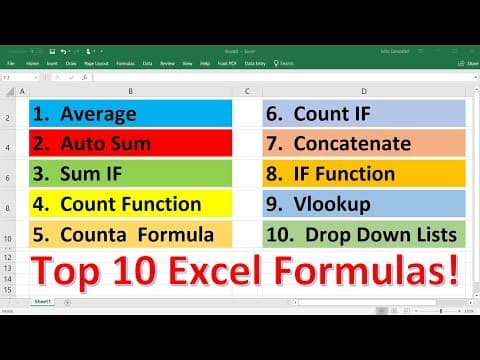
[0:01]In this video, we're going to talk about 10 functions that are typically used in Excel. So the first one that we're going to go over is the average function. So let's say we have a group of numbers: 15, 27, 42, 93, 56, 84, 75, 33, and 49. If you want to find the average of these numbers, type in equal average parentheses, and then highlight the column of data that you want to average. And so the average of these numbers is 53.125. And so that's a very simple way in which you can use the average function in Excel. Now, let's say if you want to average two numbers quickly. You can type in equal average and then let's say we want to average 100 and 200. So type in 100, 200, close parentheses, and you get 150. If you want to average three numbers, you can type in the three numbers. Let's say 100, 200 and 300. The average of those three numbers is 200. And so that's another way in which we can use the average function in Excel. Now, the next function that we're going to talk about is the sum function. So let's say if we want to add up some numbers. So if we wish to find the sum of the numbers in this list, we can type in equal sum parentheses, and then highlight the column that you want to find the sum of. And so the sum of those numbers is 429. And just like before, if we want to, we can just find the sum of two numbers. Let's say 50 and 125. 50 + 125 is 175. You can also type in equal 50 + 125. And as you can see, you'll get the same answer. Now, let's say if you want to find the sum of three numbers, you can type in equal sum 100, 200, 300. And that'll give you 600 or you can write it this way, equal 100 + 200 + 300. And so there's different ways in which you can add up numbers using the sum function. And so that's the second function that we're going to talk about in this video.
[2:41]Now, the third function is going to be the sum if function. So let's compare that with the sum function. The sum function allows us to calculate the sum of a range of values. Let's say if we want to find basically the sum of all of these vehicles, we can just use the sum formula. But let's say if we want to use the sum if formula, how will that help us? Let's highlight this particular cell. So I'm going to give it a yellow color. So let's say if we want to find the sum of only the Mazda vehicles. So we don't want to find the sum of all these numbers, but just basically a selected sum. We want to find the sum of a certain element in this list. What we need to do is type in equal sum if parentheses, and then we need to select a range. So the range will be the car type, and then comma the criteria will be based on whatever is in this cell, cell B14, and then comma, the sum range, so these are the numbers that we wish to add. Close parentheses, answer.
[4:06]This should be the car type, actually, instead of Mazda. Now, we're going to put the word Mazda in this cell. And so notice that we get the total sum of all the Mazda vehicles. So that's 125 + 142 + 425. And you can check it. If you type in equal sum 125 comma 142 comma 425, it will give you 692. Now, you can change it. Let's say if we want to find the sum of the Honda vehicles. It's automatically going to adjust. There's only one type of Honda vehicle in this list, so it's 174. If we want to find the sum of all the Toyota vehicles, just type it in, and it automatically gives us a sum. So we have a 326 for Toyota, 89 and 274. So if we type in equal 326 + 89 + the other one, which is 274, we get 689. So the sum if function helps us to find the sum of a certain element in this list. Now, let's move on to our fourth function, which is going to be the count function. So how can we use the count function? The count function allows us to count, if you read it, it says it counts the number of cells in a range that contains numbers. So we can use it to count this column, and so we have a total of 10 cells that contains numbers. So this is the first one, second, third, fourth, fifth, sixth, seventh, eighth, ninth, 10. So there's 10 cells that contains numbers. Now, if you try to use it with a column of data that don't contain numbers, you're going to get a value of zero.
[6:15]So that's the fourth function, the count function. It helps you to count the number of cells with numbers. The next one is the count a function or count A function. And so this function allows you to basically count the number of cells in a range that are not empty. So these could be cells with a text or a number. So if we highlight these cells, we're going to get a count of 10. Now, let's say if we have Mazda, if we have a number 25, let's say we have Toyota and then uh 37, and then let's say uh Jim. Let's say Carla 12. If we try to use the count function on this, it's only going to count two numbers. Because it counts 25 and 37. It doesn't count this one, which contains letters and numbers. So that's the count function. If we use the count t function or the count a function, it'll count every function that is not empty. And so it counts all of these uh functions. If we try to use it on this entire range, it still gives us six. It doesn't count the empty cells. Now, there is a function that does count the empty cells, and that is the count blank function.
[8:04]So notice that we have three empty cells, one, two, three. And so that's the count blank function. So now you know how to use the count and the count A function in Excel. So number six will be the count if function. So the count if function is very similar to the sum if function. It allows us to count a certain a selection in this entire column. So let's change this to count if. And so this is going to be equal count if. And then we need to select the range. So this will be the range. And then the criteria, which is a cell, will be whatever is in a cell B14. So notice that it tells me how many times Toyota is listed in this list. And so we have one, two, three. Now, let's choose Mazda, actually, let's do something different. Let's choose Honda. Honda should be listed once.
[9:18]Now, I'm going to add another Mazda to list. So we have one, two, three, four. So I have a total of four Mazda car types in this list.
[9:41]So if I change it to Mazda, it will count four. Now, I only have two Toyota vehicles in this list. So if I change it to Toyota, I will get two. And so that is the count if function. So instead of counting all the car types that we have here, which should be about 10, If we use the count uh function, the count if function allows us to count a certain selection in that list. It can allow us to count only the Toyota vehicles or only the Mazda vehicles. And so that's how you can use the count if function in this example. Next up, we have our next function, which is number seven, concatenate. And so let's uh increase the width of that column, and let's turn this back into a white cell. So how can we use the concatenate function? Let's say if we have a list of names. The first name in column B and the last name in column C.
[10:52]And let's write some names. So let's say uh we have the name John Smith. Let's say Kelly Williams. And then Jackie Garcia, and we'll say Lisa Clark. And let's say David Johnson. Now, let's use the concatenate function. So I'm going to type in equal concatenate, and then parentheses, text one, and then comma, text two, close parentheses. And so notice that it puts the information in column or in cell B2, and it connects it with the information in cell C2. And if I want to, I can extend this information. Now, instead of doing that, notice that we need a space in between. So to put that space, go ahead and type in equal, concatenate again, and then parentheses, we'll type in uh cell B2. You can just highlight it. And then comma, in quotations, type in your quotation mark, space, quotation mark, and then comma, cell C2, close parentheses. So now it's going to put a space between columns B and C. And so the concatenate function allows you to basically combine the information in two columns and connect it in one column. And you could put anything in between. So you can put a space or any other uh data that you want to put in between those two columns. So that's number seven, the concatenate function. Now, number eight, the if function. How can we use that? So let's say if we have the name of a fruit. Let's say Apple, Orange, Lemon, or let's say uh Banana.
[13:32]So equal if. So the logical test will be based on uh cell B3. So if B3 is, let's say, an orange, I want Excel to tell me that it's true. If it's not an orange, I want it to tell me that it's false. So here, this is false because it's not an orange. And I'm going to extend it. Notice that I do get a true statement for this being orange. If I change this to orange, it becomes true. If I change that to an Apple, it becomes false. And so that's one way in which you could use the if statement. You can also use it to say something other than true and false. So let's say if cell B3 is a lemon. So for words, you need to put it in quotations, comma. Now, instead of typing true, I want to type in yes. So I have to put quotations, yes, and the next one I can type in no, or I could say, it is not a lemon. Whatever I decide to write here, it's going to replace the word false with that statement, if it's not true. So here, I don't have a lemon, so it is not a lemon. And now I can extend this. This one is a lemon, so I get an output of yes. Now, there's some other ways in which we can use the if function. So let's say if we have some numbers, 15, 25, 50, and 84. So let's say if equals if cell B9, let's say if that is greater than 30, if that statement is true, I want Excel to basically multiply B9 by 10.
[15:46]If it's false, I want it to return a value of zero. And so in this case, B9 is not greater than 30. 15 is less than 30, so I got a value of zero. And now let's extend it. Here, 50 is greater than 30, so this cell, it performed the calculation that I wanted it to do, that is 50 * 10, I got 500. And here, 84 is above 30, so it multiplied 84 by 10, giving me 840. Now, let's do something else. So let's do if, and let's start with B9 again. So let's say B9 is less than 30. So this time, I'm going to want Excel to basically take B9 and multiply it by, or rather, subtract it by 10. Let's do something different. And if it's false, I want it to divide B9 by 10. So here, we know that 15 is less than 30, so we have the true statement.
[16:55]And thus we're going to subtract B9 by 10, giving us five. And this is less than 30, so we do 25 - 10, given us a 15. Now, for this statement is false, so we get the calculation that's involved with the false statement. 50 is not less than 30. So for the false statement, I wanted a cell B11 to be divided by 10. So 50 divided by 10 is five. And the same is true for this one, 84 divided by 10 is 8.4. And so you can make Excel perform certain calculations if the information in this cell is true or false, based on your parameters. So let's say if we're analyzing this cell, and let's say it has two options, yes or no. So we can write if cell B14, let's say if it's yes. So let's put that in quotations.
[17:55]So if we have a yes entry in cell B14, what we're going to do is we're going to take the sum of this column. And if the statement is false, meaning, let's say if we don't have a yes, such as let's say if we have a no, then instead of taking the sum, I'm going to take the average of this column. So this is a yes, which means I get the sum of those numbers. So if I type in equal 15 + 25 + 50 + 84, I get 174. Now, if I type in no, I'm going to get the average instead. So if we type in equal average 15, 25, 50, and 84, you'll get 43.5. And so by changing yes or no, I can, uh, basically cause Excel to perform a certain calculation. The calculation if the statement is true, in this case, sum, or the calculation if the statement is false, in this case, average. And so that's how you can use the if function in Excel.
[19:13]Now, number nine is the Vlookup function. So that's the next one we're going to talk about. So how can we use the Vlookup function? Well, first, let me fill in some information. So we're going to write the name of the individual, uh, the email address, let's say uh phone number, and also their annual revenue. I'm going to have to make this column bigger and this one smaller. So let's say once again, we have uh John Smith. Let's say uh Lucy Johnson. Erin Clark, David Wilson, and Ronald James. And let's say the email for this person, John, is John.s@msn.com. Let's say uh Lucy Johnson, Lucy.j@live.com. And then Erin.c@gmail.com. david.w@hotmail.com. And finally ronald.j@yahoo.com. And let's fill in some numbers. So let's say this is 243-125-7463.
[21:23]You could fast forward this if you like. 452-234-82763. I'll be done shortly. 223-372-4827. And 613-329-3829. And let's say the revenue for John is 56,000 per year. And Lucy's revenue is 74,000 per year. And Erin's revenue is 82,000 per year. Let's say David is 93,000 per year. And Ronald is, let's say, 47,000 per year. Now, let's talk about how we can use the Vlookup function to look up information for these individuals. And so here we're going to have the person's name, email, phone number, and revenue. So let's say we want to look up John Smith. Now, let's look up his email address using the Vlookup function. So if you type in equal Vlookup, parentheses, notice that you have this lookup value, and it's going to be whatever we look up in cell C8. Next we have the table array. So let's select this entire table. And then the column index number. So column A is not the first column because we only, the first column is column B because that's the first selection in our table array. Now, the email address is in column C, which is our second column that is highlighted. And the range, we have two options, true or false. We're going to choose false for an exact match. And so we have uh John's email, John.s@msn.com. So if we change his name to, let's say, Lucy Johnson, automatically the email address will be updated. Now, let's adjust the Vlookup function for the next cell. So the lookup value will still be cell C8, the table array will be the same. And the column index number will now be column three for the phone number, that's column D. That's the third column that is highlighted. And then let's choose false for an exact match again. So we get Lucy's number, 352-452-9721. Now, the last thing we're going to look up is the revenue. So our lookup value is still cell C8. Same table array, column index number, the fourth column that is highlighted. And then let's choose false again. So her revenue is 74,000. And let's adjust the number format. Let's click more counted formats. And then let's put currency with zero decimal places. So her revenue is 74,000. So if we change the name from Lucy Johnson to, let's say, Erin Clark, we're going to get all the information for Erin Clark, her email address, phone number, and her annual revenue. So that's how you can use the Vlookup function. The next one that we're going to talk about, number 10, is the use of a dropdown list. Now, the reason why this is useful is because let's say if you don't want to type in the information, if you want to just pull the name from a dropdown list, you can do that. And so a quick and simple way to make a dropdown list is to click data, and then go to data validation, and then under the a section validation criteria, allow a list instead of any value. And then you can type in the names that you want or you can click in this button, and then select these names. And then press enter, okay, and now we have a dropdown list. So if I select John Smith, it automatically updates. If I select Lucy Johnson, as you can see, it updates or David Wilson, I can get his email, phone, and revenue. Or finally, Ronald James. And so that's the 10th useful feature in Excel. And so that's it for this video. Hopefully, you found it to be helpful. And if you want to find more detailed videos that I have on Vlookup, dropdown lists, if functions and other stuff like that. Check out the description section of this video, and um, you could find my Excel video tutorial playlist. You can also check out my channel if you want to find help in other topics. Let's say if you're going back to school and you want to learn algebra, geometry, trig, precal, calculus, chemistry, physics, I do have playlists on those topics as well. So thanks again for watching.


