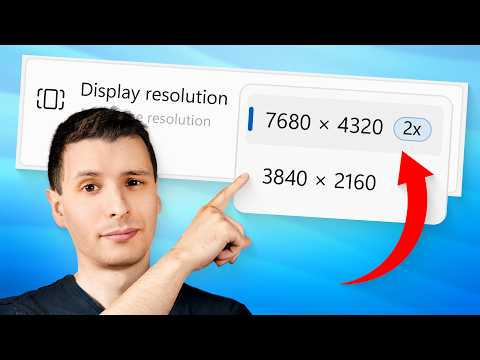
[0:00]What's up guys? I'm Thingo Bingo, and before you accuse me of clickbait or returning to my evil ways, I obviously do not mean that you can physically increase the number of pixels on your monitor. But you can actually make Windows use a virtual resolution of up to two times your max monitor resolution. And there are very practical and cool uses for doing so that you might not have thought of. Like maybe you were wondering why the screen recordings in this very video are so sharp despite zooming so far in. Well, that's actually just one example of it. So let me show you how this is done. You can do this with either NVIDIA graphics cards or AMD, although I don't believe it's in Intel graphics yet. For NVIDIA cards, to do this, you go to the NVIDIA control panel, and then go to manage 3D settings. Then under global settings, look for the option called DSR - Factors. And you can select multiple of these, but to max it out, just select 4.0X. And then also, you want to go to the DSR - Smoothness option and set this to 0%. If you do not set that to 0%, it's going to do additional processing that I found can cause lagging on the display and stuff, so just set it to 0%. And by the way, you can also get to these same settings in the NVIDIA app if you go to graphics and then global settings under there too. Now, for AMD, apparently this is called something different. It's called AMD Virtual Super Resolution. And you should be able to get to this by opening the AMD software and then searching VSR. Or apparently, you can also find it under the display settings and it's just called virtual super resolution. You can enable it, and I don't know exactly what this looks like in terms of other settings after you enable it, but I assume it's going to be the same with the NVIDIA thing. Anyway, after enabling it, to take advantage of it, you can go to the Windows settings, and then system, display. And in here, you'll notice that under the optional resolutions for your monitor, it will add a new highest resolution. And if you had set the DSR setting to 4.0x, it should be double the width and height of your native monitor resolution. And so to actually use this, you can turn it on and off basically by just selecting or not selecting that virtual resolution as the main one. So you don't have to use this all the time. And I'll show you why you might want to do this in a second, but I will point out that if you only want to use this in games, like as an alternative to anti-aliasing, you can just leave your native resolution in Windows set to this. And then in the video game, set it to the virtual resolution, and then it'll still work like that. Anyway, if you choose the virtual resolution, and then let's say it's double the width and height of your native one. If you then go and change the scaling option, which Windows will probably adjust automatically. If you change that to double what it was before, you'll notice that everything basically looks the same in terms of size. It's just being all rendered as a higher resolution behind the scenes. So at least for the thing about getting higher quality screenshots and screen recordings, that scaling percentage is the key here. Because now you can set that to higher than it was before. On 4K monitors, Windows maxes that out at 350%. You can't go any higher than that. But on 8K, it apparently maxes out at 500%. And I do believe that is the absolute max. But in any case, that means that if you have that scaling set to 400 or 500%, then when you do a screen recording or a screenshot, you're basically going to make it 5x sharper than if you just had it at 100% and screenshot it. And like I said, the reason you can't always just do this at your native resolution is because on 4K, maxing out at 350%, that's all it goes up to. And even if you do set it to 350%, things are going to look way bigger, so it might be hard to kind of navigate and stuff. So for me, really, the main benefit that I get out of it is if I do want to go to do a screen recording, I will set it to that virtual resolution and set up the scaling to as high as I can, and then get that. So it's not like I'm leaving it on all the time. It's usually only if I'm going to be doing a screenshot or screen recording that I do want to specifically have very zoomed in and get that higher resolution and quality. Another really interesting use case of this you might not have thought of is if you have mismatched monitor resolutions. Like you have two monitors, one say 4K and the other 1440P. And even if they are the same exact physical dimensions, in Windows, if you go to move your cursor between the monitors, because it does that by pixel location coordinates instead of the relative physical location of the cursor, it will always have your cursor jump up and down depending on how you have it arranged in the display settings. There's no way to get it to just move over smoothly. However, with this feature, you can make it so Windows thinks that they are the same resolution and then it just auto scales on your monitor through the GPU, and that way, it'll completely move over and look natural when you move the cursor. Now, I will point out that theoretically you could actually leave it on all the time and just set it, the scaling to be double what it was before. And the size of everything will look the same. But the reason that I don't do that is because some applications, some desktop apps seem to not play well with higher resolution and scaling. Even though Windows does have that scaling thing built in, some apps, I guess, use certain hard coded sized images and graphics and stuff, a subset of them, but enough that it does bug me. So for me personally, it just makes more sense to only use it when I need to. Also, when you do have the higher resolution and scaling, the anti-aliasing of texts is going to look a little bit different. I actually think it looks sharper and actually looks better. It's a personal preference thing, but it will look slightly different. Just be aware of that if you decide to keep it on. Now, one thing I want to touch on, you might have noticed in the NVIDIA control panel settings, is the DL resolution options. It doesn't go up as high, it only goes up to 2.25x, and supposedly this uses neural networks and AI, so that the 2.25x setting is supposed to look the same as the 4.0 DSR setting, but without having to use as much processing power. Of course, if our goal is to just get pure higher raw resolution so we can get higher Windows scaling, then it's still better to use the 4.0 DSR mode. Another use is, like I said, originally this feature was meant for games where it's super sampling basically where you set the game resolution to double what the native monitor is, and then you get basically anti-aliasing that's true anti-aliasing as opposed to the fake stuff. But the problem with that is obviously you're rendering the game at twice the resolution it was originally, and if that's going to be 8K, that is maybe hard on your graphics card, to say the least. I will point out though that for older games especially that almost take no processing power anyway, your GPU might not even break a sweat trying to render that at 8K. So if you want, you can leave it there just for really old games and there's not even much of a tradeoff. I will say though, testing it with Quake, it seemed like the regular built-in anti-aliasing feature looked way better than even the 8K upscaled with anti-aliasing turned off. So in my opinion, I don't even know if I would ever use the DSR option for purely anti-aliasing. For me, it's just useful to have a higher resolution and then kind of trick programs into using it. Another potentially interesting use is if you for some reason need things in Windows to look smaller than they otherwise would. Like maybe you have a really massive TV or monitor that you're using and the resolution isn't particularly high. So you want the icons and stuff to actually look smaller. Well, if you double the virtual resolution and set it to that, 100% is going to make things on the screen look smaller than 100% at the native resolution. And I believe that would actually apply to anything between 100% and 200%, it would actually look smaller. So for some people in certain circumstances, that might actually be desirable, I thought I'd point it out. Of course, the only other downside is if you're using this for screen recording and you're going from 4K to 8K, 8K is an enormous file, not just in terms of the file size, but also the editing processing power, it might make your computer lag a little bit, but could be worth it depending on how long the video is or whatever. Because again, even if you're only going to be outputting a 1080p or 1440p video, the fact that you have all that space to zoom into, that's the main benefit is to be able to zoom it. I would be curious if any of you have other potential ideas for how this could be useful though that I hadn't thought of or mentioned. We could talk about that down in the comments. Now, speaking of settings and stuff in Windows, I did make a video recently talking about Windows settings that you should change that you probably still have set to their default, but you'll want to not make it that way. So I'll put that link right there you can click on. And of course, if you enjoyed the video, be sure to give it a big giant thumbs up, it helps out. And if you want to subscribe, I try to make videos twice a week, so it should be worth it. So thanks so much for watching, and I'll see you in the next one.
Double Your Screen Resolution for Free
ThioJoe
8m 52s1,811 words~10 min read
Auto-Generated
Watch on YouTube
Share
MORE TRANSCRIPTS