[0:00]prop firm using DX trade or maybe you're using DX trade on your own, I don't know. Either way, we have a video for you here today so you get more familiar with the platform and how to use it and all that stuff. So, I'm going to walk you through a couple things. I am on technically speaking a live but demo account through a prop firm. So this is an account through a prop firm that I have. that is technically funded. And so I'm able to withdraw through the prop firm. But the prop firm is not really the point of this video. It's more about DX trade. This is DX trade through Blueberry markets as the broker. There are different brokers that they can use. However, I know a lot of them or a bunch of them now um, will use something like blueberry markets, but there are other ones out there. Um, so things could be a little bit different in terms of spreads and whatnot, but Let's get into it. So, you're going to have a page or when you log into your account, this is on desktop, obviously. you're going to have some of that doesn't maybe look like this initially, but I've customized mine. So, there's a bunch of tabs up in the top left. You have chart, positions, watch list, my account, tools, one-click trading. You've got your balance numbers, all that stuff at the top. Then underneath that there's my trading account, which is currently the tab I have open. There's a dashboard account. There's a journal account or a journal tab. Uh technical analysis tab, which will put full chart pull up four charts. You can customize that to make there more or less charts. And then there's an economic calendar and then there's a plus button that allows you to add or create your own workspace. So, for example, I'll I'll workspace one, let's call it workspace one. And now you're like, okay, we got a blank slate. You might have something along those lines. You might log in and there'd be something populated. I don't know what it's going to be, but there'll be something there. So, what I'm going to do now is I'm going to click on where it says chart. And now it'll pop a big chart up on my screen. Okay? When I have this or what I have here, is the ability to now customize like this layout. It's kind of like any other platform, like Webull or other brokerage platforms out there that you can just customize your layout. And I would encourage you to do so. So, what I'm going to go do is I'm going to go chart and positions because I don't really care, to be honest, like that's all I care about, really. I could go back. I have this connected to a trade journaling software, Tradezella, if you're interested, there'll be a link to Tradezella below. Um, where it auto sinks, they have blueberry markets connected. I just got to log into my account. DX trade, blueberry markets on Tradezella, they automatically sync my account information or my trade data over there and they do they take care of all the journaling. But they have some minor journaling aspects here. So, I don't all I want to see is the chart and then my position list. So if I have to get in or get out, whatever, it's right there. It's easy to do. I don't need other stuff, but you might. So we'll talk about a couple things here. So you so you get a a sense for what you have access to. So, now my positions are at the bottom. The plus sign, I can go, I can add a chart. A watch list tab, order tab, order history. So, for example, maybe what I'd like what I would like to have would be like a trade history tab. So now I can go back and forth between positions and trade history and see my recent trades. I've been on a pretty bad, uh, not bad, but this account has been on a losing streak as of late. So you see a bunch of losses popping up here. So I can go back and see how much I lost. Now, I already know that because it tracks through Tradezella, but if you don't have that, don't want to pay for Tradezella, then you have, you know, a great way to track your data to track when you got in the trades, out of the trades, the prices so that you can at least be like, okay, you know, I can keep track of what I'm doing and then, you know, use that to your advantage later on. The time range is set to last week. I can make it for today or I can go to all history, whatever. Uh, so I can change that as I want to. There's a bunch more there, Time and Sales, market depth. There's actually, you know, pretty cool information that you can get or pretty cool data that you can get if you want to get access to this stuff. or if you have access to this stuff, uh, I would encourage you to add it. Alerts, if you set alerts, I don't have any alerts currently active, but I could and I could have that created right now. Go ahead and create an alert just like you would do that pretty much on uh, other platforms like TradingView type in the symbol and uh, you know, go from there. Type in the expiration if you want to, add conditions, which is pretty cool. I I mean, I like it I like to see it and then add a description if you would like. That is kind of like the basics of what you have in the bottom. Now, you can move this stuff around. So for example, if I go back to my positions, if I just pop this open, If I move this or this little on the left-hand side these like six dots, if I move this and start to like hover on different sections of the um, page, it'll allow me to put it on the left on the right-hand side. Then I can go ahead and adjust on the the slider to adjust as I see fit. Now, I'm going to go back to my like trading account page. What you then want to do is go up to the top right. This icon right here. And where it says layouts, click or type or save as, right? You probably want to do and name your layout. So for example, like this is my main layout, right? To call it your main layout and save it as a main layout. Once you do that, you'll come back in here and your your layout will be the same when you log in. Um, so it won't be something you have to worry about, which you would be is is nice. Outside of that, there's a couple other things, uh, up in the top right, which I want to make sure you can see, right? Yes, you can. So, at this three little lines, there's more information that you can have access to, if you want to. But one of the bigger things I think is important is the sound on order executions. So, if you get in or get out of a trade or gets gets rejected, have the sounds go off if you want them just so that you're, you know, you're able to see, okay, I'm in, I'm out, whatever is, whatever's going on. Personally, that's what I like to do. Um, okay, so, now on our chart page, they have the sell button, the buy button. So if I wanted to get in right now, I could do that. Now, I don't have one-click trading enabled. So if I click on buy or sell, it will not automatically get me in. But if I did click on that, it'll allow me to accept the conditions and then I can get in very fast. I don't personally do that because I don't trade that fast. I don't scalp, so it's not something that really matters to me. But you have the you have the ability to do so. On the left hand side, okay? You have a toolbar that you can expand or, you know, I guess contract. And allows you to pull up a ton of different tools for your charts. So, you want to use things like rays, horizontal rays, trend lines, text, icons, anything. You can have or you have access to on the left-hand side, okay? Uh, I don't personally use too much because what I do is I like to do my charting on TradingView and then I just make my I execute on here. But, you know, it's gotten better from when I first um, used this platform. It's definitely gotten a lot better. So, um, if I go up into this box in the top left, this will allow me to change my lot size. So, in the case of this, which is NKLA, it's a stock. Like, 0.01 means I'm going to be getting one share of the stock, which is a $6 stock. So it's like, I mean, that's not going to do too much in terms of a PNL. So come in here and you can edit that to maybe 50 shares or whatever or I guess 0.5 will be 50 in this case. Um, depending upon the broker, depending upon the platform that you're using. So, when I go to buy, what's what where it gets more important, in my opinion, click on buy. If I don't have one-click trading enabled, click on buy. It'll pop up an order form. It looks like this. Now, inside this order form, this is kind of where the meat and potatoes of the video really is. Order type, market, limit, stop or one cancels the other, OCO. Now, 0.5 lots would essentially be the buying power of 50 shares. But how do you know that for sure? If I go down, well, for example, I guess it tells you the margin impact right here, right? Based off the spread. Okay, cool. But if I go to protection orders, I can input a stop and a take profit and then as I go, I can then see the PNL, the projected loss and the projected profit that this would make. So, if I wanted to go long in, uh, NKLA right now, with a stop loss at like 640, let's just say. And then a take profit at, let's just say, $7 to make it easy. Uh, not 70, $7. Make sure you are careful with those entries when you when you enter these things in. Uh, it'll say that I'm projected to lose $11 and my take profit or my projected profit, if it hits, is $19. Cool. Now, what I could do is market by right now and I'll get filled on the ask, which is a 10 cent spread or 11 cent spread, which is not ideal and it shows you the the ask and the bid there. Or what I could do is I can go with a limit order and set my limit price. It now gives you the option to set your limit price. So let's say I want to get filled at 640 and I want to have a stop loss at 630 and I want to have my take profit the same. So I'm risking $5 to make $30. I have the order duration, so good till cancelled means this will stay open tomorrow, the next day, until I cancel it. Uh, day, I can have it expire today or GT day or GTD. So I can then set the time expiration of this order, okay? So, that's good to know. I personally will either use a day or a GTC. Most of the time, I just don't change it. It's set to GTC automatically. And then if I don't get in, I'll come back and just click the order. I'll I'll I'll exit out of the order. I'll or I'll cancel it. So, if I click on send order, now what you're going to see is it's going to pop up on the chart my take profit level. And it will show me my limit by price and my stop loss price, okay? So, pretty straightforward, pretty cool. And I can adjust these and move these up and down like you would on other platforms, which is nice. Now, when I adjust it and if I don't have one click trading enabled, it will now ask me to confirm, enter, you know, re-enter things if I have to, if if I want to do that. So in this case, I moved my take profit up 5 cents and it it just confirming like, hey, here's your your here's your data, blah blah blah. Now, if I was in a position, you wouldn't see this the stuff at the top. It would just be more so changing what we currently are looking at the bottom, okay? Um, okay, let's see. We have the option to not only choose a stop loss and take profit by price, but you have pips, projected loss or percentage of your balance, which is cool. And these are things I think are fairly new because I don't remember seeing them, um, back when I originally was using DX, uh, a few months ago. So, click on cancel. Uh, now I can go to where it's where I have on the order. I can click on the X on each of these individual orders and it will allow me to edit and cancel the stop loss and take profit. And now I have my limit here. So from this, I could then go and do the same things or I can click on the X and it will cancel the order. Boom. I don't have to worry. Inside of a live, let's go to a live position so you can kind of see it a little bit differently. Here's a live position on RTX, which let me actually pull up RTX on my, uh, account in the top right. RTX in the top right box, pull it up, and this was a trade that I took on the one day time frame, so you can kind of see it's like a breakout play. Not kind of, it is a breakout trade, uh, for me. And so you have the take profit, you have the stop loss, you have the entry, and it tells me my current, um, you know, entry price and all that stuff. If I double click on the position side, up above me right here, it'll also open up the box for my orders, which is cool. So I can go in and edit things if I want to, but you now see that it it doesn't have it it at the top, it shows me the position ID, when I opened it, if I'm modifying it, et cetera, and the open PNL. Like it's currently up $71, but I'm currently looking to make 175 if it were to go to my take profit or risk about about 90 if it goes to my stop. Okay? So, I can keep I keep track of it. Um, now, also, up in the top right, if you hover over a position, see how it as I hover over there's a little, uh, two icons? It's very small. There's this icon right here, which I believe is a reverse icon, which I'm not allowed to do. I guess my account does not allow me to do that. Uh maybe yours does based on your platform, prop firm or brokerage. But there's an X, okay? If I click on the X, right on the right-hand side, and I do not have one-click trading enabled again. One click trading will, you know, allow you to just click something and get in, get out and maybe you didn't want to do that. So I don't do unless you're a scalper and know what you're doing, I don't recommend having that clicked. But if I click on the X, it will allow me to now take partial profits. This is key because people are always going to ask, how do you take partial profits? If I click the X on my position tab, okay? I now go go I can go into this and it will tell me or give me the option, lots to close. And if I have 0.58, meaning I have 58 shares approx or roughly, uh, but I wanted to close half or a percentage of that, I can come in here and click or type in. I want to sell 0.25 or 25 shares and it will tell me, I am going to close 25 out of 0.58, which means I'm taking some off the table. So if I wanted to scale out of this position, I could do this, click on close position, and now I'm locking some gains in and leaving the rest on. So if you're looking to scale out, you can do that. You just have to know how to do that, and hopefully this is helpful. So, if you have any questions about how this works, leave them in the comment section below. There are a couple other features that you have access to. The time period on top. You have the chart type. You can go from candles to bars to lines, which is pretty cool. Um, there's some drawing features which we were looking at the beginning there too. Indicators. There's plenty of indicators where that came from. You can start typing this in, for example, if I want the view up added on my on my charts. VWAP, Volume Weighted Average Price. I can get it added to my charts. I don't personally like to use indicators. So, and then you have to drag it over to the added indicator box, by the way. I don't use indicators, so I'm not going to bother, but you have the option to do that, okay? And then there's a multi-chart feature which allows you to chart or have more charts on your screen if you want to. And then there's a snapshot feature. So if you want to take pictures of your chart and you don't want a screenshot, which I guess, you know, you could do that. Um, you can download the chart image and all that stuff. And then there's some chart settings, some basic chart settings that you can customize in here. I don't want to dive too too deep into this, but it's it's available for you to just, you know, customize to your likings. Not as complex as like a TradingView and whatnot, like what you get there, but they have done a lot I have seen to add more features and allow you to get some of what you get at like a TradingView. all right here. So it's pretty cool. It's definitely come, uh, I think a long way or a little bit of a way since I first signed up with the one of these prop firms that offered DX trade. So I'm happy for that. And uh, again, leave those questions below. And if we got to make a video on something else more specifically, we will do so. But hopefully that was helpful, so you can kind of see how this works and maybe I answer some questions. Thanks so much. Peace.
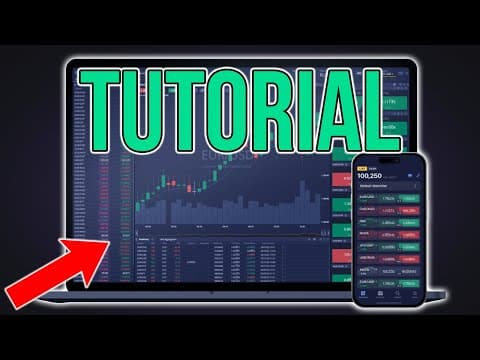
DX Trade Tutorial | Trading Platform Overview + Buy/Sell Tutorial
TC Trading
19m 39s3,317 words~17 min read
YouTube auto captions
Transcript source
YouTube auto captions
This transcript was extracted from YouTube's auto-generated caption track. The transcript below is server-rendered so it can be read, searched, cited, and shared without opening the original YouTube player.
Pull quotes
[0:00]prop firm using DX trade or maybe you're using DX trade on your own, I don't know.
[0:00]Either way, we have a video for you here today so you get more familiar with the platform and how to use it and all that stuff.
[0:00]However, I know a lot of them or a bunch of them now um, will use something like blueberry markets, but there are other ones out there.
[0:00]Um, so things could be a little bit different in terms of spreads and whatnot, but Let's get into it.
Use this transcript
Related transcript hubs
Watch on YouTube
Share
MORE TRANSCRIPTS