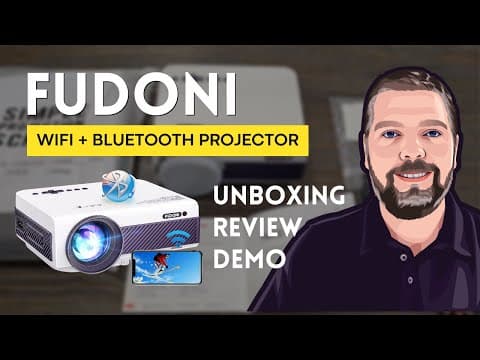
[0:00]Hey and welcome back to Home Reviews. In this video, we're looking at an LCD projector by Fudoni. We're going to be taking this out of the box, looking more into it, but just looking at this box, you can see it's 1080p. And let's me just flip this up here. 2.4 and 5G Wi-Fi, screen mirroring and projector screen. So, I am anxious to take this out, guys. If you, if you're looking for something that'll like connect to your phone, uh where you can do like screen mirroring directly from your phones, your projector, this is going to be ideal for that, as well as connecting to Wi-Fi and accessing different apps to be able to play things directly from your uh device to your projector, so you can watch it pretty much anywhere you go, as long as you're able to get power to your projector. So, let's take it out and look at it. All right, so I am super impressed with this so far and I just got it out of the bag because the front of the box said 100 inches screen. I thought that was the distance it was going to project in size, but that's not the case. It's actually includes a 100 inch simple projection screen that you can use. And it's got these little uh stickers, so you can put it up on something. Uh this is very cool. I was not expecting this. But actually itself, depending on how far away, if you have it set at 29.6 ft, it will expand up to 300 inches on your wall. So, you're going to have plenty of size using this tiny little projector, which is it's actually the perfect size. Look at that. I mean, this thing is not very big at all, but yet it is loaded with uh all these features and it has, see there on the bottom that little uh will, uh that's actually a legs, where you can lift it up. You got your uh lens cover, the focus, which you can turn to adjust it. You got your keystone there to adjust the angle of your screen. And then all your other options will be back here on the back for your power button, your input, your source, your volume, and all that, which we're going to be looking at after we get this hooked up later this evening at nighttime to show you guys exactly how it looks. On one side of it, you have the plug for your power, and then on the other side, you have different types of connections where you can hook it up to VGA, USB, HDMI. Even a card, so if you have uh some type of videos, pictures, or whatever put on a card, you can insert that card right there in the TF port and you can watch them directly from that. And you also have an AV and a headphones port. Now, once again, this also works off of Wi-Fi, so what you would do, and it's all explained here in the manual. I'm not going to go through the entire manual with you. Uh, but basically what this will do is connect directly to your Wi-Fi that you have in your house. And then you would grab your mobile device that has screen mirroring on it, and then you would go to your Wi-Fi settings and connect to your projector. And then you can play through your Wi-Fi directly from your device to your projector. But of course, you also have the options of hooking it up directly through an HDMI cable. And then you have some cleaning accessories here that you can use as well to take care of it, but what we're going to do is here a little bit later, it gets this evening, I'm going to put up this projector screen. And then we're going to set this up and we're going to see how well this works. And here it is, all set up. Look how bright that is. Uh I will tell you though, you can see here, this is where I have it set up. So, it's maybe, uh 10 ft or so away from the projector, so it's pretty bright, but the further away you move it, the less bright it's going to be, but you're going to have a much bigger screen. In fact, if you have it all the way back as far as it can go, it would be about three times the size of what this screen is here. So, I have my phone set up to just mirror what's on it to play directly on to here and it was super easy to set up. So, you got your remote here. I don't know if you can see it or not. There we go. And this is what you're going to be using to make all of your adjustments. Now, you do have down here on the projector. If you turn this, it's going to adjust the focus of the screen whether it's blurry or not. And then this here is your keystone. So, if you move it left or right, I'll show you what it does. Let me readjust this. You can see how it tilts the screen. So, uh depending on the angle of your screen, you can use that to make it square or to make it angle. Now, when you use the remote, you have to make sure you aim it to the back of the projector because that's where the sensor's at. And if you're above it and try to use it, it's not going to work. So you have to aim it at the back. So let me just show you here. So, if we go into settings, these are some of the options that you have. And then you'll see Bluetooth down there in the bottom left. So, that's if you want to hook up like some like a Bluetooth speaker. You have your HDMI, your AV, your VGA, or screen mirroring. So, I'm going to go ahead and do screen mirroring. So I'm going to go over and click on it. And depending on your device here, it ask you Android or iOS or there's settings. I want to make sure that I'm on the green one. And then you can see here, it's waiting for a connection. So, right here, it says basically all you have to do is make sure your screen mirroring is on your device, which my Android has. And then you just go to your Wi-Fi settings and you connect to what it says right there underneath the Wi-Fi, the V7 190C82. So for me, that's the name of it and that's what I would connect to. So, I'm going to go ahead and do that and show you what this looks like on the screen. Okay, so I can't do the screen mirroring on my phone and record at the same time for my phone, so instead, I hooked up my laptop here, and I ran the HDMI cable from it and plugged it into the side of the projector. And that's what we're going to use to record with, and it's super easy, guys. All you have to do is just make the connection, that's it. And it just does the rest on its own. So, we're going to go ahead up here, and I'm going to aim this and make sure we're on HDMI. Click and there's the video. And let me come down here. Play it.
[6:42]And so there you got it, guys. A great projector, um really good uh video quality on it. Even though it is really small and compact, uh it does have audio, but I would suggest that you use a Bluetooth speaker with it instead. But I am very satisfied with this projector and I am sure I'll be getting a lot of use out of it.


