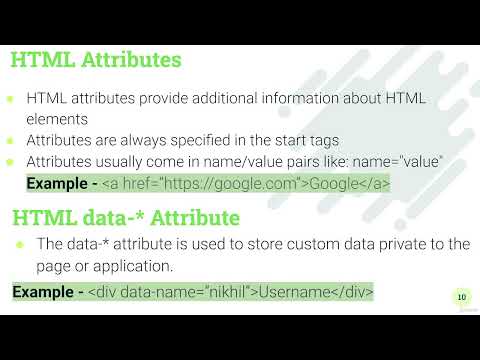
[0:01]In this video we'll learn basics of HTML. HTML stands for hypertext markup language. It refers to the way in which web pages (HTML documents) are linked together. Basically, markup language is a computer language that uses tags to define the elements within the document. And we already discussed HTML describes the structure of a web page, and the HTML elements tell the browser how to display the content. So let's see what is HTML element. So HTML element is defined by a start tag, then we'll write some content in between and then the end tag. So here is an example, H1 tag is there, then we are writing some content, my first heading and I'm closing that tag. So this is how we create an HTML element. And there are many HTML elements available, but most commonly used HTML elements in LWC we're going to discuss today. So the first tag that we're going to learn is the div tag. This tag defines a division in an HTML document and most popular, most commonly used tag. Then the second tag is the P tag. So if you want to write some paragraph for the text that has some padding or that has some margin before the text and after the text, so you we prefer to write the P tag. These are the block level, it means it start with the every time with a new line. Then we have a H1 to H6. If you want to embed some heading in the document or on the page, we use these tags. Then we have a A tag that is a anchor tag. If you want to embed some link for the website, you use anchor tag. Then we have a image tag. If you want to embed some image in the web page, we go with the image tag. We have a UL tag. If you want to show the list of item on the web page, we go with UL tag. So let's go to our VS code and start writing some HTML. So I'm in my VS code. So first we need to open the VS code in a particular folder, so select the file, go to open folder and select the folder where you want to create your files. So I selected learning LWC. Now go to Explorer, you will see your folder is ready. And this folder structure has three icon. First icon will help you to create a new file, second will help you to create a new folder, third icon will help you to refresh the explorer if you have created a new file, and it is just to collapse the folder in Explorer. So let's create the first file that is required for our HTML. So I'll write the file name as index and HTML files always end with the extension of HTML. So this is how you create an HTML file. So the HTML starts with the doc type, that defines that this document is supporting HTML 5 version. So we'll write doc type HTML. So this tells it's a document HTML 5 document or HTML 5. Then we'll write a HTML tag, that is a root element of HTML page. HTML, then we'll have a head tag. So this element contain meta information about our HTML pages. Like if you want to give some title to your web page, my first page. Then we have a body tag. This body tag defines the document of the body. It is a container of all the visible content that shows on the browser. So this is the basic structure of your HTML. And within this we're going to write our HTML elements. So suppose we are trying to show on the screen something, welcome to my first HTML page and I'll start writing a div tag. It start with a dig and end with a slash div. In between the text we write our text that is welcome to my first HTML page. So this is a div element now that has start tag, end tag and the text. And save it. And to run this on the browser, we already install a plugin that is live server, so right click on this and say open with a live server option. Select this. And it automatically open a web page that is welcome to my web first HTML page. And on the title of the web browser you can see the my first page that we have given in the title tag under the head tag. So I have adjusted my screen. I divided into two parts, left hand side you will see my VS code, now on the right side you can see my web browser. So immediately if I do some change, I'll put some dots. You can see immediately without refreshing the browser is updating. That's why we are using the live server plugin. So we have created a div element. It takes the full width of the tag. So it means like if I write something after the div, it will not start from dot, it will start always from the new line. So if I create a P tag now, this is a paragraph. So the P tag is similar to the div tag. The difference is P tag automatically add some margin before the text and after the text. So there is some space coming automatically. If I write a div tag, you will see there will be no space between these two div tags. Right? But as soon as I enter the P tag, there is a space that is a margin before and after of the paragraph. So whenever you want some space after and before the text, you use P tag. Otherwise, if you want to design the content, go with the div tag. Then the other commonly used tag is your UL tag. That is used to create the list. And to create the list within the UL tag, you need to write the LI tag, list one. So it automatically gives you the bullet points and it say list one. You can go with the LI, list two, likewise it you can add the list. Then we have the heading tags. Heading tags range from H1 to H6. So H1 is the bigger font. So say heading one. You can see how big text is coming on the screen. This is the bigger font. Likewise, you can write heading two, little bit smaller, and smaller. So you have the range from H1 to H6 like this. And if I write H6 directly, this is the smallest font in this family. So now the heading for, likewise the heading you can give to your web page. So these four are the most commonly used tag. We have other tags like anchor tag, image tag, that I'm going to discuss after another slide. Because to understand the A tag, the image tag, you need to understand the HTML attributes. So our next topic is HTML attributes. So HTML attributes provide additional information about HTML elements. Attributes are always specified in the start tags. Attributes usually come in name value pairs like name is equal to value. So let's go and create some HTML attribute. Let's go back to our VS code. And I'll enter from the top so that whatever I'll write now, it comes to the top. So I'll create an A tag, start tag and the end tag. I'll say Google. Go to Google. So I am creating a link now. But right now it's not look like a link. So we have to write a attribute that is href. So it text. It means where you want to navigate on click of this, see it automatically become the links. So I want to give the path, HTTPS, column, double slash Google.com. So href is the attribute name and the link is the value. So now if I click on this, it takes us to the Google.com. So you see, it takes us to the Google.com. So this is how you use the attributes. Then we have another attribute called image tag. It takes the attribute source. It takes the image that you want to show on the screen. And it's a self closing. It these tags not have the end tags. So now I need an image to show here and to do that, I can go back to the Google and type lorem ipsum. So this is the place where you can find the links of the hosted images. So I just go to pix some photos and here you just pick up the first link that is visible and paste it in our source. And I'll come back to my page, you can see the image is rendering properly in our web page. So this is how you use image tag and the A tag. And in Salesforce, you're going to use these two tags as well very commonly. Now let's go back to our slide. So the next topic is HTML data attributes. So right now we are using the attributes given by default by HTML. But there are some attributes that you can create using the data hyphen. And this is used to store some custom private data or some data you want to use in JavaScript and you want to access, you can store it in the HTML using the data attributes. So let's go and create a data attribute. Here if I want to create a data attribute, I need to define div. I'll say username. And I want the user to see it as a username. But in the attribute, I'm storing the actual username. I'll say data hyphen name. Name is my attribute now and I'll say Nikhil. So in JavaScript, I can fetch the attribute and that will gives me the Nikhil. So this is the way how you can embed. And in real time project of LWC, I'll show you the real time example how we're going to use this data attribute. So let's go to our next topic. That is HTML block and inline element. So elements are divided into two category. One is the block level and the second one is the inline level. So the block level elements starts on the new line and takes up the full width available. Like div tag, P tag, H1, H6, UL, header and article. So if you want an element that takes the full width of the browser, so you use div tag. And these tags are block level. And sometime you have a scenario in which you need the element not to start from the new line, but immediately after some particular text, you can use the inline level, that is span tag, image tag, A tag or label tag, strong tag. So let's see the difference between these two. Let's go back to our VS code. To understand the difference between inline and all, I'll just comment this out and we'll start from the blank page. So if I say div is a block level, I am div. So now it's printing div. And if I type something again after this in the div tag, I am another div. So you will see, like both are starting from the new line. It's not coming next to each other. So if I want some text come next to each other, I can use a span tag. So span tag is a inline tag, so it's like I am span. And now you see, it's coming next to the tag. And many time you have a scenario, you want to add some small text next to your main text. So you can use the inline tag there. And another inline tag is the strong tag that bold your text. I am strong text. So it brings the boldness to your text. It looks little bolder. Then we have another tags that is inline is the A tag. I'll just copy paste the same tag. So this is also an inline tag. You can see it's coming next to the strong tag. So whenever you want the full width, go with the div tag. Whenever you want the text to be next to each other, go with the inline tags. So for LWC understanding, you need this much information of HTML. So now you know how to create a HTML page, how to create the HTML elements, how to create the attributes. How to create the block level element and how to create the inline element. So in next video we're going to learn about basics of CSS. So I'll see you in the next video.
2.1 Basics of HTML
Gus Tech Courses
14m 15s2,137 words~11 min read
YouTube auto captions
Transcript source
YouTube auto captions
This transcript was extracted from YouTube's auto-generated caption track. The transcript below is server-rendered so it can be read, searched, cited, and shared without opening the original YouTube player.
Pull quotes
[0:01]Basically, markup language is a computer language that uses tags to define the elements within the document.
[0:01]And we already discussed HTML describes the structure of a web page, and the HTML elements tell the browser how to display the content.
[0:01]So HTML element is defined by a start tag, then we'll write some content in between and then the end tag.
[0:01]So here is an example, H1 tag is there, then we are writing some content, my first heading and I'm closing that tag.
Use this transcript
Related transcript hubs
Watch on YouTube
Share
MORE TRANSCRIPTS


