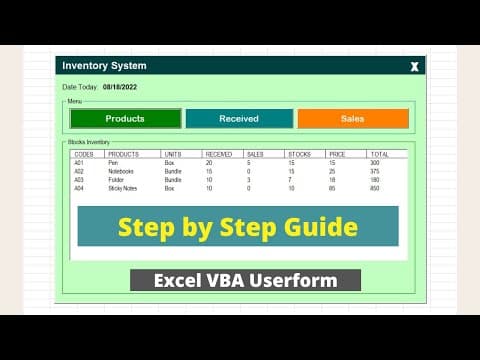
[0:00]In this video, we will be developing a basic in-out inventory system using the Excel VBA user form. Like before, let me show you how this tool will work after we build it. Clicking this button will open the main inventory system user form. It shows the current system date, and here in the menus section, you can click this buttons to navigate to the products receive and sales page. The stock inventory section will show the current inventory items with the product details, the received and sales transaction, and the number of stocks. Now, let's try to add a product by clicking the products button, enter the product code, name, units, price, and remarks is optional. Click the add button to add the product details to the list. Clicking the exit button will return us to the main form, and we can also see the product we just added on this page. Let's add a receive transaction by clicking the receive button, select the product code, and it will automatically generate the product name. Enter the receive quantity and click the add button to add a transaction to the receive list. Clicking the exit button will again return us to the main form, and we should see the receive value change in the inventory. We can also add sales by clicking the sales button, select the product code, and it will automatically generate the product name. Enter the sales quantity and click the add button to add the transaction to the sales list. Clicking the exit button will return us to the main form, and we should see the product sales count change in the inventory. Now that you have the idea, let's start developing this tool. I will start with this pre-designed template, and you can also download this template on our site. I will put the link in the video's description, so you don't need to start from scratch. After downloading the template, open it, and here you will see that all the worksheets are pre-designed. So these are the worksheets that we need to develop the tool. Also, if you check the VBA editor, all the user forms are here and already pre-designed. So let's start the coding by opening our VBA editor. Again, you can press Alt F11 from your keyboard, and here we will start by inserting a new module. So right-click anywhere from here and select insert the new module. We will name this module inventory. And here in this module, we will start by declaring public variables for each worksheet object. So let's start with the product SH, and the type should be worksheet. Next is the received SH, then we'll name the sales, sales SH, and then the stock as stock SH, and then the start SH as worksheet. So this technique is helpful, so we don't need to write the complete reference to each worksheet every time we need them. We also need to declare a constant public variable for the message box title. So we'll do that by declaring public constant M title, that will be our variable name for the message box title, and that should be of type string and we will assign a value to it. We will assign inventory system. And in this module, the first procedure that we will create is the initialized sheet. So let's name that initialized sheet, and this procedure will initialize all our worksheet variable. So we will be using the with this workbook command, so that we don't need to type this workbook every time we are declaring each worksheet object.
[3:55]We can start with the first worksheet variable, the product SH. So we'll say that sheets product, and next is the received. Oops, should be product, product SH, before I forgot. Next is the receive. You can use the intellisense of VBA by pressing control space from your keyboard. That should be the receive. I'm using the sheet name here as my reference.
[4:26]Next is the sales, that is the sheets sales, and then the stocks, that will be our stocks, last is the start SH, that should be our start.
[4:44]All right. Next, we also need to create a procedure for showing the main user form, and we will name that procedure start inventory. And later we will assign this procedure to our inventory system button in the start worksheet. So the code that we need here is just to call the main form. All right. So that is all that we need for our inventory module. We can test it by clicking this run button to make sure that we don't have any error, especially on the spelling of the worksheet name and assigning it to our worksheet object. So now that we have this completed, we can start editing the code for our product user form. Next, we can start editing the product user form code. So from the forms window, right-click on the F-R-M product user form and select view code, and here the the code that you see here are for hiding the the form title bar of our user form.
[5:54]So let's add some space in here, and we'll create our first sub procedure for this code. We will name this get products, and this sub procedure will be getting all the available products in the products worksheet. So that is our one of our worksheet in here. And here, first we need to declare a last row variable. It should be of integer type, and it will hold the last row with value in the column A of the product's worksheet.
[6:31]So to do that, let's assign it to the, let's access the product SH variable first, and then range A, and rows that count, that end, Excel up, that throw. And then after that, we will be setting our products list box row source property to the, based on the last product row. So here our product range is A to E, and our first row in in this product worksheet is the row three. So to set that, again, go to view code, we'll continue with this procedure. We'll access the list box name, that is LST products, and then the property, which is the row source, and we will assign that to the products worksheet, exclamation point, the first cell is A3, and the last column is E, and then we will concatenate that to the last row variable value. Next is we need to add a user form activate event. So to do that, look for the user form object here, and by default, it will give you the click event.
[7:51]And here just uh hover your cursor or put your cursor within here and look for the activate event, and that will create a new procedure. So let's delete. Oh no, let's just uh delete the space in here. And let's add some space in here. So for our user form activate event, we'll start by calling our initialize sheet procedure to to set our worksheet variables. Then we'll also call the get products procedure to refresh our products list box, and then we'll also call the hide form title bar to hide our user form title bar.
[8:33]So we can test it from here, and you can see that we don't have the title bar anymore, and right now that's all that we have. We don't have a data yet for our product's list box, so we don't see anything in here yet. So let's continue with the coding. Next tip. Next step here is to edit the add command button. So from the products user form, double-click on the add command button, and it will create a procedure for the add command button.
[9:07]And in this procedure, we will start by declaring a variable for each product detail. So we need to have five variable for this fields.
[9:18]So let's start with the code. Code is of type string. Then product is also string, and the units is also string. For the price, we need to declare it as double, and for the remarks, we will also declare it as of type string. So once we have the the variable available, we can start assigning the user form control value to each variable. I will just put a comment first. Assign form controls values to variables. So let's start with the code. Code is equals to the T-X-T code that value.
[10:01]The product is the T-X-T product.value, units is T-X-T unit.value. For the price, we need to convert the value of the T-X-T product to double.
[10:16]So CDBL is convert to double function that convert the volume into a double data type.
[10:33]And for the remarks, we can set that to the T-X-T remarks that value.
[10:40]So don't get confused, where did I get this T-X-T code, T-X-T product, that is the name of our control in the user form. If you activate them, you can see here that's our T-X-T code, this is the T-X-T product, and this is the T-X-T unit.
[10:57]All right. So now the next step in here is to validate if all the fields have value.
[11:08]So we'll start by checking the code. It should not be equals to null or an empty string, same with the product, as well as the units, and for the price, we cannot uh check it using a string. So we'll be using greater than. It should be at least greater than zero.
[11:31]And let's close our if statement. We'll also add the else here. So if there's at least one field that is blank, then we will notify the user to complete all the fields using a message box. So we'll type message box, and we'll say please complete all the fields, and it should be an, let's add an exclamation icon to the message box.
[11:57]And here we can use the M title variable that we declared earlier in our inventory module. Let's go back to the products code. Now, if all the variables have a value, we can start adding the product details to the next available row in the product's worksheet.
[12:20]But first, we need to know what is the next available row in the product's worksheet. So we will declare a next row variable. It should be of integer type, and then here we will, I will just add a comment for the products sheet. And I will be using the with again, uh, with command to access the product SH variable. And within this uh product SH object, we will first set the next row variable. That should be equals to the last row with value in the column A.
[13:08]And we need to add one to get the next available row. If we forget to add one, then it will return two. Adding one will return the next available row. So in this case, if we execute it, it will return three in here, because this is the next available row in our column A in the product worksheet. After getting the next available row, we can start assigning the variable value to each column in the product's sheet. So let me just copy the column name for my reference. Units, price, and remarks.
[13:44]So we'll start with the row A or column A, and we will concatenate the next row. That value is equals to our code. And I will just copy this for the other column as well. B, C, D, E.
[14:02]Let's change this to B, C, and E. So the next column is the product. So product. And the C is the units.
[14:15]These are the variable that we declared in here. And for the D, that is the price, and for the column E, that is the remarks. All right. So now next step is to also add the product details to the stocks worksheet. Because each product should be a an item in our inventory. So every time we add a product, it should also be added in the stocks table. So I will also add a comment in here that we are dealing with the stocks sheet. So let's also use the with command to access the stocks SH variable.
[15:03]And here we also need to find the next available row in the stocks worksheet. We will also use the column A as the reference. So next row is equals to the range A and rows that count that end Excel up that row. And again, add one for the next available row. And for the columns, let me also, let me copy that again. So we need to get this items in here, and place that to our stocks inventory list box.
[15:46]So let's start with the first column, that is range A. And then we'll concatenate that to the next row that value, that should be equals to the code.
[15:58]And we will just copy this for the other column. That is up to H. B, C, D, E, F, G, H. Now, let's replace the column. D, E, F, G, H. Then for the product, we will assign product.
[16:21]For the units, units. Now for the received value, so every time we add a product, this column value should be set to zero. Same with the sales, and the stocks. For the price, we will set that to our price variable, and for the total, we can also initialize that with a zero volume.
[16:44]So now that we have the product details added to both the products sheet and the stock sheet, the next step here is to clear our form control or the text box value. So clear form text box values. We'll start with the product. So T-X-T product. To clear its value, we need, we just need to set its value to null.
[17:10]Then the code that value, and the unit, unit that value. Oops. The price that value, and last is the remarks that value.
[17:27]And lastly for this procedure, we need to call the get products to refresh our product's list box.
[17:41]That's the first procedure that we created for this user form. So after adding that, let me check what else do we need in here. All right. So we also need to edit the code of this close label or the X label. So double-click that label, and in here, okay, let me remove this. So in this label close procedure, we just need to unload this user form by typing unload me, and we need to return to the main user form if we close this user form.
[18:19]So to do that, we will also call the F-R-M main.
[18:25]All right. I guess we can now test this user form to see if everything is working fine. Let's click the run button. We can enter a code for our first product. We will say A01, and maybe it's a pen. Unit is box. For the price, maybe we can say 15, and hit add. And we get a debug here. So for the price, we had an error because there is a type mismatch.
[18:56]What is our, okay, so I set it to T-X-T product. It should be T-X-T price, because that is our text box for the price. Let me try it again. Let's run. Enter our first product code. A01, it should be pen. Unit is box. For the price, we can say 15. Hit the add button. And here you will see that the product details is added to our product's list box. And if I close this, you can see that that product detail is also added in our stock inventory. And this list box is referencing to the stocks worksheet. So you can see the pen details in here, as well as in the product worksheet. So that's all for our product user form. Next, let's edit the code for the received user form. Next, we will be working on the received user form code. But before that, if you're enjoying this video, please give this video a like, and you can also subscribe if you haven't subscribed, so that you get updated for the new video that I am uploading, especially related to VBA coding. Going back for the receive user form, let's start by viewing the code for this user form, and here you will see that we also have a code for hiding the user form title bar. So let's add some space in here, and let's start here by creating a sub procedure for getting the available products code from the stock worksheet. So here in our stocks worksheet, we need to get these codes value in here, and we will be adding that as an item to the code's combo box. So let's name the procedure get codes, and here we will start creating a loop. So I will be using four loop for A. We will start with three because the first row with volume in the stocks worksheet column A is three.
[1:10]And that should be up to the last row with value in the column A of the stocks worksheet.
[1:27]And close our loop. And then we'll need to add the the code to the codes combo box.
[1:38]So our combo box is name is C-B-O codes. This is our combo box control. So later we should have all the codes in the stocks worksheet, added here as an item.
[1:52]So let's go back to the code, and we'll say C-B-O codes that add item. stocks SH that range A and the current loop counter.
[2:07]All right. Next is we need to create a sub procedure for getting the received transactions.
[2:17]So that will be referencing to our receive worksheet and get all the details in here, and show to our receive list box. So to do that, uh we'll create a procedure and name it get received items.
[2:37]And in here, we need to first start by declaring a last row variable. It should be of integer type, and this variable should hold the last row with value referencing column A of the receive worksheet.
[3:32]So that code is flexible, depending on the last row in our uh receive worksheet. All right. Next, we need to add a user form activate event, again, uh just look for the user form object in here, and it will generate the click event by default. But what we need is the activate event. So look for the activate event, and let's remove some space in here, add some space in here. So for the activate events, uh first we need to call the initialize procedure that set our worksheet variables, and then we'll also call the get codes, the the first procedure that we created for this, uh, user form.
[4:19]And also the hide form title bar to hide our user form title bar.
[4:26]All right. Now we can test this code. So let's click this run button.
[4:47]And here we can select our only product, which is A01, which is the pen, and we can add here like maybe 20 for the quantity. If we click add, you can see that the product or the receive transaction details is added in our list box.
[5:07]And if we go back to the main form, we can see we have now received volume for the monitor. Also the total price is set to the received quantity, multiplied by the price. Now, let's try to uh make a sales for that monitor. So select the A02 code, and maybe we can put five quantity for the sales. Hit add.
[5:35]Now we have the monitor sales transaction added. If we go back to the main user form, we can see here that, uh, we only have now five stocks because there are five sales transaction that we just did. And, yes. This is now working. Our basic in-out inventory system. I hope that you learned from this video. If you want to learn more about VBA user form, like how you can send data from a user form to the worksheet, I have this video available for you if you're just starting with VBA, that is a for beginner level, so you'll get familiar with how I manipulate things, especially data, with user form to the Excel worksheet.
[6:19]Again, that's all for this video. Uh, again, if you like this kind of video, please hit that like button and subscribe if you haven't subscribed. Thank you, and see you in the next VBA video.


