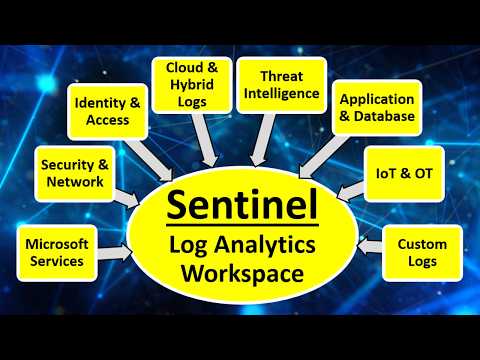
[0:00]Hey everyone, welcome to Cyber platter. This is a full course on Microsoft Sentinel. You are now on chapter three, where we'll discuss content hub and data connectors. If you have missed any previous chapters, you can find the links and the full playlist in the description box below. So let's get started. In the previous chapters, we have discussed about Sentinel architecture and deployment. Now, one of the next critical steps is data ingestion, that is bringing in logs from various sources for monitoring, detection and response. First, let's look at some common types of data sources typically integrated with Sentinel or any other SIM solution. The first data source is Microsoft services. This can include Azure AD, that is Azure Active Directory, or Intra ID, it can include sign in logs, audit logs or risky users. Microsoft Defender suite, including Defender for endpoint, Defender for Office 365, Defender for identity, Defender for cloud apps. This can include thread detection data. Then Microsoft 365, including Exchange, SharePoint and Teams. So security and compliance logs. Then Microsoft Defender for Cloud, including security alerts and recommendations. Next you can also include Azure resources like for example, Azure virtual machines and storage, including security logs from cloud hosted VMs. Then Azure firewall and NSGs, that is network security groups, you can include network traffic and firewall logs. Then Azure Monitor and Log Analytics, this is general applications logs and diagnostics. Next data source is from security tools or applications and network devices. This can include your firewalls and proxy logs, like for example from Palo Alto, Fortinet, checkpoint, Z scalar, right? Can also include web application firewalls like for example, Azure WAF or F5 or Imperva. Then logs from IDS or IPS, that is intrusion prevention or detection systems, like for example, from Cisco firepower or snot. Next is EDR, that is endpoint detection and response. This can include tools like Crowdstrike, semantic, Microsoft Defender for endpoint. Then from other SIM solutions or log log management solutions like for example Splunk, Arc site, Syslog sources. Next is identity and access management logs, that is IAM logs. This can include Microsoft Intra ID, that is Azure AD and conditional access logs, Octa and ping identity, active directory if you have one on on premise. And from active directory that is the on-premise one, you can include domain controller logs, Kerberos authentication logs. Then you can also include privileged access management systems, that is PAM systems logs, like Cyber arc. Then there is cloud and hybrid logs. That is from AWS Amazon web services logs, including say cloud trail, VPC flow logs, Guard Duty, security hub. Then we have Google cloud platform logs, that is GCP logs, cloud audit logs, security command center logs. Then we have Kubernetes or container security logs, for example AKS, that is Azure Kubernetes Services, Kubernetes audit logs and Aqua security. Then data sources from threat intelligence feeds. For example, Microsoft threat intelligence feeds, this is integrated Microsoft Defender TI. TIs threat intelligence. You can also get it from external threat intelligence providers, like for example, Virus total or recorded future. Then you can also have custom TI feeds, threat intelligence feeds. Example, JSON or CSV based threat intelligence sources. The next data source could be an application and database log source. Database security logs can be from say, SQL server, Oracle DB, Mongo DB. Custom application logs can be, you know, REST API ingestion, app service logs, DevSecOps tools. You can also include enterprise application logs from say, SAP, service now or workday. Then is the IoT and OT security logs. This can include IoT security solutions, for example, Azure IoT Defender or AWS IoT logs. And also Scada and industrial control systems, ICS, like for example, Siemens. And then you can include your custom data logs. Like for example, your Syslog and common event format, that is CVF logs. This is for generic log ingestion, you can also include Azure Event Hub or blob storage, that is streaming log data, or REST API based log ingestion for unsupported tools. Here you can also include the OS logs, that is from Windows Event logs, including security system and application logs. Then we have Linux logs, including Syslog, audit, D logs, secure logs, then Mac OS logs, including system logs, unified logging framework. So these are only some of the common data sources used in Microsoft Sentinel or any other SIM solution. Your setup might differ, but the fundamental topics remain the same, giving you a general idea of what to include in your security monitoring strategy. You think of any log that can most probably be integrated with Sentinel and it is easy to do it. Now, how do we do this? This is done using data connectors. Let's go to the Azure portal. Okay, now we are in the Azure portal, that is portal.azure.com, search for Sentinel. Select the Sentinel workspace. On the left side, if you scroll down to configuration, under that we have data connectors. Let me click on that. So it says zero connectors because I've not connected anything yet. And also it gives us a message, let me increase the fonts. Gives us the message that data connector with content source = gallery content have been removed. All the removed content and more is available in content hub. So most of the data connectors now you can find them under content hub. So this is a relatively new change where all the data connectors are moved under content hub. So if I scroll down on the left navigation, under content management there is content hub. Let's click on it. So now you see there are 384 solutions, standalone contents, that is 307. Zero installed because we have not done that yet. So if you scroll down here, you can see all the content titles that are available. Now let's see what is a content hub, right?
[7:40]Microsoft Sentinel content hub provides essential SIM components that enable organizations to ingest data from various sources, monitor and detect threats, generate alerts and incidents, hunt and investigate security events, respond to threats with automation and integrate with different platforms and services. Microsoft Sentinel offers a range of content types designed to enhance security operations. Let's see what are those. Data connectors, this is to enable log ingestion from, you know, diverse sources like we discussed, Microsoft services, third party security tools on prem systems. This is to provide seamless integration for real-time security monitoring. Next parsers. These convert raw log data into a SIM format, that is advanced security information model format. So it ensures structured and consistent data across various content types. Next workbooks. These provide interactive dashboards for monitoring and visualizing, this also helps security teams gain insights from log data. Then analytics rules. They generate security alerts and trigger sock actions. They detect anomalies and potential threats automatically. Next is hunting queries, they allow sock analysts to proactively search for threats and help detect hidden malicious activities. Next notebooks, these enable advanced security investigations using Jupiter and Azure notebooks. They leverage AI and machine learning for deeper threat analysis. Next is watchlists, they store custom data sets like for example, VIP users, blocked IPs, blocked domains. This is for enhanced threat detection. This can help reduce alert fatigue by prioritizing high-risk entities. Next is playbooks and logic apps. This is to automate incident response and remediation. They can be integrated with third party tools to stream line sock workflows. Now if I go back to the Azure portal, in the content type, if I want to filter, you'll see all the content types that are available. We will talk about all these content types in depth in the coming chapters, but for now in this chapter we will concentrate on data connectors, how to connect data to Sentinel. There are different types of data connectors that are available in Microsoft Sentinel. So when you're selecting data connectors for your environment, follow a prioritized approach. Like for example, you can start with free data connectors and these provide immediate value in Microsoft Sentinel while you plan for additional connectors and budgeting. Next, you can review the custom data connectors, like you know, you assess whether custom integrations are necessary for your environment. Next, you evaluate partner data connectors. This is to identify any third-party integrations that align with your security needs. For both custom and partner connectors, the recommendation is to prioritize CAAF or Syslog connectors, starting with the most critical ones. And then you also include Linux based devices that require integration. So there is a separate chapter which will talk about how to connect CVF or Syslog connectors. Linux based devices to Sentinel, in that you will learn what are the best practices related to these connectors. One of the things that Microsoft Sentinel recommends is that if data ingestion costs become excessive, right? You can consider stopping or filtering logs forwarded using the Azure Monitor agent to optimize these costs. That that also we will see in the future chapters. As of today, these are the data connectors as well as their data types that are free in Microsoft Sentinel and Log Analytics. Like you can see there is Azure Activity logs, health monitoring for Microsoft Sentinel, Microsoft Intra ID protection, that is Azure AD protection, Office 365, Microsoft Defender for Cloud, IoT, XDR, endpoint, identity and cloud apps. Like you can see in this table, there are some Microsoft services like for example Defender for Cloud, IoT, XDR, endpoint, identity or cloud apps, their free data type is security alerts. The security alerts are free, but if you are trying to ingest raw logs from these Microsoft services, they may incur charges. So remember that not all logs need to be ingested, so you need to prioritize essential data to control costs. So many of the data connectors, right, they include both free and paid data types. You can customize settings to enable only the necessary data types reducing unnecessary costs. Let's see how you can customize these settings only to enable the necessary data types in Azure portal. Search for Sentinel, select Microsoft Sentinel and then Sentinel workspace. And then under content management, select content hub. Let's search for Defender for Cloud apps. Click on enter. So there it is, Microsoft Defender for Cloud apps. Something you want to note is under this, there are many other items that are available as well. So if you see content sources, there is solution as well as standalone. Content hub solutions, these are pre-packaged security solutions that include multiple components like data connectors, workbooks, analytics rules, hunting queries, automation playbooks. These are designed for specific security use cases like for example, ransomware detection or compliance monitoring. This is made for easier deployment, so one click installation for comprehensive coverage, right? And there are standalone content sources, these are individual connectors that ingest raw logs from a specific service like for example, Defender for Endpoint or Intra ID. They are more flexible, organizations choose what data to collect and build their own analytics rules. These require manual configuration for alerts, dashboards or automation. Let me select all and cancel this for now. So here if you see, let me scroll to the right, it says content type data connector, workbook, analytics role. The one that we want to check is for the data connectors. Before that, I need to install this solution, Microsoft Defender for clouds. Let me click on install and it is getting installed, it might take a minute. So now installation is successful, let me close this notification bar. And let me close this as well. And now in the status, I will select only the installed data connectors, then say apply, Microsoft Defender for Cloud apps, installed. Now I will select where the content type is data connector. So click on that and then click open connector page. It takes a minute to load because this is the first time we have opened this page. It's verifying all the prerequisites. So these are the prerequisites, first you need to have a workspace with read and write permissions. Tenant permission should be global administrator or security administrator on the workspace's tenant. And then you need to have license M365 E5 or M365 A5 or any other Microsoft Defender XDR eligible license. Note that all of these services like all Microsoft Defender products, for example, require different licenses. You can connect them without an appropriate license as well, but connecting them without the appropriate license won't generate any data. So it makes no sense connecting it to your Sentinel workspace. So you need to have licenses for these products and then connect that to Sentinel. Now, if I scroll down in configuration, you can also see that after you connect Microsoft Defender for Cloud apps, the alerts and discovery logs are sent to this Microsoft Sentinel workspace. Here you will get an option. I don't have the license, so it is disabled, but if you have the license, you'll get an option to select only alerts and you can ingest only alerts instead of all the raw logs. There are many other ways to, you know, manage your costs like for example, you can use Microsoft Sentinel's cost analysis tools. You can review and adjust retention policies to avoid unnecessary storage costs, or you can leverage automation or filtering to manage data efficiently. So these are the free data connectors and their data types that you can connect to Microsoft Sentinel without any charges. Next is custom data connectors. So there are many out of the box data connectors that are provided by Microsoft Sentinel, but if you have a tool or an application or a solution that you cannot connect using these out of the box connectors, Then you can consider creating your own custom data connector. Let's see some of the methods that are available for custom connector creation. First one is Codeless Connector Platform, CCP. This allows customers and partners to create custom data connectors for Microsoft Sentinel without writing code. So it uses a configuration file for easy deployment. And it can be deployed to your own workspace or as a solution in Microsoft Sentinel's hub. It is fully SaaS based, no no need for any additional service installations. It also includes health monitoring and full Microsoft Sentinel support. Say for example, a security team wants to ingest logs from a third party SaaS application that is not natively supported by Sentinel. Instead of building a custom API integration, you can use CCP to configure and deploy a codeless connector. Like the name says, codeless, this reduces development effort and maintenance costs. Next one is connecting with Azure Monitor agent. AMA allows you to collect and send custom log data from text based event sources to Microsoft Sentinel. So there'll be separate chapters on all of these connectors, how to connect them, what you can connect them, what are the different use cases, examples, right? For now, this is only a brief introduction to these connectors. So this AMA, that is Azure Monitor agent is best for text based log sources like for example, applications logs or system logs. It is more efficient and secure than legacy agents like log analytics agent. It provides centralized data collection and advanced filtering to optimize log ingestion costs. So if your company has a legacy application that generates security logs as text files, then instead of writing a custom integration, you can configure Azure monitor agent to collect and forward logs to Microsoft Sentinel. And the next custom data connector is Logstash. Logstash is an open source data processing pipeline that collects, transforms and routes log data from various sources. It supports a wide range of input sources, for example, files, databases, cloud services and event hubs. This also allows for advanced filtering like parse logs, remove unnecessary data and mask sensitive information. This uses Microsoft Sentinel Logstash output plugin to send transformed data directly to Sentinel. This is best for organizations needing flexibility in log processing before ingestion. So you ingest logs from multiple sources using Logstash input plugins, transform and filter data using Logstash filtering plugins and then send the process data to Microsoft Sentinel using the Logstash output plugin. Suppose say a company collects AWS Cloud Trail logs for threat detection. Instead of sending raw logs, right, you can use Logstash to filter out unnecessary events and mass sensitive data. This is a use case example for Logstash. And then there is Azure Logic apps. This is a serverless workflow automation service that enables you to create custom connectors for Microsoft Sentinel without managing infrastructure. So it is best for low volume data ingestion or enriching existing data in Sentinel. It automates data retrieval from APIs, databases and files. It supports event-driven workflows for real-time data streaming. There is no coding required for Azure Logic apps, it's only drag and drop interface for workflow creation. So something that you should keep in mind is that logic apps can become very expensive for high volume data ingestion. It is only best suited for on-demand enrichment or small scale data collection. For example, you can use it for recurring tasks like, you know, schedule data retrievals from APIs, databases or files, Such as fetch logs from SAS platform every 15 minutes. You can use it for on-demand triggering like manually trigger workflows for ad-hoc data collection or testing. You can also use it for real-time streaming when the source system can push data to Sentinel like for example, HTTPS endpoint. And the next option for custom data connector is to connect with log ingestion API. Log analytics data collector API allows you to send log data directly to Microsoft Sentinel through a RESTful endpoint. This allows for maximum flexibility, that is you can customize log ingestion from any source. It has real-time data streaming that is push logs as events occur. And there is no dependency on other tools, it works independently of Logic apps or AMA or Logstash. It supports structured data that is you need to send JSON formatted logs without modification. Remember for this, right, you need programming knowledge to implement the API calls. You also need manual log formatting, that is logs must follow log analytics schema. Also consider rate limits and authentication which needs to be managed later. So here you prepare log data in JSON format, authenticate using an Azure shared key or Azure AD token. And then send logs using an HTTP post request to the API endpoint. Suppose say an organization wants to stream real-time security logs from a custom application, they can develop a Python script that formats logs as JSON and then sends them to Sentinel using the API. And then Azure functions, Azure functions is a serverless computing service that allows you to execute code in response to events. Such as HTTP requests, timers or messages from other services. This is serverless, so you don't need to manage any infrastructure, this supports multiple programming languages like for example, Python, PowerShell, JavaScript and so on, right? Something that you need to consider when it comes to Azure functions is that there is execution time limits that get applied. Default five minutes for consumption plan. Cost considerations for high volume data ingestions because this is not the one recommended for high volume data ingestion. And it also requires authentication to interact with Microsoft Sentinel. So for Azure functions, you need to develop an Azure function in PowerShell, Python or any other language, configure the function to receive logs through REST API, HTTP triggers or event sources. Then transform and format the logs into the required schema and then send logs to Sentinel using the log analytics API. You can also consider parsing custom connector data in Microsoft Sentinel. So when ingesting custom logs, right, into Microsoft Sentinel, parsing ensures structured, query ready data that integrates with Sentinel's built-in security content. You can use ASM parsers, that is advanced security information model parsers, ASM standardizes data for use across Sentinel's built-in queries, analytic rules and workbooks. It simplifies query creation for security analysts and it also enhances performance by reducing the need for on-the-fly query time parsing. So you perform pre-ingestion parsing wherever possible. It reduces query load, and then you implement ASM parsers to align with Sentinel's data schema, and then you normalize fields such as source IP, destination IP and event time for consistency. And then you deploy this to production. Before deploying it to production, make sure that you test your parsing logic. So this is about custom data connectors. Again, there'll be different chapters dedicated to each of these data connectors. It will mostly be demos, for now, get the brief idea about what these data connectors are. So we saw what are free data connectors and custom connectors, there are also partner data connectors. So partner data connectors are pre-built integrations developed by Microsoft security partners that allow organizations to ingest third-party security data into Microsoft Sentinel. Let's go back to the portal. Let me close this, let me delete this search option and then status, I'm going to select all and then apply. Now, if you look at the provider option, there are many providers that are present here. These are the partner data connectors. There are different types of partner data connectors like security solutions, example, include Palo Alto, Cisco, Checkpoint, Fortinet, Semantic and Z scalar. Endpoint detection and response, EDR examples include crowd strike and Sentinel one. Identity and access management, Octa Cyber Arc, ping identity. And then there is cloud security and Casby, including NetScope, McAfee, Bitglass. And then there are threat intelligence connectors as well like recorded future. So if I go to the search bar and search for thread, you can see all the data connectors that include thread in their title. If I scroll down, there is thread defense. Then Luminar Threat Intelligence, then another intelligence source. So you can install all of these, get licenses for them and you can install these as well. These are the partner data connectors. So there are free, custom and partner data connectors. So that's it for today guys. In the coming chapters, we will see how to connect Azure Activity, how to query it, how to connect intra ID, threat intelligence sources, Syslogs, what you can connect, how you can filter them and what data can you see. I hope you liked this video. Please don't forget to like, subscribe and share our videos. Thank you so much for watching. I will see you again in another chapter very soon.


