[0:00]In this video, I'm going to show you how to create this Notion meal planner that will track your daily macros. All you want to do is just create a new database entry, open this up, and then in here, you want to add in the ingredients or the meals that you had for the day. So for example, if today I had 30 grams of bulltong, then I would just add in the bulltong ingredient and then specify the quantity. And as you can see, it shows our total calories, proteins, carbs, and fats for the day. And the same thing goes for the meals, if you select one of these meals, then the macros for that meal will also show up here. And then at the end of the day, you'll just come here to your calculator and just count together your total macros. So for example, for the ingredients, we had 60, for the meals, we had 1,043, and then here we can see our total for the day is 1,103. And if you add this in, then you'll see we have a progress bar showing our total daily progress for our calorie target, which you can specify here and also on the main view. And the same goes for our total protein, carbs and fats, which will show the daily progress for each of them. And then back on the main view, we can see our daily and weekly progress, as well as a calendar view. So before you start using this template, you first want to go down to the ingredients database, where you'll see all the ingredients grouped according to protein, carbs and fats. And then here you just want to add in all the raw ingredients that you eat on a day-to-day basis. So for example, if we're going to add in this egg ingredient, we would just click on new, add in egg, select which one, so this would be protein, and then click on add cover. Click change cover and then use this unsplash tab in order to search for egg, and then here you can just select the cover image. And then you would just add in the total calories, protein, carbs and fats for one egg, which you can find on Google or by using MyFitnessPal on your phone, which also allows you to scan the barcodes of your food so that you can see the nutritional information and the macros for each of them. So under protein, you would add in all of the meats, under carbs, you would add in all of the fruits, and under fats, you would add in all of the olives, nuts and dairy. Now for the meals, you can click on new in order to add a new meal, you can select the meal type, which will make it show up on this view. And then for this meal, you can also add a cover image, as well as list out the ingredients, the instructions, any notes or even add images and videos to this database entry. And then the last thing I want to go over is the shopping list page, which you can add as a widget on your phone, so that when you're on the go, you can just pull up this page, click on this button to add a new item to your shopping list, and then when you're at the grocery store, you can cross the items off your shopping list. All right, now let's start building this meal planner. We're going to start off with the ingredients database and then work our way up to the top. So go ahead and create a new table view database, which is going to be called ingredients. Then we're going to hide this title, delete this tag property, and then we're going to add in a new select property which is going to be called type. For this property, we're going to add in protein, we're going to add in carbs, and we're also going to add in fats. And then we're just going to change the color. Next, we're going to add in a number property, which is going to be for the total amount of calories. Then we're going to duplicate this property and change the text to protein, and then do the same for carbs and fats. And then the last property we're going to add is going to be a formula property that is going to be called calories text. And then for this formula, we're going to add in calories with a colon and a space inside of quotation marks. Then we're going to add a plus, and then we're going to select our calories number property, as well as add a format function at the end. So if we add in 50, for example, then it will show the calories text, as well as 50, which is what we'll be showing on the gallery view. So to turn this into a gallery view, just click on the database menu, go to layout, and select gallery. And then for this gallery view, we're going to change the card preview to page cover, as well as change the card size to small. Then we're going to click back, we're going to add a space for the name, as well as give this database an icon. And then inside of properties, we're going to show our calories text formula. And then inside of the group tab, we're going to group this database according to the type, hide the empty groups, and then just put protein at the top, followed by carbs and fats. And then this is optional, but what I always do is create a call out box, add in the name of the database, and then make it bold, underline it, and change the text color, and then just drag the database inside. This not only looks a lot cleaner, but you can also drag this call out box around to create multi-column layouts. Now for the meals database, we're going to create another table view database, and this one is going to be called meals. We're going to again hide the title, delete this tag property, and then we're going to add in the same properties as for the ingredients database. The first one is going to be called type, and this one will have breakfast, lunch, dinner, snacks, and drinks. Then for this one, we're also going to add in four number properties, which is going to be for our calories, protein, carbs, and fats. And then for this one, we're also going to add in a formula property, which is going to be called calories text, and it's going to be the exact same as the previous database. So we might as well copy the formula from the ingredients database and then just paste it into the meals database. But for this database, we're going to do the same thing for protein, carbs and fats as well. So just rename this property to protein text, click inside of the formula, replace this with protein, as well as delete this property and replace it with the protein property. And then just repeat this process for the carbs and fats as well. And then the last property is going to be a URL property, which you can use to link to a specific recipe. Then once this database is set up, click inside of the database menu, add a space for the name, give it an icon, and then change the layout to a board view. Here you want to change the card preview to page cover, change the card size to small and turn on color columns. Then you want to go back to the database menu, click on properties and then just show all four of the text formulas. Now you can exit out of the database menu, and then also just click on this number, click on average, and then click on calories. And then again, I'm just going to create a call out box, call this meals, and then highlight the text, make it bold, underline it, change the text color, as well as give it an icon. And then I'm going to just drag this database inside. Now we'll be coming back to this meal planner, but we first need to create the macro tracker. Alright, so for the macro tracker, we're going to create a new table view database, and this one is going to be called macro tracker. And again, we're going to hide the title, delete this tag property, and then we're going to add in a date property. We're going to add in a number property, which is going to be called calories. And then for this number property, we're going to select the progress bar, and then we're going to keep the color on green, and then here you want to specify your daily calorie target. And if you add in your daily calories, then you'll now see a progress bar. Now, just repeat this process for the protein, carbs and fats as well, and then change the color for each of them. So for our protein property, I'm going to change the color to blue and then also add in 220 grams of protein. Now once all of your properties has been added, you can add an icon, because these will actually show up on the database view. Now before we begin with the template button, let's just resize these and clean everything up a bit. And I'm also going to add another call out box, call this macros, and then highlight the text, make it bold, underline it, change the text color, and then also give it an icon. Then I'm going to drop this database inside, remove the name, as well as give it an icon. Now, in order to load the macro tracker and calculator for each day, we're going to click this drop down next to new and then create a new template button. This template button, we're going to call at today and then select this dynamic date option, and then also give our template an icon. Now what we're going to do is we're going to open this template button as a full page, and then inside of this template button, we're going to create a new table view database. And then this database is going to be called ingredients macro tracker. Let's go ahead and hide the title, delete this tag property, resize the name property, and then we're going to add a relation property to this database. For this relation, we want to connect our ingredients macro tracker to our ingredients database. And then we're just going to click on add relation, we're going to give it an icon, and then exit out of this menu. Now, as you can see, our ingredients is untitled because we haven't added anything in yet. So I'm just going to go back to the meal planner, go to the ingredients database and then just add in a couple of examples. So for example, this first one is going to be an egg, and one egg has 70 calories, 6 grams of protein, 0 grams of carbs and 5 grams of fat. And I'm also going to add in a cover. Now, something I forgot to mention when creating this ingredients database is to create a template button for your protein, carbs and fats in order to add an icon to each of them. So this first one is going to be for protein, and we're going to select protein inside of the select property. Then we're going to do the same thing for the carbs. So add in the name, the select property, and also an icon, and then we're going to do this one more time for the fats. Now once your three template buttons have been created, when you create a new ingredient, you can simply just click on your template button, and it will automatically add an icon to your ingredient. So now that we've added some ingredients, if we go back to our macro tracker template and open this up as a full page, you'll now see that we can select our ingredients. Now the next property we're going to add is going to be a number property, and this is going to be for the quantity. Then we're going to add in a roll up property, and this first one is going to be for the total calories. And for this one, we're going to select our ingredients relation, select the calorie property, and then choose to calculate the total. And then we're going to repeat this process for the others as well. So we're just going to click duplicate, and then we're just going to change the calorie property to the protein property, as well as reselect the sum function. Now, as you can see, the roll up shows the total calories, protein, carbs and fats for each of the ingredients that we've got selected. Now once you've added in all four roll ups, you want to just click on them and hide them from this view. And then you want to add in a formula property. This first one is going to be for the calories, and because the calories name is already selected, we're just going to add a space so that we can add this one as well. And then we're also going to change the icon. And then for this calories formula, we're going to select our calories roll up and then we're going to multiply it with our quantity number property. And then just repeat this process for the protein, carbs and fats as well. So for protein, we're just going to replace the calories roll up with our protein roll up. And once you've added in your formulas, you can now add in a quantity and it will show the total macros for each ingredient. And now to finish off this database, you just want to click at the bottom on calculate and then click on sum for each one of your macros. And then of course, I'm also just going to add in another call out box. Now before you continue with the rest of this macro tracker, we're going to duplicate this database and add it to our meal planner. So just go ahead and click on the database block menu, click on duplicate without content, and then you want to click on the database block menu again. Select the move to option, and then select the meal planner. And now on our meal planner, you should see the database at the bottom. Now before we do anything with this, just go inside of layout, toggle on show database title, and then just remove this one. All right, now let's create a template button for our meal database. Just click the drop down next to new, click on new template, and then let's call this new recipe, and then also give our template an icon. Then what you want to do is you want to click on all of these formula properties, go to property visibility, and hide them. And do this for the recipe property, as well as the type property. Now if you click and hide properties, you should only see your calories, protein, carbs and fats number properties. Now that we've created our template button, we can click outside of this and go to our ingredient macro tracker, click on the menu, click on move to, and then select this new recipe template button. And then now if we go back, edit the template button, you should see the database inside. Now I'm again going to open this as a full page, as well as add the database inside of a call out box. Now for this new recipe template button, what you can also do is add in the instructions for this recipe, and you can underline this, as well as change the color, and you can add a numbered list. And what you can also do is create a notes section where you can add bullet points, and you can also include a image or file block, where you can upload images to your recipe. Now once this template button has been created, you want to go back to your meal planner, and then click on the drop down next to new, select the template button menu, and then set it as default. So now if we delete these and create a new database entry, our template button will also load. And if you want to add your meal to a type, simply just drag and drop it in. And for this meal, we can give it a name, and then inside of ingredients, we can select the ingredients that we used, the quantity, and then we can add in the total amount of our recipe inside of this database entry. And then I'm also just going to add a cover for this meal. Now that our meal database is done, let's go back to our macro tracker and add in the meal section of the template button. Now for the meal macro tracker, we're going to create a new table view database, call this meal macro tracker, hide the database title and delete this tag property. And then we're going to add in the relation property to our meals database. We're going to give it an icon, and then close out of this menu. Now if I click inside of the relation, you can see that I can now select the X meal that we've just created. Next, you want to add a roll up property, which is going to be for the calories. And then here you want to select your meals relation, select your calorie property, and then just click duplicate and repeat this process for the protein, carbs and fats as well. So for the protein, I'm going to select the protein property as well as calculate the total. And once this is done, you also want to click the sum function at the bottom of each property, and also give an icon to each of the four properties. Now the last database we're going to create is going to be for the calculator. So just go ahead and add calculator as the name, and now for this database, we're going to add in calories, protein, carbs and fats as the name of our four database entries. Then we're going to create a number property, which is going to be for our ingredients. And then we can also create a number property for our meals. And then to count these together, all we're going to do is just create a formula property, which can be called total. And then for this formula, we're going to select the ingredients property and then just add it together with the meals property. Now, if we use these as an example, our calories for today was 1,410, and our total for meals was 280. Then you'll see that our total for today was 1,690, which is going to be the number that you add inside of the database entry. Now, because this is a template button, we're going to delete this number, as well as remove all of the database entries, except for the last database where you want to keep these in, but we're going to remove the content from this database, as well as the others. Now, something I would recommend you do is just add in a blank database entry, so that you don't have to click new every time you add in a new day. Now, once your template button has been created, you can go back to your meal planner, click on the drop down next to new, and then set this template button as default. And now if I add a new day, you'll see that at today is automatically loaded, and if I open this database entry, then you can see we can select our ingredients, we can select our meals, and then we have the calculator at the bottom, where we want to add in the total into this database entry. All right, now for the database views, this first one is going to be for today, so we're going to rename this and add in today as the name. And then we're going to add in a filter, where the date property is and then today. And now because we've added today as the filter, we can remove this date property. For the next view, we're simply going to duplicate this one, the name is going to be by week. We're going to change the icon, we're going to go inside of properties and show the date property, and then we'll also going to go inside of group, and then group this database according to the date property, date by week, sort by newest first, and then hide all the empty groups. And then what you want to do is just select this calculate option at the bottom and click on sum for each of the macros. And you can also click on this number and choose to show the average calories for your week. And then the last view is going to be a calendar view, where we're going to add calendar as the name, we're going to change the icon, hide the database title, and then click on done. And then for this view, all you want to do is just show all of the properties except the date property. Now if we go back to today and add in our macros, you'll see that we have our progress bar, which will also show on the calendar view and also on the weekly view. And what you can also do to visually remind yourself of your daily targets is just add in a call out box. This one can be for our calories, and then just add in your calorie target. Highlight the text, make it bold and change the color, give it an icon, and then also change the color of this call out box to gray. And then for the other ones, just click on the block menu, click on duplicate, and then just drag it next to each other. And then just repeat this process for all the other ones as well, and then at the end, you should have something that looks like this. And now the last thing for this meal planner is going to be a shopping list page. So just go ahead and create a new page and call the shopping list, give it an icon. And then for this page, you want to create a new button, select the insert blocks option, and then inside of the block, you want to add in a checkbox. Give your button a name, give it an icon, and then click on done. Now you can add this page as a widget on your phone and then just click on this button in order to add a new item to your shopping list. You can grab this template for yourself through the first link in the description, or you can grab my Life OS dashboard, which already has the template inside. If you found this video useful, then be sure to give it a like. Thank you for watching, and I'll see you in the next one.
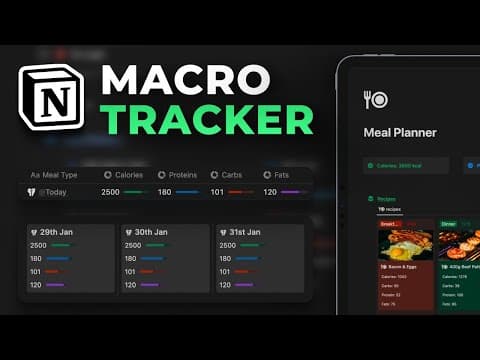
How To Track your macros with this Simple Notion meal planner
Chris Punt
17m 2s3,944 words~20 min read
YouTube auto captions
Transcript source
YouTube auto captions
This transcript was extracted from YouTube's auto-generated caption track. The transcript below is server-rendered so it can be read, searched, cited, and shared without opening the original YouTube player.
Pull quotes
[0:00]In this video, I'm going to show you how to create this Notion meal planner that will track your daily macros.
[0:00]All you want to do is just create a new database entry, open this up, and then in here, you want to add in the ingredients or the meals that you had for the day.
[0:00]So for example, if today I had 30 grams of bulltong, then I would just add in the bulltong ingredient and then specify the quantity.
[0:00]And as you can see, it shows our total calories, proteins, carbs, and fats for the day.
Use this transcript
Related transcript hubs
Watch on YouTube
Share
MORE TRANSCRIPTS


