[0:01]All right guys, once again, we're out here in the Garage Studio and, uh, this is a continuation of a series of videos. Uh, we have an Ubuntu 20 box with Engine X, PHP, MySQL, uh, as a core base system, and got a couple little files going on just being served static files, uh, couple PHP files, just playing around. Oh, and X debug API as well. So check out those previous videos, but today we're going to set up a self-signed SSL so that we can encrypt our communication on our application. So using Digital Ocean instructions for Ubuntu 18, it's Ubuntu 20, it's probably close enough. We'll see if it works or if it fails. Let's go ahead and get started. I am logged in as root, by the way, so I don't need to use pseudo commands. If you are not logged in as root, you will need to use pseudo. Open SSL req-x509 -nodes -days 365 -newkey RSA 2048 -keyout. Let's scroll over so we can see all the rest of this. keyout /etc/ssl/private/nginx-selfsigned.key -out /etc/ssl/certs/nginx-selfsigned.crt. All right. Enter. US. Whatever state you're in, whatever city you're in, and I'm just going to hit enter through the rest. All right, that's there. Uh, let's double check. We'll go and just list the files that we created here to make sure they're there.
[2:32]And it is. Cool. All right, so let's clear the screen here. Move on to the next step. Fill out the prompts appropriately. Run this. We can do this by typing, all right, this is the next step. We're going to do a strong Diffie-Hellman group, which is used in negotiating perfect forward secrecy with clients. So, Open SSL DHP Param -out /etc/nginx/dhparam.pem 4096. This is going to take a long time, so I'm going to pause here. Okay, that is done and that did take quite a while, um, actually several minutes if not a little bit more. So, let's move on to the next step. We're going to configure Engine X to use SSL. We have created our key and certificate files. Now, let's create a configuration snippet. All right, here we go. Nano /etc/nginx/snippets/self-signed.conf, and, uh, spoiler alert, I've already created this file. Um, so basically we're just going to copy these lines in SSL_certificate /etc/nginx/self-signed.crt, basically the files we just created. So, We'll get out of that. Moving on to the next one, and spoiler alert, I've already created these ones too. Uh, and all I did was copy from Digital Ocean to give us what we would need. And that is right here. So, if you're following these instructions to the T, you can just copy and paste everything that you see in this site for a self-signed certificate. All right. Moving on. All right, adjusting the Engine X configuration to use SSL. Now that we have our snippets, we can adjust our Engine X config. We'll assume the guide you're using has a custom server block.
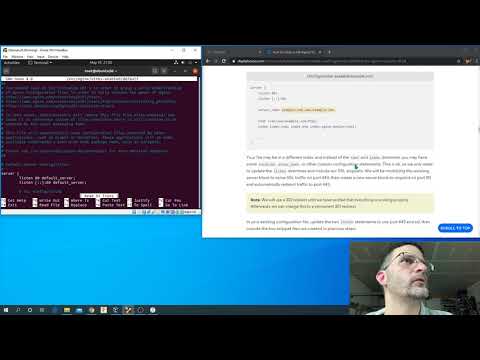
[4:57]Well, we've got one, so we are going to change just to Scotch. We've got a server block in Engine X, sites available, sites enabled. I'm pretty sure it all points to the same file. Default is where we have it. So we're going to come down. Inside your server block probably begins similar to this. Your file may be in a different order, blah, blah, blah. So, we're going to change that listen to 80. Uh, well, maybe we won't change. Let's see. In your existing config, update the two listen statements. Yes, okay, we're going to change. 443. And I guess we'll change default server to SSL. 443. SSL. Not sure that it matters that we changed that. Oh, hey, look at that. There's, uh, actually some config files right here. So, let's go ahead and cancel that. Come back in. We'll just comment those lines out, comment those lines in.
[6:15]And following the instructions back from Digital Ocean here. Yeah. We're going to pop in the, what is that all about? Include snippets/self-signed.conf. Semicolon. Include snippets/ssl-params.conf. Semicolon.
[7:03]All right. Server name. We're not going to change that. It should still work. Hopefully. Next, paste the second server block into the configuration file after the closing bracket of the first block. Uh, so we'll just create a new block here. We'll basically paste this in or write it in. All right, here we go. Server, listen, 80. Semicolon. Listen to the IP6. Colon 80. Semicolon. Server name. We'll just going to use underscore for now. Return 302 HTTPs. Maybe this will work, maybe it won't. Let's see what happens. Server name dollar.
[8:18]Request underscore URI. Semicolon. All right. Let's see what happens if I hit refresh on this. And it's broken.
[9:30]Son of a. All right. Let's see what we did wrong here. Request URI. Yep. Okay, that looks wrong in so many levels. Come back down. Yeah, see what I did there? Instead of dollar, I hit at. What a dummy. Dollar and dollar. Control X. Yes. Enter. Engine X-T looks good. System control restart Engine X. We'll go clicky back. Come on.
[10:18]Got to have the entire URL. Come on. Get it. Connection is not private. Okay, guess what we're going to do? In the server name, come on. Nano. In the server name, we're going to put our IP address. All right. Obviously this is 10.0.0.35 in our case. You got to use whatever you got to use there.
[11:00]Control X Y enter. Engine X-T, system control restart Engine X. Back. Come on. Advanced. Proceed unsafe. Yes. Says not secure. Your connection to this site is not secure. Should not enter any sensitive information into this site. Because the certificate is invalid. The CA root certificate is not trusted. To enable trust, install this certificate in the trusted root certificate authority store. However, if you look at here, HTTPS. We're using it. It's happening. So, make sure everything else works. PHP. Not secure, but using HTTPS. That still works. Let's see if PHP my admin still works.
[12:15]Sorry, wrong password. I forgot. I have a super secure password that I got to use on this one. Bam. All right, guys, there's how you do a self-signed certificate on the installation that we've done here. This concludes episode 6, I think. Sure, episode 6. All right, thanks, guys. We'll talk to you later.