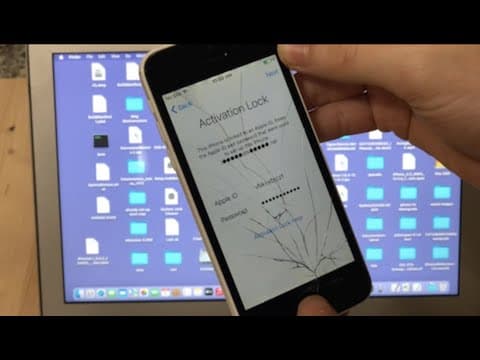
[0:04]Hi everyone. This is Always Apple FTD and welcome to the first video on this channel. In today's video, I have this iPhone 5C here. So, white model, and I'm going to be showing you guys how to bypass the iCloud lock on it. Now, it's definitely iCloud locked, I'm just going to set it up to show you guys that. There you go, activation lock. And one thing I'm going to say before we get started is this video is a little bit more of a tutorial than it's just like me showing how I do something, you know. As it'll probably be in future videos, and the tool that I'm going to be using in this video is called Sliver. And with that being said, let's jump straight into the bypass and I'll show you guys how you do this. So basically, the first step is to restore the device, which will basically wipe all the data off the device, and then from DFU mode we can bypass the lock. So, it's just here's the activation lock one more time. Funny, this is actually the last time I'll see the activation lock in this video because once it's restored it'll go dark and then we'll bypass it straight from there, if that makes sense. So.
[1:21]Nope, nothing, no way to get into here. So, anyway, what we're going to do is we're going to connect the iPhone to the computer, obviously. And then I'm going to plug this into here. There we go, you can see it says it's charging up there. It's connected. So now it's time for the first part, which is the restore/wipe part. You can call it whatever you want. Um, basically, you have to put the device into recovery mode or DFU mode. Both modes will work for this process, but I'm going to choose DFU mode because we'll be using that later. It's better to see it twice. So how you enter DFU mode if you don't know already is you just press and hold the home and power button for 5 seconds. And then after 5 seconds you release the power button but keep holding the home button for 5 more seconds. So I think that's how you do it, so ready? Go, one, two, three, four, five. Then you release that. One, two, three, four, five. Okay, I'm sure that's connected now. There you go, you should get a pop up on your computer. I didn't say that. Um, but yeah, it should tell you like the iPhone, your Mac is detected an iPhone in recovery mode, so that means the process completed successfully. Which is good. Now, I was a little bit longer than 5 seconds because it wasn't turning off, but you want to see the screen go black before you release the home and power button. Okay, so there's two options now for restoring your device. So any Mac can restore an Apple device, but you'll just go into Finder and then you should see it over here, see it says iPhone in locations. Now, you can just click Restore iPhone and then the Mac will automatically download an IPSW for the phone and restore the phone with that. But we're going to manually download an IPSW because it's definitely more reliable and you can also check the progress. So, we're going to go into your Safari or any browser that you have installed in your computer, basically, it'll work on any browser, and then you're going to go to a new tab. And then type this web address into here: I P S W. Now, it's already putting it for me there because I go on it often. M E. So, ipsw.me, for some people say. And press enter. You should get this IPSW downloads. These are all downloads. You can see it has iPhone, iPad. There's even Mac OS, but I don't know use that function, so go to iPhone. It's an ad. There's a lot of ads on this site, be aware, so just get rid of the ads when they pop up.
[4:13]Scroll down until you find your model of iPhone 5C.
[4:19]So, here's the iPhone 5C. iPhone 5C GSM. Now, you may at sometimes have an iPhone 5C global. I think they're pretty interchangeable. But I'm just saying I have the iPhone 5C GSM, so you want, this is where you want to pay real good attention here. So as you can see it says signed IPSWs and then iOS 10.3.3. So that should be the available signed one. But they're always updating, so if you're watching this video use later, it might be, um, there might be a newer one. But just click on the one that's green. You really don't want to click on one that's got the red here, because this is unsigned and these won't restore. So you're going to click on this one. See, it says the firmware signed, this means you can restore to iTunes. Now, if that sounds confusing, just know that iTunes and Finder are the exact same thing. It was just a Mac OS update that changed that. So, we're going to click download. And then you should get the download progress bar up here on your Safari. So, you can see my internet connection is pretty fast, it says 2 minutes and 30, and seconds are taking now, it's 27, 27. You can see now it's 25 seconds. Moving, but so at times this can be pretty long, so you just want to don't get your expectations up that it's quick. Because I have fast internet connection, it's already at 374 megabyte, but it can be pretty long sometimes it's file are pretty large. And if your internet connection is slow, it can take a long time, so just be patient for that. Now, I'm going to pause this video. And when the IPSW is finished downloading, I'll be back. So here we are, I'm back and it's two seconds remaining, now, one second remaining. And there we go, the download completed. Okay. Just minimize or close your browser. Now here's where you have to know these commands. So we're not just going to click Restore iPhone on here because otherwise the Mac would automatically still download it. So you're going to want to hold the option key on your Mac computer. So now if you look at the keyboard, you want to press and hold the option button and then click the Restore iPhone. So now that I'm holding the option key on my Mac, I'm just going to click Restore iPhone. And if you did it correctly, you should get this pop-up window for selecting an IPSW. This is the Mac just downloading one, so I'm going to select IPSW from my downloaded location. There it is. Now it may have a really random weird name that doesn't make sense, just ignore that. You want to make sure it's the latest download and that it has the dot IPSW extension. Then just click Open. And then it should say your Mac will erase and restore your iPhone to iOS 10.3.3 and verify the restore with Apple. So from here the process is pretty straightforward and you just have to leave your computer alone and press restore. There it says extracting software, so it's going to extract, then it's going to send the files to the iPhone or whatever, and you should see an Apple logo on your iPhone very soon.
[7:39]So now as you can see I have an Apple logo on our device, there's a bar sliding over there.
[7:48]There's a little loading sign and then you want to get a bar here. It's taking a little bit longer. There we go, see there's a gray bar there. Slowly as the restore runs, this bar will slowly move across. I think I'm going to set my phone here so you guys can see it. And I'll be back like I did with the IPSW when the restore is done. And there you go, you can see we got a message here. It says your iPhone has been restored to factory settings and is restarting. So we're going to close that and then here's the very important part. So now we need to re-enter DFU mode again before the iPhone boots up. So you have you do have to do this pretty quickly. But you go the same process, press and hold the home and power button for 5 seconds. Release the screen go black, and release home and release power and keep holding home button. There we go, it's connected.
[9:16]So that means the first part is completed. So your Mac has detected an iPhone, that's good. Okay, now for the actual bypass. So that was the first necessary step that we had to do to get the iPhone ready for the bypass. Now, we're just going to install the bypass tool and then use it. So, there's also a website for this tool as well. So you're going to go to a new tab on your browser, and here's the website that you want to type in for downloading the tool. So it's Apple, A P P L E, Tech and then 752.
[9:58]So, sorry, I didn't realize I made a mistake. But there it says, as you can see the top hit, it's Apple Tech 752 because I've visited it before, so enter. And then here it is, here's the website, so it's just going to have an advertisement for Sliver 6.2. Now we're just going to go to downloads, and then here we have the downloads. So it says below are the direct link for iCloud bypass and iOS hacking. Share it around, it's free to access. That's what I'm doing, basically, so now we're going to go to Sliver Mac. So here it is, and it gives all the bypasses, so you just want to download the latest version. See it's 6.2, the top one will always be the latest version. And then in some rare cases you will require this dependency script. It's just a dot S H file and you'll just download it, and then you'll run it in terminal on the Mac. And sometimes that can be really long, but I'm hoping that we won't need to do this, and the reason I'm guessing we won't is because I already have Sliver installed on my computer. If you notice I didn't have to download it, so if we go into my launch pad, you see it's Sliver. There it is, open it up, and here's what it's going to look like. So if you, like I said, if you're watching this video later, the design might have changed a little bit. But what we're going to do is we're going to go to RAM disk iCloud bypass. Now it's important that you only go to this one, because this is the only option for the 5C. So we're going to click RAM disk iCloud bypass, and then you're going to click on Bypass A6 devices. Now the A6 devices are iPhone 5, iPhone 5C, and iPod 4th generation. Now I didn't mention this before, but this bypass process is actually exactly the same for those devices and you can use this exact same method. If you have an iPhone 5, 5C, or an iPod 4th generation, this bypass will be the same. So this tutorial will work for those devices as well, it's the same process, same DFU process. So we're just going to go to Bypass A6 devices. Now as you can see it has the iPhone 5 and 5C and iPod 4 options here, so we're going to go to 5C. And then now that it's in DFU mode, we're just going to click the first option, which is Enter Pwned DFU. So if you do get this message, Missing Lib USB, which is okay, then it says gives you the steps, go to the iOS 14 Bypass section. So I know how to do that. We're going to add a little bit on, so check rain iCloud bypass, iOS 14 iCloud bypass and then install necessary files. So when it says script saved to desktop, you want to find the script. Now it's going to be under dependencies.sh. I'm going to minimize this so I can look on my desktop for a moment. There it is, dependencies.sh. It's not there. So what we're going to do is we're going to open terminal.
[12:51]Open terminal, and then we're going to type this command. C H M O D, all lowercase, 755 space, and then drag the dependency script into the terminal.
[13:14]Press enter. And then we're going to drag the dependency script in there one more time and press enter. Now you should get Sliver needs full access to install the dependencies, please enter your Mac login password. Now this in some cases for people might be pretty scary because they're giving away their login password. But don't worry, I've done it many, many times and it's completely safe. I know that if you don't do this step then you can't get the bypass. So you kind of have to enter your password in order for it to do it, so I'm just going to enter my Mac password. If you get it correct then it's going to load, so I'm going to fast forward this whole process. Because it can be kind of long, it installs all these dependencies and that, but I'll be back when it's done. You notice if you get this thing that says click enter to acknowledge and continue, just click enter. And in some other places in this script, it might also prompt you to do certain things like, oh, press enter, or press Y if you want to continue, or whatever, so just follow all the continuous steps. If it ever says do you want to continue with anything, just say yes, always, because if you don't sometimes it'll be issues later. So just keep that in mind, and I'll be back soon. Okay. Now I finally got the all done message, it says everything should be working now. Now if I had to be honest now, I feel like that took way longer than I expected because I've been sitting here since 8:20 and what is it now, 8:46, and just literally been watching this thing and it was so slow and I'm probably going to have to cut out a lot of this stuff because that would make the video incredibly long. But the annoying thing is, I can't even walk away from it and do something else because otherwise it'll finish without me and the video will keep going and I can't be there when it says done. So, kind of annoying, but can't believe, I didn't, wasn't expecting it to be that long at all. So, I don't blame you if you're annoyed at how long it takes, but hopefully it works now, I really hope it does work. So, okay, now let's finally test out the bypass. I'm just going to re-open Sliver. Here it is. We're going to go back to what we did before, RAM disk iCloud bypass, bypass A6 devices, iPhone 5C. Let's try it now. Enter Pwned DFU. So as you saw it still didn't work, but I'm doing something, I've been doing some diagnostics for the last few minutes, and I've noticed that when I tried to diagnose it in terminal, it said, it's already installed, it's just not linked. So it says blue link, lib USB, that's how you're going to link it. So I'm going to copy that command and hope and hopefully this will make it work. I don't know why it wasn't linked, that was weird, but let's try it now. Not going to get into explaining what linked means, but hopefully that means it worked. So okay, so we got an Apple logo here, which is not a good sign because you don't actually want to see the Apple logo, you want it to stay in DFU mode. Because the whole point is it's a, see you can see it says exploit failed. So I'm going to re-enter DFU mode. Same process, hold home and power for 5 seconds. To release the screen go black and release home and release power and keep holding home button. There we go, it's connected.
[17:16]Okay, so let's try again. See if it works. There we go. So this is the thing, if you may have to try a few times like like it was for me, and if you do see that Apple logo, it's not a error or anything, it just means that the iPhone exploit failed. And the solution in that case the solution is really easy to fix. You just re-enter DFU mode, so there we go. Now we're going to load the RAM disk. So that's what this thing is, that's what RD is, is RAM disk. So what I've noticed is it says standard RAM disk and the developer Sliver is only saying that standard RAM disk should work better, but for me, standard RAM disk actually never worked and I always had to do alternate RAM disk. So, just for you, it's probably going to be the same because I don't haven't really changed anything. So, click alternate RAM disk in this drop down menu and then click load. So you just want to wait. You may get a Finder pop up, that's okay. If you get this thing that says action required, you just have to follow the steps on the screen, which is really easy. It says disconnect your USB cable, wait 5 seconds, then we connect and click continue when done. So I've done this before, but if you look at the screen, I'm going to disconnect it. One, two, three, four, five. Then reconnect it.
[18:36]And if you notice, the screen is actually on. It's really hard to see the camera doesn't really let you see, but the screen is actually on, there's just nothing showing on it, and that's what you want to see. It that's not on, I don't think it will work. So you just want to click continue now that we're done, and let's see if it works. If it does work and succeed, then you should see a lot of text on your iPhone screen, and then after that's finished. So there, you can see it says Alternate RAM disk sent, and then you saw all that text on there, right? So you want to see this little logo here, I'm not sure what that's meant to mean, but that is the symbol you want to see. So if your device does not show the tether logo, make a post. We don't need that because it did show the logo. Now you want to click relay device info. Start SSH session, you should hit yes, and then you click got it. Now here's the final actual iCloud bypass. Delete setup.app. So the setup.app is the app on the iPhone that contains the iCloud lock. So we delete that, the iPhone lock is going to be gone. So just hit delete setup.app, and it says iCloud bypass done. Your device should be rebooting. So we're going to see the Apple logo on here, and we're going to let it boot up, and when it boots up, we should have the home screen. So fast forward this process for you.
[20:10]As you can see, the bar is full. Now we have just the Apple logo, and let's see if it worked, and boom. There's the lock screen. Press the home button to enter, and we are in the device. Perfectly working iPhone 5C. There's no Apple ID anymore, as you can see, it says sign into your iPhone. And there's only one glitch with, um, when you do this type of bypass, is that you cannot get phone messages and FaceTime on the device, but you can use everything else like Apple ID. Any like Apple activation service, any like Apple activation services won't fully work. Because the device is actually not fully activated. As you can see we kind of hacked it so that it would go to the apps or the home screen, but it's not actually activated because the setup.app is actually what activates the device and allows those features to be used, like FaceTime and I message and that. So because we deleted the app, and it's actually technically still locked in the background, then those features won't work. Now there is a way to get around this using another function in Sliver, which if we go done back, if you look, there's a button that says RAM disk factory activation. Now, that would be how you'd get the functionality working, and that's not going to be in this video, but it may be a future tutorial on this YouTube channel. So with that being said, this bypass is complete. So here we have a completely bypassed, beautiful new iPhone 5C, looking good. And that's it for this video. Now if you enjoyed this video, please give it a like and subscribe to my channel for more videos like this. And if you had any issues with any of the steps in the bypass, you can also leave a comment down below and I'll try to help you out with it if I can and if it's a fixable issue. So that's it for now, and I'll catch you in my next video.


