[0:00]If you want to check your Samsung's battery health, like exactly those stats and cycles, you get on an iPhone. Here's how. Well, if we go to settings, device care, phone diagnostics, it shows the battery status as good. But this doesn't give the exact level of your battery health. If you want the real exact figure, follow these steps. First, open the dialer and enter Star #9900#. This will open the system dump page. Now, tap on Run dumpstate/logcat. It will take a couple of minutes. Once it's done, select copy to SD card include CP Ram dump. This will generate a text file that contains your phone's full system logs. All right. Once it's saved, you can access it using any log text reader app. I'm using log log, which is available on the Play Store. Now, tap the files icon, go to the storage path and open the log folder. Scroll down. Look for a file that starts with dump state followed by your phone model. Open it. Now, search for this line. M saved battery Asc. Make sure it's case sensitive. And there you go. My phone's battery health shows 89% after three years of use, which is really good. You can also see detailed charge cycle numbers in the same file. Well, if you found this helpful, make sure to like, share, and follow for more.
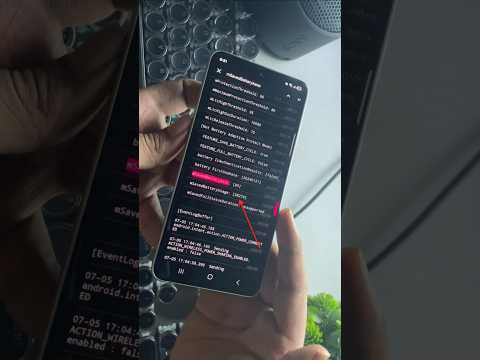
Check Battery Health% on Samsung Hidden Trick! 🔋 #shorts #samsung
RGB Tech Official
1m 21s231 words~2 min read
YouTube auto captions
Transcript source
YouTube auto captions
This transcript was extracted from YouTube's auto-generated caption track. The transcript below is server-rendered so it can be read, searched, cited, and shared without opening the original YouTube player.
Pull quotes
[0:00]If you want to check your Samsung's battery health, like exactly those stats and cycles, you get on an iPhone.
[0:00]Well, if we go to settings, device care, phone diagnostics, it shows the battery status as good.
[0:00]My phone's battery health shows 89% after three years of use, which is really good.
Use this transcript
Related transcript hubs
Watch on YouTube
Share
MORE TRANSCRIPTS


