[0:00]What you're looking at right now is an AI avatar, and honestly, most people can't even tell the difference anymore. I've spent the last few months perfecting this exact process, and what I'm about to show you is going to completely change how you think about creating content. Because here's the thing. While everyone else is still spending hours filming, dealing with bad lighting, redoing their makeup for the third time, and doing endless retakes because they stumbled over one word, I've figured out how to create studio-quality talking avatars that look realistic in just minutes. And yeah, I'm literally made this way too, using HeyGen. Pretty impressive, right? So, by the end of this video, you'll know the exact step-by-step process I use to make these avatars that actually sync perfectly with any voice, any script, and honestly, look better than half the content I see online. No more camera anxiety, no more perfect lighting setups, just gorgeous results every single time. So here's what we're going to do today. I'm going to walk you through creating your own hyper-realistic talking avatar using HeyGen's photo to video feature. In case you don't know, HeyGen is the best AI video platform for creating realistic talking avatars from just a single photo. And let me tell you, this is genuinely one of the most powerful tools I've discovered for content creation. The best part is that you don't need to be on camera ever again if you don't want to. You can create unlimited videos, test different styles, experiment with different voices, and honestly, just make content faster than you ever thought possible. I haven't had to film myself in weeks because the avatar handles everything. Follow along with me by clicking my link for HeyGen in the description below. All right, let's get into it. First things first, we need to create the image that's going to become your avatar. This step is actually more important than most people realize. because the quality of your starting image directly affects how realistic your final avatar looks. You can use whatever image generator you prefer, but I'm using OpenArt for this because it gives me access to their photo-realistic model, which honestly, produces some of the most natural-looking results I've seen. So, once you're in OpenArt, click on Image on the left side, then go over to create image and click create now. Then click on the switch button to select your model. For creating avatar images, you want to go with the OpenArt photo-realistic model. This is crucial because it creates realistic facial features and natural skin textures without that weird plastic look that screams AI-generated. Now you need to write a detailed prompt. I'm going with something like front-facing photo of a confident young woman with flowing black hair, striking emerald green eyes with long dark lashes, gentle red lips with a soft, genuine smile, wearing a casual cream sweater, soft natural lighting, professional photography style, looking directly at camera, plain background. You can find this exact prompt in the description below. Before I generate, I'm turning on auto enhance. This feature automatically refines your prompt to get stronger results. For the settings, I went ahead and set the resolution to widescreen. Widescreen makes more sense because it gives the model more horizontal space to animate and keeps the framing from feeling too tight. Now I'll click create and let it generate. And look at these results. The facial features are clear, the lighting is natural, and she looks completely realistic. I'm going to select this one because the expression is genuine and the image quality is really strong. All right, now comes the exciting part. We're taking this static image and turning it into a fully animated talking avatar. Head over to HeyGen using my link. Once you're logged in, you'll see the main dashboard with all your options laid out. On the left side menu, look for the apps section, click on that and you'll see a bunch of different features that HeyGen offers. What we want is the photo to video option right here, so go ahead and click on that. This opens up HeyGen's photo to video workflow. This is the feature that takes your static image and brings it to life with realistic movement and perfect lip sync. This is literally the same workflow I used to create myself, so I know it works. First, upload the image we just created. Just drag and drop it or click to upload from your files. Super simple. Once your image is uploaded, you'll see it appear in the preview window. Take a second to make sure it is uploaded correctly and looks good. Now HeyGen actually gives you options for how you want your avatar to sound. You can use one of their built-in voices, which they have tons of, or you can use your own voice from ElevenLabs if you have that set up. They even have an ElevenLabs integration built right in, which is super convenient. For this example, I'm going to select one of HeyGen's voices. Click on select voice and you'll see tons of options. You can filter by language, accent, gender, and age. I want something that sounds friendly and approachable, not too formal or robotic. You can preview each voice by clicking the little play button next to it, which I highly recommend doing. Listen to a few options and pick the one that feels right for your content and your brand. Next, you need to add your script. This is what your avatar is going to say. You can type it directly into the text box, or if you already have a script prepared, you can paste it in. I'm going to use a simple test script. Hey there, I'm your new AI avatar. Pretty cool, right? With HeyGen, you can create realistic talking videos in just minutes without ever needing to be on camera. No more worrying about lighting, no more endless retakes, just professional content whenever you need it. Next, choose your video quality. I recommend 1080p for the best quality. The higher resolution makes a noticeable difference, especially if people are watching on larger screens. One more thing that I like to do is insert this prompt right here on the custom motion section. The person looking natural throughout the video, not showing a lot of teeth and not showing hands at all. HeyGen sometimes tends to make the characters over expressive, and this little prompt helps keep the character a bit more chill. All right, now everything looks good. Let's click generate and see what we get. The waiting time heavily depends on how long your script is, but for our test script, it should take around one to two minutes. So while we wait, let me tell you why this is such a game changer for content creators. Think about how much time you normally spend creating video content. You have to set up your camera, make sure the lighting is perfect, do your hair and makeup, record multiple takes because you messed up a word or didn't like how you looked, then edit everything together. With this method, you skip all of that. You create your avatar once, and then you can generate unlimited videos just by typing in a script. That's exactly what I do now. I just write my scripts and my avatar handles the rest. Need to create 10 different videos for a campaign? Done in an hour. Want to test different messaging? Generate multiple versions and see what performs best. The time savings alone make this worth it, but the consistency is what really sets it apart. Your avatar looks the same every single time. And there's really no other tool that can do this while also maintaining perfect consistency and quality. Okay, our video is ready. Hey there, I'm your new AI avatar. Pretty cool, right? With HeyGen, you can create realistic talking videos in just minutes without ever needing to be on camera. No more worrying about lighting, no more endless retakes, just professional content whenever you need it. Look at how natural this looks. The lip sync is incredibly accurate, matching every word perfectly. The facial movements are smooth and realistic, instead of looking robotic. And honestly, if you didn't know this was AI, you probably wouldn't be able to tell. This is what makes HeyGen so powerful. The avatar doesn't just move its mouth like some basic animation. It actually has natural micro-expressions. Those tiny facial movements, subtle head movements, realistic eye contact that makes it feel like the avatar is actually talking to you, not just reading lines. Even the way the avatar breathes looks natural. These little details are what separate amateur AI content from professional quality videos that actually engage your audience. Trust me, I watch myself talk every day and the realism still impresses me. Now, if you want to make any adjustments, you can easily go back and regenerate with a different voice, change the script, or even adjust the pacing. You can even generate a different image of your avatar using the method I showed you earlier, in different clothes or hairstyles so they'll feel even more like a real person. Finally, you can download this video directly in whatever format you need, or share it using HeyGen's built-in sharing options if you want to send it to clients or team members for feedback. Now let me share a few tips that'll take your avatars from good to absolutely incredible. These are things I learned through tons of testing and honestly, some expensive mistakes. First, when you're creating your base image, pay attention to the angle. Front-facing or slight three-quarter view works best for talking avatars because it gives HeyGen clear information about facial structure. If your image is too much of a side profile, the lip sync won't work as well because the AI needs to see the full face. Second, lighting matters more than you think. Natural, soft lighting in your base image translates to more realistic movement in the final avatar. Avoid harsh shadows or overly dramatic lighting unless that's specifically the vibe you're going for. Third, the expression really matters. Choose an image with a neutral to slightly positive expression. Extreme expressions like huge smiles or surprised looks can limit how natural your avatar appears when speaking for different types of content. And you can use these avatars for so many different purposes. Educational content where you're teaching something step-by-step, social media videos that grab attention in the feed, product demonstrations where your avatar walks through features and benefits, even personalized messages for your audience or clients. I use my avatar almost for everything now, and it's completely changed how I work. The possibilities are honestly endless, and once you have this workflow down, you can create content faster than you ever thought possible. So now you know exactly how to create hyper-realistic talking avatars that look professional, sound natural, and honestly save you hours of filming time. And with HeyGen, you can bring them to life with perfect lip sync. Now you've got everything you need to start creating content that stands out. If you want to try this yourself, click the link in the description to get started with HeyGen. Thanks for watching, and I'll see you in the next one.
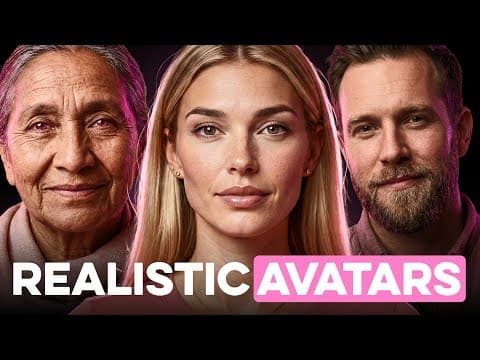
How I Create Realistic AI Avatars (with 100% Lip Sync)
Isa does AI
10m 44s1,907 words~10 min read
YouTube auto captions
Transcript source
YouTube auto captions
This transcript was extracted from YouTube's auto-generated caption track. The transcript below is server-rendered so it can be read, searched, cited, and shared without opening the original YouTube player.
Pull quotes
[0:00]What you're looking at right now is an AI avatar, and honestly, most people can't even tell the difference anymore.
[0:00]I've spent the last few months perfecting this exact process, and what I'm about to show you is going to completely change how you think about creating content.
[0:00]So, by the end of this video, you'll know the exact step-by-step process I use to make these avatars that actually sync perfectly with any voice, any script, and honestly, look better than half the content I see online.
[0:00]No more camera anxiety, no more perfect lighting setups, just gorgeous results every single time.
Use this transcript
Related transcript hubs
Watch on YouTube
Share
MORE TRANSCRIPTS


