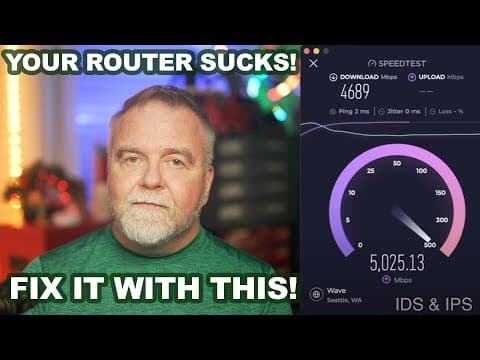
[0:00]Today, I'm going to show you why the home router you're currently using sucks. And then we'll look at how to make your network effectively bulletproof against most every type of cyber attack. Because here's what we're going to do today. We're going to use OPNsense to build a cheap two-port transparent filtering bridge that you put in line with your existing cable, DSL, or fiber modem. Packets come in, they get inspected, filtered, and then passed on to your network when safe to do so. And best of all, it requires zero changes to the rest of your network config, which has no idea that it's even there keeping you safe. Let's get to it.
[0:38]Hey, I'm Dave. Welcome to my shop. I'm making this video by popular demand after my most recent episode, which was dedicated to making the best of a bad situation. How to fortify your existing home router as best as possible. And this is true whether you have cable, DSL, fiber, or even satellite. You should definitely watch that episode too, but you can watch it afterwards as the order in which you do things doesn't really matter. Now, near the end of that episode, I made reference to two popular security packages, PF Sense and OPNsense. Now, you might already have the general idea that some people build little boxes like pie holes that they attach to their network to do things like ad blocking and DNS. But we're going to go many steps beyond that by including features such as IDS, or intrusion detection systems, and IPS, or intrusion protection systems. We'll also install antivirus directly on the router to catch threats before they even get close to your PCs own defenses. Now, there's just one arbitrary choice that we have to make, and that's to choose between PF Sense and OPNsense, which are very similar. That's made both easier and more difficult by the fact that OPNsense is a fork or a derivative of PF Sense, so they're actually related. People have done entire episodes on which one to pick, but let me fast forward past all that and just select OPNsense as our choice for today. Mostly because I prefer the UI and the configuration system. So OPNsense it is. Now, if you did want a video on PF Sense instead, I'd like to point you to one by Network Chuck, you know, I'll put a link in the video description. Now, I don't know Chuck, but if I were to describe him, I'd say he's like the jolly younger cousin of a long gray bearded network administrator. His beard isn't gray just yet, but it'll get there one day. All the faster for the fact that he's clearly heped up on some serious coffee because nobody is that friendly and boilient all the time. He makes some great content, though, and even has CCNA classes. So if you ever wanted to be a critical care nursing assistant or whatever that is, he's your man. Link in the video description. There are in fact quite a few videos on YouTube about OPNsense, but the thesis of most of them is that same, your home router sucks, replace it with this. And heck, I'll probably steal that well worn idea for my own thumbnail, so I'll confess here, but it's still kind of bogus because that little home router that you got from the cable company does more than one job. First of all, it's a physical bridge from like coax to Ethernet, because if you have cable, that coax cable coming into your house is useless to you without this box after all. In other words, you can't just throw it away. You need it, or at least some of it. Second, it routes packets between the internet side and your home LAN. It uses NAT, or network address translation, to allow many devices in your home to all share your single public IP address seamlessly. And it presents a firewall that blocks incoming connection attempts that are not previously authorized. And third, if it has more than one port, as most such routers do today, then it's also a switch. So when they say throw it away, which part? And how do you throw away just that part and keep the others? And that's the rub. You usually can't. Now, the closest that you'll get is to place your ISP router or whichever router you've purchased to work with your ISP into bridge mode. This means it turns off its DHCP, its NAT, and all the other router-style features and just dutifully shuffles packets to and from the internet with a little care in the world as to what's in them. You then need something behind that box to do all of the security, gateway, and router-related functionality that your ISP's modem had been doing all along. Oh, you. I'm fine, thanks. How are you? Rest assured that OPNsense can do all that and much more. But at a minimum, that means you've got a new router to learn, a firewall to set up, rules to configure, ports to forward and all that. And in fact, when we set it up, that is the default. If you don't go out of your way to do it differently, OPNsense will serve as a security layer, router, NAT, DHCP, all behind your existing one on the ISP modem. It would still work great except for reverse port forwarding, and maybe you want to go that way, but I wanted a simpler solution. Because sometimes you don't want to add more headaches to your life, you just want the security part. And that's why I'm going to show you the easy solution that those fat cats on YouTube don't want you to know about. The transparent filtering bridge. It sounds scary, but it's actually super simple. Well, as the name implies, it's transparent to the network. You have one port on a box labeled in and one port labeled out. And you connect your cable modem or your DSL modem or whatever your ISP supplies or you bought into the in port, and the rest of your network goes into the out port. From there on, OPNsense will do nothing more than inspect and mitigate attacks by filtering traffic as it comes right out of the modem. Now, to do that, we have to install OPNsense and then configure it as a transparent filtering bridge, which is a few extra steps. If you don't want the transparent bridge, you just stop at the end of the default installation and then set up whatever rules you want. To get started, you'll need your hardware and software in hand. If building a router has always sounded a bit like wizardry, it's likely just because you weren't aware that all you need to make a router is two network ports and some kind of decent processor. So what has at least two ports and a good CPU? Well, sadly not the Raspberry Pi. A standard Pi only has one network jack and it doesn't really have the CPU horsepower to run live IPS and IDS on any kind of bandwidth. Thus, we need at least a mini PC, like an Intel mini PC. For basic gigabit internet with security filtering, I recommend something a bit more powerful than an Intel Atom at this point, like an i3 or an i5. For my 5 gigabit service, I'm running a 10 core i5 from Protectli, known as The Vault. But it really depends on the amount of traffic that you need to process. A gigabit is a lot less than 10 gigabits. The Vault matches its powerful CP with six network ports, two of which are 10 gigabit SFP+, so it's perfect for my scenario. But for just experimenting and tinkering around, it can be something as simple as an old Dell Dimension that you fire a second network card into. It doesn't need to be fancy. You can grab a two-port mini PC as low as $65, and I'll put a few links in the video description. Now, one nice thing about the process that I'm going to go through in a bit here, which is to set up the transparent filtering bridge, is that once you plug the router in, there are no changes to the rest of your network. You're not monkeying with your DHCP, with your NAT, with your VLAN, nothing. Everything stays the same. And that way you don't have to undo it if it doesn't work. All you have to do is unplug the cable and plug it back into where it used to go and you can reverse this whole process and throw the router away, or more likely, fix it and figure out what you did wrong in the configuration to make it fail. So basically what I'm saying is it's pretty safe to monkey with if you're doing the transparent bridge approach because nothing else changes. Once you've got a piece of hardware to dedicate to the task, we need software. And in this case it's free. OPNsense is actually a custom version of Linux, meaning you install it as you would any other operating system as opposed to say an application that you install on top of an existing system. You can use Rufus on the PC or Balena Etcher on a Mac to create the USB stick. And I'll assume that you can get that far that you've got the USB stick in hand. Okay, to get rolling, we'll boot off the USB installation stick. We'll let it run and do its thing up until it gets to about the login prompt and when it does, we'll enter installer as the username and OPNsense with no capital letters, which is the default password. Once we get into the gooey portion of the installer, we can accept the default key map and then select the UFS file system. We select our SSD, confirm that we want a swap size of just 8 gigabytes, because we're just taking the default here, and we'll make sure that we want to format the drive. I will say yes and it will proceed with the format. And we'll then copy all the files over required for the installation. Now, in real time, this takes a few minutes, but it's not an unduly long process. As soon as it's done, we have the option of setting the root password for the system, so let's do that now. I'll pick okay and I'll enter in my password, which I'll be asked to repeat for confirmation, which I will then do. Then when that's done, we're given the option of rebooting the system. So we'll pick that from the menu, complete install, exit and reboot. With that, OPNsense is now installed and as soon as the system reboots, it will come back up predictably as OPNsense. When the system does come back up, we can leave it to simply auto boot. We'll let it toll on through its boot process here, which is rather verbose, being Linux. And of course, when it gets to the final login prompt, we'll now want to log in as root with the new password that we just specified in the installation program, which I hopefully remembered or wrote down. And from there, we can see the DHCP IP address that we got, and that'll be the address that we can now use in the web UI to do everything further that we need to do. Assuming the port configuration wizard during the installer properly set up your network ports, and it always has for me so far, then your new router should be available in the browser at the IP address shown in the console a moment ago. Now, this is if you've got the LAN port plugged into your LAN, of course. You need to have that much set up for this point. You can also do it as a second or as an optional management interface, which is how I do it if you have three or more ports. But if in the two case, just make sure you're talking to the LAN address. Now, if you're having a really good day and MDNS is working for you, you can just type OPNsense into your address bar and that should resolve automatically. Once you log in, you'll find the OPNsense dashboard. On the left is the navigation bar for moving around the UI, and the middle is the current system status. Here we can see I'm running a 10 core 12th gen i5 and that there are 32 gigabytes of RAM and about a half a terabyte of storage. Plenty for a router. And now we can follow one of two different approaches. We can leave the router as it is and start adding whatever firewall rules, the security packages we want, or we can configure this new router as a transparent bridge so that it can sit silently behind our cable DSL or fiber router just filtering traffic. And that's the approach that I've opted to use, so let me take you through those steps now. Along the way, you'll get to see quite a bit of the configuration UI and should get kind of a handle on how this thing is laid out. I'll also put a recipe including these instructions in the video description, which you might actually find easier to follow if you're doing it step by step. Either way, it's easier to see it in advance first, so let's get on to the config as there are quite a few steps that I'm going to rip through to make this work. The first thing we need to do is to disable the outbound NAT rule generation. That's on the firewall NAT outbound menu and we want to select the disable outbound NAT rule generation radio button. In step two, we need to set a couple of values in the system tunables table. This is like wind from the 1990s. Let's go to system settings tunables and we need to create two entries here, one for Pfill bridge set to one and one for Pfill member set to zero. Next, we need to create a bridge from our input port to our output port. To do so, we navigate to interfaces, other types, bridge, and we click the plus button to create a new bridge. For both interfaces, we pick both the WAN and the LAN, give it a name and just accept the defaults for the rest. For step four, we navigate to interfaces, assignments, and we click on the plus button to create a new interface assignment. We give our bridge a descriptive name and we make sure that enable is turned on. For the IPv4 config, we select DHCP and for IPv6, I leave that disabled. After we click save here, you might also want to click apply changes in the top right, which can take some time. Now in step five, on the WAN interface, we must deactivate the blocking of private and bog on networks. We navigate to interfaces, WAN, and we make sure that both of those checkboxes are turned off. In step six, we turn off the DHCP server. To do so, we navigate to services, DHCPv4, LAN, and we uncheck the enable box here. Now in step seven, we create some pass all rules. Basically, we're going to add a firewall rule to each interface for now that says just pass all traffic to make sure that everything works, and then you can find tune the rules to your liking later if you need it. For each firewall rule, we'll give it a descriptive name like pass all and set the action to pass and leave the rest of the rules as defaults. We need to create one for the WAN, the LAN, and for the bridge, and then you should be set. In step eight, under firewall settings advanced, we need to disable the anti-lockout rule. Just make sure the disable checkbox is set here and you're done. And finally, we need to remove the IP addresses from our LAN and WAN interfaces since they will be part of the bridge. To do so, we go to interfaces LAN and then interfaces WAN, and in each case, we set the IP type to none. If it's not already working at this point, you should be able to restart the box and if you've followed the steps correctly, you should now have a transparent filtering bridge. The WAN port connects directly to your modem box, and the LAN port connects the rest of your LAN to the bridge. No changes are needed at either end and it should all just work. Unfortunately, it doesn't do a lot yet. Now you can configure firewall rules to block certain traffic or connections from various countries that you don't want to accept and so on. But beyond that, it just sits there shuttling traffic back and forth. We want it to be proactive, checking traffic for us to make sure it's safe. To get that functionality, we have to turn on IDS and IPS. So let's do that now. And by the way, this is the process you'll want to follow, even if you're not using the transparent filtering bridge because these services are not enabled by default. So browse down into services, intrusion detection, administration, and then turn on the enabled checkbox for the intrusion detection system. Which is actually a piece of software known as Suricata, but it's now built into OPNsense. If you have a reasonable amount of CPU power or not too much traffic, you should also enable IPS mode as well, which will turn on the intrusion prevention system. Once you've done so, you should be able to return to lobby and within a minute or so, you should see the Suricata service actively running, which indicates that your protections are in place. Now, there's at least one more thing I recommend you do with your setup, and that is to install the Clam AV service. To do so, we have to install a plugin. We go down to system, firmware, plugins tab, and after it has some time to download and populate the list, you should see a veritable cornucopia of plugins that you can install and play with. Use the search box for clam, and you will find the Clam AV service where you can click the plus box to install it. Once that's complete, we need to turn it on and then update the signatures. To do that, browse to services, Clam AV configuration and turn on the enable checkbox. I also suggest you turn on the Fresh Clam service. Now on the signatures page, the first time you hit here, you will see a button to download signatures. That took me a solid 20 minutes, so don't be surprised when you find that the first signature update is pretty lengthy. Now, if you've made it this far, congratulations. There are a lot more things you can do with OPNsense, and if there's enough response from the audience in the form of new subs and likes, I'll even look at diving deeper into it. For now, if you did find any of today's episode to be interesting or entertaining, remember that I'm mostly in this for the subs and likes, so please be sure to leave me one of each before you go today. And if you're already a subscriber, thank you. Please do consider turning on all notifications for the channel so you don't miss an episode. If once a week turns out to be too often, you can always turn it back off. If you or somebody you know may be on the autism spectrum, check out the free sample of my book on Amazon. It's everything I know about living your best life on the spectrum. Thanks for joining me out here in the shop today. In the meantime, and in between time, I hope to see you next time, right here in Dave's Garage.


