[0:02]What if creating LinkedIn or Instagram carousels took minutes instead of hours? I'll show you how with Carousel Studio, the Canva app that uses AI to build carousels for you in just a few clicks. Yes, really. Plus, you'll get a free month if you use my special code. So, wait until the end for that. I'm Thea, a Canva verified expert here in Scotland with over 12 years of Canva experience. And I love exploring Canvas thirdparty apps. Are you ready? Let's go. So, there's a couple ways to get into Carousel Studio. I can do it right here from Canva apps and I can type in. So, I'm here under apps down the lefth hand side. Type in carousel studio and here it is. Then I'm going to use it in a new design. Let's go with Instagram post. And then it'll open up the app on the left hand side. I'll show you the other way in a second, but let's just do this one first. Now, I've already done a few uh trials with Carousel Studio. So, it's given me some prompts that I can use should I wish, but I have one that I'm just going to paste in here. Why you should digitize your VHS tapes before they degrade. I'm going to change it to five slides and I'm going to hit generate. So, that's all I did. Literally just paste in my prompt and chose the amount of slides. Now, what you should know is that when it says five, it's actually going to be seven because there's an intro slide and there's an end slide as well. So, it's just creating my carousel for me. Okay. So, it's now designing my carousels and it's taken the black color from my brand kit to create the slides. And I may just want to tweak things around a little bit and add my logo, which I have, of course, stored in the brand kit. So, I'll just add one of my logos. Which logo are we going to add? I think this one will be good. put that in there just to give it a little bit of color. And there we go. So, that's one way to do it. Now, if I already had an Let's just go to the homepage and let's go to social media. Let's go to Instagram post again. Let's say I already had whatever Canvas doc type I wanted in here and I wanted to open up the app from inside Canva already. I'm going to search for apps and then I'm going to go to carousel studio and I'm going to open it here. So that's the other way to get into the app. This time I'm going to click customize. I can choose one of the preset themes that are already made here. As you can see, there's a variety of styles and colors, etc. Again, everything is customizable. I've already got my brand kit stored here, so that's good. I can change the font if I wanted to to, I don't know, Anton. I don't want to. I want to keep it as Poppins. So, I'm going to go back to Poppins, right? Okay. Keeping it Poppins. The biggest size heading font size you can do is 78. The body font size, you can make it bigger or smaller. Maybe we go 55 to 78. I can play with the alignment, left, right, or center. I'm going to I'm going to keep it left. I like left. Background pattern. I can do circles, diagonal lines, concentric circles, semicircles, streak, slant, and I could do image. That's going to use two credits. Honestly, I would probably just use images later. So, ignore that one, I think, for now. And just pick something. Now, what will I do? I'm gonna go with circles. And I could alternate the background, in which case it's going to go black, white, black, white, black, whatever. And we've got my name here. And actually, that's not quite my handle. So, let's change the handle. And down here at the bottom, we have different choices of layouts. So we can do if we do the drop down we can do handle only top with circle full profile bottom with circle full profile top with arrow full profile bottom with pill handle only top with pill. Now if I don't know what those means good news I can just hit see preview and it's going to give me the preview. Oh I quite like that. Uh let's see if I wanted to try a different one. I can go let's see let's do top with circle. see preview and it's going to give me. So, let's look at the difference between those. Okay, so here's the circle for the slider. Okay, so I'm happy enough with that. The body slides, we only have basic. There's nothing else there. So, I'm sure that things will be changing in due course. We're going to leave that one there. We don't need to preview it. Now, the end slide, we can choose from basic or uh basic horizontal or basic vertical. So, I'm going to go with horizontal. And again, I can see the preview if I wanted to. And that just means our social media icons are horizontal. Again, I could show you the vertical while we're here. And there you go. And it's taken away the branding branding color. So, once I'm happy, um, I am going to go back to create and I'm I'm going to maybe just use one of the preset ones here. Beyond VHS, hidden memories. Let's do that one. Don't know what that one is. Let's make it five slides again. And let's click generate. All right, here we go. It's designing my carousel. And it's looking pretty good. I mean, you know, I could add photos if I wanted to later. I, you know, could add some graphics or elements or something to jazz it up a bit, but sometimes simplicity is best and minimalist is the way to go. Nearly done. And again, I want to move that up. Move this up. And again, let's throw in a brand, our logo. I'm going to choose this one here. It's very small, but we'll choose this one here. And we'll make it bigger. And we'll make sure it's lined up. Cool. And is that Oh, that's not lined up, is it? There we go. Centered. Here we go. position position center middle. There we go. We can move him up a bit. Okay, cool. So now if I do grid view, you can see that I have If I click grid view, you can see my my carousels are all here. Now I'm going to I'm going to take these just drag my mouse across these, hold my shift, and I'm going to move the whole carousels up. So now we've got them all here. One, two, seven. And look, they've labeled each one. intro slide body one, body two, body three, all the way down. End slide. So I can now just hold hold my shift down and delete all those. And now a couple of things can happen. Let's say I'm ready to go. I'm happy with everything. I'm going to label it first like um what's it called? Unlock hidden memories carousel. Now a few things that I can do. Number one, I could share it straight to Instagram. I could click on Instagram here under share and if my account is connected, which it's not at the moment, but I could do it and I could share it straight. Saves me downloading and then uploading. The same token goes if I do if I do see all, I can do LinkedIn and do the same thing and connect my LinkedIn account. As you can see, I don't do that either. And if I wanted to download it, if I'm going for Instagram, I'm going to download it as a PNG. If I'm download, if I'm downloading it for LinkedIn, I'm going to choose PDF standard because LinkedIn prefers doc talk do talk do talk do talk do talk do talk do talk do talk do talk do talk doc types documents so PDFs and then I would just hit download and I would go over to LinkedIn and I would share it. But there are a couple other things that I could show you. So, for instance, I could create it as a public view link. And then if I do create public view link, I can then copy this and then share that code. Let's just see what that looks like. Here we go. We're hitting enter. And here is my carousel and it's stored on the web. So, I could just send it as a link over to somebody for that. What else can I do? Well, if I open up my carousel, I can click on animate and I could do either magic animate or I could hover over each one. And you can see it's animating my text as I hover over each one and I can pick one that I like. Photoflow, photo, block, scrapbook. Scrapbook could be kind of fun. Uh there's all different ones here. Or I can go magic animate and it can magically animate my design. And then I've got these types. So I can just hover over and see which one looks good. Playful sounds like it could be fun. Professional. Grunge. Minimal. Let's do grunge. And then actually let's do digital. Go back. Now, if I do preview, you can see I've now got a video, right? So, what you're going to want to do is then now download as drop-own menu and then we're going to do MP4 and hit download. And then I have a video. So, lots of different things that you could do with the carousel studio app. It doesn't just have to be a static carousel. You can also create videos. Well, that's about it. Once again, you can grab a month of Carousel Studio by using my name, all one word, Thea Nukem. And if you need help with Canva, you can book a free 20inut clarity call to see how I can support you with Canva. I deliver workshops, webinars, and oneto ones worldwide. I'll pop the link in the description below. And if you made it this long, I want to say thank you for watching. Until next time, I'm Thea saying see you.
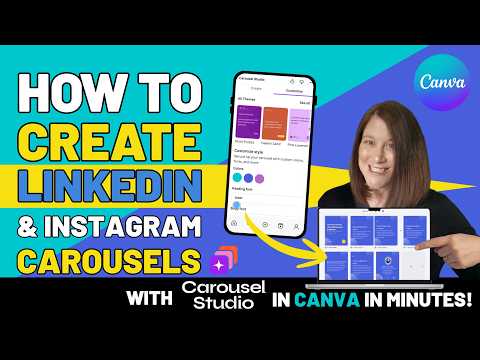
Hate Making Carousels? Carousel Studio AI in Canva Does It For You
Thea Newcomb
10m 41s1,769 words~9 min read
YouTube auto captions
Transcript source
YouTube auto captions
This transcript was extracted from YouTube's auto-generated caption track. The transcript below is server-rendered so it can be read, searched, cited, and shared without opening the original YouTube player.
Pull quotes
[0:02]I'll show you how with Carousel Studio, the Canva app that uses AI to build carousels for you in just a few clicks.
[0:02]I'm Thea, a Canva verified expert here in Scotland with over 12 years of Canva experience.
[0:02]So, it's given me some prompts that I can use should I wish, but I have one that I'm just going to paste in here.
[0:02]Now, what you should know is that when it says five, it's actually going to be seven because there's an intro slide and there's an end slide as well.
Use this transcript
Related transcript hubs
Watch on YouTube
Share
MORE TRANSCRIPTS


