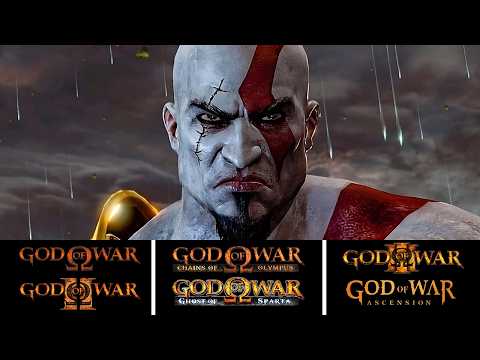
[0:00]In this video, I'm gonna show you how to set up and play all the original God of War games on PC. This is a compilation of previous tutorials I've made and now including the PSP games. This means I'll cover God of War 1 all the way to GOW Ascension. So we're gonna be using PCSX2, PPSSPP and RPCS3. They are the best PS2, PSP and PS3 emulators respectively. I'll show you how to get the best quality and performance in each one of them. Let's get going! We'll begin by downloading the best PS2 emulator PCSX2. The link will be down below on the fixed comment of this video. And here on the main page, you want to click here on latest nightly and then download the emulator for the operational system you're using. In my case, I have Windows, so this is where I'm gonna click here. The emulator will come as a zipped file, so you're gonna need either WinRAR or 7-Zip to extract it. I would personally recommend 7-Zip over WinRAR, actually. And I created a folder called PS2 on the desktop of my computer, and now here on the file, I'm just gonna double click on it, and it's gonna open with 7-Zip, and now I'm just gonna extract all the contents here to the same folder where the original file was. You can go ahead and delete the original file. We're not gonna need this anymore. And here, before we start the actual installation, click here on view, and make sure that file name extensions is enabled right here. This is required for what we are about to do right now. So, before we start the actual installation of the emulator, you're gonna right click here on the folder, and then you're gonna select new, and then click on text document. This file will be generated, and you're gonna rename this file here to portable and on the .txt, you're gonna erase the TXT and replace it with ini, exactly like this. It has to be written exactly like this. And when you click away, it's gonna ask you if you really want to change this one and then click on yes. And if you see this little gear here next to the program, it means you did it right. Now, you're gonna click here on this PCSX2 executable, so just double-click on it. And if you did it right, all these folders will show up right here, just like it was before, but this is something that they change it on the latest version of this emulator. There's a few options here, if you want to change the language and the theme of the emulator, I'm just gonna leave everything on default here, so go ahead and click on next. Here, we're gonna have to select the folder to where the BIOS files are gonna be. I can't show here on the video where to go, or even mention where you could find it, because that's against YouTube's policy. But it shouldn't be too hard to find, if you know what I mean. And when you have them with you, you're gonna place them on the BIOS folder here on the emulator folder just like this. Now, go back to the installation program here, and then click on refresh list. And like that, the BIOS should appear here. I got the Japanese version, but it really doesn't matter at the end of the day. This is not gonna affect the installation or anything like that. So now, click here on next. And on this tab, we're gonna have to select the folder to where you want the emulator to scan for the games. And in my case, I like creating a folder here on the emulator folder, click on new and then folder, I just create a new one here called games.
[3:38]Just to keep everything on the same place, right? Now, go here back on the emulator. And then click on Add, and it should open the emulator folder by default. So now you just have to select that games folder that we just created, and then click on select. It's gonna ask you if you want the emulator to scan this every time. Click on yes. And there you go. The folder directory should appear right here. Now, click on next. And on this screen, we can configure our controller. And this emulator has an automatic mapping function, so if you already have your controller plugged in, you're gonna click here on automatic mapping, and it's gonna list all the devices you are using. In my case, I have an Xbox controller, so I'm gonna click here on SDL0 XInput controller. But you can use your keyboard as well if that's the case. You can configure it this later inside the emulator, by the way. If you have a second controller, you just have to do the exact same thing here on controller port two. Now, click here on next. And with that, we have finished the installation of the emulator. And it should appear right here. This will be a good time to subscribe to the channel and also leave a like on this video. Now here on the emulator, I already have both God of War games here with me. We're gonna start with God of War 1, of course, So right here on the game, click on it with the right button, then select here properties and click on it. Now here, you want to click on the graphics tab. And here on the renderer, you want to select Vulcan, this one right here. If Vulcan doesn't show up for you, you can go ahead and select global settings anyway. It's gonna choose the best video renderer for you, but if you do select Vulcan, and right here on display, the first setting we want to change is the aspect ratio. Go ahead and change this to widescreen 16x9. This game has native widescreen support. I'm gonna show you that later. And right here on the bottom, you want to click on Anti-Blur and then enable no interlacing patches. Pretty much done here. Now, click on Rendering. And right here on Internal Resolution, you can go ahead and increase the resolution right here. The higher the resolution is here, the better the game will look. In my case, I have a 1080p monitor, but I'm gonna go ahead and select 4K resolution right here, but this is gonna depend on how powerful your computer is, of course. If you can't handle 4K or even higher than that, then you just go and decrease the resolution until the game is on a playable state. Now here on Anisotropic filtering, go ahead and change this to 16x. This will make the game look better and has minimal impact on performance too. We are done here, so go ahead and click on close. We already configured the controller on the emulator installation, but if you want to do that again, click here on settings and then select controller here. And you should have the controller port one enabled here with the device you're using. But if you want to change that, click here on automatic mapping again and then select your controller. When you're done, click here on close and we are ready to start the game. So just double click on it, and it should start. And also, don't forget, when you boot the game for the first time, go here to options and enable the widescreen support for both God of War 1 and 2. And there you go. Now the game is running and it looks really, really good, right? Just like I said. Now, we have to do pretty much the same thing, but for God of War 2. Let's start by configuring the game right here. The settings are pretty much the same as God of War 1. Head over to graphics. Here on renderer, set Vulcan if it's available for you. The aspect ratio, change this to widescreen 16x9, enable Anti-Blur and enable no interlacing patches. Click on rendering, change the internal resolution to the highest that you can. In my case, I'm going to put 4K resolution. On Anisotropic filtering, change it to 16x. This makes the game look better with minimal impact on performance. Pretty much done. And as you can see, the game is up and running and it looks really, really good. And the PS2 emulator at this point is very optimized, so you should have no trouble running this game, even with the increased resolution. Now, we're gonna do the setup for the PSP God of War games. We're gonna start by downloading PPSSPP. This is the best PSP emulator out there. So head over to their website right here. I'm going to put the link on the description. And here on the main page, you just have to click here on download, and it's going to show you all the versions available for this emulator. In my case, I'm just gonna get the portable version of it. I prefer it that way, skipping the installation process and all. Just click here on zip file portable and place it on the folder of your preference. In my case, I created a folder called PSP on the desktop of my computer, and placed the file in here. So all you gotta do is extract the content of it. I'm using 7-Zip, but you can also use WinRAR, that's up to you. So I'm just gonna extract the content, this file right here, and there you go. Already have the emulator set up. And setting up this emulator is actually very straightforward. First off, you just double click here on Windows 64.exe, it's gonna open up like this. I'm gonna start by selecting the folder where I want the emulator to scan my games, so just click here on browse and select the folder where you want your games to be scanned. It can even be the same folder of the emulator. That's what I'm gonna do here. There you have it. And now let's configure the emulator settings right here for both games. So just click here on game settings, here on more settings. Now, first of all, here on the graphics tab, on backend, it's gonna show up as Direct3D by default. Go ahead and change this one to Vulcan, if it's available for you. If it's not available, you can go ahead and set it as OpenGL. It's gonna ask you to restart. Go ahead, it won't take long. Now, here in the option from the bottom, rendering resolution. This one is to change the resolution where you want your games to be rendered at. And this one will make the game look better, but it will introduce a ghosting effect on the game, but it will make the game look much better. So I think the trade-off here is fair, you know? So in my case, I'm going to set mine at 4x 1080p resolution right here. I don't really mind the ghosting, but if you do, go ahead and leave this one as the auto or at least 1x PSP. Next, on Anti-Aliasing (MSAA), click on this one and change it to 8x. This one will have minimal impact on performance. Here on the performance tab, the option from the bottom, Hardware Tessellation, go ahead and enable this one right here. On Texture Scaling, by default, it's going to give you the XBRZ upscale type, and I think this one is actually pretty good. So I'm we're just gonna change the upscale level of it. By default, it's going to be set as off. So go ahead and change this one to 5x. The texture filtering, the Anisotropic filtering should already be set as 16x, but if it's not, go ahead and do it. And Texture Filtering is going to be set as auto, so go ahead and change this to Auto Max Quality. That's it for the Graphics tab. Now, click here on Controls and then here in the first option, Control Mapping, click on it. And this emulator has the configuration to do the auto mapping of the controls. So in my case, I already have my controller plugged in, an Xbox controller, that is. So if you don't, go ahead and plug yours, and you just have to click here on auto configure. And it's going to show up all the devices available for the auto mapping function. So I just have to click here on the Xbox 360 pad. And there you go. It's already configured, very straightforward and very nice to use. Click here on back. On the audio tab, you can leave everything as the default one. It's going to work great unless you know what you're doing. And the rest of the options are just networking, tools, we're not gonna need this one. System can be set as default as well. It works pretty great. And that's pretty much it. So click here on back. As for getting the game, you're gonna have to either dump your copy of your game into your PC or find it online. But this is something that I can't do because it's against YouTube's guidelines. There you go. Now, I have both games here with me. And if you did all of that with the emulator open like I did, it's not going to show up in here. So you're just got to close the emulator down and then reopen it. And as soon as it starts, it's going to list both games right here. It says God of War: Chains of Olympus and Ghost of Sparta. And they're pretty much good to go. If you just click in one of them, you can start playing right away. You can go ahead and click here. I'm going to check out Chains of Olympus. Double click on the screen for full screen to happen. And there you go. It's ready. Both games already run pretty great on the emulator like I said, but they now look better too. Now, let's move on to God of War 3 and Ascension on the PS3. We'll begin by downloading RPCS3, the PS3 emulator. I'll put the link down below. And here on the main page, you just have to click here on the download button. And then you download the emulator for the operational system you're using. In my case, I'm using Windows, so I'm gonna click on this one, and then place it on the folder of your preference on your PC. It will come as a zipped file, so you have to extract it with either WinRAR or 7-Zip. In my case, I'm using 7-Zip, so I'm just gonna extract the file here. And you can go ahead and delete the original one. We're not gonna need that anymore. And to begin, you just have to double-click here on RPCS3.exe to start the installation. And here there's a few options, if you want to create a desktop shortcut and stuff, I would not recommend using the dark theme yet. So I'm gonna turn this off. And then just click here on do not show again and I have read the QuickStart guide, and then just select here on continue. And there you go. We have RPCS3 on our computer. First, we have to install the PS3 firmware on the emulator. And we can get that on the official Sony website. This is the place right here. The link will be down below. And on this page, you want to scroll down here to the bottom a little bit. And where it says how to update PS3 system software, you want to click here on update using a computer, and then you just click on download PS3 update. And place the file on the same emulator folder.
[14:18]If for some reason the download doesn't start when you click on it, then you have to click on it with the right button on your mouse. And then select copy link address and then paste the link on your browser and press enter. Then the download will start. Now back on the emulator folder, I already downloaded my firmware here. It is this file, the PS3 update. Now, you want to go to the emulator. And right here, click on file and click on install firmware. It should open the emulator folder by default. So now you just have to double-click here on the PS3 update and it will install the firmware on RPCS3. Click here and do not show again. And then click okay. And now it will install these PPU modules, but this shouldn't take long. And while you wait for it to finish, this will be a good time to subscribe to the channel and also leave a like on this video. I would really appreciate it. As for getting the games, you can either dump your copies to your PC or get them from the internet. And I can't show you here on the video or even mention it how to do it because this is against YouTube's policy. And when you get the games, you can place them right here on this games folder on the emulator folder like this. This will be the default folder that the emulator is going to scan for the games. If you had your emulator open while doing all of this, go ahead and close it down, reopen, and the games should appear right here. If they don't show up for whatever reason, click here on file and then click on add games. And then just select the games folder here again too. Very simple, right? Now, these are the vanilla versions of the game. We don't have the patches yet, and we can get them using a little tool that is very simple to use. Using this tool right here, rusty-psn. The link will be down below as well. So here on this page, you just want to click here on the latest release available. It is version 3.7, and then just scroll down here to the bottom. And you have to download this file right here, the rusty-psn-egui-windows.zip. Download this file if you're using Windows like I am. You can place it on the same emulator folder. Now back on the RPCS3 folder, the file is right here, the rusty-psn that is. So you just have to extract the single.exe file that is inside of it with either WinRAR or 7-Zip here. And then now, you just have to double-click here on the rusty-psn.exe and the tool will open. Before you start downloading the patches, I want you to click here on this little gear so you can change the download location for the patches. In my case, I like to create a new folder on the emulator folder here, called updates, just so that I can keep things organized, you know? And now go back to rusty-psn and then select pick folder, and then select that one updates folder that we just created. Remember, this is optional. This is up to you how you want to download this, but I like doing it like this. So now click here on save settings. With rusty-psn already configured to download the updates, we're gonna need the game serial code. And we can get them on the emulator right here. So, I'm gonna start with God of War 3. Right here on the game, click on it with the right button and then the option from the bottom, copy info, click here on copy serial. Now, go back to rusty-psn and copy the serial right here. Then click on search for updates. And it's going to list all the updates available for the game. There's only one update for God of War 3, so that's all we're gonna need. So just click here on download file. This one shouldn't take long and there you go. It's ready. Now, we're gonna do the same thing for God of War: Ascension. Click on the game with the right button, the option from the bottom, copy info, copy serial. Go back to rusty-psn, delete the code from God of War 3, paste this one, search for updates. Now, God of War: Ascension has several updates, but the only one we're gonna need is 1.04. Do not update this game beyond this version because it's mostly content for the game multiplayer mode. And if you update the game with everything, it can cause a freeze on the emulator. So 1.04 is the only one we're gonna need. Click on download file. Wait until it is finished, and there you go. It's ready. You can now close rusty-psn. Now here back on the emulator. Click here on file and then click on install packages, RAPs, etc. Now, go to the emulator folder and select that updates folder we created before, this one right here. It's going to list the updates for God of War 3 and Ascension. This one is God of War 3. So let's start with this one. Simply just select this one, click on open. It's going to ask you if you want to install. Click on yes. And there you go. God of War 3 is updated. Now, do the same thing for God of War: Ascension. Install packages updates. There you go. And then open. Yes to install. And there you go. Both games are updated, but Ascension only up to 1.04. That's what we're gonna need. Now, we are going to enable the community patches for both of these games. And they're required for getting more performance out of them. Let's start with God of War 3. So click on it with the right button and select this option here, manage game patches. Here we're gonna select the patches from version 1.03, which is what we have here. And basically, the options you want to have enabled here are disable color grading, disable layered fog. These two will make the game look a little worse, but it's going to give you 10 to 15 FPS increase on gameplay. So it's absolutely worth it. Also, disable MLAA, disable motion blur, if you feel like it, and disable SPU MLAA. You can also enable to skip any buttons with X and intro and also unlock FPS as well, so we can get 60. And there you go. So hit apply and then save. And now we're gonna do the same thing for God of War: Ascension. Click on it with the right button, manage game patches, and we're going to select from 1.04 right here. Basically, the only option for performance is disable MLAA, but you can once again disable motion blur, skip the intro and unlock FPS. Click on apply and then save. Now, we're going to configure the emulator settings for both of these games. And this is probably the most important part of this tutorial for getting the best performance out of these games right now. So, starting with God of War 3, click again with the right button and select here, create custom configuration from global settings. This window will show up and on the CPU tab, the first option is SPU XFloat accuracy. Change this one to relaxed and the SPU block size, change this one to mega. Now, click on the GPU tab. And right here, make sure that the renderer is set to Vulcan. If it's not available for you, you can leave it as OpenGL, but preferably set this to Vulcan. Here on the frame limit, set this to 60. Otherwise, if at some point in the game, the FPS goes any higher than that, it will speed up the rest of the game. Keep the default resolution at recommended, but if you plan on upscaling the resolution, you're gonna use this slide right here. But if you do so, if you upscale the resolution to anything higher than 720p, you have to change the scale threshold right here to 160x160. You can use the keys on the keyboard to keep it precise like this. Otherwise, if you're going to play this at 720p, keep this one at the default as well. Now, on additional settings, enable write color buffers and texture streaming. Now, click on the advanced tab and change the RSX FIFO accuracy to atomic. And the driver wake up delay, at first, you're gonna change this one to 50. This option is required for preventing the crashes from happening at the game. But even after you set this to 50, if the game is still crashing, you can go back here and set this to 100. If the game is still crashing, you can increase by 50 again and keep it on 150 and so on. But in my case, when I set mine to 50, I didn't have any crashes or anything like that. But if it does happen, you already know what to do. Now we have to configure God of War: Ascension. So click on it with the right button and same option, create custom configuration. On the CPU tab, the only option you have to change is SPU block size. Change this to mega. Now, click on the GPU tab. Make sure that the renderer is set to Vulcan if it's available. Set the frame limit to 60. And on this option, ZCULL accuracy, change this to relaxed fastest. And on additional settings, enable write color buffers. That's pretty much it. Now, click on apply and then save custom configuration. And lastly, we have to configure the controller. So click here on pads. And if you already have your controller plugged in, it's going to show up right here which one you're using. If you don't have it, go ahead and plug it in. In my case, I'm using an Xbox controller, so I just have to click here on X input, and it's already going to do the auto mapping for me for all the buttons. And there you go. You can start playing the games. So I'm gonna start with God of War 3. So just double click the game. It's going to ask if you want to install the digital manual. That's not necessary, right? That's optional, up to you. And when you boot this for the first time, it's going to build this SPU cache and also some modules as well. So just wait until it is finished and you can start playing. I have many videos like this on the channel covering how to install and play games on PC with the best settings for performance and graphics. So if you like what you saw, don't forget to subscribe, hit the like button, and as always, I'll see you soon.