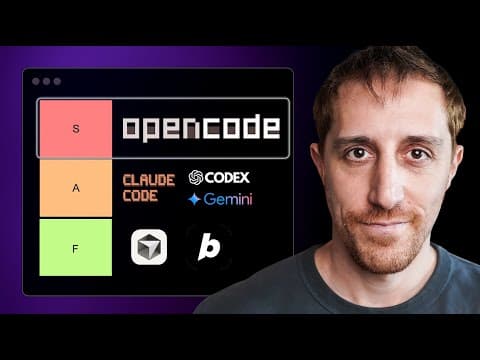
[0:00]I have a love hate relationship with AI and this is why this one is special. I have zero patience to overblown LinkedIn posts, probably written by AI itself. But then, with every major announcement, I still have my 10 millisecond hype rush. Honestly, at this point, the sound of vibe and coding makes me shiver. But I still secretly use AI to write bits of code and brainstorm. However, when you find out about a 100% open source, 0% affiliated terminal-based agent built by and for Neovim users and the guys from the SSH coffee shop, this is my reaction. Open code, not to be confused with this open code by that guy, which was discontinued and turned into something else in a funny chain of events. We'll talk about that. The actual open code is everything I mentioned and so much more. And before you ask, what about Claude code or Codex or any other model-based utility, here's the short answer. You can use any model and by any, I mean, there's an extensive list of them. This thing is solely focused on your experience. The interface, the themes, autoloading LSPs, parallel models, heck, you can even share your sessions with your team in one click. But beyond all these, the really cool thing about it is its internal model router called Zen. It finds the latest, yet more cost efficient models using one payment and they don't profit off of it at all. Another critical component of Zen is the fact that it supports pay as you go model. I've been paying cursor there $20 for six months, probably not using 80% of it. You know what, let's use something more comparable like Claude code, $17 a month, take it or leave it. With Zen, I only pay for what I use. It runs a local server, which is critical when accessing your files, unlike Devon or Codex, which run in the cloud and it's a pleasure to work with. Let's get into it.
[1:44]Before diving in, what is an agent anyway? What is an agent, Dax? Everyone's been asking. I don't really know. In all seriousness, though, an agent is just a loop talking to an LLM and iterating over task until the break close like requiring intervention or simply completing all steps. We can say agent equals LLM plus tools. Is that fine? Plus loops. You can think of it like a while true loop. Iterate on task instructions until requiring more permissions or done. When you provide these permissions, either completely or manually, when they ask for it, you're basically running in agentic mode. The only risk to the process is the limited context window, which open code has a cool solution that both Codex and Claude have implemented as well. Let's see it all in action. Open code AI is the great domain these guys have. The project, as the name suggests, and unlike other players in the field is open source on GitHub, super popular and for great reasons. Curl the install script or use your favorite method, then go ahead and fire open code. The default theme stands out and while I don't hate it, it's not exactly embedded in the Tx window around it. So, slash themes pops a long list of available options to suit you fashionistas, and as usual, I'm going with cappuccino. The default model, if you haven't added anything yet, is Grock code fast, which is a free one at the moment as they're trying to gather data for model training. You can start speaking to it and the black boxes here aren't responses. These are the thinking steps yielded by the LLM. Once I'll be corrected that I'm actually conversing with open code, not Grock specifically, great job open code team. Let's start by tweaking the next visual element, which is those thinking box. Hit slash thinking or scroll down to it and toggle them off. The next message gets a simple response. Basics out of the way, time to crank up the power and inject some juice with open code Zen. Zen is like a model router with models tested and approved by the open code team. They'll make sure you're getting the latest and greatest and bring updates directly to your doorstep without you having to lift a finger. Not only that, open code doesn't profit off of the process. You're adding your credit card and it periodically adds tokens based on usage, but at a provider's cost level and only topped by processing fees. To be honest, I wouldn't mind paying for the service, so thanks Dex and Adam. This is how it works. You sign in, you add a credit card, create an API key, and run open code off login and pick a provider. Now, just to show you how many on board providers beyond Zen are already here, this is the long list of availabilities. I'm going back to Zen. The team recommends either Zen or Claude directly. Once picked, we can add the API key and it's done. We start it, hit slash models and now we've got a list of models available through Zen. Sonnet 4.5 is my current choice as it's pretty much the latest and greatest, at least for the next 24 hours. And if you trust an AI company's benchmark saying they're on top of everyone else, well, this one seemed to be doing quite well with coding tasks. Grock is suspiciously not here and, well, Because they're all benchmarking Python. The sweebench benchmark is literally just Python. There's no benchmark that says like given the same prompts and the same code base, here's the one that did the best job. So, to leave the UI, you hit Ctrl-C twice or slash exit, which allows us to open it with the context of a project. You don't have to follow it up with period, but if you want open code to have a full project context on another path, you can just add that after the command. Now, we can start doing some real work. Starting by a quick project overview, and in less than a minute, you have an architecture, product goals, and tech stack on a fairly decent code base I've been working on for a couple of years. The one important thing, though, any project should have before treating it with AI is agents.md. This is a common file to help the agent navigate the do's and don'ts and other instructions to keep it under some supervision. To start one, open code has a slash init command that reads the files, understands conventions, common methods and utilities. You'll note that it tries to read other common files like cursor rules and dot directories, as well as Copilot instructions. It'll then iterate until the finished product is written. And there it is, agent guidelines. When you fire up open code for the first time, you'll see an agent type at the bottom right corner, and two main agents are build and plan. Tab will switch between them and others will add later. These basically correlate with access to files in order to make changes and additions and a read only mode that doesn't do anything other than read and brainstorm. When the plan agent is asked to make changes, it won't, but the build definitely can. These are fairly simple. What I highly recommend is adding your own set of agents. Not only adding a special instruction, but also tweaking its temperature, level of verbosity, and even a dedicated model. Looking at the agents docks, it suggests we use open code.json config file, but there is a much cleaner option that uses markdown with headers. Configuring different files for different agents and tweaking even permissions to the level of a specific tool. One example would be a deep thinker, using GBT 5, high reasoning effort and low verbosity, no prompt needed as context. Or one I use quite often is an email responder, helping me draft and respond to messages. Now, I know there's a lot of markdown LSP warnings here, mainly over long lines. How about instead of ignoring it, we use open code to fix it for us as a first task. Making sure build agent is active, ask open code to fix everything according to the LSP warning. Open code comes with its own built-in list of servers. Markdown, by the way, isn't one of them, which explains why one iteration didn't do it. But insisting further, cleans the file from errors and updates a clean version easy to read. To access the agents, we mentioned Tab earlier, but you can run slash agents and pick them from a fuzzy searchable list. Then ask it to draft an email, for example, asking for a provider about their MCP server. But we're not here to discuss emails. One thing mentioned earlier, you might want to do is change the temperature setting. Defaulting to 0.1, which is very confident and finite, as opposed to higher value closer to one like 0.8, cranking up the creativity and randomness or freedom of the model, if you will. We're talking about so many slash this and slash that in open code, how about we create some custom command available from within the UI? This is great for building, testing, even Git operations and code reviews. I actually do that with a different model, which I imagine is like another set of fresh eyes on changes made by another team member. Under open code command directory, add markdown commands like we did with agents. A simple one would be slash build, which I'm not going to even bother with providing the actual command. Not very token efficient, but you get the point. Once added, slash build code things and build is successful. Here's a few seconds old binary to confirm the work was done. Another option I like having is a quick security scan. This can either be done with CLI scanners or using an MCP. So, with that in mind, let's add an MCP, shall we? To do that, we now have to configure open code JSON, which we've avoided so far. It starts with a large generic schema. This holds key binding, shortcuts and other configs to play with. I'll head over to sneak MCP and it first asks for the CLI. Once installed, sneak test yields a quick security scan telling me I'm good on the dependencies front. I can actually monitor it continuously and view results in a dedicated page, which is pretty cool, but we're here for the MCP. So, open code.json, add any MCP here directly as an object. This one only requires a simple command to run it locally. Now, we can ask open code to scan the project and I can get the result in chat, which actually offers the next step. Not only dependencies, but also code. This requires a simple off process. Let's see if open code handles that for me. Yes, let's authenticate Mr. Terminal user interface and voila. Pops a page, access granted, we're good. It found a low severity too. In this instance, not something to be worried about. I didn't let sneak know it could ignore these test files, so it understandably alerted me about a hardcoded credential. Thanks to Sneak for sponsoring this video and giving me the best example for an MCP to integrate here. Learn more about Sneak MCP in the links below. Now, open code, like your standard chat interface, maintains a history of chats or sessions as agents call them. Slash sessions popped that list, and let's dive into any older context from earlier conversations. When you pick one, beyond the chat itself, there's a number of tokens, percentage of context window and price paid. We'll see a cool trick to handle that, but before any session, old or new, is shareable through the web. Slash share puts a URL in the clipboard, which is then publicly accessible. Showing the model, thinking steps, prompt results, code changes and everything you need for a session review, debug or brainstorm. When you're done, it's recommended to unshare the trail, effectively removing the page. Now, about those tokens in context window, similar to other tools, you can slash compact the conversation, which will ask the model for a summary, condensing the context into short text, opening a further context window, which is now at almost no tokens and back to 0%. This isn't a perfect method, of course, as things get lost in translation, but it works well enough to feel like an infinite context window 90% of the times. If you want to export the session instead of publicly sharing it, slash export sends it to your editor. You'd want editor, environment variable for that, which then gets the local file with session summary. One thing that stood out to me is the lack of integration into a coding environment. You know, like cursor, wind surf and the many other VS code forks companies call an AI IDE now. So, open code.m is my new perfect weapon of choice. It adds an open code subterminal to Neovim, communicating with the code directly in the editor. If you're using LazyVim, you can add an open code lua file, which in this case is the exact set of configuration taken from the plugins page. Once installed and loaded by lazy, we can do a bunch of stuff. I'll broaden the screen to make room. In here is why I love LazyVim so much. It's already part of the menu. Leader O and T to toggle the tool. Now, with leader A, we can ask open code about the code at the cursor, for example, using the fantastic question, what's this line about? When you leave the code, you'll notice open code is still running in its own Neovim terminal pane, which is great as the session keeps going, but you'd have to kill that one too when done. Another option is leader OE, which just explains the line you're at. We can make some changes, then leader OS to select prompt asking for a Git diff review, for example, which luckily tells me that this change will break my code for sure given the current config file, which is greatly appreciated. Before wrapping up, a small word and a demo to show what makes open code different. What happens under the hood when you run a session is a local open code server listening locally. You can then call the local REST API, getting a list of sessions or agents and basically, use the tool to integrate it anywhere you like. And that's not all. Another brilliant feature is their GitHub bot, also available on other platforms. You can run open code GitHub install, approve, pick a provider, then commit and push the new GitHub action. That action will then start a job whenever slash OC or slash open code are mentioned in issues and run the chosen model in the context of the project and the issue to participate in the conversation. Open code has a bunch of more options and great utilities, and is honestly a pleasure to work with, considering it's only made for the user experience. Ported into Neovim makes the best setup I could wish for. That's great if you're already set up with LazyVim. Whether you do or you don't, I recommend shaking the full video coverage next to make sure you're making the most out of your Neovim experience. Thank you for watching and I'll see you on the next one.