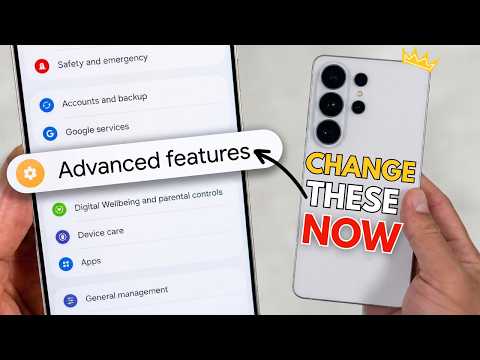
[0:00]So you've just got your S26 Ultra and you'd love to know what you need to do first. Well, here is your ultimate setup guide for your brand new phone. Let's go. So, not messing around, diving straight in. The first settings menu that I'm going to get you to go and configure is to do with your display. First thing I'm going to get you to do is set it to Quad HD+ resolution. Reason being is you've bought this brand new device, you want to take advantage of all of the Christmas of that display. By default out of the box, it's going to be Full HD+. So you want to make sure you're going and changing it to Quad HD+ so all your text is sharper, all your content looks better and you just got a better display experience overall thanks to it. It's got a new panel, so don't be worried about battery, even though it tells you that the higher visuals give you less battery life. Next is still in display settings, but it's how you control your phone, the navigation bar. Again, by default, if you're not smart switching, the navigation buttons are what's there at the bottom. You've got your reasons key, your home key, and your back key all do as advertised. But I think the phone is best used with gestures. Not only is it like fluid and fun to interact with, but it also gives you more screen real estate. So, you go into the navigation area and you turn off the buttons to swipe gestures. What this does though, is it brings a little gesture hint down the bottom. I'm going to show you how to get rid of that. You need to go into Good Lock, and you need to download the Good Lock module called NavStar, and in there, you don't even have to activate NavStar for this to work, you just turn on enable extra gesture settings. Then it prompts you to go back to the navigation settings of the phone, and there's extra options there that you go into, and then you can turn off the gesture hint. Just hint goes away, you get a full immersive display experience. There's some other display tinkerings that you can do as well. For example, you can change the profile of the colors. You can have it be natural or vivid, depending on your preference though, would be what you choose. I would just say, choose vivid for me, that's what I personally prefer, but you obviously can choose natural if you prefer that as well. Staying in here for one more minute, the next thing to do is to do with brightness. Now, the display can get bright, especially outdoors. You can see a lot outdoors due to the adaptive brightness and how high it can go. But it can only do that if adaptive brightness is turned on. So, when you long press on the brightness slider in the quick panel, it'll take you through to adaptive brightness settings. I would turn adaptive brightness on straight away. Reason being is it's conducive to the lighting environment. So if it doesn't need to be too bright, it'll dim the brightness level down, conserving battery. And then, when it realizes it's in lighter conditions, it'll actually boost the brightness back up. There is other toggles in there for things like extra brightness if you choose not to use adaptive brightness, but they're all manual settings that you got to configure yourself. If you're not happy with how Samsung manages the adaptive brightness speed or how long it stays bright for, Samsung have got something in Good Lock called Display Assistant. Display system gives you a few options. The first one is you actually can control the profile of adaptive brightness. So there's standard and there's light. You'd think light would be the one that doesn't have adaptive brightness turned on for longer, or the doesn't allow peak brightness for longer, but it doesn't, it's the opposite. The light profile means that actually will be light to go down to a duller brightness and stay higher for longer. It does say it might increase the temperature of the phone, but I haven't noticed that in my usage so far. But then there's also the speed of how adaptive brightness can transition from dull to bright or back down again. You can go into display assistant and change it with some toggles to be two or four times faster, which could be an option that you might want to interact with. You can also reset the usage patterns, because the way adaptive brightness works, it learns your usage behavior. If you manually overwrite the brightness in a particular lighting environment, it'll learn that. You can go in here if if you don't think it's working well enough, reset the usage patterns, and it'll start learning again. And this next one is also tied into brightness too. It's to do with video brightness. So this isn't in the display settings, it's in advanced features, and when you go into advanced features and you find the video brightness area, gives you two options, normal or bright. It shows you the difference and it tells you the apps that it works in. Effectively what it does is it just boosts the brightness of the video when you launch the video app. So if you're starting to watch a video on YouTube, it'll increase the brightness of the display to match the video and give you a brighter, better visual experience. Compared to it being off, you can notice that the display is visibly brighter with it on, and it just gives you a better visual. So you definitely should go and turn that on in advanced features. And this next one is to do specifically with the S26 Ultra, the privacy display. There's obviously a toggle to just turn it on or off, but Samsung have built in smarts, some conditions that you can allow it to meet, and then it'll activate it automatically. I would say go into the conditions area and configure it as you need it. So you can configure it per app, so if you've got any particular apps that you'd like to stay secure or stay private when you're viewing it, you can go in there and toggle them on. There's also conditions for things like lock screens or password areas, where it will actually block them out from other people looking at it just when as soon as they're activated. And then there's notifications, which is what I think probably the smartest way this works, because it doesn't take over the whole screen. It just blocks the slither of the toast notification that pops down onto your screen from the top. Very clever, and it's one of those genius features that just make you love Samsung. That's where they live though, go and turn them on or configure it to how you need to. Then we're going to get onto a bit of customization, a bit of personalization and making it a bit more you. Not just in how it visually looks, but also with interactions as well. When you are 8.5, Samsung have kind of brought in a lot more customization, even more than was already there. The biggest one is to do with the quick panel. Samsung have kind of had a rigid quick panel for a while. Not that it wasn't customizable, it just had a set of boundaries that it was bound by. Now with One UI 8.5, you can hit that edit toggle and you've got a world of customization that you can play around with. You can move toggles around, up or down, you can resize them, should you need to. There's still restrictions in place and the grid size that it's got, but it's definitely a lot better. You can remove toggles from here. So if something that you don't use, you can just remove it. Things like the brightness and volume slider are movable as well, and not just movable in terms of space, you can have them be vertical or horizontal in the space that they're in. Again, great options. Then if you need to add something in, or remove something by accident, go into add a control, you have a host of third party and stock toggles in there that you can activate and bring back in. So if you want to bring Dolby Atmos back into the fray, drag, drop it into place, and it's back there. It just gives you that option to make it more yours, and everyone can have a bit of a different quick panel appearance. But the new quick panel way of interacting, the top right swipe down or the left right is notifications, might not be for everyone. So Samsung have built into here the option to go back to the way it was before. So you've got an option for separate and together, and you can choose which way you like it. The together one will pretty much make it the way it was before. One swipe down is notifications and a set of quick toggles at the top, and then a second swipe down brings the expanded quick panel down. So you've got the option now to bring that back, should you want to. Next up, we're heading to edge panels. This isn't a feature for everyone, so I can appreciate that you might not care about this, but I think edge panels is a great way of customizing how you can interact and open apps on your phone. It's in the display settings to customize, and there's different edge panels that you can activate. There's things for weather, there's things for tasks edge. You've got a whole list of them there that you can activate and bring in. And then you can customize how you bring it up. So with the edge panel settings, you've got the option of having the panel on the right or the left. You've got the option to toggle how big the actual gesture is, or the panel is, and you can hide it as well. You can make it fully transparent, which is what I've done. Then you just muscle memory know where that side of the screen is and you launch it. You could of course customize what apps go into the apps edge panel for example, but Samsung in Home Up, which is where we're going to spend the next bit of time, actually expand on that even more. So in the Home Up app, there's actually a dedicated edge panel section. In here is where you can actually expand the edge panels out to suit more. You can actually even expand it out to incorporate tasks edge and people edge now and have it as one integrated app panel. Samsung are allowing through here to have an extra row of apps, so you don't actually just have a limit, you can just keep going. And you've also got the option to have the recent one in the top above the little line, be scrollable, so you can scroll down to a recent app and launch it from up there. It's a great shortcut feature, one that just houses everything you need, and then you can just launch an app from there as you need it. But Home Up overall is a beast. What Samsung have done with this particular feature is allowing a lot of people to feel like they can stay connected to Samsung. Because it's kind of the Samsung of old, all of the customization options, all the finicky toggles, that normally you might need to root your phone to access, you can just do it straight through here. So I'm not going to go too deep into a lot of the stuff that's in there, especially stuff like DIY home. It's a lot. I'll save that for a full customization Good Lock video that I've got planned later on. What I want to focus on though, is the customization to the gestures, especially the ones centered around animations. What I really like is that it just basically makes it the stock animation. It doesn't change much about the phone, it doesn't change how it operates, it just makes things feel faster or more natural to how you prefer it. So you've got two that I'm going to get you to toggle. You've got the home gesture and the app opening. So with the home gesture one, in here, you you can see there's a couple of different options that you can choose from. And it's all just about the animation when you swipe up to go back to your home screen. There's stock options that have tuned themselves accordingly as per their name. Or you can go into advanced tuning and and go nuts and that's something that I'm not really great at. My friend Samuel Beckman actually does a great job at tuning that. He's got a whole video about customizing with Samsung, so I might shoot you over to him to see the advanced tuning stuff. I personally myself, I just go for dynamic. I think it's the best way to showcase the fluidity and the speed, and you swipe up and go home, and it's great. Then the next one is the app opening animation. Very similar, except it's just now opening the app instead of closing it. So again, you've got the speed options, and rather than it being just some toggles, it's like a speedometer slider, where you can actually go from slow to zero and you can see how slow that is. All the way up to 100 which is instant. And then of course, you've got the advanced tuning as well. But again, I find somewhere in that 70 to 80 range of numbers is great for speed and efficiency, but still gives you a little bit of a pop of animation that you can view. Then the last slot of customization settings is to do with the lock screen. Samsung's lock screen, especially with 2008.5 has got a lot of customization that you can tinker around with. Long press on the home screen, unlock the phone, and then you get into it. Choosing a wallpaper from here is easy, you've got the little toggle in the top left corner that takes you through to the wallpaper option to choose either one from your gallery, or you've got the option to take one, like an AI generated one. Once you've chosen your wallpaper, then you've got some options down the bottom. First one is just simply suggest. This is great, because effectively it just takes all the guesswork out of it for you, and using AI, it will analyze the photo that you've got, and suggest some options based on the other options that are there. You can scroll through them, if you like them, choose one, if not, hit suggest again, and it will give you a whole set of new options to choose from. But if you think you know better, than the phone, then you can go into the other options accordingly. You've got the frame option, which effectively will just basically frame your shot for you, and there's different options that you could choose from, like a love heart, or there's squares, or triangles, or whatever it is, and there's even a toggle to remove the background, and just isolate the foreground with the shape. That becomes a really neat option, because it gives you almost like not a 3D depth, but it gives you like a really fun effect to look at. You've got the effects tab, and this is where you can scroll through a bunch of different effects, whether it be blurred background, whether it be dark background, light background, whether you've got colored background, there's options. And you can scroll through and get a preview, and then choose the one you like. Not down the bottom, you have to tap on the clock to activate this, but there's the clock effect. Now it's only one style of clock. All the other clocks don't really support this, only this one that I've got selected. Basically, you can select it and drag it around a subject, and it will automatically form around the shape. So if it's people, it will automatically configure itself around that, those people to give you a, I guess, a nice depth or an nice clock effect. You can go either side and go different sort of ways, but I think that's kind of neat. Also with One UI 8.5 with your wallpaper, you have the option to create like a little gradient in the top, where you can drag the wallpaper down and have a slither of gradient to go up to the top of the screen. Hope that was neat. And then you've got the last toggle there for weather, and this is an AI service, which effectively pulls from the weather information, and then will automatically put that weather effect over the top of your wallpaper when it's raining, when it's snowing, when it's sunny. It gives you an effect based on the weather outside. You could also just, you know, look outside, but sometimes you're locked in a room with no windows like my studio, and maybe that's not the way to do it. The lock screen also has the Lock Star module from Good Lock, should you have it installed, and this is a lot. So again, I might save a lot of this stuff for a future video, but just so you're aware, if you get Lock Star from Good Lock, it will appear here, and then you've got all of these options here that you can play around with. So maybe you can go in and do it yourself, should you want to, that's where they are. Then we go into the camera, and I think the camera for me is kind of like something that you might just think will work out of the box. But you can optimize it with settings and toggles to work at its best. First thing is just the main camera settings. So not anywhere in the camera app, but in the settings part of the camera. Some toggles I'm going to get you just to turn on straight away. Shot suggestions. Essential if you're taking a lot of photos and you want to have them framed up properly, shot suggestions will basically work to frame the photo up and give you the best composition. Absolutely turn it on. In the photo enhancer section, I would set it to maximum quality and also turn on scene detection. Not everyone will tell you to do this. A lot of people will say you need natural photos, turn this off. Wrong. You need photos that look great when you share them on social media, people think they look good. Natural photos don't do that. There's no contrast, there's no life to it. It doesn't adjust accordingly. That's why filters were invented, it's why people edit photos. You need to have photos that pop and look good. Scene detection automatically adjusts the settings of the photo to suit the scene that it's looking at, and gives you a better result and outcome. Then in terms of video, I'm going to get you to turn on the high efficiency video codec format. With this turned on, it gives you much better options for video capabilities. So you've got the option to have high bit rate videos with this on. You've got the option for log video. You've got the option for HDR. And then, of course, there's the option down the bottom for APV codec as well. Not everyone will need to use this APV codec, but if you toggle it on, it just gives you the option to use it in the settings, and you have the toggle that you can enable automatically, should you want to. If you keep going as well, auto frame rate is there as an option or auto FPS. I would say use it as 30 FPS only. It's just there so if in low light situations, it can lower the frame rate to allow more light in, but if you're choosing 60 FPS on purpose, you want it locked to that. So I would leave it at 30. And then something that goes with the smart shot suggestions at the top is the composition guide. Having the grid lines and the level turned on, means any camera mode that you're using, will take advantage of the leveler, and also give you grid lines so you can compose your photo in the right way according to the rule of thirds. So that's the main camera settings that I'm going to get you to turn on. The next is to do with camera assistant. Camera assistant, you have to download first. There is going to be a download toggle available though, so you don't have to go into the Galaxy Store or Good Lock to get it. It's right there in the camera settings. First thing, turn off the auto lens switching option. Turn it off straight away. This is, I don't know why this is here. I I do know why. Samsung with their algorithms want to try and give you the brightest photo possible. Sometimes using the 5 times telephoto or the 3 times telephoto won't give you that. So, they will automatically switch back to the 1 times camera to capture the photo. But it's going to be way noisier, it's not going to be as detailed, and it's not going to be as nice. So you control this, turn auto lens switching off. Sorry, I feel very passionately about this. Also turn on prioritize focus over speed, because the speed one, it'll just take the photo quickly without realizing if it's focused or not. Whereas they prioritize focus, it will try to make sure it's focused before it captures. Just something I'd say to turn on. Possibly the most important one for the S26 Ultra, and I guess the S26 series in general, is the advanced resolution options, 24 megapixel resolution. This is crucial. I think what this does is it gives you the best balance between resolution and dynamic range and processing. And it doesn't leave it looking crushed or sort of less detailed or artificial because it's got more resolution about it. Turn it on and then go further into there and turn on the keep 24 megapixel resolution. So that way anytime you go into the camera, that 24 megapixel is turned on. If you want to know how it sort of stacks up, you can go check out my S25 Ultra to S26 Ultra video, where I compare the 12 megapixel from last year, and the 24 megapixel option from this year, and you'll see the difference. Now something that Samsung did with the S26 series is they've removed a few features out of the more tab. They've removed single take, they've removed night mode, and they've removed dual recording. Night mode and dual recording, they kind of allowed for it in the main camera app. The photo mode now has the automatic night mode toggle that you can activate to the same degree as what night mode was doing, and dual recording is built into the camera app itself with a little toggle in terms of the video toggle. So you don't necessarily need to turn them back on, but single take, they've not put that anywhere else. 100%, go in there, I'd turn all three of them on just to have the option, but definitely single take, turn that on. Okay. Now we're going to go into the performance of your phone, because you want to make sure it's running efficiently and at a high level for longer. First thing to do is in device care, you've got auto optimization. Auto optimization is important. Because of the fact that your phone is basically like a computer that you carry around with you, sometimes it needs to be refreshed by turning it off and turning it back on. Clears any bugs away, gets it optimized. Samsung in here have got two options for you. They've got auto restart when needed, which basically if it can feel the phone is slowing down or something's wrong, it'll just flush it out by turning it off and turning it back on. Or it'll do it on a schedule, where you can actually set the time and the day that it'll turn off every week, and bang, it'll turn off and back on and come back to life again. Just something I think to keep your phone feeling fresh and vibrant and longer lasting. This is the way to do it. Then you've got battery protection. And for me, the battery protection's crucial, because the battery on your phone is pretty much the thing that makes the whole thing last as long as it needs to. So you've got a couple different options. You've got basic and you've got maximum, and then you've got a toggle for sleep time protection. That toggle for sleep time protection, just leave that on. I think it's great. But the basic one I think is enough. But the sleep time protection, I think is the most crucial, because if you're charging overnight whilst you're sleeping, effectively the way this works, it will charge it up to 80%, and then right before you're about to wake up, it will boost it up to 100%, and it will time it in a way based off your sleeping patterns. Especially if you've got a watch, it works great, but it also will work off the first time you pick up your phone when you wake up in the morning. It's that clever. Next one's a bit of a controversial feature, and I kind of agree with them. It's RAM plus, and I would say turn it off. Effectively what RAM plus does is it borrows from your internal storage. So if you've got 256, 512, or 1 terabyte, it'll take up to 12 gigabytes of that storage and allocate it extra for RAM. Your phone's got enough RAM already. You've got 12 or 16. No phone would need more than that for what you're doing on it. So I would say just absolutely leave that alone, turn it off. You'll find it probably makes everything run a little bit faster, maybe the battery goes a bit longer, and you clear away storage to use for yourself. Turn it off. There's another toggle in device care, where you can maybe extend your battery life, but limit performance, and it's your performance profile. You've got standard, or you've got light. I would say leave it at standard on the S26 Ultra. Just because the battery life's already great, and you want to take advantage of that performance, because the processor is amazing. So I would say leave it at standard, but if you're really worried about it, you can go to the light profile, and you might get a bit of extra usage out of it. And the last configuration of settings I'm going to get you to look at is Galaxy AI. And I don't mean this by saying, I'll just turn them all on, because I don't necessarily think you're going to use all of them all the time. I'm telling you to turn on the ones that I think are genuinely useful. First one being, call screening. Who doesn't want a personal assistant that screens their calls for them, and then only lets them through if it's good or if you accept it. That's exactly what call screening does. You've got so many settings and toggles in here to configure it, whether it be auto screen calls if it's a private number, or whether it just brings you the option, and you select it yourself. You've got so much you can do in here and it really does work. Take a look.
[21:10]Hi. I'm a call assistant recording this call for the person you're trying to reach. Please say who you are and why you're calling. I guess the whole point of Samsung's Galaxy AI this year is about features that you don't need to go hunting for, they just work in the background and bring it to the surface when you need it. Now nudge is a perfect example of that. You don't really even need to turn this on, it's kind of just working. But to make it work seamlessly, you need to have something called personal data intelligence turned on. You might not like the sound of this, because effectively what this accesses is Samsung apps and services, and then basically integrates it and brings it to the surface for things when you need them. Some people might look at this and go, oh, they're accessing all my information, but it is all protected by Samsung's Knox platform, and they've got, uh, some personal data encryption that's going on to make sure all of that stuff stays yours, and then it allows for convenience. So the now nudge feature works, prioritize and summarize notification works. It's just a really good way of making sure it's all convenient, but it's also secure. So you can turn it on per app as well. You don't necessarily need to just turn it on and that's it. You can configure what it has access to, but I would just say leave it all on, because it's going to make for a better experience. And I would say too, that extends it out into now brief, because it's kind of the same sort of thing. Now brief has access to services on your phone, and brings it to you in a brief format, you can see things in like a one scroll situation. I guess that's how you'd describe it. You can configure the content that you want to include in here, like things like parking spot reminders, or even YouTube videos that you want to be brought to the surface, and it gives you a nice little way to scroll through it. I think it's a bit of fun, but also it's kind of useful, especially if you're in the Samsung ecosystem. Now, if you want me to look at every Galaxy AI feature with the S26 series, happy to do that, just let me know in the comments below. I just thought I'd highlight those ones. So that is all the settings, all the tips, the tricks, everything that would start your S26 Ultra journey off on the right start. Great way to begin turning all that stuff on. Hit subscribe to tech with benefits for more S26 coverage. Train's not stopping, can't stop anyway, so you'll see more, and I'll see you guys in the next one. You.


