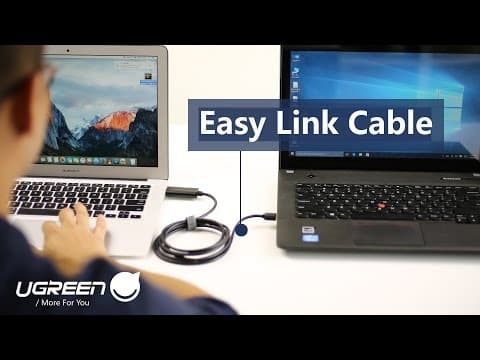
[0:07]It's a common situation that you have several computers near around and you want to transfer files between them. You don't want to pull out a USB drive and you don't want to send it over the cloud. As as you know, you don't want to mess up with the complicated Windows networking setting either. Of course, there are easier ways. This is easier and faster than ever. You can copy and paste between computers. You can even drag and drop to complete your data transfer between the computers. More than that, you can control two computers with one set of keyboard and mouse. That is the Ugreen easy link data transfer cable. The cable itself is very simple and you can connect two computers with it by plugging the USB port. You can plug any one of the two connectors to any one of the computer. No direction order required here. We will show you this Windows laptop and this MacBook Pro. Once plugged in the USB port on the MacBook, there's a notification that requires to turn on the access for assistive device before the program launched. In order to enable that, we will go to system preferences, find the security and privacy and go to the privacy tab, allow the KM link to control the computer. After we finished the setting, it will show us a the connection has been made. That's all for the connection, now we can transfer the data.
[1:50]Right click on the program icon on the MacBook. The first, the first thing we got here is Go Bridge. Basically, it allows you to check all the data on the Windows desktop in the file manager on your Mac. Now we can find something on the MacBook desktop and copy it. Then we go to the Go Bridge file manager and paste it. And the, when the paste is finished, you will find a file also appears on the desktop of the Windows laptop. It can also work the other way around. We can copy files from Go Bridge, which stands for the Windows PC and paste it on the desktop of our MacBook. That's for the Go Bridge. There's another way to achieve the data transfer between these two laptops, that's drag and drop. For example, the Windows laptop sits the left side of the MacBook. So we need to set the position of the Windows laptop on the left side of this PC. And this is a video on the desktop of our MacBook. We can click, click it and hold on. We move the mouse to the left. When we reach the edge of the display, we keep moving leftwards and you will find a mouse cursor appear on the Windows desktop. Now, when we let go of the mouse and when the file is loading complete, you will have the video on the desktop of our Windows laptop. It's like moving files between multiple displays on your computer, except these are two separated computers. As usual, we can also drag the files from Windows to Mac. Since the cable is a USB 2.0, which limits the max, max speed at the 480 Mbps. It's not fast enough, we know, but it's good enough. Besides the data transfer, we also got more for you. In fact, you can control the two computers with just one set of keyboard and mouse when they are connected. Just like drag and drop. Only this time, we did not drag anything and move the mouse to another desktop. Double click on the browser and type in the website, you can even do work document on it. Um, you can switch the keyboard by move the mouse over the edge to another display. If you want to use the Windows keyboard and mouse to control the Mac, you simply move the mouse over the edge to the Mac. In the preferences, we will find some easy setting, the program of KM link. For example, you can set the keyboard mouse sharing. You can, you can set the event notification and the clipboard sharing and some other easy settings. Overall, it's a very handy cable that helps to solve the data transfer problem between computers. Now you have none option besides the external drive or the cloud. And by the way, you can connect computers not only just Macs and Windows, you can use, it also works for Windows to Windows, Mac to Mac. Thanks for watching. Um, comment below with any ideas you have for this product. Subscribe our channel for more videos. Find us on Facebook, where we hold weekly gave aways. We'll see you next time.


