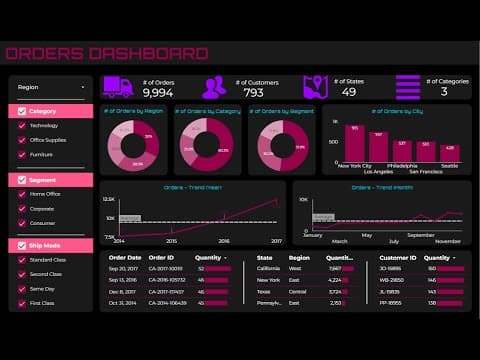
[0:00]Hello, welcome to IO Data Tutorials Channel. In this tutorial video, I'll guide you through the process of creating a dashboard using Google Looker Studio. A dashboard is a powerful tool for presenting key information to your organization in an engaging and visually appealing way. You'll learn how to build dynamic and stunning charts, similar to the one showcased here, and we'll explore other essential features as well. Let me show you what we will cover in this video. We'll kick things off with data investigation, where we'll delve into the intricacies of our data and connect it to Looker Studio. With a solid foundation in place, we'll then establish a strategic plan of action to guide our dashboard creation. Next, we'll dive into the creative aspect of dashboard design. We'll craft a visually captivating background and incorporate appealing shapes that bring our dashboard to life. But that's just the beginning. We'll then turn our attention to crafting compelling titles for both the dashboard and individual charts, ensuring they grab attention and provide valuable context. Finally, the moment we've all been waiting for, chart creation. We'll leverage the power of Looker Studio to build dynamic and insightful charts that effectively convey key information. So, get ready to embark on this journey of data exploration, design mastery, and chart wizardry. Join me as we create an exceptional dashboard that will leave a lasting impression. Let's dive in and bring our vision to life. Step 1: Data Investigation. Before diving into the creation of our dashboard in Google Looker Studio, it is crucial to explore and gain a thorough understanding of the data we will be working with. By examining the data set, we can gather valuable insights. In this case, our data set is focused on orders, comprising 21 columns and 9,994 rows. These columns encompass essential information such as customer name, segment, state, sales, and more. Familiarizing ourselves with the data set's structure and content sets the foundation for creating meaningful visualizations in our dashboard. With that being said, let's move on to our next step. Now, let's proceed to Google Looker Studio and add a new data source to our report. I will guide you through the process. First, navigate to the resources section, where we can manage the added data sources. Click on the option to manage the added data sources, and then select the option to add a new data source. A list of available data source types will be displayed, and in our case, we will choose Google Sheets. Click on the Google Sheets option to proceed. Excellent. Now, we can choose the desired data set from Google Sheets and add it to our report. Click on add option, and that's it.
[2:45]Congratulations on finishing the data investigation part. Now, it's time to shift our attention to the exciting task of creating the dashboard. We'll begin by designing the layout, incorporating shapes, and crafting titles to give our dashboard a visually appealing and well-organized structure. Once we have established this foundation, we can dive into the next phase, which involves creating compelling charts and visualizations that will effectively communicate the key insights from our data. Get ready for an engaging and informative dashboard building journey. Step 2: Establish a plan of action. We're about to embark on an exciting journey with Google Looker Studio to create a dashboard for our fictional company. The dashboard will focus on orders, and we'll make it interactive by adding filters so users can explore the data. We'll also include important key performance indicators and charts like donut, line, and bar charts to provide insights at a glance. It's going to be a visually appealing and informative dashboard that tells the story of our company's performance. Let's get started and make something amazing. Step 3: Dashboard design. Now, let's focus on the visual appeal of our dashboard by choosing a suitable background. So, let's dive in and choose the perfect background to make our dashboard stand out. Let's select the desired color.
[4:05]Excellent. Now, we can begin adding shapes. To start, let's insert a shape for our header. To insert shape, we can click on the shapes option in the toolbar on the left side of the screen. Next, we will choose the desired shape from the options available. Click and drag on the canvas to draw the shape at your desired location and size. Let's also modify this color.
[4:32]That's perfect. Let's resize this a bit. Now, I'll swiftly make a copy of the header shape and use it as a basis to create the rest of the shapes in our dashboard design.
[5:18]That is great. Now that we have completed that, we can move on to the next step. Step 4: Creating titles. Let's add a title to our dashboard. I would like also to change its font.
[5:36]Let's click on that option. Excellent. Let's modify the color. Now, let's start typing. Let me resize this.
[5:51]That's perfect. I'm going to place it here. Next, I will swiftly create titles for all the charts that will be included in our dashboard. Let's duplicate this and place it in the desired location on the dashboard. Let's modify the color.
[6:12]Next, I would like also to change its font. That is fantastic. I'm going to place it here.
[6:29]I'm going to also change the title.
[6:35]That's perfect. Let me quickly create all other titles.
[7:09]Now that we completed that, we are almost done. I will need to change one more thing. Let's rearrange and fine-tune the elements of our dashboard to achieve a more cohesive and visually pleasing layout. Excellent. Now, it's time to move on to the final step. Step 5: Creating charts. Before we start creating our charts, let's first add some filters to our dashboard. The first filter we'll add is a drop-down list for the region. To do this, we'll click on the add a control option and select the drop-down list as the filter type. I'm going to place it here. Let's resize this a bit. Okay, great. Next, we'll populate the filter with the desired data. Let's remove this. Now that we've created the filter, let's add some lines to separate them visually. We can do this by inserting line shapes between each filter. By adding these lines, we can create a clear visual distinction between the filters and make the dashboard more organized and visually appealing. That is awesome. Let's copy this.
[8:25]Next, we'll add another filter, but this time it will be a fixed size list. The process is similar to the previous one, except this time we'll choose the fixed size list as the filter type. Let me resize this. Excellent. We'll also add the necessary data to this filter. Let's add Segment column. Let's remove this. That's perfect. Let's modify the style for this visual.
[8:58]Let's also modify this color. That looks much better. I'm going to move this to desired location. Now, let's add two more filters following the same steps as before. These additional filters will provide more options for data filtering and enhance the interactivity of our dashboard.
[9:28]Let's add category column.
[9:35]That is awesome.
[9:39]Let's add ship mode column.
[9:45]Okay, great. Now, let's rearrange and fine-tune the elements of our dashboard to achieve a more cohesive and visually pleasing layout.
[10:16]With that being said, let's move on to the next step in creating our dashboard. Now, let's create KPIs for our dashboard. We'll start by inserting those nice icons that will represent each KPI. Once the icons are in place, we can proceed to add the corresponding values to complete the KPIs. Let's get started. First, we will click on the image icon in the toolbar. We need to choose the image source. We will choose to upload an image file, so let's click on the upload button and select the file from computer. Great. Now, let's adjust the image size and position. That's perfect. Let's quickly create all other icons. Excellent. Now that we have inserted the images, we can proceed to create the KPI cards. To create the KPI cards, follow these steps: First, click on the add a chart button. Select the scorecard option from the available element types. Perfect. Let's place scorecard next to our image. After that, we can modify our scorecard, and also configure the scorecard settings by specifying the field that we would like to use. Let's modify the style for this visual.
[11:40]Next, let's resize this a bit.
[11:45]Let's select the data for our chart.
[11:54]I'm going to also change the title. That is awesome. Let's modify the style for this visual.
[12:05]That is great. Let's move on to creating the next chart for our dashboard. Let's duplicate this and place it in the desired location on the dashboard. Let's now quickly create the remaining KPI cards. We will visualize the total number of customers, states, and segments. Now that we have completed that, we can move on to the next step. Let's add donut chart to this dashboard. I'm going to place it here. First, let's modify the color.
[12:58]Next, I will remove legend. Let me resize this. That is awesome. Let's select the data for our chart. For the dimension, let's choose region, and for the metric, we will use order ID. Instead of selecting the count distinct option, we will click on the count option. This way, we will count the number of orders for each region. That is great. I will need to change one more thing. Let's change this. That is fantastic. Now that we have created that chart, we can simply copy it and make some adjustments to present different data. This will save us time and effort in creating similar charts. Let's do that one more time. Excellent. Let's select the data for our chart. For the first chart, let's select the category field as the dimension, and for the second chart, we'll use the segment field. This will allow us to visualize the distribution of orders by category and segment. That is awesome. Let's move on to creating the next chart for our dashboard. We'll follow the same process as before, selecting the appropriate chart type, choosing the relevant data, and creating the visualization. I will also need to resize this chart. Let's select the data for our chart. This time, we want to present the number of orders for each city. To achieve this, we need to provide the city field in the dimension box and the number of orders in the metric box. This will allow us to visualize the order distribution across different cities. Let's click on that option.
[14:35]Excellent. Let's modify the style for this visual. Let's also modify this color. That looks much better. Let's change this. Next, I will remove those grid lines.
[14:53]After that, I will remove legend. That's perfect. I will also need to resize this chart. Fantastic. Now, it's time to add a line chart to our dashboard. To get started, simply click on the add a chart button. From the available options, select the line chart type. Place it in your preferred location on the dashboard and adjust its size to fit your design. Now comes the exciting part, configuring the chart settings. Choose the appropriate fields for the X-axis and Y-axis. In this case, we want to showcase the order quantity over time. To accomplish this, select the order date field for the X-axis and the quantity field for the Y-axis.
[15:40]This will enable us to visualize the fluctuations in order quantity across different months and years.
[15:51]Remember, you can further enhance the appearance of the line chart by customizing its colors, labels, and axes. Let's do that one more time. Let's click on that option. After that, let's modify the color. Excellent. Let's make a few more adjustments to the chart to customize it according to our needs. Feel free to follow along and make these changes in your own dashboard as well. Next, I will remove those grid lines. After that, I will remove legend. That's perfect. I will also need to resize this chart. Now, let's add a reference line to our chart. Click on the add reference line option and select the metric option. Then, we will choose desired field. Perfect. Let's move on to creating the next chart for our dashboard. Now, let me copy this.
[16:46]Excellent. After that, let's change this to month.
[16:54]That is exactly what we wanted to see. Let's fix this. That looks much better. Now, I'm going to rearrange those charts. We've made fantastic progress so far. Let's take a look at what's left to accomplish. As you can see, we just need to add these three tables, and our dashboard will be complete. Let's continue working. In this step, we will proceed to create the three tables on our dashboard. To create a table, simply click on the add a chart button, and from the available chart types, select table. Now, let's position our table in the desired location. Great. Next, we will customize the table settings by specifying the fields that we want to include.
[17:58]Additionally, we can adjust the formatting options such as column widths and colors to make it visually appealing. Let's modify the color. Let's change this.
[18:15]Let's also modify this color. That is fantastic. Now that we completed that, we are almost done. Let's resize this a bit.
[18:29]Amazing. To create the remaining tables, we can easily duplicate the existing table and make the necessary adjustments by selecting the appropriate fields and settings for each table.
[19:43]Now that we have completed all the necessary steps and added all the elements to our dashboard, we can proudly say that our dashboard is now complete. Congratulations on a job well done. Our dashboard is now equipped with filters, KPI cards, charts, and tables, providing a comprehensive and visually appealing representation of the data. It is ready to be used for data analysis and presentation to stakeholders. Great work on completing the dashboard. I hope you enjoyed this video. Thanks for watching.