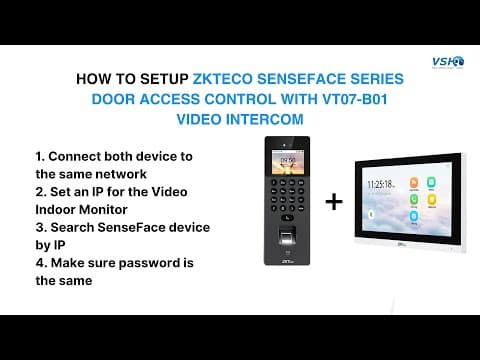
[0:00]Connect both SenseFace device and video indoor monitor to the same network. On the video indoor monitor, go to network. Input the password then click OK. Default password 123456. Set an IP for the video indoor monitor.
[0:26]On the video indoor monitor, go to setting, advanced setting, device manage. Input the password then click OK. Click on search to search the SenseFace device. It can be searched by IP.
[0:47]Select the correct device, input the username and password of the selected device, click save.
[1:05]On the SenseFace device, go to intercom, SIP settings, contact list, click on add. Device number: can input any number that you prefer. IP address: input the IP of the video indoor monitor.
[1:31]Once the setting has been done, the call function can already work. Calling.
[1:46]To set a shortcut, go to Intercom, SIP settings, calling shortcut settings, select room one, enable it. Device number: can input any number that you prefer. IP address: input the IP of the video indoor monitor. The created shortcut. Calling.
[2:07]To set direct calling, go to intercom, SIP settings, calling shortcut. Call mode change to direct calling mode. Go to add, select the device. Now, when you press on the call button, it will direct give a call to the video indoor monitor. Calling.
[2:34]To view the live view, go to intercom, onvif settings. Make sure these passwords are the same.


