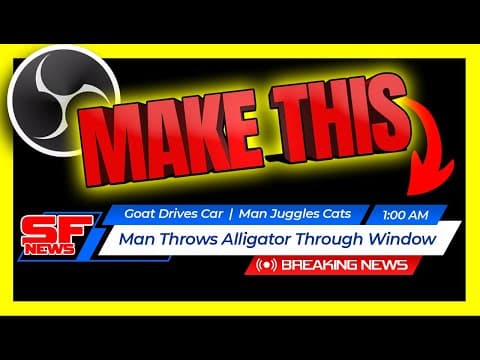
[0:01]Hello, my name is Scott Victor and here's tonight's top stories. Bob Gripholder from Bawer County was charged with assault after throwing a live alligator through a drive-through window. Rick Tamlin from Collier County tried to kill a man with kindness while swinging a machete named Kindness. Brian Fantana was arrested for fighting a drag queen with a Tiki torch and is now running for mayor and I will provide an easy and fun tutorial on how to create this news overlay in OBS Studio. You stay classy YouTube viewer. Let's get some.
[0:38]Electrify your online presence with live streaming.
[0:45]Okay. The question of today, is that capture your attention, did you actually laugh at that or was that super duper cringe? I think maybe the ladder we'll see in comments. So how do we get here in regards to this tutorial? Well, David Siebreck made a comment two days ago and he said, I'd like to see a scrolling like regular TV channels used to tell us about breaking news and weather alerts. I think he's talking about a news overlay for OBS Studio. It's a lower third. I'm going to show you how to put this together. The following topics are what we're going to cover. We'll first discuss how to make the graphic, where to get inspiration to make your own custom graphics and how to download my demonstration that you see in this tutorial. I'll provide a link in the description. More on that in just a second. We're also get into the CodePen website and why it is an absolute epic resource for you. We'll discuss how to search, how to download and the philosophy of use in regards to backing up your work when you make changes to the code. I'll explain it to you. It's not difficult and it is an absolute ton of fun. Then we'll get into adding the scroller to OBS Studio and adding the horizontal scroller as well as the vertical pause scroller and that will contain a code pen, so we'll go through that process. And then finally we will add a code pen that is a little tiny clock that'll go AM and PM based on the time of the day. It uses your system time to display it. It's really cool. So when you're done with this tutorial, you will walk away with a healthy knowledge on how to grab assets from CodePen and add it to a graphic so that it makes this lower third just exactly like what you would see on CNN or Fox News or whatever news, right? It's going to be awesome. Let's get started.
[2:35]Initially, I thought this would be super duper easy, but actually it turned out to be kind of difficult to sort of wrap your head around what looks like a news lower third. So I went to Google images and typed in the word news lower third, hit enter and it lists all these great examples and it kind of get your head in the right place and in regards to what works. If you like something that you see here, you can click it, it'll give you a preview on the right hand side. If you click it again, it'll take you to the website that's selling it and then provides even more examples of stuff that you can look at. I realize that these are all behind a pay wall, so if you're not interested in actually buying something, you can actually download the one that I used in this example for free. The link is in the description. Inside there is an animated GIF with a green background that you can make transparent. All the slices, and they're all transparent so you can bring it into any editor. And if you have Photoshop, I've included a PSD file as well. I'll have to tell you that if you're interested in using free software to make your own graphic, you can do that with a program called Photopea. It's great. It's just like Photoshop and the resolution that I'm using is 1920 by 1080, which is 1080p. All right. Okay, why is CodePen so epic? I'll tell you why. It's a community of programmers who are submitting HTML, CSS and JavaScript to create artwork applications. You name it, it's a universe of stuff and it can all be run locally on your computer as a browser source. So basically just about everything that you see in this gallery, you can bring in as a source. Okay, so if I'm here at CodePen.io and I do a search for animated tunnel, for example, right? Hit enter. Oh, wow. Look at that. It returns this animated tunnel that's created in HTML CSS and JavaScript. So if I click it, it gives me the three elements that comprise this animation. This animation is crazy cool. So what I'm going to do now is I'm going to click the pin icon in the upper right hand corner here. And that will allow me to access it later because I logged into my account. If I go back to the homepage real quick and I select pinned items, it should show up there. There it is. Now, if I want to download this thing, all you have to do is go down to the lower right hand corner here and click export and export as zip and that will download it to my downloads folder on my computer. Right click on the zip file and uncompress it with your favorite program. I use Seven Zip, extract files, hit okay. Creates a folder. Open it up, open it up again and it shows you this stuff. If you click the license.txt file, you just want to make sure that you have permission to put this on your live stream. It says permission is hereby granted, free of charge. In most cases, it's going to say this because HTML, CSS and JavaScript is like the languages of tinkerers and the community shares everything. A lot of times people will bring in a project and make fork it out and do different stuff. So it's very open-ended and it's super cool. That's why I absolutely love CodePen. It's just fantastic. So in most cases you'll be fine. So you can get rid of that stuff. The readme markdown, you can just delete that, get it out of the way. The distribution folder is what we want to actually use the src you don't have to worry about so you can delete that too. So inherently what we're going to do with these things is modify them so that they are the right color, the right speed, they say the right things. You're always going to want to tinker with it. And I highly recommend that you copy the distribution folder and paste it so that you have a backup just in case you make a change and screw up the whole thing. So I'm going to make a copy and call it backup. So now when I go in the distribution folder here, I can go into the JavaScript and the styles and the HTML and make changes without any worries. I can always go back to the backup. Here's what this thing looks like full screen when I click the index.html file. Watch this. This thing is sick. Are you kidding me? This is, this is like a, a shader. Wow.
[6:50]Okay, let's set up these vertical scrollers but before we do that, real quick, I want to go over the core assets that make the foundation of the graphic. The first one is the red spinning planet Earth. The graphic for that was found at Pixabay, which is an absolute fantastic source for video. You'll get the search bar, select images, make sure that video is selected and the query that I searched was rotate blue Earth. Hit enter and boom, there it is. It's a blue video, okay? I saved it to my hard drive. I brought it in as a source by just dragging it right in there. And then I added a filter called color correction and these are the parameters. Color multiply color is red, color add is black. The next thing that I added is the lower third graphic, which again, I just dropped it in. It's a transparent ping and cut and dry. The next thing I put in was the animated gift that shows the breaking news. Again, I just dragged it in and made sure it was looping and you're good to go. Now, the horizontal scroll is dead simple. All you do is add a text source, which I've done right here. Added the line of text, right? I separated them with pipes with a couple spaces between each one. Hit okay to that. Right clicked on it, went to filters and selected the scroll filter and these are the parameters for that. Cut and dry. It's not rocket science. Upon creating it, I just resized it. So as you select it, it gives you the handles and if you hit the Alt key, you can resize the cropping of this. See that? That's important because you're going to need to adjust that when you drop it in initially. Okay, the vertical scroll with pause. Let's go back to CodePen. I have found the script. It is pinned currently in my CodePen. If I click pinned items and click the vertical scroll page here, it's named Vertical Scrolling Text Animation. Link in the description to this page if you want to find it the easy way. Upon you getting here, you can make a copy of this. It's called making a fork. So if I click the bottom button here called fork, it's going to create a page and you'll notice that now the title of the page has a little icon here, a little pencil icon. If I click it, now I can name it whatever I want. So in this case, I'll type for OBS, okay? And when I save it, it'll save it to my account. So when I go back to the home page here and I go to your work, now you see a version stored in here. So when I click it, now I'm making changes to my version of the vertical scrolling text animation. Pretty cool, right? So now that we're here, I'm going to physically edit this thing in the screen because it makes it so much easier because the screen is constantly refreshing and it will show you what you're doing to the script while you're doing it. And the things that we're going to do is change what's being scrolled, the text itself, change the text color, change the text size, change the background color of the text, and finally change the scrolling speed. So let's get into changing what's being scrolled. That's over in the HTML side, so I'm going to just type a longer string of text here. This is where you change the text.
[10:04]And let's see if it refreshes. There you go. Perfect. Okay, the next part is to change the font. And this is really cool. So as you can see at the top, there's this at import URL, HTTPs, fonts.google API. com, that's a weird name. If you go to Google Fonts, you're presented with this page. I want to choose a font that's a little bit thicker and wider. So I'm going to go to categories and I'm not going to select any of this stuff with the exception of Sans Serif. It gives me a cleaner letter character. And then in font properties, I'm going to check off thickness and let's see what it gives me. Let's see if there's any text in here that's wider. Oh yeah, here's one called Syncopate. I love it. I'm going to select Syncopate and now I have a choice to choose what thickness of text I want to display. I think I'm going to go with the bold 700. So I'm going to click the select this style to the right of the text and it adds it to this right vertical panel here. And what I want to do is select the at import and highlight the stuff between the two style tags, okay? And hit copy. Control C. Then I'm going to go back into my version of the script and highlight that top part and hit paste. And now I have imported the new font into the script. And all I have to do now is change the font family in body to Syncopate. S Y N C O P A T E. And now we should see the text change. There you go. Now it's much wider. Cool. Next thing we want to do is change the font size. I'll make it 20. Looks good. And in regards to the color, you can see it right here in the dot animate-text. That's the style that affects the color. And you can highlight this alphanumeric hex color thing and just type in a color. Watch. If I type in green, it changes it to green. If you want to change it to a specific color, go into Google and type in hex color picker and Google has a hex selector here. So you have this draggy thing here. I'll drag it to red and then I'll make it like a dark red, like right about here. And then there's the hex color equivalent of that color. So I'll highlight it. Actually, you know, I don't have to highlight it. I can just click this icon here and it puts it into cash for you. Go back to the CSS and instead of it saying green, just paste the pound sign and that code and now it changes to the dark color. Isn't that slick? That is slick. Okay, so now all we have to do at this point is make a change to the background color. And that is a parameter that is in the body, so that, you know, the color of the entire body of the HTML. And you do that by adding a new style, which is background-color. Put that thing in there and then type any color you want. I'll say grey and then this thing in there. Boom. Did it work? There you go. So that's how you change the color. Now in my case, the graphic, the lower third graphic is white. So I'm just going to make the background white by typing white in there. Boom. The last thing we want to touch on is the scroll time and that is right here. So if I make this 6,000 and make this 6,000, that'll slow it down. I think around 7 seconds. Let's see, one, two, three, four, five, six, seven, eight. Perfect. Eight seconds is long enough. And what I'll do now is click export and export the zip. Oh, I have to save it. So go into the save button up here. There we go. We're saved and then we can export. Export the zip. Download. Now that I have successfully downloaded the zip file, I will right click on it and expand it. Go into the folder, go into the second folder, highlight the readme, the license and the SRC folder and delete. I will right click the distro folder, paste a copy, rename it backup, just to be safe. Probably don't need it, but it's always good to have a safe backup. Go into the dist folder or distro folder, open it up. Double click the index file. And there it is running on my computer. I'm going to copy the URL, go into OBS Studio, plus sign, browser for browser source. I'm going to name it vert scroll. Hit okay. Paste the link inside there. Width is going to be 1920 by 1080. I use, this is sort of a default what I usually use. I just keep it to the full screen size because I like to be able to resize it. Just makes it easier. I'm going to get rid of the custom CSS. This is a custom CSS override and we don't need it. Use custom frame rate. No, I'm not interested in that. Control audio via OBS. There is no audio, so we don't have to worry about that. Shutdown source when not visible. Absolutely. That saves on resources. Refresh the browser when the scene becomes active. Uh, yes, that's a good idea to do that, just in case you make changes to the script and you want to see the changes. I will then hit okay. And it shows up with a white background. And now all we have to do is hit the Alt key, resize it so it fits.
[15:28]And there you have it.
[15:34]Okay, let's insert that little tiny clock that grabs your system time and shows you the current time. Here it is. It's called Vue.js at Moment.js. It's a funky name, I know. Link in the description if you want to find it the easy way. First thing I'm going to do is click fork. I'll click the pencil and rename this to something that I can remember, which is System Time for OBS. And I will click save and now it saves it to my account under work. And now let's make some alterations to this thing. Let's get rid of the current time here. We don't need that. So I will just simply go into the HTML and get rid of the H3 header. That's what that is right there. Just delete it and that'll go away. Good. Now we're going to make a change. I don't want to see the seconds in the time. How many clocks show the seconds like this? Not too many. So that is changeable in the JavaScript. In these two lines right here, see this LTS. The S means seconds. We're going to get rid of the seconds. Let's see if it goes away. It does. Okay, we're looking good. Now let's make a change to the background. I'm going to make it blue. So there's two lines. This is affecting a gradient, so the top color is going to be blue because I don't care. I don't want it to be a gradient. It's going to be blue. Bottom one blue again. And the reason why I want to make it blue is because the blue color will be removed in a filter on OBS. And that would look really good in regards to the outer edge of the time when resting on a blue background. This is a gradient, so it just will look better. Keep that in mind if you have stuff that's going to be on a gradient. Okay, let's go back in here and reduce the size of this thing. So, where is that? That is located right here. dot time. Font size is 7 AM. EM is sort of like a mobile, like a mobile thing where the size of the text becomes a variable based on the width of divs and stuff. It's pretty complex. Don't need to do that in this application, so I'm just going to make it 20 pixels. And that'll change it down to that size. Maybe we could go a little, that's a good size. Maybe make it 18 real quick. Good. And now I'm going to add a style and I'm going to call it font weight, okay? And I'm going to make it 800 just like that. And that'll make it thicker. Perfect. I'll click save. And now what I'll do is click export, save the div to my computer, expand it, delete those files that you don't want. And then go into the distro folder, open it up, click the index.html file, copy that link and bring it in as a OBS source, browser source and you're good to go. Now a couple months ago, I made this video which talked about how to add a custom clock on OBS Studio and a lot of people have been chiming in and having all kinds of questions and confusion and it's not working. And so I'm going to circle the wagons now and I'm going to provide a solution with CodePen that will work, that will be easy to use because it's going to use your system time. I will get into the parameters. It's going to be a lot of fun. I will see you over there. Best wishes. Stay strong and keep fighting.


