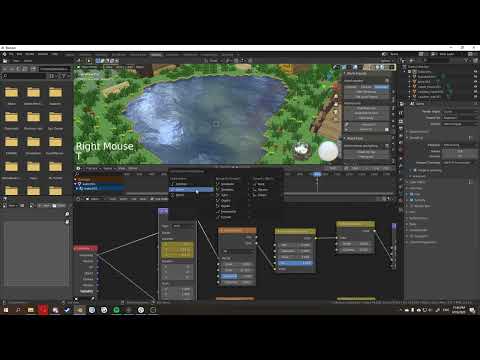
[0:00]Hey everybody, how's it going? Judo Survivor here, back with another uh, tutorial. Today we're gonna learn how to make a water shader in Blender. Now, this is by no means the way to make a water shader. There's tons and tons of different ways that you can go about doing this, but this is the way that I've discovered that I like the most, and I thought I'd share it. So we're going to do I got this farm hunt map right here. We're going to go into the uh, shading tab. And if you click the water, you will find that it has a material on it from when we prepped the materials. I'm going to basically get rid of all of it and create a material output, because we need that. So we're starting from scratch here. So what we're going to do, I'm going to come in here and create a glossy node, and I'm going to stick it right here and it'll surface. And turn the roughness down to 0.1. So we've got something here, something reflective, and it looks all right. I mean, you could pass this if you wanted to, but I would not recommend it. You get something like that when life, which nobody wants. So what we can do is come in here and create a noise texture. I was actually looking at Fortnite, I was playing with a friend, and I was taking a look at the swamp, because I was in there, that's where I landed. And I just saw, like noise, noise textures everywhere. Then if you take a look in actual ocean, you will notice that it's noise, basically. It's noise textures, you can basically do the same thing with noise. So that's what we're going to do, we're going to use noise. I'm actually going to come over here and create a voroni noise for the base. I'm going to plug the color into the glossy color, and you wind up with this thing. We're not, we're going to change this F1 to smooth F1, and you'll get something like this. I'm going to scale it down a bit, like that. Now, I'm going to come in here, hue saturation, stick it between the noise and the glossy and turn the saturation down to zero. I am then going to create a brightness and contrast, stick it between the hue saturation and the glossy, and just play with the values a little bit until I get something. Kind of like this, maybe, something like that. And I'm going to turn the scale kind of up, I'm going to turn I'm going to turn the scale down and make everything just kind of bigger. So that looks slightly better, still not perfect, but it's our base. We're going to build upon this. What I'm going to do, I'm going to come up here, I'm going to take these, duplicate them and drag them up here. Then I'm going to replace the Voronoi noise with just a normal noise. Plug the color into the color of the hue saturation, and I'm also going to create a bump map. Let me explain what we're doing. So this noise texture is going into the hue saturation value. I'm desaturating it, so taking out all the colors, then I'm plugging it into the brightness contrast nodes, bringing out the brights a little bit and turning the contrast down. Then I'm plugging that into the glossy color, so you so it displays. Then I'm taking a noise texture, doing the same thing with it, and then I'm going to plug this color into the height of the bump map. What's this map going to do? We're going to stick it right into the normal the glossy. I'm going to drag these over. And well, that's going to do is give us a little bit of bump in the water. As soon as the shader loads. There we go. Got some like 3Dness to it. Of course, that looks like garbage. We're going to turn the detail up a bit, that's looking slightly better. I'm going to turn the scale down to one. No, actually I'm going to turn up, I'm going to actually I'm going to keep it at five actually. Just turn the detail up a bit.
[3:59]And there we go. We got something, something useable here. I'm going to maybe play with the brightness and contrast a little bit. Let's see, turn up the contrast or turn down a little bit, get rid of some of that detail, not all of it, just some of it. So it doesn't look too much like tinfoil. What I'm also going to do is I'm going to come up here, create a uh, add shader, and I'm going to add a diffuse right under the glossy.
[4:36]As soon as the shader loads. Come on. If you're on a weaker computer, you might start to run into issues, or at least I'm running into issues. So I might just hide everything by pressing Numpad slash. You've got something here.
[5:00]You don't want that. I'm going to come down here, turn the diffuse down a bit and make it blue. like a really, really dark blue. And bam, you've got some, some water here. This is by no means like, again, I'm going to say this is no means the way to do water, but it's a method that I found that I think looks pretty all right. But yeah, it's it's pretty simple to set it up. Now, we're going to animate it a bit. Texture coordinate generated in, generated in there. So I'm going to plug that into just both of these noise textures. I'm going to come in here and create a mapping node and plug it into the top noise texture. In between the texture coordinate and the noise texture. Wait for the shader to load.
[6:01]Perfect. Now would be a great time to save your work. So, thank God we're not in 2.79 or anything like that anymore because it was basically impossible to get an accurate view of what your water looked like. Um, like animated. Now though, we get a pretty damn accurate view. If we just like adjust the X, Y, and Z, we get different like, we can see it in real time basically. So I'm going to I'm going to create on the Y, I think. We can always change it later. I might actually turn on the Z, insert keyframe, and then go to 250. Turn this to maybe like 0.5, insert keyframe. And I'm going to come up to the timeline here, press T and turn it to linear. By the way, if you don't have a timeline here, um, you can right here, you can click this little, like corner, until you cross the until you cross the cursor becomes this little like pointer, and then click and drag up. Then turn this into a timeline. So anyway, you set to linear by pressing T and turn it to linear, then Shift E linear interpolation. This will keep it going forever. And you've got some water. I think I have motion blur on actually. Let's turn that off. Oh, still weird. Anyway, so you got some animated water, and obviously you can take these frames and just drag them out a bit. Maybe something like that. What I might do, also I might adjust the Y. So insert keyframe, replace keyframe. Go to the next one. Maybe turn this to 0.25, replace keyframe. Make sure it's set to linear.
[8:00]And you've got something. I'm also going to duplicate this and drag it to the base. I'm going to set everything back to zero. All right, so I've got this down here. I'm going to insert keyframes, and then frame what was it, like 940, 0.25 and 0.75, I guess. I don't know, I'm just pulling on values at this point. So keyframe, and then there we go. You got your little base moving and then you've got the water on top moving. And there you've got a water shader. I want to include a bonus tip in here by the way, a little secret between you and me if you've made it this far. Um, obviously, play around with these. Don't copy exactly what I'm doing, because you got to learn. Anyway, bonus tip. What if you want like someone to splash in the water? Well, if you go into edit mode, tab and just subdivide it a bunch.
[10:09]There we go. It's gonna subdivide a ton. I might just like, oh, there we go. I subdivide it. Now what we're going to do, we're going to create a little mesh here, maybe an Ico sphere. I'm going to play the animation. And what we're going to do is going to right click this, come down here to the physics panel and enable dynamic paint. We're going to add a canvas and we are going to make this into waves. Now we're going to do the same thing here, we're going to come in dynamic paint, except this time make it a brush. Now if I were to like, key for this up a bit, add a key location there and then bring it down a location. It's a bit leggy, but it's not going to I didn't even add the brush. There we go. Let's try that again. Shall we?
[11:10]Boom, basically if you play the animation, you can get little you can splash around. I think it might be a good idea to actually take the water and like wherever you want a um, where you want a dynamic paint to occur, go into edit mode. I'm going to select these, control, uh, or no, Shift S, cursor selected. I'm just going to delete the vertices. Then I want to come in, create a plane, scale it up. Maybe just to hide, like kind of like that. Then I'm going to apply the water shader to it.
[12:03]Then I'm going to subdivide it a bunch. And it might just be easier to do this instead of, yeah. Oh, I didn't make it a dynamic paint thing. Dynamic paint canvas, add canvas, switch paint to waves.
[12:25]Splash, splash, splash, splash, splash, splash, splash, splash. And there we go. Just in case you want some cool little effects for if a character lands in the water. Yeah, and you can always like turn this to shade smooth to get rid of the pixel lines. But personally, I think it makes it look more Minecrafty if it's shade flat. So if you hit W, you can bring that menu up. But yeah. Hope you guys enjoyed this tutorial. If you did, leave a like, subscribe, hit that little notification bell if you want to get notified about future content I post. Have a good day and leave any like ideas for tutorials in the comments. See you.


