[0:00]This is how to convert your logo design into a stunning 3D logo in Blender. First of all, get rid of the background of your logo with a free software like background remover. Now, change your logo to black and convert it into an SVG file using the website convertio. Now, open Blender, import your file as an SVG. Now go to object data properties and under geometry, give it some extrusion which adds a third dimension to your logo. Along with that, you can also add some depth to get rid of the sharp corners. Now go to the shader editor and add your favorite materials, make it a bit metallic, add a background and some lighting. And boom, you have your logo converted into a 3D model. If you're still having issues,
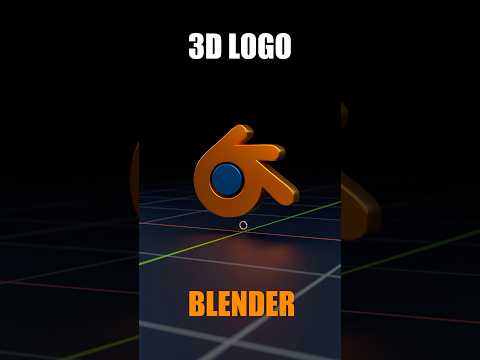
Convert your 2D Designs into 3D Logo in Blender - 30 Seconds #blender3dive #blender #logo #3d
Harnai Digital.
37s134 words~1 min read
YouTube auto captions
Transcript source
YouTube auto captions
This transcript was extracted from YouTube's auto-generated caption track. The transcript below is server-rendered so it can be read, searched, cited, and shared without opening the original YouTube player.
Pull quotes
[0:00]First of all, get rid of the background of your logo with a free software like background remover.
[0:00]Now, change your logo to black and convert it into an SVG file using the website convertio.
[0:00]Now go to object data properties and under geometry, give it some extrusion which adds a third dimension to your logo.
[0:00]Now go to the shader editor and add your favorite materials, make it a bit metallic, add a background and some lighting.
Use this transcript
Related transcript hubs
Watch on YouTube
Share
MORE TRANSCRIPTS


