[0:00]Hey guys, what's going on? Welcome back to a new video. In this one, we're going to be doing a 7-day dropshipping challenge. So I'm going to find the product to sell, set up a store for it, get some ads made and then launch them and see what kind of results we can get within seven days and we're going to try to be profitable by the end of it. If you guys are new to the channel, make sure to subscribe down below and follow me on Instagram @ecommmarko. If you're looking for one-on-one help with dropshipping, you can apply for my program in the description below. You can see some of my past students results on the screen. If you're looking to start a new Shopify store yourself, I'll leave my affiliate link for Shopify in the description where you can get your first three days for free and then your first three months for just $1 a month. And now we can get started with the challenge, so the first thing that we need to do is we need to find the product to sell. So to actually find the product, we're going to be using Auto DS. For those of you that don't know what Auto DS does, Auto DS is an all-in-one dropshipping tool, so it literally does everything from product research to print on demand where you can have your own designs on different items. You can use it to source products, you can import products to your store by just pasting the AliExpress link. You can also use it to fulfill your orders, etc. So there's a lot of different things you can do with Auto DS. But right now we're going to be using it for product research, so they have a few different research sections here. We have the hand-picked product section where you can find products that they've picked out that are selling well at the moment. You have the trending product section where you can see products that are currently trending and if you want, you can just import them straight to your store. They have a new section which is TikTok Analytics and here you can see all of the TikTok shop analytics, so you can see exactly which products are selling the best at the moment. You can see how much they've done in sales in the last seven days. And if you click on any of the products, you can even see all of the videos that are going viral for them, so this is another really good tool. And then they also have the Ads Spy tool which allows you to filter through different social media ads, so you can see ads from Facebook, Instagram and TikTok and you can filter them by a bunch of different things, so how many likes the ad has, what call to action button they're using. You can filter by keywords or you can use the advanced filters where you can filter by when the ad's been created, what language it's in, which countries it's running in, how many shares, comments or views or whatever else. So there's a lot of different things you can do here, but I would recommend not overdoing it and just sticking to a couple of filters at a time. And then after you scroll for a couple of minutes, then you can change the filters up and see some different products. So those are some of the different ways you can use to find products through Auto DS. I'll leave a link for Auto DS in the description. where you can get your first month for just $1 and you can test it out and see if you like it. So yeah, now I'm going to start scrolling here and I'm going to try to find a product that looks good and that we can potentially start selling, so that's going to take a bit, so I'll be back to you guys once I actually find something, so I'll see you guys soon. A few moments later. All right guys, so after scrolling for a bit, I managed to find this product right here. Then it's basically this electric nail trimmer for dogs that's supposed to make the process much easier and much less painful for the pet and also a lot easier for the owner as well, so this ad right here is pretty long, so we're not going to watch the entire thing, but it's got over 10,000 likes, 1.3K comments, 1.8K shares and over 5 million views, so there's definitely a lot of interest in the product. And the comments are also very positive, so people saying they have it and it's amazing. I have this, it works great. It's about time, thank you. I need that. Just purchased mines. We just purchased, I just purchased, hope it works, so we can see a lot of people are actually buying the product, which is what we want to see. And this is what their product page looks like, so they're selling the product for $39.95. And they actually have a pretty good looking product page. They have some gifts showing how the product works. They have a sticky out the cart. Some reviews at the bottom, a 60-day guarantee, frequently asked questions and then some more reviews here, so pretty good product page overall. And as I said, they're selling it for $39.95 and we can find the same product on AliExpress for $9.49. And it's got over 500 sales, 50 reviews and a 4.8 star rating, so the quality should be good. And we have a pretty good margin. We have around $30 per sale, so that's really good and that's going to leave us a lot of room to spend on ads. And yeah, so this is going to be the product that we're going to be selling. And now that we have the product that we're going to be selling, the next thing we need to do is we need to set up a store for it, so to set up the store, we're going to be using my AI store builder. I'll leave a link in the description if you want to use it yourself, it's completely free. And all you need to do is just enter in your email and click on build my free store. And then you just want to enter your name and password and click sign up. Then you can say how you heard about them if you want, you can say YouTube or whatever or just skip. And then here we're going to choose a niche, so let's go for pets, let's click done. Then we're going to choose two banners for our homepage, so let's go with these two and click done. And now we need to actually go over to Shopify, so let's click access Shopify. Then here you just want to enter in your email. Then you want to set a password and click create account. Then here you can enter in your credit card info or you can just skip this and skip this as well. And now we're in the back end of the Shopify store, so let's go back here and click done. And now we need to actually paste the Shopify link, so let's go back to the Shopify store and you just want to copy this link right here and then just paste it in here and click save. And now we need to select a plan on Shopify and now I'm just going to enter in my card info and I'll be back to you guys in a second. And now we're going to click subscribe. There we go, so let's go back to build your store, let's click done. And now we need to install the app, so click here, click install. There we go. And here if you want, you can get a more professionally done store, but the free beginner store is fine as well, so we're going to go for that. And now we just need to click customize my store and the AI is going to do everything for us, so now we just need to wait a couple of seconds. And there it is, it literally took a couple of seconds. Now here it's going to ask you to register to Auto DS if you want. I'm already registered, so I'm just going to click register and then go back and click done. But if you don't have it, you can just register there. And now our store is live, so let's click on access my store and let's see what we have. Okay, this is what it's looking like for now, so the AI has done some things, but it didn't quite finish it, so let's reload. Okay, so now it's looking much better, so I just takes a couple of seconds to actually fill everything out, so right now the store looks decent. Obviously we still have to customize it a bit, but I'll do that tomorrow, probably off camera, just because it's a couple of small things, so they're not that important and they're really not that interesting to watch, so I'll do that tomorrow. And for now, the last thing that's left for us is to get some ads made and to make the ads, we're going to be using Launch Ads, so if you guys are not familiar with Launch Ads, they basically make your ads for you, so all you have to do is just order a package, send them the link to the product you want your ads for, and they'll just make the ads and send them to you, so these are the different packages they have. Right now we're going to be going for the TikTok split testing one. Now this is normally $55, but if you have a VIP membership, you can get 75% off. And if you do plan on using these guys for anything more than one product a month, becoming a VIP member pays for itself, so it's $49.99 a month and you get 75% off on all their services. You also get 24-hour delivery and a bunch of other bonuses, but those are the most important ones. So if you plan on using them more and you want to save some money, definitely become a VIP member. And by the way, you can use code MARKO15 to get 15% off. But yeah, right now I'm just going to go and order the TikTok split testing package and I'll be back to you guys in a second. All right, so I just finished ordering the ads, so now we're going to have to wait about 24 hours to get them delivered. So in the meantime, I'm going to do some updates to the store and then I'll be back to you guys once you actually get the ads delivered, so I'll see you guys then. Two days later... Okay guys, we're back and we got the ads delivered. So I'll play the ads on the screen, so you guys can see what they look like. I'll speed them up a little bit just so we get through them faster, but as you can see, we have three variations of the same ad where the only difference is the first few seconds. And they look pretty good, so I think Launch Ads did a pretty good job with these, but we're not going to know until we test them, so that's what we're going to do now. But before we launch the ads, we got to make sure that the store looks good, so this is what the store looks like now. I made a few small changes to it. I added a logo. I removed some stuff from the homepage and just changed up the text a little bit, but other than that, I didn't really do much because the homepage doesn't really matter. Most people are not going to be going to the homepage. We're going to be sending them all straight to the product page. And to create the product page, we're going to be using PagePilot. I'll take you through the process of how it works, but basically you just go to the Shopify App Store and search up PagePilot and then you click install and then we click install again. And now we have the PagePilot app installed. There's a setup guide here. I'm just going to skip it, but if you want you can watch it. And here we are. So the first thing we want to do is we want to click create product page. Then we need to go over to AliExpress and just copy this link right here and then paste it in here and click choose. And here if you want to do a specific marketing angle, you can just type it in here. We can select the language and you can also add images or just remove images if you want. Then here you can set up the variants and the pricing. I forgot to change the currency, so I'll do that afterwards, but for the price, let's set it to $39.95. And then let's do $79.95 as the original price, so it's going to be 50% off. We're going to remove this variant here and then here under page template, we're going to click create page template. And it's going to ask us to choose a plan, so let's select a plan real quick. And we need to go for this one right here and it comes with a 7-day free trial as well. Also if you have a discount code, you can use code MARKO15 and you're going to get 15% off. So let's choose the plan and let's click approve. And now we reset everything, so we just have to do it again, so just choose the plan before you start. There we go. I just updated the pricing and let's click on create page template. And then here they have some preset ones, we're going to be going for the Home, Kids and Pets one. So let's add. There it is and now we're just going to click create product page and here it is. So it took about 10 seconds to create and now we're going to click on edit and publish. And here you can see it and just make sure everything looks good. It looks pretty good so far. For testing, we really don't need anything better than this. And we're just going to click on publish page and just click publish again. And here's the product page on our site, so we have this section here where we need to add the review. I'll just probably remove this. We also have some reviews that are imported here as well. We have a recommended product which I'll remove and this is what the description looks like. So it looks pretty good overall. We really don't need to change anything for now. Other than the things I mentioned, I'll go ahead and make those changes and I'll be back to you guys in a second. All right, so I'm done with the updates and this is what the product page looks like now, so I removed the review. I changed up the text just a little bit, I removed the reviews at the bottom, I removed the related product section and everything else is pretty much the same. And I've set up the currency, so now that we have the store and the ads done, we're going to go ahead and launch the ads, so to do that, we're going to go over to TikTok ads and I'll leave a link in the description where you guys can sign up for TikTok ads as well. And if you sign up to that link, on your first $500 that you spend on TikTok ads, TikTok is going to give you an extra $500 in ad spend for completely free. And if you spend more, they're going to give you more, so I'll leave the exact numbers on the screen. So make sure you sign up through that link and now we're just going to launch the TikTok campaign, so first you want to go here and you want to select sales. Then here you want to go for website. You want to turn this off. You want to name the campaign the product name. And we're going to be going for campaign budget and we're going to be going for $50 a day. And then we're going to click continue. Then for the ad group name, you want to name it ad group one. Then here you want to go for website. For goal you want to go for conversion. You want to make sure you select the correct pixel that you link to your store and for the optimization event, you always want to go for purchase. Don't go for anything else, purchase is the only one that you want to go for. Then here you want to click on more options and click select specific time and we're going to select from 10:00 a.m. to the end of the day. And that way we're only going to be spending money on ads from 10:00 a.m. till 12:00 p.m. while most people are awake and we're not going to be wasting money while people are sleeping. Under audience controls, we're going to go for United States, we're going to do 18 as the minimum age and we're going to leave everything else as it is. And here under placements, we're just going to turn off user comment thing, just so people don't comment anything negative and we're going to also turn off downloading so people don't steal our ads. And then we're going to click continue, and then here we're going to name the ad add one. Here we're going to click switch to manual ad setup. For the call to action, we're going to edit this and we're only going to do shop now. Now under creative assets, we want to click on add existing, then go to creative library and click upload and I just uploaded the ads. So let's click on next and here I'm going to put the link to the product page and then for the ad text, we're just going to do Get it now at 50% off. It doesn't matter that much what you put here. The ads themselves are much more important. And here for the identity, I'm just going to use the general one that I use most of the time. It's going to be blurred, but yeah, nowadays there's no more custom identity, so you can't just put in whatever you want. You have to actually link a TikTok account, so I just linked one with a general name here and we're done with the ad setup, so let's click on publish all and there we go. So now the ads are launched and we're just going to wait for them to pass the review and they're going to start running from midnight. So that's going to be it for now. I'll be back to you guys after the first 24 hours to see how the ads did, so I'll see you guys then. Tomorrow. Okay guys, so the first 24 hours are done and the ads have finished spending, so now we're going to go ahead and see the results for day one, so let's go into my screen and let's see what happened. All right, so here we are inside of TikTok ads and as you can see we spent a total of $50. Our cost per click was $1.06. Our CPM was $17.02. We had 47 clicks and we had one conversion. And when we go over to Shopify, we did get one sale, so TikTok tracked a sale. And then here in the profit-loss sheet, as you can see, we ended up getting one sale, we had $39.95 in revenue, we spent $50 on ads. It cost us $11.52 to fulfill the order and our payment processing fees were $1.86, which leaves us with a total profit of negative $23.43 for day one. So that's actually not too bad for day one. Being profitable on the first day is relatively rare, so yeah, that's it for now. I'm not going to touch anything with the ads. I'm just going to let the ads run as they are for the next day. And hopefully tomorrow we're going to have more data to see if we can potentially scale this, so that's going to be it for today and I will see you guys tomorrow. Tomorrow. Okay guys, so it's been another 24 hours, so day two is done and let's go into the results and let's see what happened. So here we are inside of TikTok and as you can see we spent $50.12 on ads. Our cost per click was 75 cents. Our CPM was around $16. We had 66 clicks and TikTok tracked zero sales. But as you might know, TikTok doesn't always track everything properly, so let's see what actually happened on Shopify. And here we are inside of Shopify and as you can see we actually got zero sales yesterday, so that really sucks, but when you're only spending $50 a day on ads and you get one sale one day, there's always going to be a lot of fluctuations. So getting zero sales does happen. And here we are in the profit-loss sheet and we basically ended up getting zero sales, no revenue. We spent $50 on ads and that leaves our profit at minus $50 for today. And if we add these two days up, we're negative about 75 bucks, so not the best, but it does happen, so I was thinking about what to do with the ads today and honestly I'm not going to touch anything because I don't really think it makes sense for us to scale given that we only had one sale. We obviously need to change something, so I'm going to go and order some more ads from Launch Ads. And I'll give them some feedback as to what I want them to do. So we can test different ads and hopefully they can out-perform these ones because we did get a sale with these, but we are nowhere close to profitable. So testing more ads is the only thing that really makes sense. And I'm also going to improve the product page a little bit, so it looks decent so far, but I think we can do a bit better with the images and a bit of the copy, so I'll go ahead and order the ads and while I'm waiting for that, I'll revamp the product page a little bit and I'm going to leave the ads running at the current budget, so that's going to be it for today. I'll be back to you guys tomorrow when we hopefully have the new ads ready and we'll continue from there, so I'll see you guys tomorrow. Tomorrow. Okay guys, so it's been another 24 hours and we got the ads delivered, so let them play on the screen again. It's probably going to take a bit, but I think these ones look a lot better than the original ones. Again, you really never know until you test them, so we'll have to wait and see, but I think these should perform better than the ones we're currently running. I've also done some updates to the product page, so I changed some of the images on the site and I changed up the description a little bit to make it a bit better. So hopefully that's going to improve the conversion rate a little bit. So yesterday again, we spent $50 on ads. Our cost per click was 69 cents. Our CPM was $17.08. We had 72 clicks and TikTok tracked one sale. And here inside of Shopify, as you can see, we just had one sale, basically the same as day one, so today is better than yesterday, but it's really not that good. And when we go over to the profit-loss sheet, as you can see we had one sale, we had $39.95 in revenue, we spent $50 on ads. It cost us $11.23 to fulfill the order and our payment processing fees were $1.86, so that leaves us with a total profit of minus $23.14 for today. So we're losing money again. We're not losing much, so it's not that bad, but it still sucks because we haven't had a single profitable day so far, so it's not looking that good. But hopefully the new ads and the product page improvements can get us profitable, so I'll go ahead and launch the ads now. A few moments later. And I've actually turned off the original campaign and I've launched an identical campaign. The only thing I changed is the ads, so I didn't want to take you guys through the process again. It's literally the exact same setup. I just changed the videos and I increased the budget of this campaign to $100. That's going to be it for today. I will update you guys tomorrow with the results and we'll see how the new ads performed, so I'll see you guys then. Tomorrow. All right, so day four is officially over, so let's go over the results and let's see what happened. All right, so we spent a total of $100 on ads. Our cost per click was 68 cents. Our CPM was $15.28. We had 146 clicks in total, a 2.23% CTR and TikTok tracked four purchases in total. And when I go over to Shopify, we did end up getting four sales in total, so we had four different people just buy one each. Two of them in the same hour, so that's why this hour is a bit higher. And overall, the metrics did improve, so as you saw in the ads, our CTR is a bit better, our CPC is a bit lower and our conversion rate went up, so I think the new ads and the changes we made to the site both contributed to this, so that's good to see. But let's go over to the profit-loss sheet and let's see if we actually made any profit. So we had four sales in total. We had $159.80 in revenue. We spent $100 on ads. It cost us $45.04 to fulfill the orders. Our payment processing fees were $7.43 and the total profit was $7.33. So not the best profit, but at least we're profitable, so we can't really complain. But overall from this product, I'm not really seeing that much potential and I don't really expect us to make much money over the next couple of days. But we'll have to wait and see, so the only change I'm going to make is I'm going to take the budget from $100 to $150 and click confirm. And now we're going to be spending a bit more money on ads. Honestly, the product is not doing that good. It's not really worth scaling at this point, but for the sake of the video, I'm just going to up the budget and just see what happens tomorrow, so that's going to be it for today and I will see you guys tomorrow. Tomorrow. Okay guys, day five is done, so let's go over the results and let's see what happened today. First, the campaign spent $150. Our cost per click was 64 cents. We had 235 clicks and TikTok tracked five purchases. But when we go over to Shopify, as you can see, we actually got six orders. Five people bought one and we had one person that bought two. I believe at 9:00 p.m. So that definitely helped for today. The conversion rate was a little bit lower than yesterday, but we did get a lot more traffic and so that's why we got more sales. And we had $279 in revenue. But let's see how much we actually made in profit. So we ended up getting a total of six sales, $279.65 in revenue. We spent $150 on ads. It cost us $78.23 to fulfill all of the orders. And our payment processing fees were $12.71, so that leaves us with a total profit of $38.71 for the day. So we're finally seeing some okay profit, much better than yesterday, but still compared to how much we're spending on ads, it's really not that good. And if that one person didn't buy two, we would be around break even or similar to yesterday today, so this product is not looking too promising. I don't think we're really going to be able to scale this much, but I will be raising the budget on the ads to $200 for tomorrow, just to see how it's going to perform. So I'm just going to go ahead and change the budget to $200 and click confirm. And yeah, that's going to be it for now and I will see you guys tomorrow. Tomorrow. All right guys, we're back and day six is done, so let's go over the results and let's see what happened. As always, we're starting with the TikTok ad results and as you can see, we ended up spending $200.7. Our cost per click was 65 cents. We had 310 clicks and TikTok tracked seven sales. But when we go over to Shopify, as you can see, we actually ended up getting nine sales and we had $359.55 in revenue. And literally everyone just bought one of the products, so that's it for the Shopify side of things, but what actually matters is the profit. So let's go to the profit-loss sheet and let's see how much we actually made. And here in the profit-loss sheet, as you can see, we ended up having a total of nine sales. We had $359.55 in revenue. We had $200.7 in ad spend. The product cost was $100.71. Our payment processing fees were $16.72 and that leaves us with a total profit of $42.5 for day six. $42 is decent. Considering how much we had in revenue, it's really not that good. Our profit margin is slightly over 10%, so it's really not that good, but we can't really complain because we're profitable, so since tomorrow is the last day, I'm going to increase the ad spend to $250 for tomorrow. And I was also thinking of adding a bundle offer as well. If someone buys two, they get a certain percentage off. So I'm probably going to set that up as well. So I'll just up the budget to $250 and click confirm. And yeah, that's going to be it for now and I will see you guys tomorrow. Tomorrow. And day seven is finally here, so we are officially done with the challenge. And now we're going to go over the results for day seven and then we're going to see what the total profit was for the entire seven days. Let's go into TikTok ads and let's see what happened on day seven. So we ended up spending $250 on ads. We had 377 clicks and we had a total of nine sales tracked. And when we go to Shopify, as you can see, we had 10 sales, but our total revenue was $459.40. Because I added in a bundle offer, where they got two for $69.90, so $10 off. So that helped to raise the revenue a little bit and raise our profit a little bit. And we actually had two people get them, so one here and then I believe there was another one right here. So that helped to increase our revenue for the day and also the profit as well. But let's go over to the profit-loss sheet and let's see how much we actually made. So we had 10 sales in total. We had $459.40 in revenue. We spent $250 on ads. It cost us $131.14 to fulfill all of the orders. Our payment processing fees were $20.92, and that leaves us with a total profit of $57.34 for day seven. And now we're going to go over the results for the entire challenge. So our total revenue was $1,338.30. Our total expenses were $1,289.55. And that leaves us with a total profit of $48.75. So yeah, those are the numbers for the entire challenge. I'd say the challenge was a success, even though we didn't really make much money, but at least we were profitable. And this is a very realistic example of what you can see when you're testing, when you find a product that's okay, it's not the best, it's not the worst, so not every product you test is going to be like this. You just have to be ready to keep testing until you find a good product. But yeah, that's going to be it for this video. I hope you guys enjoyed and I hope you guys learned something. If you did, make sure to subscribe down below. If you're looking for one-on-one help with dropshipping, you can apply for my mentorship program in the description below. And if you want to use any of the services I use in the video, I'll leave all the links in the description and that's going to be it for this video and I will see you guys in the next one.
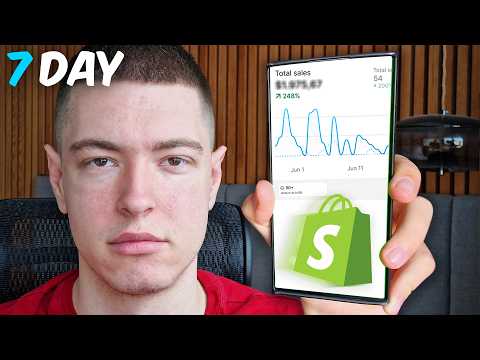
I Tried Shopify Dropshipping For 7 Days (Realistic Results)
Marko
25m 48s5,631 words~29 min read
YouTube auto captions
Transcript source
YouTube auto captions
This transcript was extracted from YouTube's auto-generated caption track. The transcript below is server-rendered so it can be read, searched, cited, and shared without opening the original YouTube player.
Pull quotes
[0:00]So I'm going to find the product to sell, set up a store for it, get some ads made and then launch them and see what kind of results we can get within seven days and we're going to try to be profitable by the end of it.
[0:00]If you guys are new to the channel, make sure to subscribe down below and follow me on Instagram @ecommmarko.
[0:00]If you're looking for one-on-one help with dropshipping, you can apply for my program in the description below.
[0:00]If you're looking to start a new Shopify store yourself, I'll leave my affiliate link for Shopify in the description where you can get your first three days for free and then your first three months for just $1 a month.
Use this transcript
Related transcript hubs
Watch on YouTube
Share
MORE TRANSCRIPTS


