[0:01]Hi, I'm Chris and in this video, I'll show you how to build your first dashboard in Basedash. Follow along as we build these two dashboards for an e-commerce company. First, we'll build a high-level metrics dashboard and second, an individual entity view for products. We'll be using a Basedash demo database so you can follow along if you'd like to. To get started, we need to add a data source. So go to the top left corner and select data source. Then click add data source and here you can connect any number of different databases. We're going to use our demo database for the clothing store demo. And as we select this, we can see the schema is synced and we can see the list of the tables within this database. So let's rename it to Acme Clothing store demo. Save that. And now we're ready to create our first dashboard. Go to the top right corner and click dashboard. And what we want to do is create a high level dashboard for our e-commerce business to start. So let's call it Acme Unlimited Metrics. Then click new chart on the top right side you can see the data source for this chart. We can see our active clothing source is selected. Now, in plain language, we can tell base dash what to generate. How about total sales. If I click on this simple indicator, I can see the SQL query over here on the right hand side. I can see the chart type, and I can also change the format that this data is displayed in. Now, let's see this data over time. Nice. And now when I created this chart, Basedash automatically created this variable at the top, so I can choose how I want to view this data, either daily, weekly, last 90 days, et cetera. Now, let's say we want to add a different type of chart, say a pie chart where we want to see orders by the product category. Now I can hover over this chart and see the different categories of products that make up our orders. Now, let's add another simple one just to see how many customers we have. And another one for total number of products. And let's just say we want to do most recent orders. Awesome. So now we have a high-level dashboard, number of sales, how those sales are changing over time. On the categories for all of those orders, our total number of customers, products, and some of the most recent orders we've had. Super quick way to build a high level dashboard. But let's say you want to dig into some of this product and category data in a more in-depth way. We can click done editing here, and let's go ahead and give our dashboard a color and icon here. And let's add this one as a favorite so that's easy to find at the top of our dashboards list. Okay. So, now let's create a new dashboard. This one we want to call Product View. And for this one, we want to create a variable so that we can select a specific product and see values for that product. So, let's add a variable and we'll just give this variable a name, we'll call it product. And now, this variable will be used by Basedash as you're creating queries. So, we need to connect this product variable to the specific data we're thinking of, so we'll choose our database. And we'll choose our products table. And now, it'll tabulate and show all of these values as a variable at the top so that we can select which one we want to see details for. And this is showing all of my different products and their ID on the right hand side. So, let's take a detailed look at one of these specific values. Nice. So now we see that we have a detailed chart type, showing us all the values for that row in the database for the Baby OneZ. But we can go further. Let's say we want to see the sales for this product over the last few months. And we can go and expand that, and let's choose a different type here, let's choose just a time bar. So there's been one sale, and given there's not a ton of sales, maybe a table would be a better way to view this. Awesome. So now we can select around and choose different products and see any sales data related to those products. And let's say we want to extend this even further to data that we can get from other tables like, for instance, say we want to see other products in this product category. Now we can see other products in this category and we might want to also know what the name of this category is, so let's just get a simple indicator for the name of this product category. So the pocket square is in the accessories category, so let's just move that up here. And now we have a quick way of diving into any different product, seeing where it fits in the category, any recent sales, and the details for that product. Sometimes you need to go even deeper though. So, let's take a look at how to do that. I'll click on this product, go up here and click on the edit SQL query button. And now I can see this chat interface on the left hand side and the SQL query and the values that are getting rendered out. So, let's say I only want to see products that are priced more than the current one that I'm viewing. Let's just give it an instruction to find those. Update this to only show products in the category where the price is higher than the one I have selected. Basedash will go and update this query based on that value. Nice. So, let's check this out. So we have a baby onesie that costs $16. Now, if I scroll down here and look at the other products, all of these products are more than $16. And I can go in here and edit this again, and let's say I made a mistake there, I could always go back and revert to the prior version. Run that and see now it's showing 17 instead of 16 values. Now let's give this dashboard a fun icon and add it to our favorites. Now we have a quick dashboard for a high-level view of our business, as well as an individual product view where we can select different products and quickly dive into them. Sometimes you don't always know what data you want to work with or you don't always want to build a dashboard. For that use case, you can just chat about the data with Basedash. Let's ask what tables I have in this database and what is it showing? Basedash scans the schema, shows you what it's thinking and shows a list that it can see the products table, categories, product categories, customers, orders and order items. And let's ask, how are customers related to orders? So this is telling me that each order in the orders table has a customer ID that refers to the corresponding customer in the customers table. Great. So, how many orders did we get last month? Now we can see that Basedash ran a query, counted the orders from the last month for February, and shows 16 orders. So this is a great way to interact with your data when you don't necessarily need to build a dashboard, but you already have the data connected to Basedash. And that's it. So now you're ready to invite a teammate so they can come in and start exploring these dashboards or building their own.
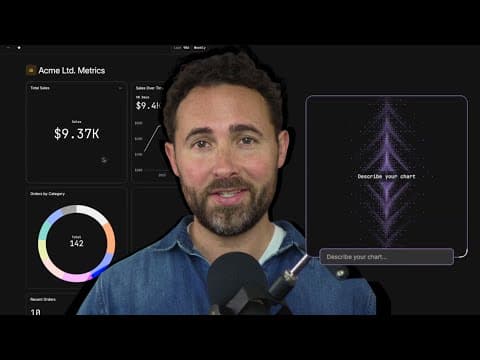
Getting Started with Basedash: How to connect data and create your first dashboard with Basedash.
Basedash
7m 28s1,316 words~7 min read
YouTube auto captions
Transcript source
YouTube auto captions
This transcript was extracted from YouTube's auto-generated caption track. The transcript below is server-rendered so it can be read, searched, cited, and shared without opening the original YouTube player.
Pull quotes
[0:01]Hi, I'm Chris and in this video, I'll show you how to build your first dashboard in Basedash.
[0:01]First, we'll build a high-level metrics dashboard and second, an individual entity view for products.
[0:01]We'll be using a Basedash demo database so you can follow along if you'd like to.
[0:01]Then click add data source and here you can connect any number of different databases.
Use this transcript
Related transcript hubs
Watch on YouTube
Share
MORE TRANSCRIPTS


