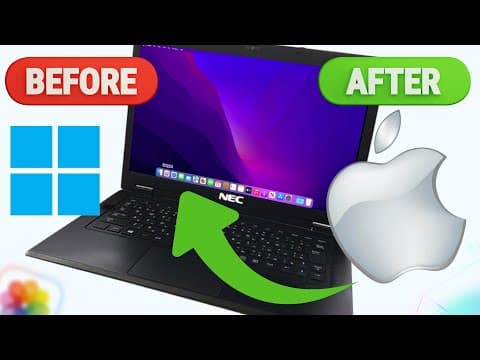
[0:05]Have you ever wondered what it would feel like to run Mac OS's sleek interface on your trusty Windows PC, blending the best of both worlds without buying a Mac? It sounds like a tech wizard's dream, but it's totally doable and way easier than you might think. Today, we're diving into the thrilling world of Hackintosh, where we'll transform your Windows machine into a dual boot powerhouse. Forget slogging through cryptic forums or outdated guides. This is a streamlined, beginner-friendly path to get Mac OS running alongside Windows 11. But here's the kicker: With Apple's shift to Silicon, rumors are swirling that this might be one of the last chances to pull this off before Mac OS locks out non-Apple hardware for good. Ready to unlock this hidden potential? Let's jump in. First up, we need to make sure your PC is up for the challenge. Not every laptop or desktop can handle Mac OS, but you'd be shocked how many can. Intel CPUs, from the 8th or 9th generation, with UHD 620 or 630 graphics are golden, while 11th to 14th gen Intel chips need an AMD GPU to play nice. NVIDIA's Optimus Tech is a no-go, as Apple dropped to support years ago. For AMD fans, Ryzen 3000 or 5000 series with Vega graphics are a favorite in the Hackintosh community. But there's buzz online that newer Mac OS versions like Tahoe might throw compatibility curve balls. To check your entire hardware setup, we will use Open Core Simplify from GitHub. It's like a hardware detective that scans your CPU, GPU, Wi-Fi card, and more, telling you if you can run up to Mac OS Sequoia or older versions like Monterey. Just download the zip, extract it, and run the dot bat file. When you run the program for the first time, it will automatically check whether Python 3 is installed on your system. Since I didn't have Python 3 installed on my computer, I was prompted with a message asking if I wanted to proceed with the installation. I typed Y and pressed Enter to confirm, and the program then initiated the process to download and install Python 3 seamlessly, handling all necessary steps to ensure it was properly set up on my system. In the next step of the process, the program will automatically check for any available updates for OpCore Simplify to ensure you have the latest version installed. It will prompt you to confirm whether you want to skip or proceed with downloading these updates. To allow it to fetch the latest updates available, type N and press Enter on your keyboard, initiating the download and installation of the updates. This time, since we have already updated the software, you should type Y and press Enter to skip the update. After completing the initial setup and update process, you will be presented with the main menu of OpCore Simplify, which serves as the central interface for accessing the program's features. From this menu, type 1 and press Enter to initiate the hardware sniffer tool. This tool will scan your system to detect and verify whether all your hardware components are fully supported by OpCore Simplify, providing a detailed report to ensure compatibility and optimal performance. Press the E key on your keyboard to begin generating a comprehensive report of your system's hardware components. Once the report is displayed, carefully review it to identify the text highlighted in green and light blue, as these colors indicate a positive result, signifying that the corresponding hardware components are typically fully supported by OpCore Simplify, ensuring compatibility and reliable performance.
[3:51]The hardware report generated by OpCore Simplify indicates that my CPU is compatible with Mac OS versions up to Mac OS Tahoe, providing sufficient processing power for that operating system. For the GPU, which plays a critical role in graphics performance, the integrated Intel HD Graphics 5500 can natively support Mac OS versions up to Monterey, ensuring smooth operation without additional modifications. However, if I wish to run a newer version like Mac OS Sequoia, which exceeds the native compatibility of my hardware, I will need to apply a patch using the Open Core Legacy Patcher, OCLP. This patching process involves modifying the system with custom configurations to enable support for Mac OS Sequoia, allowing your older hardware to run the latest operating system, though it may require additional setup and potential performance considerations. Most of my system's components are fully supported, as indicated by the light blue color in the report. This includes the sound card, network components such as the Ethernet and Wi-Fi card with Bluetooth functionality, and certain storage controllers, like the SD card reader, all of which are compatible with Mac OS. However, if your CPU is supported but your GPU is marked as unsupported, it typically means that Mac OS lacks the necessary drivers for your GPU. As a result, you may experience noticeable lag and sluggish performance when navigating the Mac OS interface, leading to an unpleasant and suboptimal user experience. If the OpCore Simplify hardware report confirms that all your hardware components are fully supported, this guide will provide clear, step-by-step instructions to help you install Mac OS. The process will set up a dual boot configuration, allowing you to run both Mac OS and Windows on the same system, which is ideal since many users. Notably, this installation method does not require a USB drive, making it more straightforward. I'll follow the same proven procedure that has received positive feedback from viewers on my channel, ensuring a reliable and user-friendly experience. To proceed with the next step, press the Enter key to move forward in the program. At this point, you'll be presented with a menu, where you can select the Mac OS version you want to install by typing the number corresponding to your chosen version. The program has already pre-selected a Mac OS version that aligns with your hardware's compatibility, based on the earlier hardware report. While you have the option to specify a different Mac OS version if desired, for now, I'll stick with the pre-selected Mac OS Monterey version, as it's fully compatible with my system and ensures a smooth installation process. On this screen in OpCore Simplify, you'll be prompted to choose which Kext, driver, you want to use for your Wi-Fi card, with two options provided: Airport ITLWM or ITLWM. Each option includes a brief description explaining its purpose and supported functionalities to help you make an informed decision. Since AirportITLWM is already set as the default option and is compatible with my system, I will simply press the Enter key on my keyboard to proceed with this selection, ensuring seamless Wi-Fi functionality during the Mac OS installation process. From the main page of OpCore Simplify, we have already completed steps 1 and 2, which involved checking hardware compatibility and selecting the Mac OS version. Steps 3 through 5 are pre-configured by the program, so there's typically no need to adjust them, though you have the option to fine tune these settings if desired. We will now move on to step 6, where we will build the Open Core EFI, which serves as the boot loader and includes all the essential files required to successfully boot Mac OS on your system. For those unfamiliar, the EFI folder in the context of a Hackintosh is a specialized directory that contains the Open Core boot loader and its associated configuration files, drivers, and Kexts. This folder is typically placed on the EFI partition of your boot drive and is responsible for initializing your hardware, loading the necessary drivers, and enabling your system to boot into Mac OS successfully. Essentially, the EFI folder acts as the bridge between your computer's hardware and the Mac OS operating system, ensuring compatibility and proper functionality. In this step, you don't need to tweak anything, because the audio codec is automatically selected to match your machine's setup perfectly. Simply press Enter on your keyboard, and voila. The generated EFI folder will pop up on your File Explorer. Next, we'll tackle USB port mapping, and trust me, you'll want to do this before booting into Mac OS. It's critical to map your USB ports to avoid hitting Mac OS 15 port limit, which can cause connectivity issues if not addressed. Head over to Google and search for USB toolbox that will be redirected to GitHub. Locate the latest release on the right and download the Windows version. Locate and open the downloaded file. This will run into a new command prompt window. The first task is to modify the necessary settings to ensure compatibility with your system. To access the settings menu, type C and press Enter. Within this menu, one important option is to enable use native classes, which helps Mac OS utilize your hardware's native capabilities for better performance and compatibility. To activate this, type N and press Enter. After enabling this setting, return to the main menu by typing B and pressing Enter. Next, to map out and detect the USB ports on your system, a critical step for ensuring proper functionality in Mac OS, type D and press Enter to initiate the port discovery process. This step will identify and configure your USB ports, ensuring they work correctly with Mac OS, which is essential for devices like keyboards, mice, and external drives in your Hackintosh setup. After completing the port discovery process, type B and press Enter to go back to the main menu of the command prompt interface. From the main menu, type S and press Enter to select the USB ports you want to include and begin building the USB map dot Kext. This step is crucial for creating a custom USB configuration that ensures your USB ports function correctly in Mac OS. Next, type K and press Enter to generate the USB map dot Kext file. This process, you'll need to specify your system's model identifier, which tells Mac OS what type of Mac your Hackintosh is emulating. Refer to the OpCore Simplify window for the recommended model identifier. In my case, it's MacBook Pro 12, comma 1. Ensure you enter the correct identifier as shown in the OpCore Simplify interface to avoid compatibility issues. Once the USB map dot Kext is built, it will be saved automatically to your downloads folder. You can now close the terminal window of the USB toolbox, as this part of the process is complete. The next step involves editing the config dot Plist file, which is the main configuration file for the Open Core boot loader. To do this, need a tool called Proper Tree, a popular open-source editor for Plist files used in Hackintosh setups. Open your web browser and search for Proper Tree GitHub to find its official GitHub page. Download the latest release as a zip file and extract it to a convenient location on your computer, such as your desktop or downloads folder. Inside the extracted Proper Tree folder, locate the dot bat file designed to launch the program on Windows. Double click this file to run it. This will open a command prompt window, which you can minimize as it runs in the background. The Proper Tree application itself will launch in a separate graphical window, providing a user-friendly interface for editing the config dot Plist file. On your downloads folder, where you'll find the USB map dot Kext file that was generated in the earlier step. Right click on this file and select copy to add it to your clipboard. Open the OpCore simplified directory, which contains the EFI folder structure created earlier. Locate the Kexts folder by following this path: results, then EFI, then OC, and finally Kexts. Inside the Kexts folder, right click and select paste to place the USB map dot Kext file there. After pasting the USB map dot Kext, go to the EFI folder, which is located under results. Copy the path on the address bar above. This path will be used to locate the config Plist file in the next step. Now, open the proper tree application, which you launched previously. In the Proper Tree window, go to the File menu and select Open. Paste the copied path of the EFI folder into the File Explorer dialogue box. Inside the OC folder, you'll find the config dot Plist file. Select it and click Open to load it into Proper Tree for editing. The config dot Plist file is the main configuration file for the Open Core boot loader, and editing it accurately is essential to ensure your Hackintosh boots and runs correctly. Go to the File menu at the top of the window and select OC Snapshot. This feature helps update your config dot Plist file by scanning the EFI folder for all relevant files and subfolders, such as Kexts, drivers, and other resources. A dialogue box will appear prompting you to choose the root folder of your EFI structure. In this window, click the EFI above, then click Select folder to confirm. Go to the File menu, then Save. You can close Proper Tree and OpCore Simplify. Our EFI folder creation is now complete. To proceed with the next step, you'll need to download specific applications that are essential for completing the Mac OS installation process. All of these apps are conveniently linked on my website at Litemint09 dot my strikingly dot com. On the website, you'll find a curated list of downloadable tools and resources tailored for Hackintosh setups. Locate the link for R Drive Image, which is a key application used to create and restore disk images for installing Mac OS on your system. Clicking this link will redirect you to a media fire page. Look for the prominent blue download button and click it to begin downloading the R Drive image application to your computer. Download the following files as well: the registry file, which will sync the system clock of Windows and Mac OS. Next one is Disk Genius application. Manage disk-related tasks like creating a dedicated partition for your dual boot setup. And the last one is the Monterey Restore Image that will be used using R Drive Image. Go ahead and install both R Drive image and Disk Genius. The installation process is very straightforward. Don't run them yet. We will use them later on this tutorial.
[15:08]Now, double-click the registry file to run it. Click Yes to add it into your registry. Partitioning your drive is where the real prep kicks in, and it's easier than it sounds. Fire up disk management, go and click the Start button and type in partition. I have a single SSD drive here, with 120 gigabytes of storage. Right click your main drive, which is typically the drive C, and shrink it to carve out space. Aim for 50 gigabytes or more to give Mac OS room to breathe. The available storage on my computer is roughly 92 gigabytes. I will allocate 60 gigabytes of disk space. To get the megabyte value, simply multiply it by 1,024, so that would be around 61,440. You will see unallocated disk space next to the drive C. You can close disk management now. Open the Disk Genius application on your desktop. In the left panel, ensure your main drive is selected and set to the GPT partition scheme. If it's set to MBR, convert it to GPT, right click the disk drive, select the option to convert to GPT from the menu and confirm. Next, right click on the free disk space and select Create New Partition. Set the file system to EFI system partition. For the partition size, enter 300 megabytes. For the volume label, type Open Core Partition. Click OK to confirm. In the upper left corner, click Save all to apply the changes. Double click the Open Core partition in Disk Genius. Open a new file explorer window and navigate to the Open Core Simplified folder. Locate the EFI folder generated earlier and drag it into the Disk Genius window. Click OK when prompted, afterwards, you can close out Disk Genius for now.
[17:11]Locate the Mac OS Monterey Restore Image on your downloads folder. Double click it to launch R Drive Image. Type the password as light mint09. Click the source above, then click the unallocated disk space below the target disk. Click Next and it will proceed to do the restoration. You can close our drive image afterwards.
[17:40]Now, launch the Disk Genius application once more. Under the tools menu above, select the set UEFI BIOS boot entry. Click the Add button. Remember the Open Core partition we set up earlier? Find it in the drop down menu at the top. Once selected, navigate inside the EFI folder, then go to the boot sub folder, and choose the file named bootX64.EFI. Rename this file to something simple, like Open Core, for easy recognition. Next, click the up button several times to move this entry to the top of the boot order, ensuring it loads first. Then, click Save current boot entry to lock in your changes. Check the box labeled Enter UEFI BIOS configuration and click OK. Finally, click the Restart Now button. This will reboot your computer and take you directly to the BIOS settings. To make your system fully compatible with a Hackintosh, you need to adjust specific settings in your computer's BIOS. Every motherboard has a unique BIOS interface, so the way you navigate it may vary. Some BIOS versions let you use a mouse, while others rely on keyboard controls like the arrow keys, Enter, and Escape. Check your motherboard's manual for exact instructions on how to navigate its BIOS. I'll provide the key settings you should adjust, but if some aren't available on your system, skip them and only change what you can. For my setup, I disabled secure boot, which is often necessary for Hackintosh compatibility. After making changes, save them and exit the BIOS to reboot. When your computer restarts, you'll see the Open Core boot screen, where you can choose which operating system to start or access handy recovery tools. Quickly press the right arrow key on your keyboard to highlight the Monterey SSD option, then press Enter. This will begin loading Mac OS. In my case, after the second reboot, the system launched the Mac OS Out of the Box experience, which is the setup walk through for your new Mac OS system. Go ahead and follow the on-screen prompts to set it up. You'll soon land on the Mac OS desktop.
[20:11]Once you're in Mac OS, there's one final task to complete using Disk Utility.
[20:20]With the Monterey SSD selected in Disk Utility, click the Partition button at the top. Look for the free space area next to the Monterey SSD, select it, and click the minus button below to remove it. This action merges the free space into the Monterey SSD, maximizing its storage. Click Apply to confirm the changes, then hit the Partition button to finalize the process.
[20:49]You can now close Disk Utility, as this step is complete. Great job, Mac OS Monterey is now running smoothly. Let's test booting back into Windows 11. Restart your computer. And at the Open Core boot screen, press the left arrow key to select the Windows drive, then press Enter. If everything is set up correctly, Windows 11 should boot without issues.
[21:16]If, for some reason, you encounter a blue screen error during startup, don't worry. When your computer is booting, press the boot menu key, often F12, but check your motherboard's manual or a reference screenshot for the correct key. From the boot menu, manually select the Windows Boot Manager to start Windows. If you ever decide to remove Mac OS and revert to a Windows only system, here's how to do it. Open the Disk Genius program, which you downloaded earlier. Right click the Mac OS partition and choose Delete Current Partition. Next, locate the Open Core partition and delete it as well. On the upper left corner of Disk Genius, click Save all to apply these changes, then close the program. Now, go to the Start menu on Windows, search for Disk Management and open it. Once it loads, right click your C drive, select extend volume and click Next twice, then Finish. This will restore your drive to its original state as it was before the Mac OS installation. That's it, you've successfully walked through the steps to install Mac OS Monterey on your Windows PC. You've tackled the process like a pro. Your system should now be ready to boot into either Mac OS or Windows, giving you the best of both worlds. Don't forget to share your experience in the comments, and if this guide helped you, give it a thumbs up and subscribe for more Hackintosh tutorials. Thanks for following along, and I'll see you in the next one.


